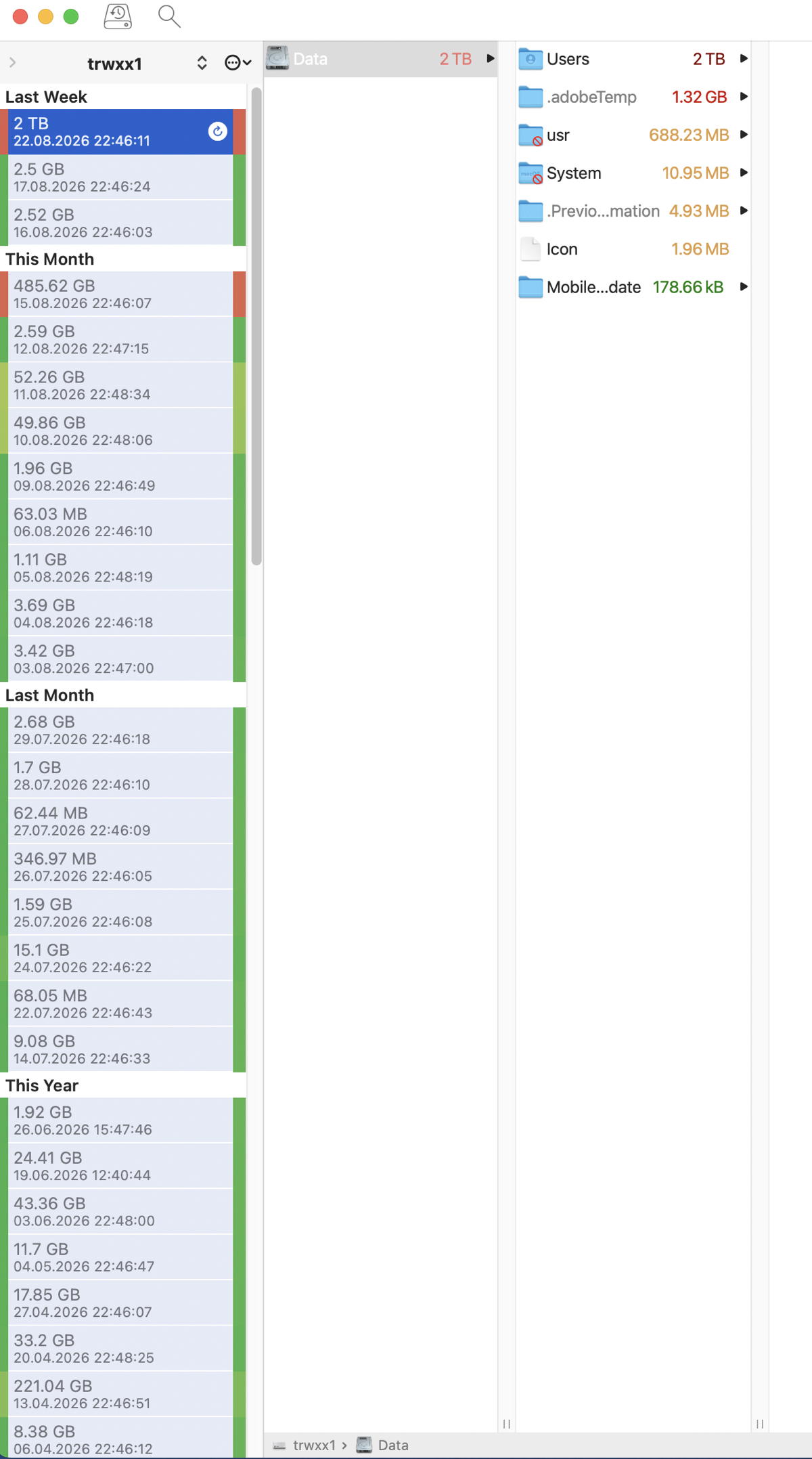
I run Time Machine once per day in the evening. This particular drive has been in use since February 2025. It is a 4 TB SSD and had used about 3.5 TB of space. I started this drive fresh when I got my new Mac Studio.
This morning I got an error message that Time Machine could not complete its task last night and did not have enough space. I checked the TM drive and every single backup prior to 22 Aug was erased.
Using Disk Utility, I checked the drive to look for snapshots. After 4 hours it’s still “Loading…”. But I doubt it can restore 18 months of backups and snapshots after erasing them.
My weekly SuperDuper backup worked. And my CCC backup from a few days ago worked. So no current data was lost. But the ability to browse and find an earlier version of a file – if needed – is gone.
BackupLoupe shows that the backup on 22 August was the big one that filled the drive. No backup was done on 23 August (last night) owing to lack of space. The 22 Aug backup was large because it backed up my entire /Users area which contains my photo library.
Wow. Just WOW. Time Machine should never erase an entire drive without warning and prompting whether to continue. For now, I have unmounted the drive in case there is some method to restore.
Screen shots of (1) Time Machine and (2) BackupLoupe
This happens to me every once in awhile. Time Machine is supposed to see that only a small amount of data has changed, but for some reason it can’t so it tries to backup the entire source all over again.
If I remember correctly, it is supposed to auto-delete old snapshots in order to make room for new ones.
The fact that it forgot something and created a full backup of 2TB, wiping out most of what used to be there is almost certainly a bug, but the fact that it did it without confirmation is not.
I would say, however, that if a full backup is 2TB worth of data, you may want to use something larger than a 4TB device for holding those backups, precisely for this reason - there isn’t enough room for two full backups. I realize that 8TB SSDs are very expensive, but you can easily build a USB HDD of this size for a reasonable price. It will be slower than an SSD, but that shouldn’t be a problem for Time Machine.
I know that some here hate mechanical storage and will object to this recommendation, but it is your best bang-for-buck with respect to large amounts of storage.
It’s working as designed (well, not the unnecessary full backup). From the support page:
Apple Time Machine automatically makes hourly backups for the past 24 hours, daily backups for the past month, and weekly backups for all previous months. The oldest backups are deleted when your backup disk is full.
I would also argue that if you are expecting Time Machine to hold backups for more than a few months, then you might want to rethink your strategy. Backups are most effective and efficient for short term recovery, archiving is more targeted for long term retention needs. Different tools and strategies for different use cases.
All of the previous comments may be reasonable and correct, and Time Machine may indeed be working as Apple intended, but I think Apple can do more to explain to end users where Time Machine is likely to encounter “normal” situations that a user might view as a catastrophic failure mode.
Time machine seems intended as a “set it and forget it” consumer tool. If Apple can repeatedly nag users about updates and other unwanted behaviors, surely it isn’t unreasonable to raise alerts when major changes to the state of backups are likely.
Even with Sequoia or newer OSs, APFS, and ample disk space, I still don’t fully trust nor recommend reliance on Time Machine backups more than a few months old. Periodically save snapshots with Carbon Copy Cloner or SuperDuper! to preserve older data. My personal method is to save full backups with CCC/SD once every 4-6 months. At the same time, I start a new Time Machine backup while preserving the last one for a little while.
(Coincidentally, I had a networked Time Machine backup fail catastrophically around a month ago that left the previous six months non-retrievable. The last backup operation should have been on the order of a few tens of gigabytes. The disk and filesystem verified successfully, and there were six terabytes of storage free on the backup device.)
Backup strategy aside, it would be interesting to determine why Time Machine decided it needed to take a full backup that appears to be the reason why older backups were expired. I wonder what the unified log entries would have revealed? (Howard Oakley has a number of articles about how to extract relevant Time Machine log entries). I do suspect that those entries may have aged out of the log, though, so we may never know…
My understanding is that TM is intended to recover files from a few months ago rather than years ago, such as a blunder of deleting an important file (guilty…). So it is risky to “depend” on it for recovering files from years ago. For long term storage of important files it is best to have another storage strategy (I sometimes use Bluray disks).
Another use of TM is to migrate settings and data to a new Mac. But this assumes that a recent backup is used.
This has happened before but the first since APFS replaced HFS+.
I agree with both parts of your statement but the second part would not be necessary if the first part had not happened.
Sorry – I have to disagree. It failed when it decided to back up the entirety of /Users.
I have to disagree. What else is a “versioning” system for if not archival? As mentioned, I also use SuperDuper and CCC so I have a 3-pronged strategy.
Ironically I was trying to figure out a way to copy my TM on the SSD to an unused 4TB hard drive. Then I would have an offline copy to put on a shelf and could erase the SSD and start anew. I don’t think there is a way to copy TM from one device to another.
Completely agree – but I am not sure how to determine the root cause. I used FindAnyFile.app and had it look for files with Modified Dates between 2026-08-20 and 2026-08-22 and it found over 11K files – including files I have not used in months or even years.
macOS 15.7.9 was installed 2026/08/18 – four days before the problem occurred.
====================================
As I said, I have not lost anything except my confidence in Time Machine. Maybe I was “holding it wrong.”
I have moved on. I erased the SSD and let Time Machine re-initialize it and did my first backup today. No need to do a RCA (root cause analysis) at this point.
Uh, hey now. You cut out the part where I said the same thing.
It’s working as designed in terms of deleting the older backups.
What else is a “versioning” system for if not archival?
Apple tells you in multiple ways and multiple times that that’s not how Time Machine worked. You can’t impose your own vision of what it should be (but isn’t) and then be disappointed.
Long ago when computers were mainframes made by IBM and the seven dwarfs, to “do an RCA” was to suddenly announce the folding of a computer business due to the lost of $490 million in 1971 when that was real money. September 17: RCA Withdraws from the Computer Market | This Day in History | Computer History Museum That was before my brief time working in the mainframe business, but the echoes of that collapse were still ringing among the victims. What started as the Radio Corporation of America in 1919 had been a major player in the electronics industry for decades, and it struggled on until 1987 when it became just a brand name.
A question about writing Mac info to BluRay discs, what program is used to do that, if any? I remember that Retrospect used to be able to write to DVDs, if I am not mistaken.
In reading my original post and the responses I got it appears that I emphasized the wrong point.
Most folks responded to my comment that Time Machine deleted backups until there was enough space for the new backup.
The point I should have emphasized (and one or two folks understood) was that TM made a serious mistake in estimating how much space would be needed for the next backup. It probably needed about 20+ GB to handle the new photo files – not the 2 TB it estimated.
But there is more to think about.
The internal SSD is using 2.6 TB out of 4 TB total. Time Machine deleted all backups except the most current. When completed there was less than 100 GB available on the TM ssd.
So how does a single TM backup size exceed the total usage of the internal SSD?
That is the question to which I would like an answer but doubt that I will find one.
Did it delete all of the other snapshots? The difference might be those snapshots that it didn’t purge.
If you have some actively-changing large files (e.g., VM disk images, which can be tens or hundreds of GB each, depending on what you’re doing with the VM), small changes to the file can result in a large backup.
But that still wouldn’t explain why it thought your entire home directory was out of date.
You may be on to something: estimation of space needed. The purging is due to what it estimated, not the final result after comparison of file snapshots. So if the estimate is wildly off, it could cause the problem.
Normally Time Machine uses FSEvents, which since Lion tracks changes at a file level. FSEvents should be accurate; FSEvents says what changed, Time Machine queries the file system for the size of those files.
Some possibilities:
FSEvents database corruption or loss, such as due to a crash. This would force Time Machine to do a deep traversal, which would be less accurate in estimation. If it sees a folder change, it would estimate that the entire folder needs to be backed up.
Third-party application alters extended attributes on large number of files, which FSEvents registers as a modification. The estimation will count the entire size of the files, not just the meta data.
Broken previous snapshot: Time Machine compares live state to a temporary snapshot; if the previous backup failed, that snapshot may become unusable. This could cause it to get into a “first time” backup mode.
It deleted all snapshots except the most current. There was only one backup/snapshot when I checked the drive. (See image in post #1.) Disk Utility did not show any residual snapshots for the TM drive. The last TM backup had occurred more than 24 hours earlier so they may have been purged.
I use the Exclusions feature extensively to prevent large files/folders from being backed up on a daily basis. There are no VMs but the Lightroom catalogs/previews are huge and I exclude these. I allow these to be backed up by SuperDuper and CCC.