Actually FSEvents maintains a database of what directories contain changed data. It is up to the apps using it to inspect the contents to determine which files have changed.
I assume this is done for performance reasons, since a database of every changed file can quickly become unmanageable.
That’s kind of what I was getting at when I asked if you had versioning enabled for your CCC backups. Having multiple backups not only gives you hardware redundancy, it gives you software redundancy too (protection from software-driven mistakes, which is what it sounds like happened here). If you also have versioning enabled on your CCC backups, then you have both hardware and software redundancy for that aspect of your backups.
I turned versioning (“Safety Net”) off because it was using too much space and TM provided some versioning. I’ve turned it back on to see how space is managed. Maybe it’s better now.
Agreed. The 4TB SSDs I bought for ~$270 last year are over $1000 now. I have no problem using mechanical storage – so I have been looking at 8TB drives. Any recommendations?
Not quite as much, but the 4 TB OWC Express 1M2 I bought in November 2024 for $549 increased 91% to $1,050.
I see wide variation in performance among my HDD backup drives. A 4TB Toshiba X300 HDD is really fast; it takes about 20 minutes to complete a SuperDuper! smart update of my iMac. But a smart update of my MacBook Pro to a 2 TB Western Digital Elements portable drive (model WDBU6Y0020BBK-WESN), of far less data, is excruciatingly slow. It can take all day to complete the backup.
It’s really easy to install a drive in an enclosure, and by doing so you can get higher quality drives than what is sold in manufactured-external drives.
When selecting the (internal) drive:
Download the product’s data-sheet/specifications page to know what you’re getting.
Look for something rated for 24x7 operation. Consumer drives often are not. Server/enterprise drives usually are.
Look for 7200 RPM. Slower drives will impact performance. Faster (e.g., 10,000 RPM) might be a bit faster, but they cost more and generate a lot more heat.
Be sure you get the correct interface. Your enclosure will probably be SATA. But some drives, especially high-end ones, have a SAS interface, which is not compatible.
Don’t worry about things like helium-filled drives. There’s nothing wrong with it, but I wouldn’t pay extra for it either.
When selecting the (external) enclosure:
Make sure it is at least 5 Gbit/s USB (aka “USB 3.0”)
Slower will cripple performance.
Faster probably won’t matter, because the drive won’t be moving data faster than that anyway.
I don’t know if you can get an enclosure with Thunderbolt, but it shouldn’t matter. HDD’s just aren’t that fast.
Make sure it supports your drive’s capacity. Of particular importance: If it says the maximum is 2 TB, then they really mean it.
There are multiple revisions of the SCSI command-set (used by both the USB mass-storage API and UASP), and some enclosures don’t support versions with block numbers larger than 32-bit, limiting the enclosure to 2 TB.
If the enclosure says it supports 3TB or larger, then it will probably support any size drive, but I’d make sure it explicitly documents support for your drive’s size.
You want UASP support. Most USB 3 enclosures support this. It will give better performance than the older USB Mass Storage spec. (macOS has support for UASP).
Get an enclosure with a fan. Large capacity 7200 RPM drives can get hot. They may thermal-throttle or worse if they overheat.
This is critical if the drive is going to be powered 24x7 (e.g. for Time Machine), but I recommend it even for drives that are only powered when in use (e.g., occasional backups).
With all that in mind, here’s what I recommend today:
Not OK: Barracuda (5400 RPM, not 24x7 rated, some are SMR), IronWolf (non-Pro) (5400 RPM)
Enclosures:
I don’t really have a recommendation, beyond 5 Gbps USB, a cooling fan and support for the capacity drive you’re using.
The last one I bought was this model: FIDECO P3U-U3. I’ve been happy with it. Quiet and has a fan. The in-use light is very small and may be hard to see, depending on where you put the drive.
In the past, I’ve used Vantec enclosures, but they aren’t always the most reliable. I have, however, been using this model: NST-385S3. It doesn’t seem to have as much throughput as the FIDECO enclosure, and its fan can sometimes be noisy, so it’s not my first choice these days.
I now use an 8Tb Synology NAS drive that replaced my (brilliant but outdated) Time Capsule. It is connected to my local network with ethernet. As with Time capsules, additional drives can be connected with USB cables.
All my Macs can access it. It is partitioned for TM backups and general data storage.
It also has remote access ability that is useful for work colleagues and times when I travel.
This made me smile. Just think of how many couples therapists would be out of a job if this were true. Not to mention about 100 days after any election. Bars would go out of business left and right!
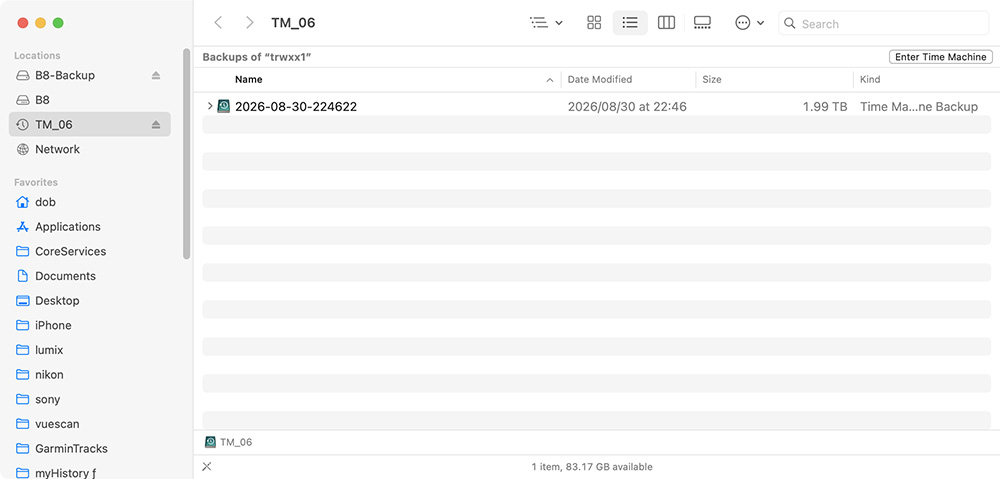
I erased and set up the drive as a new TM drive last week (08/25/2026). It made an initial backup of about 1.96 TB on the 4 TB external drive. No problems. On the following days backups of a few GB were made.
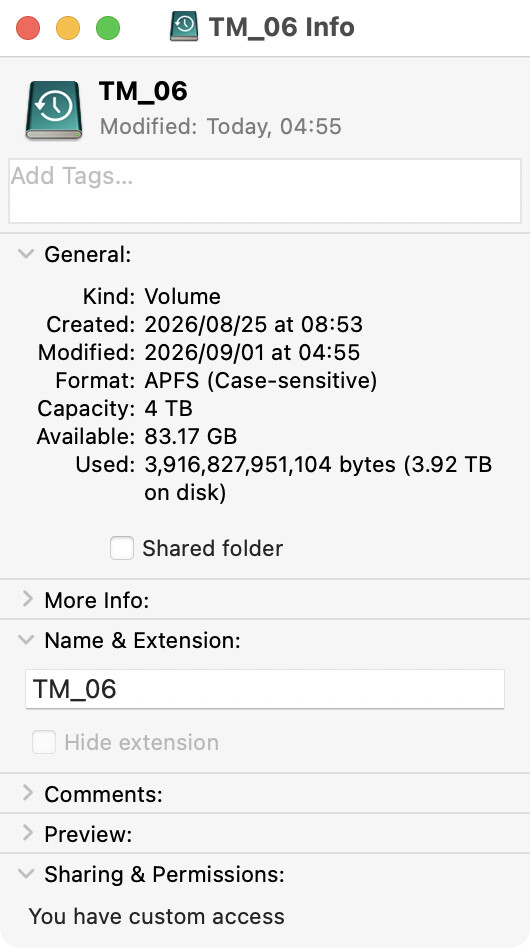
Last night it failed and indicated there was not enough space on the drive. All the previous backups were again deleted and only one remained. The drive shows 3.92 TB in use and 83 GB available.
As before, nothing special occurred on my internal drive to require all files to be backup’ed. I had worked on several GB’s of photos taken over the weekend.
Something is clearly wrong with TM on this computer – but I don’t know what it is.
I don’t have personal experience troubleshooting difficult hardware/software issues with AI yet, but across multiple forums and social media I’ve seen quite a few people post about how they’ve been amazed at what Claude, ChatGPT, etc… have been able to solve for them on their own machines. Might be worth a try. Just describe the issue and provide a few initial details and it’ll tell you what to try first or if it wants to see some info from a log file (and where to find it).
Do you have BackupLoupe? It might be able to tell you something, but may be limited if there isn’t a previous snapshot to compare.
If it were me, I’d run one of Howard Oakley’s log extraction tools, to see what Time Machine was thinking about required space.
There’s The Time Machine Mechanic (T2M2), but it may not give enough detail. Personally, I’d use Mints for this purpose. Extract the Time Machine records for the time period, then you can filter it for the four types of Time Machine logs: Time Machine, DAS, CTS, and Other. Start with just Time Machine, and if that doesn’t reveal what you need, reveal other types.
Note: I’ve never been happy about the Unified Logging System introduced in macOS 10.12 Sierra. Before it was easy for users to diagnose system issues from the logs in Console. Now what you need is a few droplets hidden in a high pressure firehose of useless information. Hence Howard’s 9 different log browsing utilities to attempt to make sense of the log flood – none of which are as easy as it was pre-Sierra.
Apple: We like the idea of the Windows Event Viewer. But how can we make it worse?
Perhaps it’s just me, but I don’t regard “a backup” – at least something that captures the current state of my drives – as something going back 18 months or more.
A “backup” is more “immediate” – stretching from “just a moment ago” to perhaps one, two, probably not more than three months.
I use cloned backups exclusively, and what I expect from “a backup” is that it represents the state of my drives from the last time I ran the backup (CarbonCopyCloner).
For things that are going to be kept longer, to me, that’s “archiving”. Some of that will be stored on external drives not normally mounted or even connected to the Mac (example: my music archives). Other files are on my working drive partitions that are again, backed up (cloned) by CCC.
I’ve got files originally created 40 years ago using AppleWorks on an Apple //c that are instantly accessible on my m4 Mini right now. It’s just a matter of finding the right backup app and using it.
I’ve NEVER used nor trusted time machine. Just like the OP discovered, it can “do things behind your back” that CCC would never do…
I accept that the firehose may make mass troubleshooting practical across many systems for OS developers in the context of specialist-level internal analytic tools, but they are terrible even for pro-level customers trying to diagnose issues, never mind the general population of end users.
When I ran large research systems with many CPUs in a single system, the traditional, old-fashioned system logs were sufficient to allow me to diagnostic nearly any problem the systems encountered. Now, I’ve all but given up trying to use system logs to diagnose my #!*%$#! laptop. Despite an extremely technical background, I now suffer from learned helplessness with many modern computing tools.
I do and posted a screen shot in my initial post. I also have a screen shot from yesterday’s failure.
Thanks for the pointer to Mints. A lot of information here.
26-08-30 22:46:24.081 TimeMach    Successfully completed backing up 8.59 GB to '/Volumes/.timemachine/27A168B4-95EA-434E-BF05-D528C2D0E8C0/2026-08-30-224622.backup/2026-08-30-224622.backup'
26-08-30 23:00:00.505 TimeMach    Starting session for '/Volumes/TM_06' with options: 1
26-08-30 23:00:00.805 TimeMach    Session prepared 6 backups (6 cached dates) for /Volumes/TM_06 (TMStructureType(_rawValue: APFSMachineStore))
26-08-30 23:00:00.806 TimeMach    Prepared 6 backups!
That looked okay. Here’s the next day.
26-08-31 22:45:15.996 TimeMach    Backup requested to next destination in rotation. specifiedOptions: TMBackupOptions(rawValue: 257)
26-08-31 22:45:18.736 TimeMach    Backing up 2 volumes to TM_06 (/dev/disk8s2,TMBackupOptions(rawValue: 257)): /Volumes/TM_06
Two volumes?
26-08-31 22:46:02.811 TimeMach    Couldn't find event marker for volume 638E3EE6-1769-4C9B-96F0-91EB3C8F9B5F. Volume store not present in /Volumes/TM_06/2026-08-30-224622.previous
26-08-31 22:46:02.811 TimeMach    First backup of source: "B8-Backup - Data" (device: /dev/disk9s5 mount: '/Volumes/B8-Backup - Data' fsUUID: 638E3EE6-1769-4C9B-96F0-91EB3C8F9B5F eventDBUUID: 692E10F2-B116-40FE-BBFA-7B22372E3A9A) firstBackupOfVolume
It’s trying to backup an external drive (my SuperDuper SSD drive). Why today and not yesterday or the day before…or the previous 18 months?
26-08-31 22:46:02.812 TimeMach    Using FSEvents for source: "Data" (device: /dev/disk3s5 mount: '/System/Volumes/Data' fsUUID: 4A3DE85C-FDD9-4603-8900-E197E2EC560D eventDBUUID: 393E28C5-7492-48B6-95EB-CA653AFCA6FE) fsEvents(startEventID: 18158641842156348425, startDate: 2026-08-31 05:45:21 +0000, previousCloneCacheURL: Optional(file:///Volumes/TM_06/2026-08-30-224622.previous/.4A3DE85C-FDD9-4603-8900-E197E2EC560D.clonedb))
26-08-31 22:46:02.814 TimeMach    Doing secondary scan of nodes needing deep traversal (B8-Backup - Data)
26-08-31 22:46:02.815 TimeMach    Finished secondary scan of B8-Backup - Data
26-08-31 22:46:02.815 TimeMach    EventDatabase: (empty) strategy: First backup
26-08-31 22:46:02.816 TimeMach    "B8-Backup - Data" will need a full copy
26-08-31 22:46:02.817 TimeMach    Finishing "B8-Backup - Data":  0 (-) of 50% - 1 viewpoints Average Speed: 0.00 events/s
It ran out of space because it tried to backup both the internal SSD and an external SSD. But the external has been “Excluded” in TimeMachine exclusions options since…well, 18 months ago when I first set up the drives. But, wait, it is no longer in the Exclusions. How did that happen?
So answering one question prompts another. Why was the drive no longer in Exclusions?