What do you mean “refuses to mount”? Are you seeing an error? Or are you seeing no response? If there’s no response, let it sit for a while - the system may be running an automatic file-system check (this can happen if the system thinks there may be a problem before mounting) and that could take a few hours, especially if it has a lot of snapshots.
If you’re getting errors or if it isn’t mounting after a very long time, try Disk First Aid in Disk Utility.
If that fails, then my suggestion is to wipe the driver and re-clone that Mac. You’ll lose the backup history, but maybe you’ll get it back. At least you will if the problem was due to data corruption. If the problem is due to drive failure, then that won’t work (or won’t work reliably), in which case, you should just replace the drive.
I think neither of your suggestions are the culprit. However I am now even more confused about what is going on.
I don’t think there was a problem with the drive as CCC indicated it was cloning away , but would take a long time. I was surprised at this as the source drive in the iMac had only around 200GB of data on it. As I said it was left to run overnight and next morning the drive had vanished from the desktop. I don’t think the DFU thing was involved as the drive was connected via a hub that also had the TM drive attached.
I’ve now connected the drive to 4 different macs (3 different OS versions) and it doesn’t mount on any of them but it is accessible on my iPad.
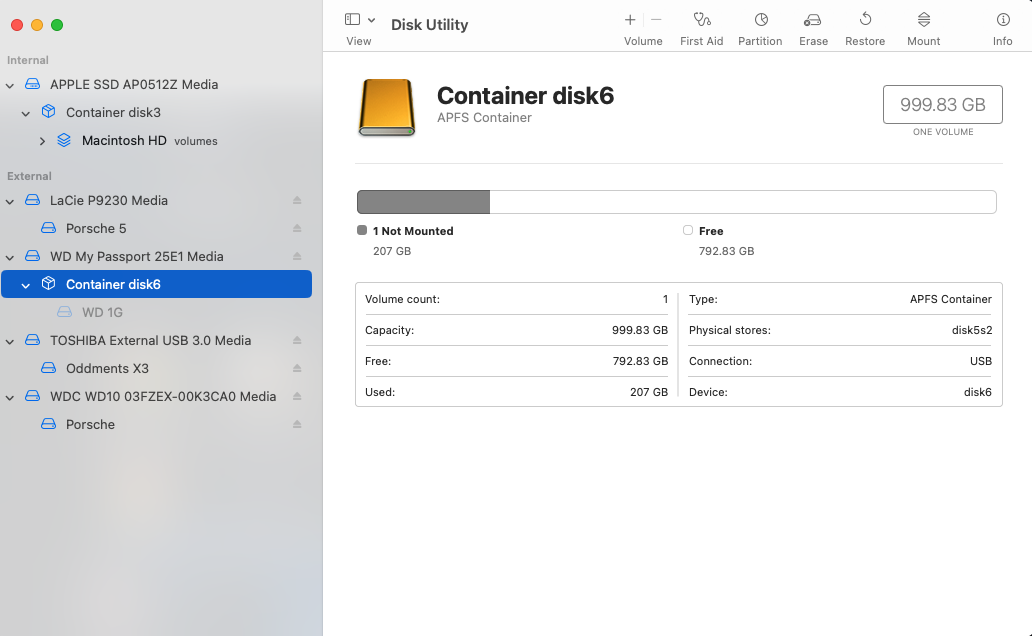
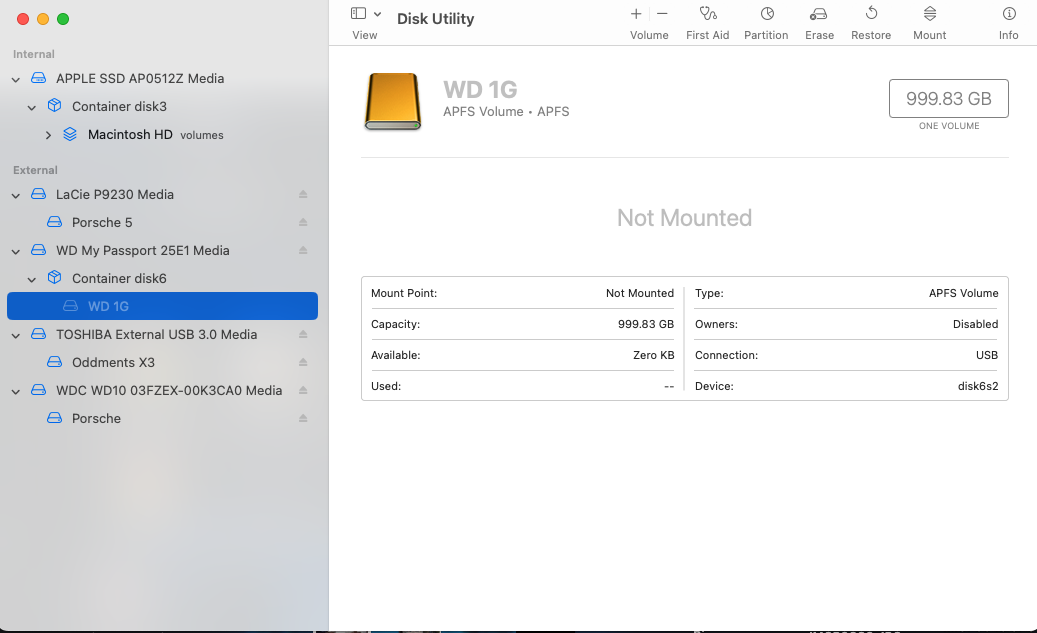
Now, in Disk Utility I get different results on the machines but this one shows the bit that confuses me the most.
As you can see, one screen says there is almost 800GB free space, and the other says there is none.
I’m going to suggest that the drive is replaced as David indicated and I’ll start CCC afresh. but I’m seriously concerned about the two different reports.
If you have any further thoughts please let me know. thanks.
It’s important to note how APFS works. APFS volumes always belong to an APFS container. All volumes that share a single container share the same pool of free space.
In your case, the device has one container and the container has only one volume. The fact that you see a lot of free space at the container level but not at the volume level strongly implies some kind of data corruption.
The fact that it was working during a backup, but vanished overnight while the backup was running tells me that there was some kind of failure during that backup. Whether this is a hardware failure or a temporary glitch corrupting the data is unknown at this time. Disk First Aid or erasing the device should fix it if it was just corruption, but the problem will only recur if there is also a hardware problem.
Small point of clarification…that Oakley article says
“ Although the Mac can still boot from an external disk connected to the DFU port, that can’t be used when installing or updating macOS on the external disk….”
A bootable macOS disk in Big Sur and later has an APFS volume group for what you think is “Macintosh HD” that consists of two volumes:
The immutable macOS operating system volume (which is booted from a read-only snapshot), and
The writable Data volume which is firm-linked to the OS volume
From the screen shots the OP posted from Disk Utility. The internal disk has the correct layout. The external disk doesn’t. It appears to only have a single volume in its APFS container. That won’t be bootable.
Looks to me like something didn’t clone properly. I’d double check your cloning settings.
A side question: are you trying to use the Legacy cloning feature of CCC? I’d recommend (as does Mike Bombich) that you don’t use it for Apple Silicon Macs. If you really need a bootable backup, use a more modern method which involves performing a macOS installation on the bootable backup disk, then a Data-only duplicate from your hard drive to the backup drive.
And use an SSD for that bootable backup not an HDD. Trying to run post-Big Sur macOS on an HDD is an exercise in stress management because of the performance issues of APFS an HDD.
I second technogeezer’s reommendation to NOT use a platter-based HDD for an external boot volume with APFS/Apple Silicon.
If it works at all, it will be dreadfully slow.
Again, if it works… at all.
If you’d like an externally-bootable drive, get an SSD.
Even a 2.5" SATA SSD in a USB3.1 gen2 enclosure will do.
A USB3.1 gen2 drive would be better. I like the Crucial X9 drives, but they’re leaving the consumer market.
Boot your Mac to Apple Silicon recovery, erase the SSD to APFS, and install a fresh copy of the OS onto it.
When it’s setup time (will happen after the install), migrate your data from a fresh backup on a different external drive.
The end result will not be “a true clone”, but will be pretty-durn-close to it in functionality.
Also consider that if your internal SSD fails, the bootable backup will be worthless. An Apple Silicon Mac needs a functional internal disk to boot anything, unlike Intel Macs.
If the hidden ISC container gets corrupted, you can use Configurator from another Mac to restore it.
If the SSD hardware fails, such that you can’t restore the ISC container, then the SSD will need to be replaced before you can restore the ISC container and then boot from a backup. With a Mac Studio or Pro, that SSD can (at least in theory) be replaced. But with other Macs, that will require a new motherboard (if Apple or an Apple-authorized repair shop does it) or a repair shop with microsoldering skills (if someone else does it).
Thanks @Shamino I should have been more specific about hardware failure vs corruption.
Apple Configurator isn’t needed if your other Mac (Intel or Apple Silicon) is running Sonoma or later. The functionality needed to perform a DFU revive or restore is built into those versions.
I don’t know if this is helpful or not, but (perhaps for future reference?) you should be able to definitively confirm whether or not a backup has finished by looking at CCC’s Task History log.