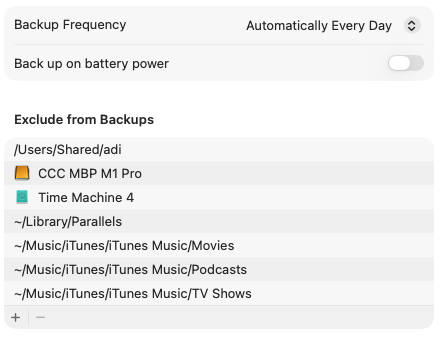
I used to have Time Machine set to update every hour. But over the past couple of years it seemed to be running all the time if I did that. So I changed it to run once a day. I think it takes about 3 hours to finish an update. I just triggered another backup so I’ll see how long that takes.
I have an M1 MBP from 2021 with 2 TB of SSD storage and I do my Time Machine backups to a 5 TB WD hard drive. According to the Finder there is currently 518 GB of available storage on my internal SSD.
I also have another drive connected for daily CCC backups, and Backblaze runs backing things up continuously. And I also have 2 TB of iCloud storage which is half used.
I thought that Time Machine only updates changed files when it can so it surprised me that it takes so long. How do other people have their settings set at?
I wonder if this may have something to do with how you’ve organized the files in question.
As I understand it, Time Machine is based on the file system events system framework. In order to avoid overwhelming the system, it doesn’t track every file that changes, but records the directories containing changed files.
Time Machine will check the FS events to see what directories changed since the last backup. It will then inspect every file in each of those directories (comparing timestamps, file sizes, metadata and maybe even file content) in order to determine which need to be copied to the backup media.
So if you have directories with a lot of files and one of those files change, Time Machine will inspect everything in that directory in order to figure out that only one file needs to be copied.
I’m not sure why it’s taking hours for you, but perhaps you’ve got something particular in your file system that’s triggering the behavior.
FWIW, my system’s internal SSD has about 1.1 TB of content on a 2TB device. My Time Machine volume is a USB-connected 4 TB HDD withou about 1.25 TB free. Backups run hourly and usually take 5-15 minutes to complete. They occasionally take longer (e.g. after some major software package was installed/updated), but once the long-running backup completes, it calms down again.
Could there be large files? VM images? Videos? Big Photoshop projects?
If one byte of a large file changes, the whole file will be copied on the next backup. If it’s a very big file that changes a lot (like a disk image that isn’t a sparse bundle), then that will result in a lot of data transfer for a relatively small change.
For that reason, I have always excluded the directories containing my Virtualbox virtual disks (which can be 10s of GB each) from Time Machine. They only get backed up when I use CCC to make a full system clone (every 2-3 weeks, typically).
No excessively large files like that. My entire enormous Photos library is backed up, but that’s just added to incrementally each day. I think my system is pretty standard. I didn’t do any special fiddling or rearranging. And I don’t edit huge videos or anything like that.
I do have my Desktop inside iCloud so it’s also backed up there. I think that’s standard too.
I thought for a while maybe it had just slowed down because I rarely restart my MBP. But I just upgraded to MacOS 26.01 a few days ago yet it’s still like that.
Can you tell what the size of the snapshots are, on average?
Can you tell if it is doing a “deep traversal” on each backup?
How long does a backup take if you turn off low-priority I/O throttling? (sudo sysctl debug.lowpri_throttle_enabled=0)
Do you shut down your computer everyday?
Do you disconnect your backup drive every day?
Your 3 hours per backup is odd. My 2017 iMac with 1.87 TB on a 2.5 TB external SSD only takes around 5-10 minutes for a Time Machine backup. But I’m backing up to SSDs, usually. I have noticed that when I run an occasional backup of my MacBook Pro to a 2TB WD Elements drive, it is dog slow, unless I turn off I/O throttling.
There should be a tmutil or command to display the size of a snapshot, because BackupLoupe shows all the snapshot sizes without needing to index the snapshot.
I used to determine if it was doing a deep traversal by looking at the system log. Now may need to use one of Howard Oakley’s utilities. A deep traversal means that it is re-scanning the entire source drive.
Reason I ask about shut down and/or disconnect, is in some cases this can trigger a deep traversal.
I’m also wondering if it is possible that one of your other backups (CCC, Backblaze, iCloud) is doing something that causes Time Machine to need to examine a lot more files than it should.
I’d also suggest running Disk First Aid on your backup drive. One symptom of a failing drive is really long backups, due to the drive needing to read sectors over and over and over and over…
What, specifically are you asking here? There are two values that might logically be considered a snapshot’s “size”:
The sum of the size of all files present in the snapshot (or the total count of all disk blocks used by all files in the snapshot - to avoid double-counting hard links, copy-on-write files and sparse files)
The amount of space that would be freed by deleting the snapshot. This is the storage used by disk blocks not used by any files in the live file system or by other snapshots.
If you want to know the amount of data written by one Time Machine backup, not counting unchanged files, that’s different from either of the above. That would require comparing a snapshot to its immediately-prior snapshot, tallying up the differences (new files, deleted files, modified files).
One way to do this is with the diff command. Mount the two snapshots and then run diff with the following options:
-r: Recursively compare two subdirectories (the two mounted snapshots)
-q: Print the names of the files that differ, without showing the actual differences.
You’ll get output lines of the form:
Files A/foo.txt and B/foo.txt differ
Only in A: bar.txt
Only in B: baz.txt
After running this, you (or a script) can, if you wish, get information about the files in question (e.g. timestamps, sizes, etc.) to see what changed and the size of the change.
The approximate size of how much data Time Machine had to write for the backup. That is, if my source volume is 2.5 GB, and every single file is in Time Machine, then every APFS snapshot is also 2.5 GB. But Time Machine only backed up 500 KB, 1.2 MB, 23 MB, 750KB…
There must be a way to figure this out without a diff, or the tmutil command that compares snapshots. Because, BackupLoupe is showing the size of every snapshot without mounting any of them.
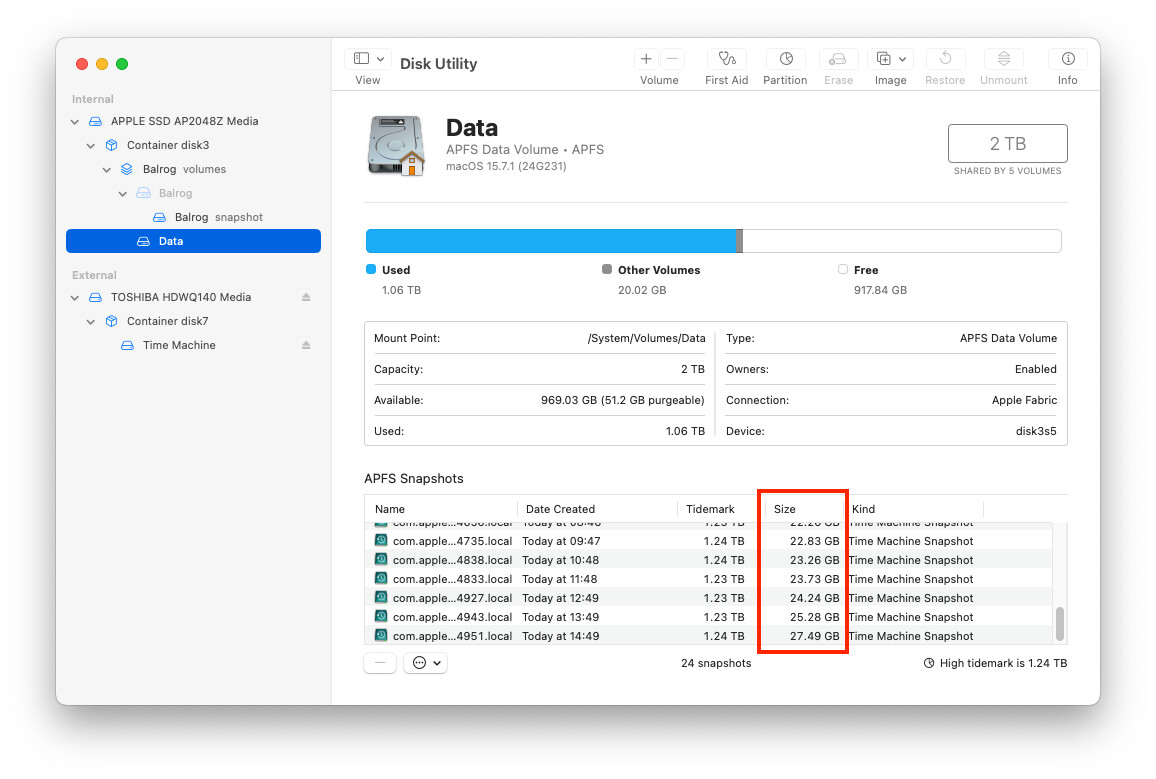
In Disk Utility, if you select a volume with snapshots, it will present a list of the snapshots below the volume info. Here’s my system volume (with the 24 hours of local TM backups):
The size presented there is, as I understand it, the amount of space that would be freed by deleting the snapshot. For the most recent snapshot, it should be the amount of data backed up. But for older snapshots, it is going to be less than that, because some of the data backed up at that time still exists and is therefore shared by newer snapshots.
You can get the same list from a Time Machine volume itself, but it may take a long time, depending on how many snapshots there are and how fast the device is (my TM volume has 223 snapshots on a USB-connected HDD, so it takes a long time to populate this list).
But BackupLoupe knows it without mounting or analyzing the snapshot. I can open BackupLoupe, after not using it at all for months, and it instantly knows the size of every snapshot. How is it figuring it out?
The only other thing I can think of is that it’s pulling information from the system log. For example, the following command will present the most recent 6 hours of Time Machine log entries (at severity “informational” or above):
sudo log show --predicate 'subsystem == "com.apple.TimeMachine"' --last 6h --info`
This command is drinking from the fire hose, but if I then filter the output to only show messages beginning with “Successfully”, I’ll see the messages logged at the end of each backup, which includes the amount of data and the snapshot’s UUID. The output needs a wide terminal window to read clearly, but stripping off the header (timestamp, metadata, etc) for readability, we find the information you’re describing:
$ log show --predicate 'subsystem == "com.apple.TimeMachine"' --last 6h --info | grep Successfully

Successfully completed backing up 271.5 MB to '/Volumes/.timemachine/3B5AA177-B31B-4AF6-AE89-96F69A2BE834/2025-10-07-104944.backup/2025-10-07-104944.backup'
Successfully completed backing up 329.3 MB to '/Volumes/.timemachine/3B5AA177-B31B-4AF6-AE89-96F69A2BE834/2025-10-07-114959.backup/2025-10-07-114959.backup'
Successfully completed backing up 319.3 MB to '/Volumes/.timemachine/3B5AA177-B31B-4AF6-AE89-96F69A2BE834/2025-10-07-125132.backup/2025-10-07-125132.backup'
Successfully completed backing up 292.8 MB to '/Volumes/.timemachine/3B5AA177-B31B-4AF6-AE89-96F69A2BE834/2025-10-07-135106.backup/2025-10-07-135106.backup'
Successfully completed backing up 535.7 MB to '/Volumes/.timemachine/3B5AA177-B31B-4AF6-AE89-96F69A2BE834/2025-10-07-145207.backup/2025-10-07-145207.backup'
Successfully completed backing up 666 MB to '/Volumes/.timemachine/3B5AA177-B31B-4AF6-AE89-96F69A2BE834/2025-10-07-155204.backup/2025-10-07-155204.backup'
But I don’t think BackupLoupe is doing that either, since the system log only seems to have the most recent 15 hours worth of backups, not all of them.
Looking at its FAQ, it scans your backups and caches the results for instant access later on.
If it has a background process that scans backups as they are made, that would explain the behavior you’re seeing.
For several years I have been using TimeMachineEditor to manage when Time Machine runs. I installed this after experiencing similar issues to the OP (that was when I was using hard disks for TM - I now use SSDs)
It still chugged away for ages with the old hard disk - but I set it for only twice a day instead of hourly. No issues with the replacement SSD but it probably would have been ok with a fresh hard disk as well. I suspect fairly minor hard disk errors that Disk Utility couldn’t find/fix but gave TM a challenge.