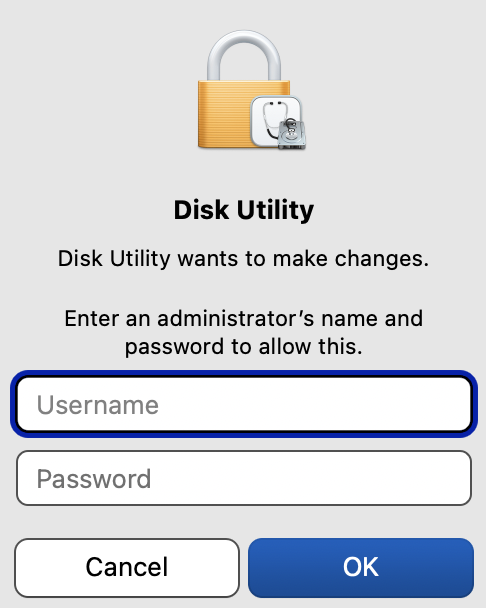
It started a few days ago, so I don’t remember if there was any preceding anomaly. This is not in an Admin account. If I click Cancel, Disk Utility seems to work just fine. If I enter an administrator’s name and password, Disk utility seems to work just fine. Either way, I get the dialog box the next time I launch Disk Utility, if one of my SSDs is mounted. I do not get the message if my spinning disk is mounted. If I am running Disk Utility and connect an SSD, I get the message.
I have restarted the computer (MBA M3 running macOS Sequoia 15.7.5) at least three times, including once from a full shutdown.
I have two more SSDs and one more spinning disk but have not connected them.
Help, please.
Edited to add that the SSD does not need to be mounted, but merely connected. If I click the eject arrow next to the device, quit Disk Utility, and restart Disk Utility, I get the message.
I started seeing this after updating to 15.7.3, and it continues in 15.7.4 and 15.7.5 (on an Intel iMac). I sent Apple feedback about it and they said they couldn’t reproduce it. I’ve responded a couple of times with logs after starting Disk Utility (where it says it wants to make changes), but no response since the “can’t reproduce”, so I suspect for Apple it’s closed. Unfortunately I haven’t found any workarounds, other than to just hit esc to cancel the dialog. I also haven’t found anything that doesn’t work if I don’t authenticate. I see it every time but since my internal drive is an SSD, I always have an SSD mounted.
Sorry this doesn’t really help, I’d like to find an actual solution too, although hitting esc once Disk Utility has started isn’t that difficult, if annoying that I should have to.
Interesting. I don’t see this on my Mac (M4 mini, running macOS 15). I have the internal SSD and a USB HDD (Time Machine).
I also don’t see it with my other two USB HDDs when they’re connected (both are CCC clones of my Data volume).
I wonder if there may be a permissions issue with the root directory of those drives. If you formatted them as an administrator, but are currently logged-on as a non-privileged user, that might be the reason.
That’s not the reason – but it did give me an idea that I was able to test.
One drive is Time Machine; the other is a SuperDuper! clone and the SD drive has a bootable system on it. If the SD drive is mounted OR unmounted/connected I get the password request. If it is disconnected but the TM drive is either mounted OR unmounted/connected I do not get the request.
So maybe the presence of a bootable system on the drive is triggering the request.
Since my original post, I used one of my other SSDs. Disk Utility did not ask for authentication, so it is not as simple as I had thought. FWIW, all the authentication requests have been with Samsung T7 SSDs. A Samsung T5 SSD did not cause an authentication request, and neither did my “SSK PCIe581 Media” that was recommended by @Simon on this board some months ago.
I misspoke. Of course, my MBA M3 has an internal SSD. I should have made it clear that there I get no authentication challenge when launching Disk Utility with no external drive connected.
I did not format the external SSDs as an administrator, but as a user.
This is interesting because my external drives are also Samsung T7 (4 TB). I grabbed a third SSD that was connected to my Macbook Pro and connected all three of the drives on my M2 Mac Studio.
I did another set of tests using all three Samsung T7 (4 TB) SSDs:
Time Machine drive does not ask for authorization
SuperDuper (bootable) drive asks for authorization
Carbon Copy Cloner (non bootable) does not ask for authorization.
Still two variables here (bootable and SD vs. CCC) so no conclusion.
I bet the affected disk has a “Preboot” volume. Run “diskutil list” in Terminal. If you see a Preboot volume alongside the backup volume (and this backup is not supposed to be bootable, that’s important), then you can delete the Preboot volume to avoid the annoying Disk Utility prompt, e.g.:
diskutil ap deleteVolume disk3s3
where “disk3s3” is the deviceID of the Preboot volume on the backup disk.
You would win that bet. Thank you for the clear instructions on how to check for a Preboot volume and how to get rid of it once I find it.
In case anyone wonders, I ran Terminal in a non-Admin account and was not challenged to provide an administrator’s credentials when I deleted the Preboot volume.
As far as I know, the Volume Recovery volume contains the paired recovery system for the version of macOS contained on that same volume. If the volume isnt bootable, then it should be safe to remove it as @davidp_tb states.
Neither of those volumes should exist on a disk volume that’s data only (formatted through Disk Utility). Did you re-purpose a volume that was bootable or create it using something like CCC’s deprecated boot disk cloning feature?
These volumes are needed for bootable volumes. They are irrelevant for non-bootable volumes.
For those who still want bootable backups, it is common practice to make a bootable clone (which wipes the target volume) once, and then make data-only backups afterward, in order to incrementally update files that have changed.
After significant OS updates, you’d have to make another bootable clone (wiping the target volume) or boot the volume and run Software Update from there, in order to preserve the backup history (snapshots on the data volume).
If he was doing this and then stopped (maybe deciding it’s not worth the effort), the old bootable volumes (preboot, recovery, system, etc.) would remain around until explicitly deleted.
Apple Disk Utility erased a new Seagate hard drive as APFS. In the course of doing that, it naturally created a new Container containing a new volume. When I immediately run…
diskutil list
… no Preboot or Recovery volume shows up. However, as soon as a I add a volume, those two show up. It appears to be something Disk Utility has begun doing.
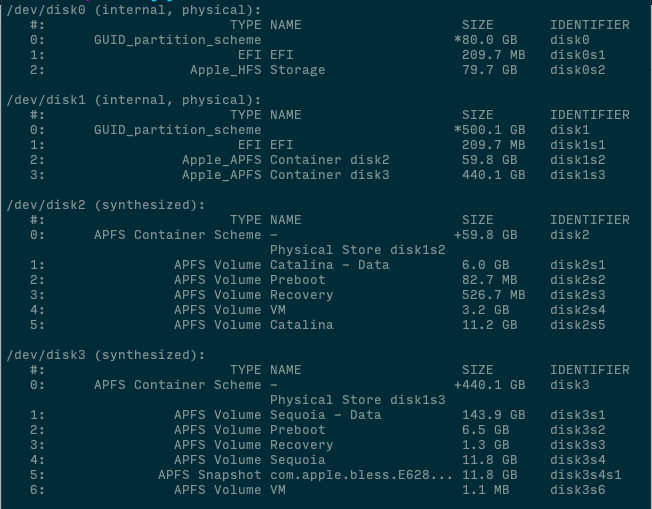
disk0 is an old 80GB spinning drive I occasionally use for file transfers. It is installed in the mini with and OWC disk doubler. I wish it didn’t come up as the first disk (disk0) but that is the way the cabling of the doubler did it I guess. It is formatted as an HFS+ disk obviously with no “Preboot” volume.
disk1 is my internal ssd formatted as APFS with two containers.
synthesized disk2 is a 60GB full Catalina install for maintenance of the mini. Catalina was the last approved OS. It has a “Preboot” volume.
synthesized disk3 is an OCLP patch running Sequoia with a “Preboot” volume as well.
The mini is primarily run as Sequoia. Whether logged in as Administrator or Standard User ANY time I try to eject either “Catalina” or “Storage” either in Finder or via script using the volume name or UUID I get the dialog shown at the beginning of this thread. Note again, there is no “Preboot” volume on the “Storage” disk.
Since the computer is being used by a non-tech family member I’d like to keep the “Catalina” and “Storage” volumes from mounting during startup or login.