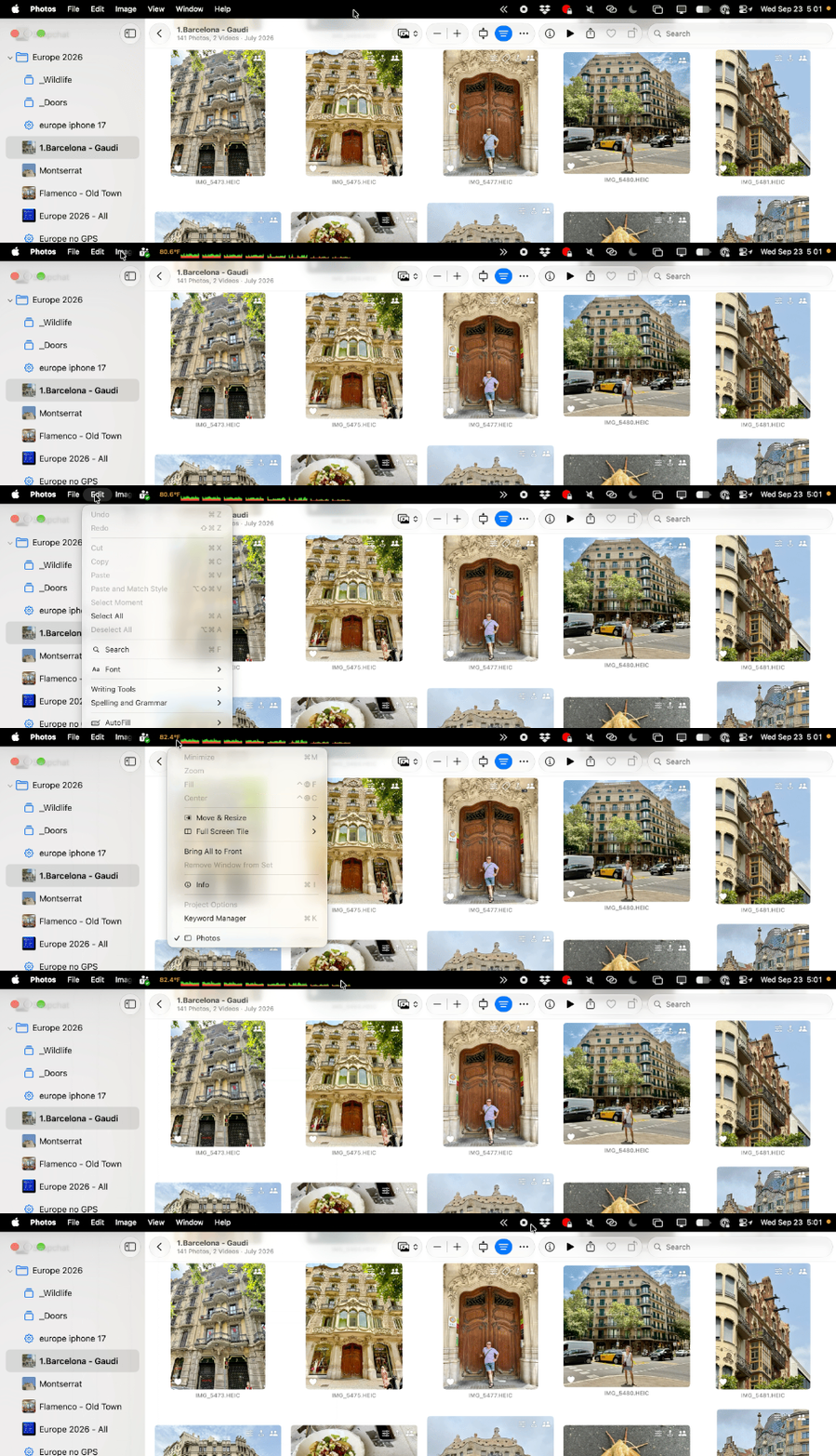
…or at least this is where it appeared to show up. And my apologies if someone already mentioned this, but I didn’t see it…
This is an old problem that has bugged me for years. Once they created the “notch” for the camera in laptops, it doubled as an invisible barrier that larger collections of menu bar icons couldn’t cross. Instead, macOS silently hid the ones that wouldn’t fit. If I wanted to see the hidden ones, I had to disable others first, effectively sliding the hidden ones from behind an invisible wall back to the right where they could be visible.
What was aggravating is that there was often plenty of space to the left of the notch. But the Notch Police, being the Type A characters they are, wouldn’t let anything cross.
Until now.
Not unlike the earliest settlers from pre-historic times who crossed the Bering Strait and were finally able to expand into the Americas, now at last menu bar icons can cross the notch, discovering the World To The Left.
I don’t know what everyone else is talking about, but to me this is the best new feature :-)
(what you can’t see in this GIF is that the blank region in the center of the menu bar is blacked out by the camera notch on my screen)
Yes I agree great feature! I mentioned it In this thread last week.
For the benefit of others it works when you click on the double chevron and reverts when you click it again.
Not as customisable as Bartender but good to avoid an another third party app.
The double-chevron “expand” feature goes a step beyond spanning the notch, of course… it overlays on top of all the application menus. This means you get access to more than just the free space West of the notch; you get nearly the entire menu bar.
Another feature I just found: if you are in “expand” mode but still want to get to the application menus that are now hidden, you can click on any menu that is NOT hidden (probably something on the far left) and then DRAG RIGHT. This will pop the application menus, even though you can’t see what they’re called because your mouse is actually over your menu widgets. Interesting. (UPDATE: I just noticed that this only works with the tap-to-click-then-drag gesture; a true click-and-drag reveals the custom menu widgets, not what’s hiding underneath)
Also interesting: the “expand” mode is sticky, but only until you switch apps; then it resets. I guess that’s fine.
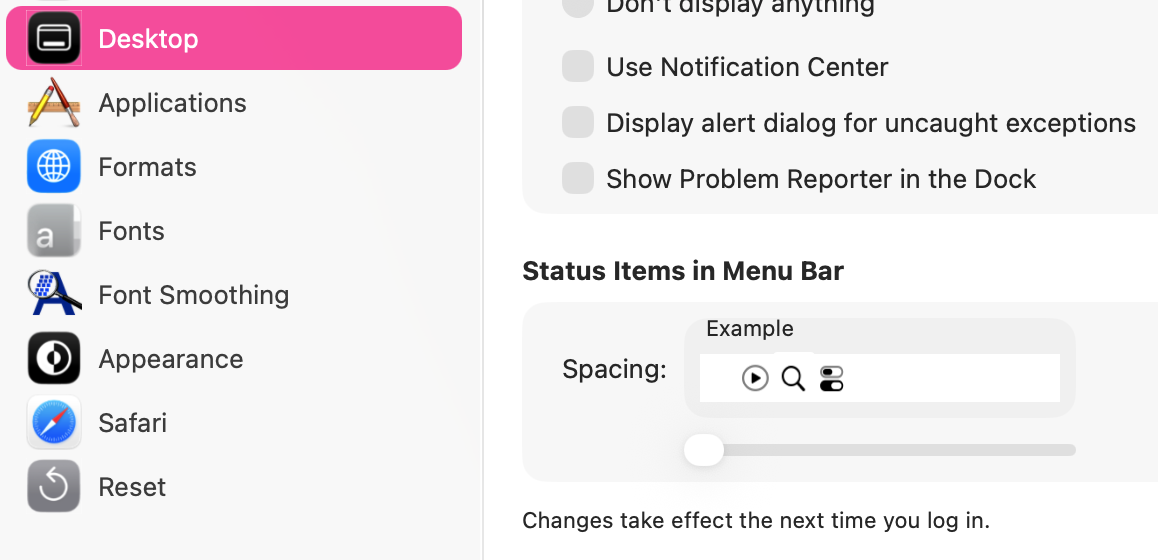
I couldn’t find that in Tinkertool, only a Dock spacing. There is a special free app called Menu Bar Spacing but it doesnt work in macOS27 as the maker says “Apple rewrote the menu bar and did not include the requires hidden settings to adjust spacing”.
I assumed that other third party apps that can do this would be similarly affected.
More in hope than expectation I asked SiriAI for the Terminal commands to change menubar spacing in macOS27 and to my surprise it gave me the commands which worked!
The default spacing is 16 points. You can reduce this by running the following commands:
After running these commands, you must log out of your Mac and log back in (or restart) for the changes to take effect. You can change the -int 8 to a different number (like 6 or 12) depending on how tight you want the spacing to be.
If you ever want to revert back to the original system defaults, run these two commands and log out again: