Update: As @TBTdn mentioned below, Tinkertool has been updated to include the features described in this post. If you’d rather not mess around with the Terminal commands in this post, Tinkertool provides a reliable way to update these preferences using a GUI tool. Even very experienced command-line users may find Tinkertool to be a more convenient approach. Recommended.
One of the more criticized interface “features” of Tahoe has been the extensive rounding of window corners in the Finder and other applications. There also is the appearance of a floating sidebar in Finder windows. These effects have been reduced in Golden Gate, but not all the way back to the pre-Tahoe default.
I forget where I saw them first (Reddit, perhaps), but I’ve seen some Terminal commands recently that can set the rounding to pre-Tahoe levels for most windows and turn off the floating Finder sidebar, allowing better use of space and, for once, a “cleaner” look that really is cleaner.
For example, compare the windows on the left (Tahoe default) with the windows on the right (floating sidebar removed, Sequoia-style rounding):
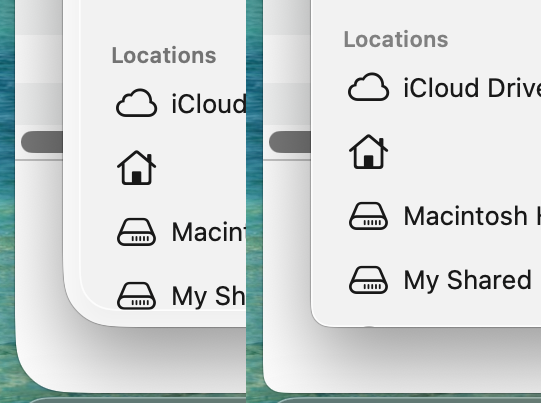
It seems like a subtle difference on a static image, but if you have multiple windows open, it significantly reduces the amount of content that is available on the screen. That’s a bit odd, given the apparent Apple strategy of minimizing controls to emphasize content.
Here are the commands to enter into Terminal.app:
defaults write -g NSSplitViewItemSidebarDefaultsToFloatingAppearance -bool false
and
defaults write -g NSConvolutionOverride1 -float 10
After executing those commands, logout and log back in (or use the killall Finder command) to see the changes. On the second command, the “10” will bring back Sequioa’s rounding. Tahoe’s rounding level is “26”.
To go back to the Tahoe defaults, enter the following commands in a terminal window and logout/login again:
defaults delete -g NSSplitViewItemSidebarDefaultsToFloatingAppearance
defaults delete -g NSConvolutionOverride1
These commands work in the current Golden Gate betas, too.