How Tahoe’s Menu Icons Undermine Usability

Originally published at: How Tahoe’s Menu Icons Undermine Usability - TidBITS

After 34 years, should we still pay attention to Apple’s Macintosh Human Interface Guidelines from 1992? Software engineer and UI designer Nikita Prokopov argues that:

the principles—as long as they are good principles—still apply, because they are based on how humans work, not how computers work.

Humans don’t get a new release every year. Our memory doesn’t double. Our eyesight doesn’t become sharper. Attention works the same way it always has. Visual recognition, motor skills—all of this is exactly as it was in 1992.

In his post, Prokopov references Apple’s 1992 advice and uses numerous screenshots to illustrate how the menu icons in macOS 26 Tahoe negatively impact usability.

  • Icons should help users find what they’re looking for
  • Icons should be consistent within and between apps
  • Icons should represent a single, specific action
  • Icons should be clearly distinguishable from each other
  • Icons should be easily recognizable from a distance
  • Icons should employ appropriate metaphors
  • Icons should avoid using text whenever possible
  • Icons should not reuse standard system elements

When these principles are violated, as they are regularly in Tahoe, users spend more time scanning menus and make more mistakes.

While browsing through the HIG, I came across an even more pointed piece of advice, which states bluntly:

Don’t use any nonstandard marks or arbitrary graphic symbols in menus. They only add visual clutter to the menu and people won’t necessarily understand the significance of the nonstandard marks—for example, they won’t know what a circle, addition sign, or tilde in a menu means.
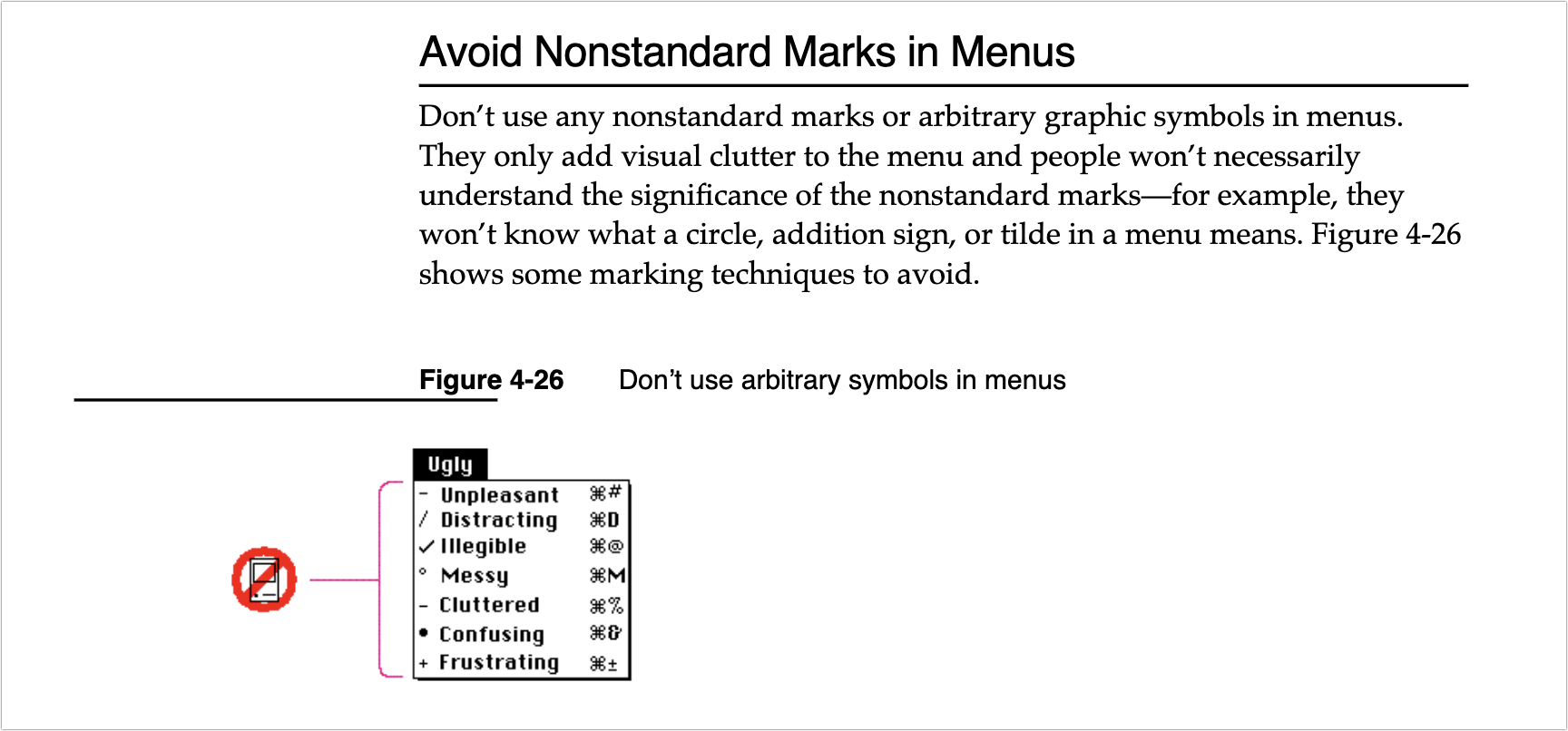
Image

I’m not personally all that perturbed by Tahoe’s icons because I barely see them. I’m extremely text-focused, so I can’t help but read every word in my field of view, but small monochrome icons are merely background noise. Many of them mean nothing to me, so when I’m forced to use them, I just map a cluster of pixels to some action. That’s why I have trouble with toolbar- and palette-intensive interfaces in apps like Microsoft Word and Adobe Photoshop. When all the icons look basically the same to me, I have to rely on tooltips and relative placement to accomplish much of anything.

For many users—especially those with low vision—Tahoe’s menu icons increase visual search time and hurt recognition, directly undermining the HIG’s guidance. Read through Prokopov’s examples while thinking about accessibility and then glance at your own menus: do the icons help or hinder?

7 Likes

I do appreciate this essay and I think it is totally correct.

However I have a hard time getting past the irony of someone going into deep details of good design on a website with a searing yellow background or snow falling all over the text.

It almost has to be on purpose.

1 Like

I saw those background issues initially too, but decided not to say anything about them because I can’t reproduce them reliably. When I load the page in a new browser, it’s bright yellow to start, but then switches to blue, without snowflakes.

1 Like

I immediately switched to Reader Mode to avoid the distraction.

2 Likes

I’m the same, but there is one thing that bugs me: the new icons that they’ve added to menu items have basically broken custom keyboard shortcuts. For example, the Tools menu in the Preview app has a “Rectangular Selection” submenu item that has no defined keyboard shortcut , so I’ve long had a custom keyboard shortcut for that mapped to Cmd-Opt-R.

But Tahoe has added a rectangle icon to that menu item, and because the shortcut needs to be mapped to the exact text of the menu, it’s now impossible to assign a shortcut - there is no way to add the rectangular icon to the shortcut definition.

I scanned Prokopov’s post, but I didn’t see that issue mentioned.

[edit - it turns out that deleting the keyboard shortcut - the one that has always worked for many releases of macOS - and then adding it again worked.]

How are you assigning the shortcut? I just checked and mine work fine under “App Shortcuts” in Settings. I have ^C set to do “Compress” in the Finder. It now has an icon, but that’s not part of the text command, so ^C still executes the Compress action.

1 Like

See my edit above. My long-working shortcut (over many MacOS versions) did not work. Editing it did not work. Removing it and then adding it back - something I had not tried until now - did work. Go figure.

What a great article (the original post). I remember reading the book on UI (author starts with a T, but name escapes me) and being struck by the fact that none of it was arbitrary. There was a well-thought-out reason for everything, even how the mouse works near the top of the screen. Propokov doesn’t just whine, like I would, he shows examples and in every case he makes really good sense. the one thing that occured to me is that iOS is much more icon driven, and these symbols tend to be used on buttons and things, like the (confusing) MS ribbons. I hate on Finder that you can turn off the text hints on the icons in the toolbar. When I’ve helped new users, I always turn it back on so everythiing isn’t a mystery to be solved.

Super article. Scathing and oh so true.

Do we think Apple already knows this, or will hear this, or will be tone deaf to it?

1 Like

Apple’s Human Interface Guidelines was (is?) a wonderful tome and anyone developing for Macs should read it and follow it’s sage advice. I forget which System it was - maybe OSX - which threw all those silly ideas out the window and all of a sudden we were getting apps in all shapes & sizes and colors and bgnds etc etc. I miss the elegant simple look of yesteryear. Or do I?

UI designers of today seem to be scared that we will find clear, simple interfaces boring. Not me - an app is to do a job not become a questionable feast for the eyes.

3 Likes

My first thought: what icons? I had to go looking. Obviously, they are no use to me. Hope I forget about them so I do not waste time trying to understand what message they bring.

I keep an archive of every available revision of Apple HIG (and NeXT etc), for those who might be interested. ~35 in total so far, I’m sure there are more out there.

Eras:

  • 1980 (Lisa)
  • 1986 (Macintosh HIG)
  • 1993 (NeXTSTEP)
  • 1996 (Newton)
  • 2000 (Aqua Mac OS X)
  • 2008 (iPhone)
  • 2010 (iPad)
  • 2014 (last/most recent PDF versions)
11 Likes

This is my issue; I can’t tell that they are icons, sometime, or what they are meant to depict. Mostly I’ve just ignored the menu icons; I use keyboard shortcuts a lot, and after years of using the applications I depend on, I rarely resort to menus.

While nitty-gritty rules from 1992 may not be applicable, the underling principles are still valid.

3 Likes

Bruce Tognazzini Tog On Interface. I learned so much from this book.

6 Likes

I don’t really mind the menu icons. I even like some of them.

The problem is when every single manu item has an icon. Then it’s just overwhelming. If they are used sparingly, just for the most important / most common commands, they are fine. I don’t know exactly how helpful they are, especially if the are inscrutible, but they don’t harm anything as they aren’t that noticeable and I rarely use menus that much anyway (I use keyboard-shortcuts).

(I can picture some of these being helpful for newbies. Like the scissor icon next to Cut, etc. But only it they are there for a few common commands.)

I was looking at the icons in Apple Mail and I rather like their use there. Not every menu item has them and the ones that do look pretty good (for the most part). But then I checked Safari as I was writing this and they are horrible there. Every single menu has icons, even stupid ones. Click “Close Tab” has small box with an x in it and “Close All Windows” as a slightly bigger box with an x in it. Why??? I see no point. It’s not a command I use often, if ever, and what help does the x in a box serve?

And then every single open window on the “Window” menu has an identical icon. Why? It’s overwhelming and lame and pointless.

I think Apple will revise some of this in the future and tone it down.

3 Likes

I only saw the blue background, nothing yellow with snowflakes, on the linked site, so not sure what you mean.

This is part of what drew me to Apple products in the early days (1980s).

I’m not seeing the reason for adding these icons to the menus.

Certainly times, society, use of digital gadgets have changed since 1992. Perhaps there is now more variety in these human characteristics. Those who watch television/videos and spend a lot of time on gadgets watching videos, consuming ‘social media’ etc have a different attention span and perception, so I can see how designing for a broader range of users can be a challenge.

That said, back to the OP, I don’t see the logic/reasoning behind adding inconsistent icons, and so many of them, in Tahoe. I wish they could be turned off, they only use up space for me. My computing experience is degraded thanks to them.

But yes I am old school, grew up pre-computer, don’t use ‘social media’ or watch videos. My usage is more in the direction of text and still photos. So the 1992 guidelines apply for me.

I saw a flash of yellow before it changed to blue using Arc. Using Firefox with NoScript’s “Untrusted” setting, the page was yellow. When I changed the setting to allow scripts, it turned blue.

The one thing we in the press have noticed is that Apple doesn’t like negative attention. It mostly applies in situations like Paris Buttfield-Addison’s account being locked, but it also holds true in cases where enough outlets and enough individuals are complaining that Apple prioritizes a fix. Perhaps that’s just to shut us all up, but if it’s effective, so be it.

I’m actually not happy about this, since I would prefer that Apple understand these issues and either avoid them entirely or fix them quickly on their own. I don’t like writing negative articles.

So I’m hoping that the coverage this is getting will have an effect.

9 Likes

Disappointing to read this. However, have yet to “move” from Sequoia to Tahoe, as I am waiting for the official release of SuperDuper! v4.x, which will be fully compatible with Tahoe. Meanwhile Sequoia, V 15.7.3, is solid and working just fine.