My Mac tells me that soon Grabbit, an app that I really depend on, will no longer work with my iMac 24” and MacBook Air 2025. I have tried to reach out to the developer to see if he will be upgrading it but I am not sure the person I e-mailed is him or not. The app allows me to select portions of screens and save them as a jpeg or pdf. This is very helpful because my vision is awful and it allows me to save information and items that are important for me.
I have tried to find another substitute but there is nothing I have found in the App Store that even begins to approach the functionality of Grabbit. I don’t need something that allows me to capture text from graphics or webpages, I can do that without any problems. I need something far more functional.
So I turn to my favorite website to get needed information. Do any of you have suggestions on alternative apps? Thanks in advance for your wisdom!
Note that you can specify a destination or app to open the screenshot. I open the Screenshot in Preview. You can then save the output in several formats including PDF’s and JPEG’s.
Apple’s Screenshot.app is located in Applications/Utilities and can be dragged to the dock. It can also be activated by pressing Shift-Command-5 which allows changing the screen area captured and options on what to do with the image. I have mine set to open in Preview so that I can decide if I like it.
Apple has a web page (as noted previously above) describing the other ways to activate it:
Likewise. It’s also convenient for sharing screenshots here, because you can just copy from Preview and paste into Discourse. Then quit and discard the image.
The Clean Shot app looks really good. I will also look at the Mac Screen Shot app but for some reason the keyboard commands have not been working. I will try again. Thank you all for the great advice
Well, I looked at Clean Shot but wow, is that expensive!! And that is just for one Mac! But aforkosh I followed your suggestion and the followup posts regarding Apple Screenshot Utility and it is clearly my best option Thank you. And I thank you all so much for your input. I’m free from Apple’s evil clutches (for the time being lol)
GREAT NEWS!! Alan has updated Grabbit to deal with Apple Silicon. He responded to an e-mail I sent him and he said he was updating it in the App Store and I just got the upgrade from there.
I highly recommend it!!! Rabbit and Typinator are my two most used apps. They go hand in hand in making life easy. I cannot do without them! And good developers deserve good praise! Thank you Alan Slattery!
I have encountered a frustrating problem with using the screencapture app (snap2GC) that I created with Applescript (takes a snapshot of a selected area then opens a new Graphic Converter image from the resulting clipboard).
Everything migrated well to my new M5 Macbook Air, including launching the app from the Dock. It is on the latest version of Tahoe.
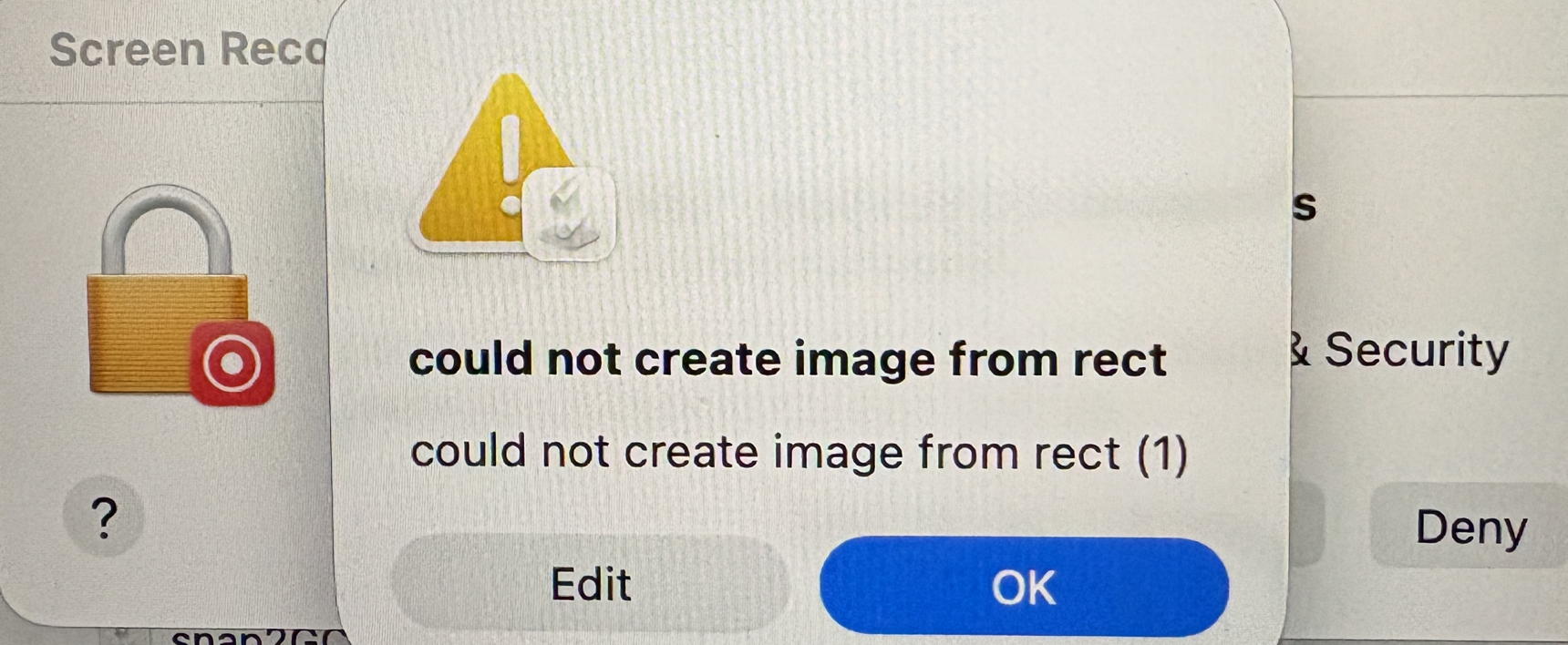
I tried to do this with the superseded M2 MBA using a new account for another useer. It is also running Tahoe. But when I release the mouse button to capture the selection I get these error messages:
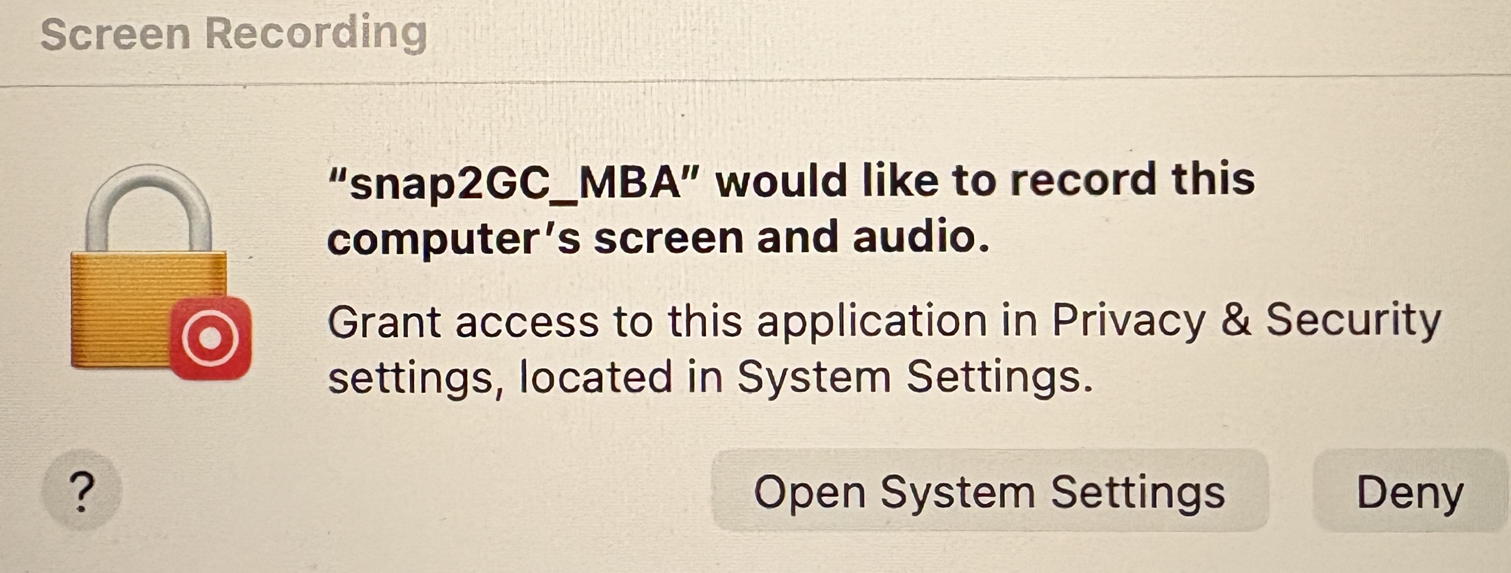
I have tried numerous times (including restarts) to grant the app screencapture rights but this makes no difference.
The bizarre thing is that if I simply run the original Applescript it works as intended.
I also tried creating a Shortcut that does the screen capture task instead of Applescript. This works when run from the Shortcut window but if I choose to have the same Shortcut in the Dock it fails with the same error messages. Maybe the act of placing something in the Dock messes up things?
Searching the web for the error message text “could not create image from rect” was not very helpful. The only hint I got was that it can occur when zero pixels are selected.
I can post the Applescript and Shortcut details here, if anyone wants to delve deeper. For now I am regarding it as a quirk of the latest Tahoe.
PS I have tried out the Apple Screenshot app mentioned above but it takes several steps to get the image into Graphic Converter.
Update: I assigned a Keyboard Shortcut (Fn-s) to the snap2GC shortcut and that worked (method: in Shortcuts selelct the shortcut of interest, click the info icon at top right, select “Add Keyboard Shortcut” and assign a keyboard shortcut)
This really is the reason for using Grabbit - you can decide if the screen shot you are taking is a jpeg or pdf, highlight the item you are seeking to get and bingo there it is. It is a free app (App Store), obviously well supported as I previously wrote, and so valuable. I have it download the shot to a separate folder in my documents folder (where it shows as grab0.jpeg or grab0.pdf, the number increasing with each shot. I then go to that item, enter the name of whatever it is I’m clipping, and in the case of multiple shots I simple enter the name, date and #, copy that and use it as a template for each item pasting and entering the number. It is an amazing app to work with.
I found the screen shot process a real pain to work with compared to using grabbit. I hope this is of help for you.
I first wrote the Applescript for my 2003 Mac, partly out of frustration remembering the keystrokes for screen captures. My main aim was to automate the process by having the screen snapshot open as a new image in Graphic Converter.
The process is: click on the Snap2GC app in the Dock - drag crosshairs across the screen - release mouse button - new image appears in Graphic Converter. From there I can resize the image and save it in any format that GC supports.
I have managed to tweak things to keep this process running through many iterations of macOS. The issue I describe above has stumped me and I can no longer click an icon in the Dock. But I have got around this by assigning a keyboard shortcut to the Snap2GC Shortcut.