I find Live Text exceedingly useful to grab text from photos. But what I really want, is the ability to grab text from absolutely anything on my screen, regardless of what format, or where it comes from, including interface elements, such as menus or dialogs.
Live Text Anywhere is what I really want, instead of ‘Live Text only in supported pictures’, and then I just need to know the key combination, or mouse gesture, to invoke it.
Restricting it to just displayed photos in specific apps, seems quite silly if you think about it. It is a computer operating system, and such limits tend to be purely imaginary, and come as the result of thinking inside the box. I imagine somebody had their reasons, but I also imagine that those can be overcome.
I think for iPhone that exists in iOS 26 with visual intelligence (it may be one of those things coming with iOS 26.4, though.) Visual intelligence is supposed to tell you what is on the screen, not just what the camera is seeing, in iOS 26. (It may seem obvious from my reply that I’ve never tried using it.)
For all OSes, there is always the workaround of a screenshot and then using live text from there.
I imagine that these tools will only expand over time - Apple does that a lot.
Suggestions to use a specific app, are the thing I want to surmount. Having to take a screenshot to access the text, on another app, is the exact extra steps that I want to dispense with.
Live Text Anywhere would give me the functionality that the original copy command should’ve given in the first place. Select text anywhere on the screen, and copy it. Not just in the edit field/area.
I think you’re conflating two things. Text rendered in a graphic object and text presented by an app.
If an app uses text objects (whether or not they are editable fields), then that text should be selectable and copyable. Something that all modern OS’s should be able to support. And as far as I know, macOS has had that support for a very long time, although developers could always make text fields non-selectable, which would undermine the usefulness if done in inappropriate locations.
But if an app draws text without a text object (e.g. to a bitmap graphic region), then the OS has no way of knowing that it is text - after the rendering, it’s just pixels. Just as if the app had loaded the image from a bitmap file (e.g. a JPEG image).
The Live Text feature, if working as advertised, should be able to extract the text content from these images using OCR and/or machine learning. Which is a very big deal. It adds a capability that would have been very difficult and CPU-prohibitive only a few years ago.
TextSniper does exactly this. I use it all the time for exactly what you say. I have it set to activate via a keyboard shortcut, so I can captures some text and immediately paste it somewhere.
It’s very useful on web pages or apps that prevent copying text, for instance, and way less hassle than taking a screenshot, selecting the text, copying the text, and the deleting the screenshot.
.I don’t think it is conflation, to refer to text displayed on the screen. Live Text should give me access to text in images displayed on the screen, and the copy command should give me access to normal text displayed in an app. Unfortunately, they both do so only sporadically.
Go into any app and try to select text that is part of the interface. Most apps won’t let you. But if I am trying to tell someone how to access that feature, it is precisely the text I need to copy.
And if an image containing text is displayed in a browser, then Live Text may let me select and copy text, but only if there is no embedded link, or the page doesn’t have some kind of restrictions. Then I can’t select anything, and I am forced to capture a screenshot.
So If I could invoke Live Text Anywhere with a key combo, then the entire screen can be treated as a bitmapped image, and I could select any text I want.
Imagine if cmd-shift-5 presented a panel with a Live Text option. Then I could select any text on the screen, and copy it, regardless of any app restrictions
Yes, but you are assuming something that simply is not so—that all text on screen is text. All GUI software uses a mix to present the contents of a window. Some text is OS provided, text fields and labels and the like, and text from there is easily extracted as text, but on many, many occasions the text is written out as a raster because it’s simpler. Write the whole picture you want in a buffer and don’t spend huge amounts of time to position text fields rather than using the “graphics pen” to position it exactly where you want on the canvas. I’m sure you’ve encountered web pages where the title looks like text but when you try to select it it’s a picture? Shortcuts
But all is not lost because modern OCR is astonishing compared to even 10 years ago. Recognize the dots in an image of a curved bottle label? No problem! Really!? Yup. Makes mistakes of course because that’s really difficult but they’re doing it.
So, in response to your call for universal Live Text (which would be neat), it’s already here but you need to pay for it. Here’s CleanShot X’s take on a portion of this very page:
TB
L Live Text. Anywhere
TidBITS Talk
Icho David C.
I don’t think it is conflation, to refer to text displayed on the screen. Live Text should give me 8h
It’s all there, just a few problems with, er, positioning and sense. (Did I mention that OCR is fantastically complicated?) It’s fragmented like that because OCR is not paying any attention to the parts of the screen that display text like your word processor. It is looking at the dots of the raster and figuring out that there are actual letters that might be part of words that might be part of a sentence.
So, currently available utilities like TextSniper, etc. will do exactly what you want though you may have some work to make the results make sense. Just gotta pay for it.
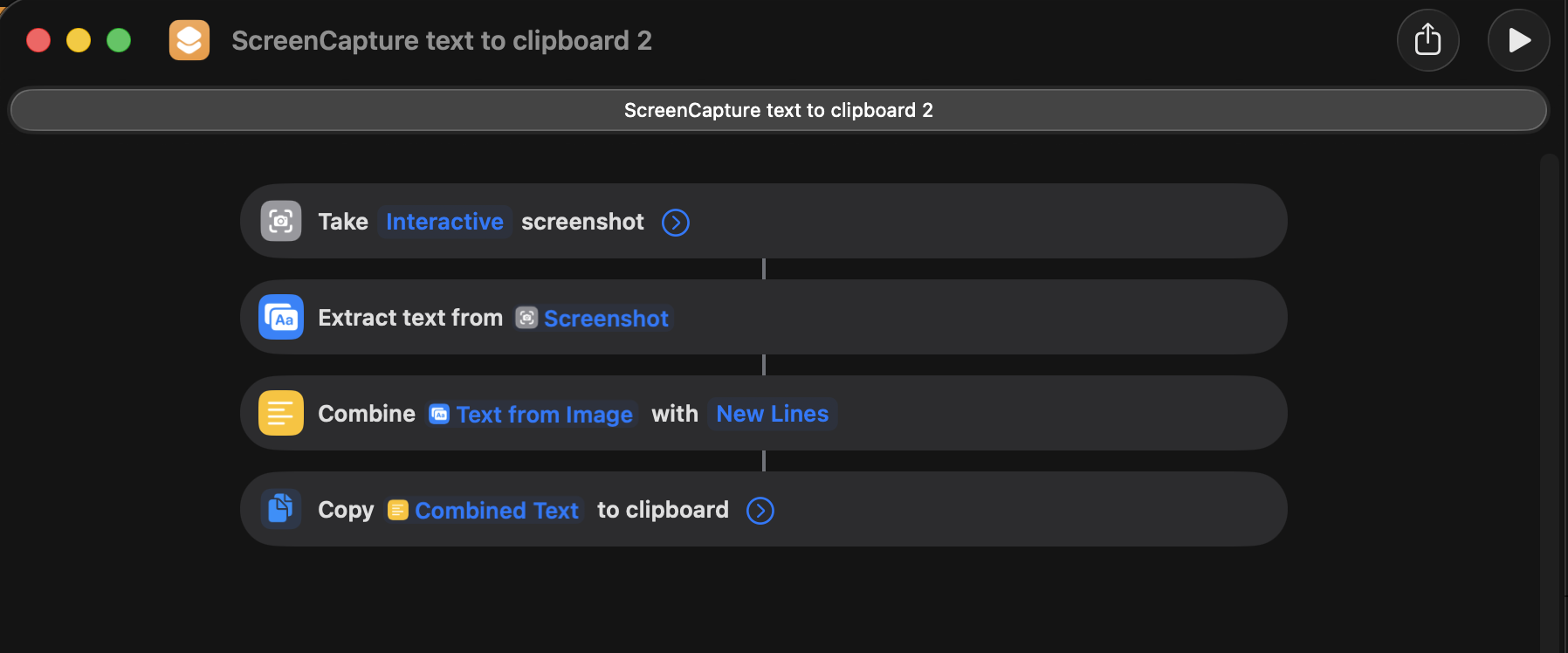
Ok, just built it in Shortcuts. Took me a moment to find the “Window/Custom” setting for “Interactive” as it defaulted to “Window”. I was unfamiliar with the Take Screenshot action, so I am glad to have it pointed out to me.
And it seems to do what I want. I will have to verify that it works in all the places that I would like it to.
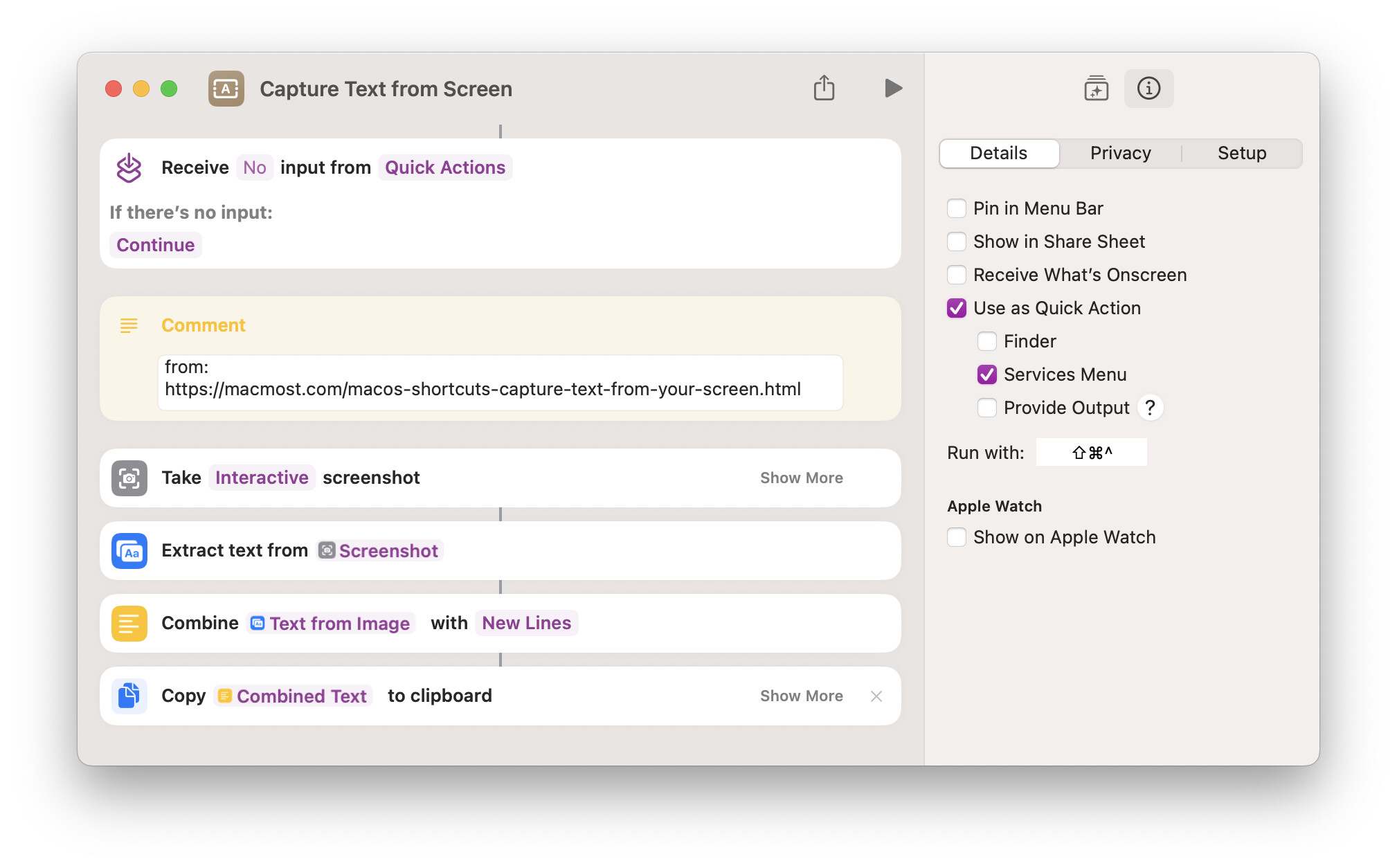
I use the same Shortcut actions (a method I first saw on MacMost) and also have it set to ‘Use as a Quick Action in the Services Menu’. This allows you to assign a shortcut (I use ⌘⇧6 to fit with other screen capture shortcuts) which can be used anywhere. So I can easily activate it from the keyboard (or Services menu).
Indeed, I think it was a tip from you here at Tidbits that got me started using it? I am using it a lot. It is a great timesaver. Thanks again for the tip.
You appear to have either missed, or misunderstood, when I said, “regardless of what format, or where it comes from,” i.e. pictures of text, or text displayed by an app, as part of its interface.
That brings into question your assumption of my assuming anything. I made no claims that all of it was in text format, you did that for me.