Why I Use Multiple Screenshot Utilities on the Mac

Originally published at: https://tidbits.com/2026/01/05/why-i-use-multiple-screenshot-utilities-on-the-mac/

I take a lot of screenshots—over 500 since July 2025, when I started using ScreenFloat in favor of my previous preferred screenshot utility, CleanShot X. But I keep CleanShot X loaded at all times and use it regularly, too. On occasion, I even fall back on the screenshot functionality built into macOS in conjunction with several other image editing and processing apps. Here are the unique features that keep me using multiple apps for my screenshots.

ScreenFloat: Floating Shots and Shot Browser

ScreenFloat ($17.99, also in Setapp), from Eternal Storms Software, sets itself apart in two ways. First, when you take a screenshot, ScreenFloat displays it in a new window right on top of the selected window or area. (The window below shows ScreenFloat’s settings for floating shots.)

ScreenFloat window

Three menus at the top of a floating shot window let you name, tag, and describe the screenshot ; export it in a variety of formats ; and work with its contents in numerous ways, ranging from basic edits and annotations to content redactions and more . You can even run shortcuts and AppleScripts on the screenshot.

ScreenFloat menus

Most of the time, I dismiss floating shot windows immediately, but they can be useful for referring to a screenshot—such as the contents of a menu that I can’t keep open—while writing. Floating shots are also handy for making simple edits and annotations without opening the file in Preview. The feature I value most, though, is one that ScreenFloat developer Matthias Gansrigler added last year—the option to export an image with an added border.

All Mac screenshot utilities allow you to take screenshots without the shadows that keep stacked windows from bleeding into one another. (It’s usually a matter of pressing the Option key while capturing the screenshot.) Eliminating shadows is desirable for authors and readers because shadows significantly increase the vertical height of screenshots, adding whitespace and making documents longer (see below left ). Unfortunately, the window’s border is part of the shadow, so ignoring the shadow gives you a window that’s often pure white on the edges (below center ). What many of us in the documentation world have settled on is a thin border that follows the window’s rounded corners (below right ). (For some history on this topic, see “How to Eliminate Drop Shadows in OS X Screenshots,” 25 April 2015).

Shadowed and bordered windows

The key to ScreenFloat’s bordering capability is its cleverly implemented export options. At the top of a floating shot window, you’ll find a small document icon. Drag it to export the screenshot in your default format without a border. But if you click the icon to open its menu first, you can then drag one of the format icons to export with a border. (CleanShot X can also border screenshots, but its borders don’t follow the rounded corners of Mac windows and thus look awkward in the corners.)

ScreenFloat export dialog

ScreenFloat’s second innovative feature is that it stores all your screenshots in the user Library folder and allows you to manage them in a Shot Browser window accessible with a keystroke.

ScreenFloat Shot Browser

You can search for text in screenshots, delete unwanted screenshots, rename them, organize them in folders, and much more. They can even sync via iCloud if you want access to all your screenshots on multiple Macs. But the real win is that you can open any previous image and modify any edits you previously made. It’s all too common for me to take a screenshot, edit or annotate it, and drop it into an article, only to realize later that I wanted to change the edit or annotation. Before ScreenFloat, I often had to retake screenshots just to edit or annotate them again.

I also find the Shot Browser handy for reducing the number of temporary screenshots that otherwise end up on my desktop. I seldom want to go back to screenshots after I’ve published an article, but it could happen, and as long as I have plenty of disk space, I’m happy to see the collection grow.

CleanShot X: Combine Screenshots

So why do I continue to use MTW’s CleanShot X ($29, and also in Setapp)? Because it has one killer feature that I use regularly—twice in this article alone, in fact. CleanShot X is a thoroughly capable screenshot utility with editing and annotation features, but it also offers a feature I haven’t seen elsewhere: the ability to combine screenshots.

Whenever I need to put multiple screenshots side by side, I drag one of them to CleanShot X’s menu bar icon to open it. Then I drag the next one into that window, and CleanShot X indicates that dropping it will place it on the left, right, top, or bottom. If the images are different sizes and resolutions such that one appears much larger than the other (common when combining Mac and iPhone screenshots), I can drag the corner handles to resize them to match. If I have to rearrange them, alignment guides ensure that they all line up.

CleanShot X combining screenshots

Before CleanShot X added this feature, I hadn’t had a good solution for combining Mac screenshots for years. Long ago, I wrote a Keyboard Maestro macro that combined two screenshots, but it was primarily for iPhone screenshots, which I now do with Federico Viticci’s Apple Frames shortcut. Napkin, by Aged & Distilled, did a good job, but development on it stopped years ago, and I eventually gave up on it (see “The 46 Mac Apps I Actually Use and Why,” 19 April 2023).

macOS Screenshots: Composited Screenshots

Despite everything these two screenshot utilities can do, I still occasionally press Command-Shift-5 and use the built-in macOS screenshot utility to create a screenshot of a window with an open menu. In these screenshots, I don’t want shadows around the window, but I do want them around the menu, which otherwise looks weird. This requires a multi-step process that involves capturing two separate screenshots and compositing them in Preview:

  1. Click the menu in the desired window to display it.
  2. Press Command-Shift-5 to open the macOS screenshot utility.
  3. Press the Space bar, hold down the Command key, hover over the menu to highlight it, and click the mouse button to capture a screenshot with a shadow (the default behavior).
  4. Press Command-Shift-5 again.
  5. Press the Space bar, hover over another part of the window to highlight it, and Option-click the mouse button to take the screenshot without a shadow.
  6. Open both images in Preview, copy the entire menu screenshot, paste it into the window screenshot, and position it appropriately.
  7. Save the composed screenshot and use Retrobatch to add a border.

Composited screenshot

A few notes:

  • Both ScreenFloat and CleanShot X can capture windows with shadows by default but toggle that setting off with an Option-click. However, they can’t currently do the opposite—regularly capture windows without shadows but toggle the shadows on with an Option-click. It’s easier to use the built-in macOS screenshot utility than to change settings in either of the other apps.
  • ScreenFloat doesn’t, as far as I can tell, offer any way to combine two screenshots. CleanShot X can do this easily, as noted above. I hadn’t internalized this fact before, but working in CleanShot X is probably a little easier than using Preview.
  • Step 7 mentions using Retrobatch to add a border, which requires explanation. Before ScreenFloat, Joe Kissell showed me how to use Flying Meat Software’s Retrobatch ($19.99) to add proper borders to screenshots through batch processing. (Before that, we used an Automator workflow.) I still use Retrobatch for screenshots already on my desktop. However, some exploration reveals that ScreenFloat can help here too—you can drag any screenshot into the Shot Browser and then export it with a border by dragging an icon from the export dialog.

Ultimately, the moral of the story is that although Apple’s built-in screenshot utility in macOS is pretty good, third-party developers have created some excellent alternatives that offer welcome features for those who need more power. I feel a little silly using both ScreenFloat and CleanShot X, but since their most important features for my workflow don’t overlap, so be it.
4 Likes

Snagit has unlimited canvas that allows you to combine multiple screen captures.

But I’m not sharing that fact so you will try it. Instead, I’m sharing how terrible, awful, and no-good Snagit is in general, so you don’t make the mistake of trying it just for the unlimited canvas feature. It’s awful!

Still haven’t found the perfect app; like Adam, I am also using multiple screen capture tools in a single workflow to get my desired output.

2 Likes

Thank you for the review Adam. And Happy New Year.

I have a do-it-yourself approach to screenshots.

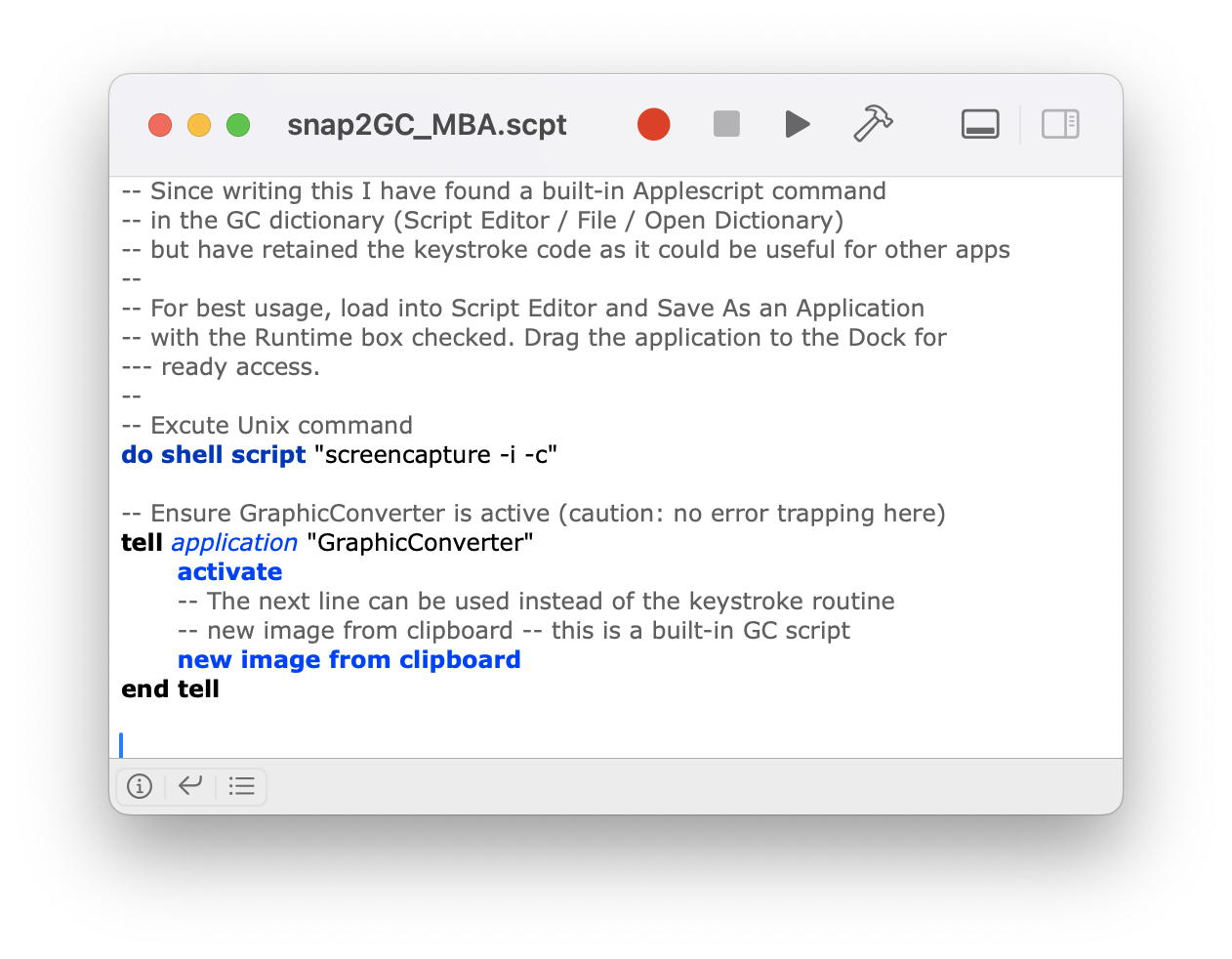
Soon after I bought my first Mac (~2003) I installed Graphic Converter. I then started playing with Applescripts and created one to take a snapshot of an area of the screen and open the snapshot in Graphic Converter for manipulation and saving. Below is the latest iteration that works with Sequoia.

For best usage, load into Script Editor and Save As an Application with the Runtime box checked. Drag the application to the Dock for ready access. Note that the resulting app might need one-off permission for the System Events command.

– Excute Unix command to capture an area, using the cursor
do shell script “screencapture -i -c”
– Ensure GraphicConverter is active (caution: no error trapping here)
tell application “GraphicConverter”
activate

end tell
– get ready to send keystrokes
tell application “System Events”
– make GC the active application
tell process “GraphicConverter”
set frontmost to true

end tell
– send the keystrokes to paste the clipboard into a new image (built-in GC command)
keystroke “j” using {command down}
end tell

2 Likes

Like @aventus, I’ve been a Snagit user for many years (since Snapz Pro X stopped being a thing). It’s very versatile, can be configured to takeover system screen captures, and supports quite powerful editing capabiliities (unlimited canvas, annotation, blurring, etc.). I can’t recommend it enough. It’s affordable and updates are frequent.

CleanShot X also has a shot browser which they call Capture History. It’s not as full-featured (no folders or search) but it’s very quick to use. Like ScreenFloat it lets you modify previous edits. And it auto-deletes old screenshots after a user-configurable period of time, so I no longer have to deal with the busywork of tidying up after taking screenshots.

Since CleanShot is easily scriptable I’ve got a LaunchBar extension to invoke it quickly.

1 Like

Does it aid in aligning them perfectly as well?

Ooo, clever. But most of my screenshots need to be perfect windows, not selections.

I’ll admit that I initially didn’t think I’d like ScreenFloat’s Shot Browser since my screenshots are nearly all ephemeral. I suspect that’s why I never found the Capture History option in CleanShot X. I was pleased when CleanShot X added the 1-pixel border option, but the developer wasn’t interested in making it work with rounded-corner windows.

I’m not sure what feature folks are discussing, but Snagit has the usual alignment commands and “snap to” functions that one might expect. I suggest skimming through Snagit’s screen capture help page to see if it does what you wish. I like Snagit because it works well on Mac and Windows, and it does a lot without feeling too complicated. I’m also a fan of its continuous scroll screen capture. Its online documentation and tutorials also are above average and generally very practical.

I probably am due to take some time and review the various graphics programs I use. I have a feeling that I probably can do everything I need in a single program, but my usage pattern has gotten very fragmented over the years. I end up using Snagit, Photoshop, the Affinity apps, GraphicConverter, etc. etc.

I just found out that when the crosshair cursor appears you can press the spacebar and it changes to a camera, which you can then use to select a particular window, even if it is partially obscured. My script then loads that image into Graphic Converter, as with the cursor mode.

Here is an example of a window capture, with some alternative scripting for loading the image into GC :

If you want to drop the shadow add -o to the screencapture command.

1 Like

Back when Ambrosia Software existed, I used to love Snapz Pro X. I bought a license years ago via a MacHeist bundle and used it until it stopped working (when I transitioned from PowerPC to Intel).

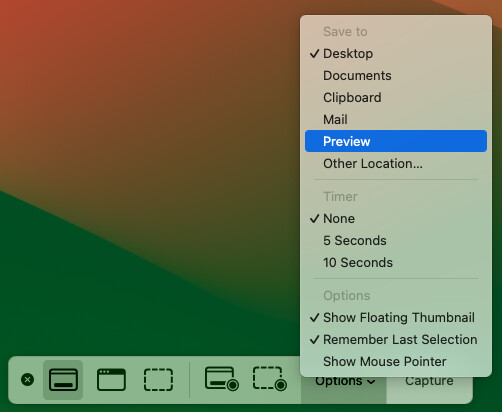
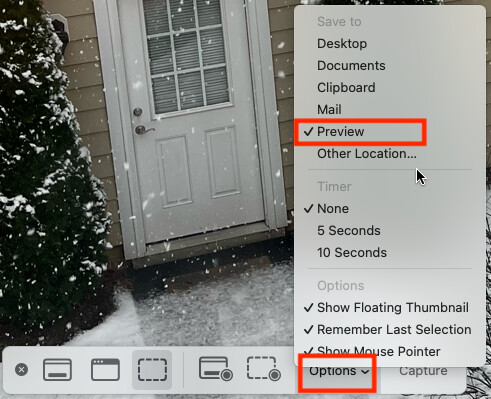
These days, I usually use Apple’s bundled Screenshot utility, but I have selected the option where instead of saving a file, it opens the screen-shot in Preview:

(h/t @ace for explaining how to capture the Screenshot control panel, below)

Once the image is in Preview, I can make whatever edits I want, then copy the result and paste it elsewhere (like into an editor window here). I can then auto-delete the image when closing the Preview window.

Here’s Apple’s documentation for their Screenshot utility:

3 Likes

Great article Adam, I have Cleanshot X and also the built-in screenshot utility that is included in the Parallels Tools that comes with the purchase of Parallels. The Parallels Tools software works for six months after you purchase Parallels, then you need to subscribe to it. The only issue I have with Cleanshot X is that it does not have a direct upload to iCloud option, it only works directly with Cleanshot’s cloud, that I do not want to use. To save directly into iCloud you need to save it first in your hard disk and then copy it into iCloud, so I stopped using it.

1 Like

Ah, of course, since your script is just calling the system screenshot capabilities. (That’s standard behavior.)

Here’s the trick to take a screenshot of nearly anything that you can’t otherwise.

  1. Open Preview.
  2. Choose File > Take Screenshot > From Entire Screen (this starts a 10-second timer).
  3. Within those 10 seconds, get the screen looking the way you want.
  4. Edit the screenshot in Preview to include just the elements you want.

I often use the Backdrop utility to give myself a white background, though this time, I was forced to accept blue by Preview.

1 Like

I actually need to jump in on this conversation but I am injured and can only type with one hand at the moment so Multi key combinations are fairly difficult (I E screenshot testing)

I created a thread sometime before the holidays where I was looking for a screen saver utility for a specific reason. I purchased cleanshotX but have not been able to get it to do what I wanted, despite the author telling me it would do that and more.

I also tried to write a script to do it (using chat GPT) but it did not work consistently and the consensus was that scripting has changed in later versions of Mac OS (I’m on Sequoia)

I finally gave up and bought cleanshot after a couple of emails with the author. I still can’t really get it to do what I want

I take multiple screen snips daily. Each snip belongs to a different client, and ideally needs to be named something that makes sense and then tucked into the client folder. I can easily do a couple dozen a day.

What I do now is click on the pop-up that Sequoia gives me, Open preview and then save as. I believe this then deletes the screenshot that would’ve normally saved in my desktop. But I was hoping to be able to skip the preview step and just save directly from the pop-up. Where I seem to be having a difficult time is saving it to a different location each time.

I’m not sure I really care if I need to use more than one utility (I found another article a month ago about someone who did that but I Think a couple of her utilities didn’t exist anymore or were a subscription). But I do kind of want to figure this out soon as I can get a refund on cleanshot if I can’t get to work for me

(please excuse dictation errors)

I’m so glad someone mention Snapz Pro (later called Snapz Pro X). I absolutely lived in that program, for what must have been decades. All the screenshots in all my O’Reilly books were taken with it, until it finally died. Oh, the nostalgia.

3 Likes

ScreenFloat could help with what you’re doing, though it may not be the workflow you want. When you’d take a screenshot, you’d get a floating shot, and you could name it and tag it for each client. Then, sometime later, you’d change the view in the Shot Browser to show just screenshot for that client and drag them all to their folder.

But this might be a better situation for a folder action script, which ChatGPT could help you write. You’d just save all screenshots to a specific folder—could be the desktop—and whenever a new file appears there with a PNG extension, it pops up a dialog that lets you name it and provides a pop-up list of all your clients. You’d name it, select a client, and it would automatically be filed away in their folder.

I did something slightly similar. I download text files from Webscorer with race registrations or results that I want to open in Modern CSV. They have .txt extensions, so double-clicking them won’t open in that app. A folder action script watches for .txt files in the Downloads folder and when it sees one, it asks if it should rename to use .csv or leave the extension at .txt. Works like a charm, and I could probably extend it to open those files directly after renaming.

One moral of the story here… subscribe to the great Setapp, lol!

2 Likes
  1. Click the menu in the desired window to display it.

  2. Press Command-Shift-5 to open the macOS screenshot utility.

  3. Press the Space bar, hover over the menu to highlight it, and click the mouse button to capture a screenshot with a shadow (the default behavior).

On my Sequoia system it is necessary in step 3 to hold-down the Command key after pressing the Space bar in order to limit the captured content to the pop-up menu. Following the step as written results in a capture of both the window and pop-up menu together fully surrounded by a shadow.

Could you give details on that Automator workflow? It might be all someone doing only an occasional window capture would need—saving the expense and learning curve of another application.

At least in Sequoia, there is a simpler way to accomplish @Shamino ‘s task of capturing the Screenshot tool’s Options pop-up (seems to work for other menus as well) and avoids the race against the 10 second timer. Steps and my example below:

  1. Open the Screenshot tool (Command+Shift+5) and set the capture mode to Entire Window (leftmost icon).
  2. Click the Options button to open its menu and position cursor to highlight a desired item on the list.
  3. Hold down Command+Shift and tap 4 to activate the Selection Crosshairs cursor, then drag a marquee to enclose the toolbar and its pop-up menu. Release the mouse/trackpad to complete the screenshot.

Note that the Screenshot tool has the option to show/hide the pointer/cursor in the captured image. Although I haven’t tested it, there is also countdown timer option within the Screenshot Options.

Strange. On my (macOS 15) system, CMD-SHIFT-4 wouldn’t work while Screenshot is open. I was, however, able to use CMD-SHIFT-3 (capture full-screen), which opened the screen-shot in Preview (as I have it configured), and then crop the result.

To my dismay that is how my macOS 15 system behaves now too!? At least you have discovered the slightly-more-steps method requiring a crop in Preview. Thanks for the check.

I did make a possibly significant change on my system to investigate and test Adam’s procedure to stack a shadowed pop-up over a shadowless window— that was to revert a setting made in TinkerTool several systems ago (and carried forward via migrations) back to the default of including the shadow in captures of windows. I’ll need to explore that further.

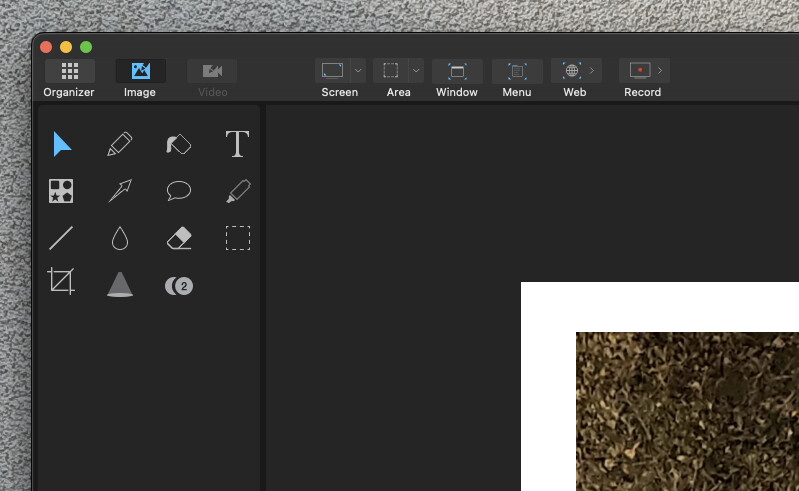
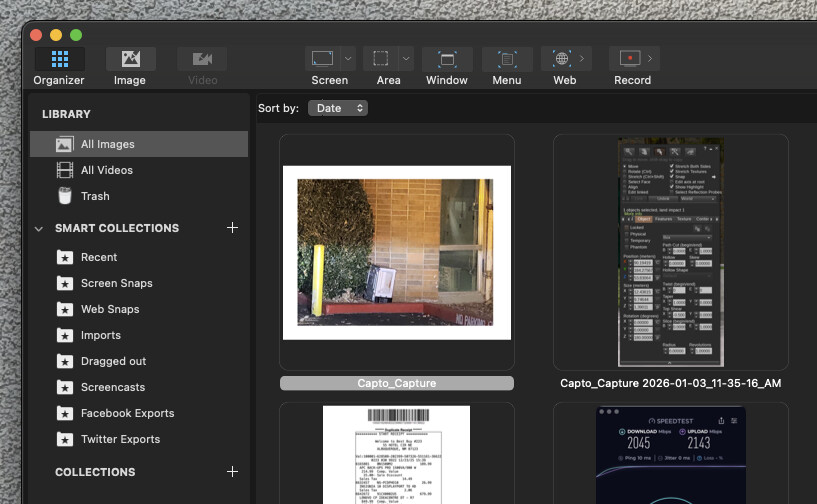
Not sure you have tried this Adam but I have been using Capto for quite a while now and have stuck with it. Yes I used SnapZ Pro as well years ago. Capto - Screen Capture and Video Editing Software for Mac