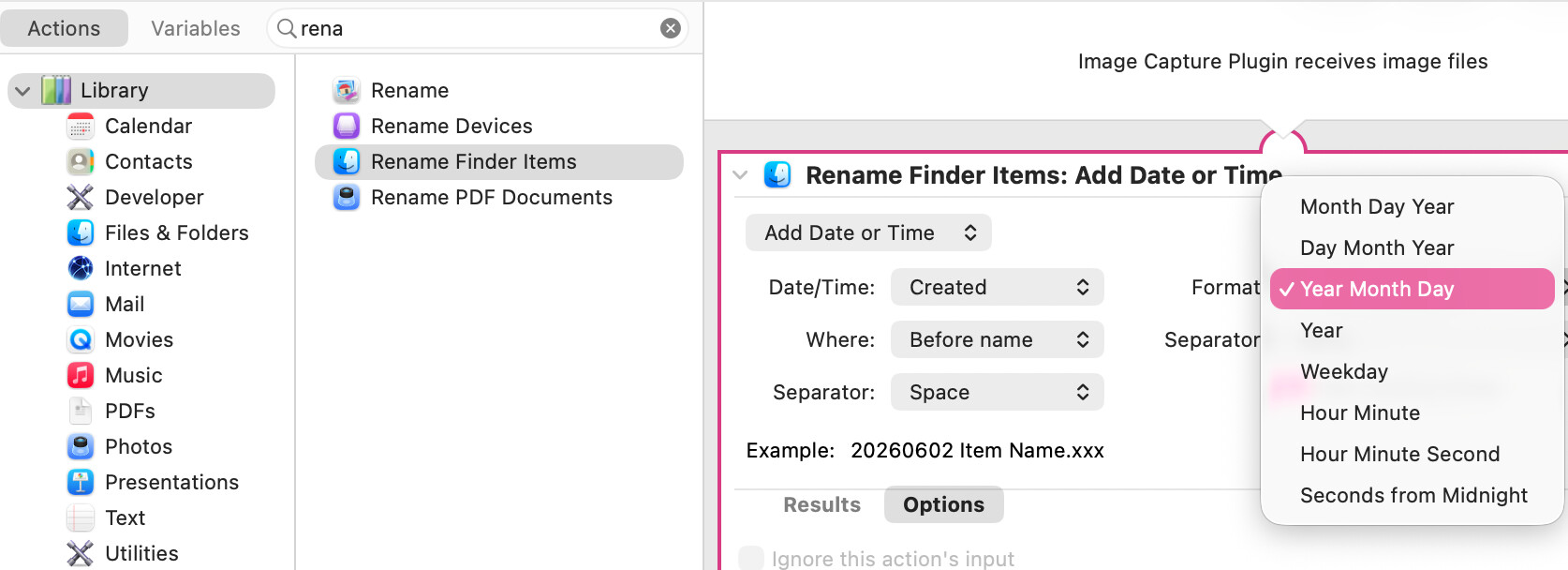
While fiddling around in Automator today, I tried to create a workflow that would rename selected files by adding the date before the file name, but the Format options do not include the desired YYMMDD:
I found a couple of old blog pages indicating various scripts and workarounds but I’m wondering if there is any other way, ie in Terminal or somewhere, to make this additional date format available, and to result in a view with the cursor in position to enter text between date and file name?
I looked in System Settings > Language & Region > Date Format on the idea the Action gets it options from there, and the options are sort of similar but YYMMDD isn’t available, alas.
Background: Often I start filenames with this date format, and now use a Launchbar Snippet to insert them. For multiple items it would be cool to select a context-click Quick Action or Service and have the rename options and date and cursor already there, so I just start typing a description for the file. Right now, right-click Rename … presents a tiny field with the text of the last name change, requiring some fussy trackpadding to get the file renamed.
OK, not a big deal once in a while but when I finally get time to work on my photos, I go thru this procedure dozens of times in one stretch so it’s frustrating.
I have relied on A Better Finder Rename tool to do my renaming over the years and it can do that. Not free but updated regularly and scriptable. More powerful that what I use it for. User, no connection.
I always select files in Finder, right-click, choose “Rename” from the pop-up menu, make sure that “Add text” is chosen, and enter the current date manually when I want to do this. It works well enough for me, and remembers the “Add text” and “Before name” the next time I wants to do this.
If you are primarily renaming photos you might consider ExifRenamer. It extracts the date from EXIF data and allows you to modify file names. I routinely use this as soon as I upload photos to my computer and rename them from something like the default DSC01377.ARW to 20260531_1123_DSC01377.ARW.
Thanks @ddmiller , that’s exactly what I do, but as I am not the most organized sort, sometimes there are months worth of photos to rename, and sometimes after losing a bit of concentration I might enter the date wrong, then have to go back and re-rename… And the rename window doesn’t resize, has a very small interactive area, and selects text the wrong way when putting in the cursor (iirc 1-2 OSes back it did it the opposite way), so a couple hours of this routine can be a struggle.
So it would be really cool if there was a one-step Quick Action or Service etc in which the selected files have creation date in YYMMDD entered and the cursor placed between date and original file name for text entry. I ran out of time to research and moved to other stuff but still want to find this solution.
Indeed @befr ! I’ll have a look at it again for this feature. I have a perhaps old habit of not wanting to launch a full App for a what I imagine to be a simple task that can be done with available tools and a bit of knowledge.
GC is maybe the right tool for those long renaming sessions I’ve described.
BTW-I hope no one took my surprise as a slight against Germans, I just meant I always had the impression that Windows and Linux were vastly more popular here.
Thanks again @befr , GC might be the right tool, I am close to optimizing it and imagining how to make it most efficient for desired task. For changing a few file names maybe too much but for viewing a long column of thumbnails for renaming, maybe just right! (it appears to also work for any old file, not just photos)
It has ‘simple’ and ‘advanced’ renaming tools down in the contextual menu. The simple variation is still powerful and might just be a different interface than advanced. It also allows saving the renaming parameters as a preset, which then appears in the contextual menu also. I want to see if I can give this a keyboard shortcut.
Still, it appeared stuck at a four digit year, even when I changed the code to YYMMDD in the date field, but then I saw the option to remove digits and removed the first two and achieved it!
I also need to find out if I can set it so a text insertion point is created, the idea being:
-select files
-shortcut (invokes preset of adding desired date format and placing cursor in position between date and original file name)
-type a description
-and done!
It’s named GraphicConverter, just to be sure. I have used it for almost 30 years, and didn’t realize it did file renaming. It does just about everything else. An indispensible utility.
Indeed, that’s the one, I used the initialism to save time and space. Since posting I haven’t looked again if it can be the solution. Its renaming feature has capabilities I haven’t found in other apps or even Finder so I suspect it’s using some developer level features that exist. I need to dig in it a bit more. Perhaps the steps I seek are in Script Editor but that’s quite above my head at the moment.
Well found an improved workflow with GraphicConverter, which I already have for many years but is so overwhelming in its options I haven’t used it much. Presenting the follow up in case it helps someone.
Its Rename options are powerful. There is a menu command (brings up simple method window) and thru contextual menu a simple and advanced rename method.
I poked around all of them and exhanged email w Mr. Lemke and now I’ll be using his software to rename en masse, it makes things easier than Finder:
Import photos to Mac w/GC or Image Capture
set simple Renaming settings (7 tabs worth!) in GC (in my case, putting 6-digit date ahead of original file name and making it ready to add text starting at position 8)
select photos to rename, command - e for Rename simple method window
type photo description in the Text: field
Enter or click rename, done! the selected files have my preferred date format taken from EXIF and in the right place, the text description does in the right place, a breeze!
The only improvement would be, and it might not be easy with so many options, is to have the text field already highlighted and ready to accept what’s typed.
For those not needing to add descriptive text, just rename automatically according to savable presets of the voluminous options, GC can do that too during original import! It’s just my nutty naming convention that makes more steps. Good luck!