Older - one was a 2012 MBP and the other was a 2015 MBA. I had to take it out of the stand I made, open it, and power back on. Close it up and back in the stand.
I’ve owned numerous Macs since 1987, but only one iMac.
It was a 2006-design 24" (Intel Core Duo?) bought in 2007. I used it for audio (mostly) on “the back table”, not daily, but on-and-off. It was still working well enough in early 2019 when I replaced it with a 2012 Mini (which had been replaced by a 2018 Mini on “my front table”).
So, after 12 years it went back into its original box, and now sits in the attic. Not sure if I’ll evr use it again.
Having said that, I wouldn’t buy another iMac now. I like the Mini’s form factor (and excellent performance) better. I also like the ability to change the display if desired (currently using a Dell 4k Ultrasharp).
(even the 2012 Mini is now up in the attic, got an m4 Mini about 14 months ago, and the 2018 is now on the back table…)
1 Like
How does that work? What if the disk is dead? Does it need to boot to macOS or is it mostly just like a screen?
I’m using it too. The iMac has to be up and running macOS and the Luna App for the second computer. Ideally the two Macs are connected wired, USB-C in my case, Ethernet otherwise. WiFi connection didn’t impress, but wired is…ok… there’s a general lagginess which affects what you choose to put on that screen.
1 Like
Okay so then an OLD iMac can be useful as a display. But the situation I was facing with DEAD (or failing) DRIVES is not helped by this Luna trick.
Am I tracking?
yes, if the Mac can’t boot, no joy there.
2 Likes
correct - which I also faced
the iMac boots and runs just fine with external drive
1 Like
Okay. So, I’m gonna stay on the “I will never buy an iMac again” camp, because a computer – especially at that price – should survive a drive failure without an exorbitant repair bill. How about a cute slot on the side where you can slide the drive out and in, like an SD card? Drives are very small these days. Jony Ive is treated like a god, but unless he wants to repair this for me, I’m not impressed. There’s nothing sexy about an iMac in the trash can.
4 Likes
Here’s another odd tidbit (we’re in the right place!) about monitors and Default vs Low Resolution vs (no comment shown) when using remoting software. I remote into my computer at work which is connected to a 1920 x 1080 monitor (ordered before I had a chance to spec a monitor, argh). From home, I turned on “Show all resolutions” (on the remote machine at the office) so I could perform David’s useful exercise.
- Choosing 1920 x 1080 (Default) gave me a sharp-enough image.
- Choosing 1920 x 1080 (HiDPI) made it blurry.
Because I can’t be sure the window on my home computer is the proper number of pixels, I verified settings in the Displays menu. That’s when I saw the option to “Use Retina Resolution”. Turning that on, I got a razor-sharp image.
So that’s a third interacting factor in display clarity, for those remoting to another computer.
That’s very weird. If the native resolution is 1920x1080, then you should only see one instance of that resolution on the list.
The fact that it appears twice implies that the (computer’s local) display’s native resolution is higher than 1080p. Maybe 1440p or 4K.
Since you’re remotely accessing the computer, this behavior isn’t too surprising.
When you set the display to 1080p, that’s the image being generated and the signal being sent to the local display. And those should be all the pixels being sent over your remote access software. And it’s what I’d recommend in this use-case.
But when you set it to a HiDPI version, the internal frame buffer will be double that (3840x2160 - 4K), GPU-scaled to the local display’s native resolution. If your remote access software is sending either of those two resolutions, it may well be downsampled or compressed in order to limit network bandwidth, resulting in a blurry image.
I don’t know where the “Use Retina Resolution” option is. Is it a part of your remote access client software? If so, then I assume it turns off the downsampling/compression, so you’ll see the HiDPI image, but at the expense of additional network bandwidth and a possibly reduced frame rate.
Update: Another idea occurred to me. Is your remote access software mirroring the computer’s local display or is it establishing a separate remote-only desktop? If it’s the latter, then that might explain why 1080p appears in two variants, despite the local display being that same resolution. It might also explain a few of the other behavioral artifacts you’ve described.
1 Like
I’ve never thrown away any of the series of 27-inch 5K iMacs I’ve used. After three years (then the maximum length of AppleCare), I traded the old machine in on a new one. I’d save ~ 20 - 25% of the price of a well-spec’ed, new iMac.
Now, though, I’m facing the prospect of unloading my 2020 27-inch 5K iMac in a year or so when macOS 28 is released. I’ve been keeping that around to act as a backup, because it can run the same, universal app that is what I spend most of my time using my current, Apple Silicon desktop for. When Rosetta is nearing the end of the line next year, I’ll have to see what I can get for the by-then “retired” iMac, in trade or private sale, when I buy an M5 (I hope there are such things) mini and a Studio Display.
None of the above was/will be the cheapest way to go, but I was able to afford it, and to my aged eyes, the Studio Display and similar panels are the only way to go (contrast, resolution, and ruggedness).
1 Like
Yes, I apologize for not being clear enough there. That’s a choice in the Display menu of my remote client software. I need to dig some more to understand exactly what it’s doing, as there are several possibilities for where high-res occurs in the chain and where Retina sampling occurs. Anyway, I just wanted to document this variable so that later searchers will know to check that as well.
So yea, here’s one of the iMacs I was keeping alive. Today I plugged in an SD card because somehow it became the only way in my house to read an SD card, and now it will never boot again. Now, even the external drive is returning unrepairable errors. Insane. This gorgeous screen.
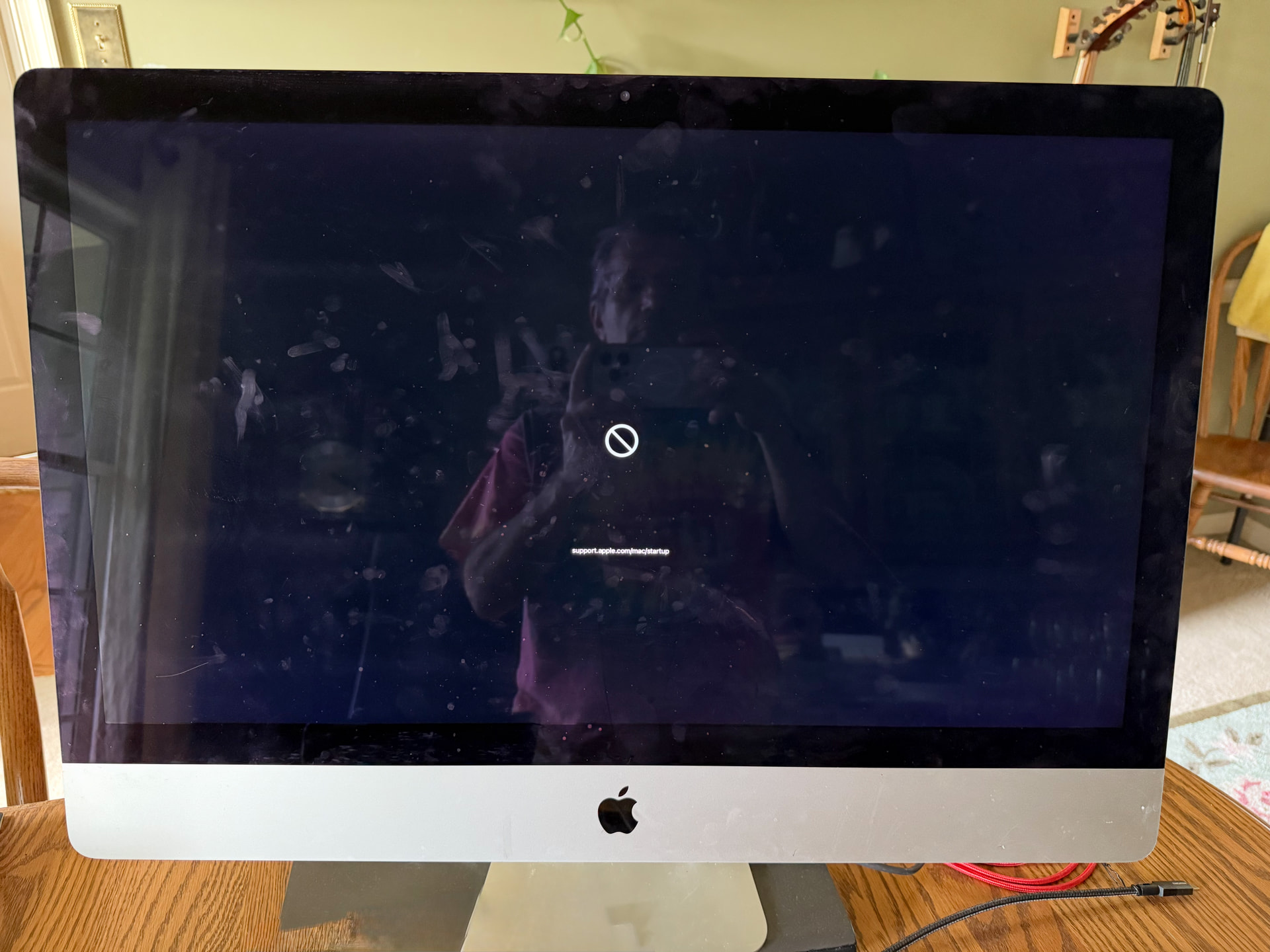
Is it trying to boot off the SD drive or something other than the normal startup drive?
Still, point well taken.
1 Like
I wasn’t trying to boot off the SD drive; there’s no OS on that drive. It’s just files from my Behringer mixer. The flow was:
- machine was at a login prompt
- I inserted the SD card in the back
- I tried to log in as me (I rarely do that; my son usually uses this Mac, and it has been running fine for him for years)
- Took quite a while to log me in, and I don’t think Finder even launched. I could see my desktop, but couldn’t open Finder windows. Launching apps gave the spinning beach ball
- The order of events after that is fuzzy. But I tried to
- Force-Quit to recover
- Try other apps like Safari
- Reboot
- Then I don’t think I could log in again, into any account
- Then I couldn’t even get to a login screen
- Tried Option-Boot and selected the only option: the External drive; no dice
- I tried removing the SD card and all peripherals, except the external boot drive; no dice
- Tried removing the external boot drive, knowing the internal drive was not good, but it didn’t help
- Took out external drive and tried to First Aid it on a working MacBook, but got immediate unrecoverable errors, running it at various “levels”, multiple times
I haven’t tried Claude yet, but I’m open to suggestions.
The e-waste from iMacs is beyond absurd. I will extend this to other computer manufacturers who make all-in-ones… except that some of the Wintel models CAN be worked on and even upgraded in some cases.
While I realize it may not be trivial for Apple to retain the iMac “target display” feature, isn’t that one of the traits that supposedly made Apple products stand out and worth their higher cost in the past?
Anyway, the number of iMacs I have seen abandoned with perfectly functional screens (mostly 27”) is staggering. For quite some time you could find rows and rows of used iMacs for sale in local stores.
Hopefully some of them found new homes with Linux or something instead of being buried in landfills.
In case you have not figured it out, I have become a “never buy an iMac” advocate after seeing this cycle repeat far too often. Some clients have moved to mini’s or laptops with separate screens, while a couple have started moving on to Windows systems. Not enough to hurt Apple’s bottom line, but it is sad to see.
2 Likes
That’s too bad. I’d make sure the cable to the external drive is good, and then I guess I’d try booting into Internet Recovery on the iMac and running Disk Utility from there, but it doesn’t sound encouraging. Good luck!
I’d look to setting up a new external boot drive, thunderbolt if possible, after swapping out the cable and attempting Internet Recovery. Hope your son has a recent backup.
3 Likes
Thanks!
Some updates:
- I only have one Thunderbolt enclosure (for this NVMe drive). But I do have a spare USB-C enclosure and cable, and I put the NVMe drive into that, and even from my (working) MacBook, it fails Disk First Aid. So that likely rules out the Thunderbolt Enclosure and Cable as culprits. Sadly, it might also mean the drive and its data are toast
- My son seems to think that his (much newer) MacBook already all(?) the files he’s used to having, I think synced via iCloud, and doesn’t seem to be concerned about lost data. I may look closer at that, but that’s good news.
- I do have a spare NVMe drive, and could stick that in the Thunderbolt Enclosure and try to get an OS onto it and see if I can get the iMac back alive…
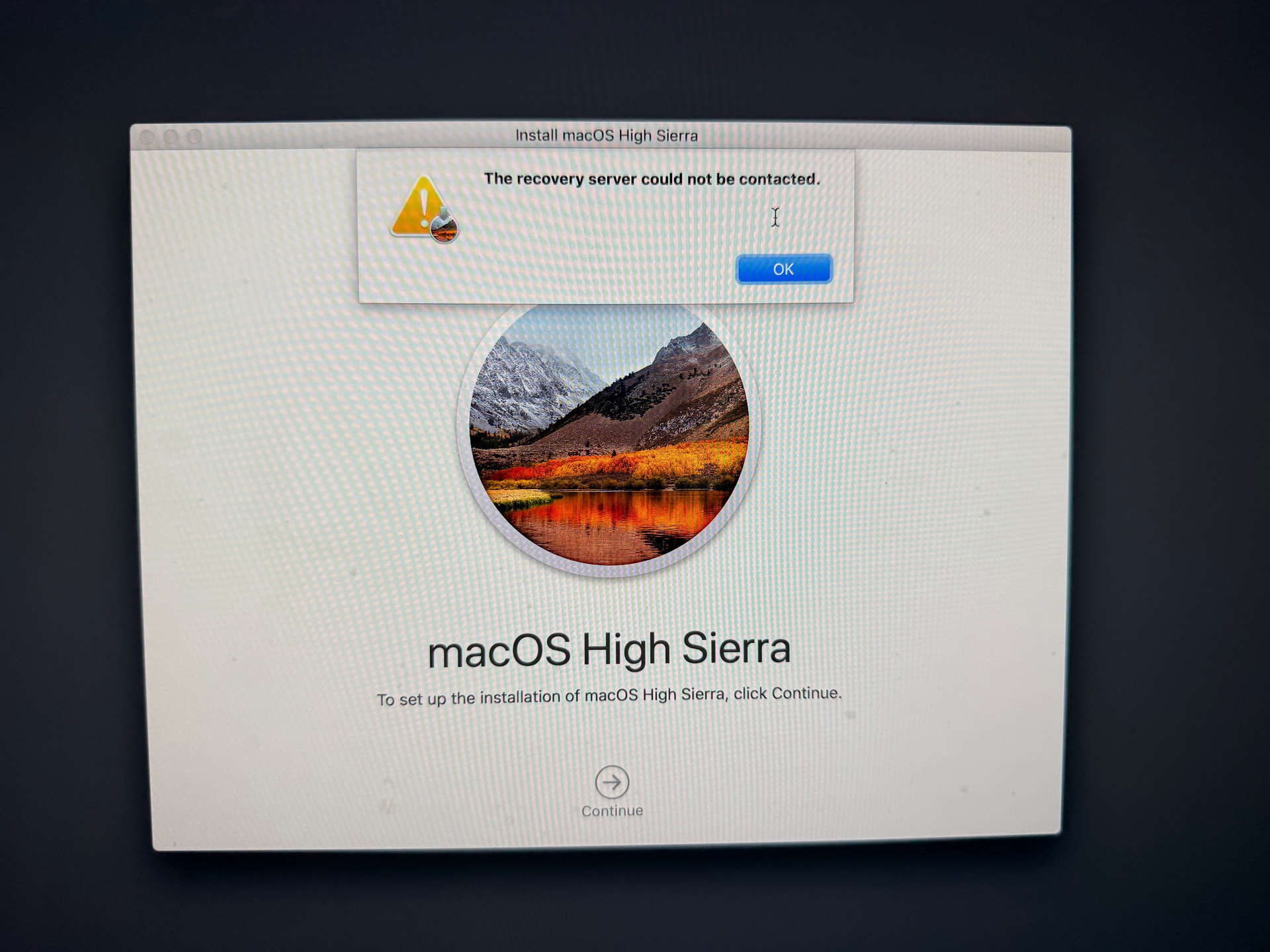
- I’m not sure Internet Recovery is an option here, but I will try…
1 Like