Kat, I’ve had the ALogic monitor for over 18 months – it’s beautifully built and functions flawlessly. I’d heartily recommend it.
Putting it beside a Samsung or Dell, it stands out! 
Kat, I’ve had the ALogic monitor for over 18 months – it’s beautifully built and functions flawlessly. I’d heartily recommend it.
Putting it beside a Samsung or Dell, it stands out!
This Mac fanboy reads “The interesting part is the Apple M1 laptops are now outlasting the HP displays,” and thinks “Of course.” 
Ouch. My once ridiculously capable 2010 27” iMac sits on the credenza unbooted because I can’t overcome inertia to wipe and recycle the darn thing. What a waste of a truly beastly display.
Thanks! Something else for my wish list…
My hubby is a huge imac fan. But he wouldn’t let go of his 27” imac from 2013. So we settled for a Mac Studio with Studio display (27”) and he couldn’t be happier. Granted, 13 years for a computer that is used daily, especially crunching a bunch of Logic sound files, is pretty good,
I personally like the iMac, and my mother and mother in law also like theirs. When I last upgraded my computer several years ago I decided to stick with an iMac because:
So yes, I agree that it’s nice to be able to reuse a monitor, but I think all-in-one computers also have their place.
I can’t suggest anything currently shipping, but my work computer is using a Dell UZ23125H. This 23" 1080p display was advertised as made for conferencing, including speakers and a camera.
That model hasn’t been made for quite some time, but here’s the list of all Dell displays that are advertised as for conferencing (meaning speakers and camera): https://www.dell.com/en-us/shop/computer-monitors/ar/8605?appliedRefinements=49328,54603.
This shows five models. Two are 24" 1080p displays, two are 27" 1440p and one is a 34" ultrawide (3440x1440 resolution). Prices for these range from $240 (one of the 24" models) to $800 (the ultrawide).
Their enclosures are plain black plastic, so no points for style, but my experience with Dell displays is that they will work well and be useful for a very long time.
Still using my old 2013 21” iMac with an external SSD. Catalina only but trucking along. The new iMacs are very nice, larger, more capable, more colorful. Was thinking of switching to a Mini + the Studio Display, but the cost is considerably higher. I like the idea of modularity but the iMacs have always been capable machines.
I love my 2019 iMac with 48 GB 2667 MHz DDR4. It is fast, it is great for my eyesight and it meets all my needs. I also have several Apple laptops, including an MacBook Air 2025 which is a very good machine. The iMac will eventually be replaced by a large screen and some other Mac computer.
I use a 27-inch Dell 2721QS which is nominally 4K (it can display 3840 X 2160 but I use at 1920 x 1080 most of the time to avoid eyestrain), which I bought a few years back to run a MacMini 2018 and now use with a 2024 MacMini. I got the Dell on sale for about $250; it is plain and simple, and should be easy to replace if necessary.
I assume you mean you are using Retina scaling to get a 1080p-equivalent size. If you’re actually outputting a 1080p signal (using the monitor’s built-in upscaling to fill the screen), it won’t look as good.
If you’re not sure, you can press the display’s menu key. It should tell you the resolution of the input signal. If you are using Retina scaling, the monitor will report 4K (3840x2160).
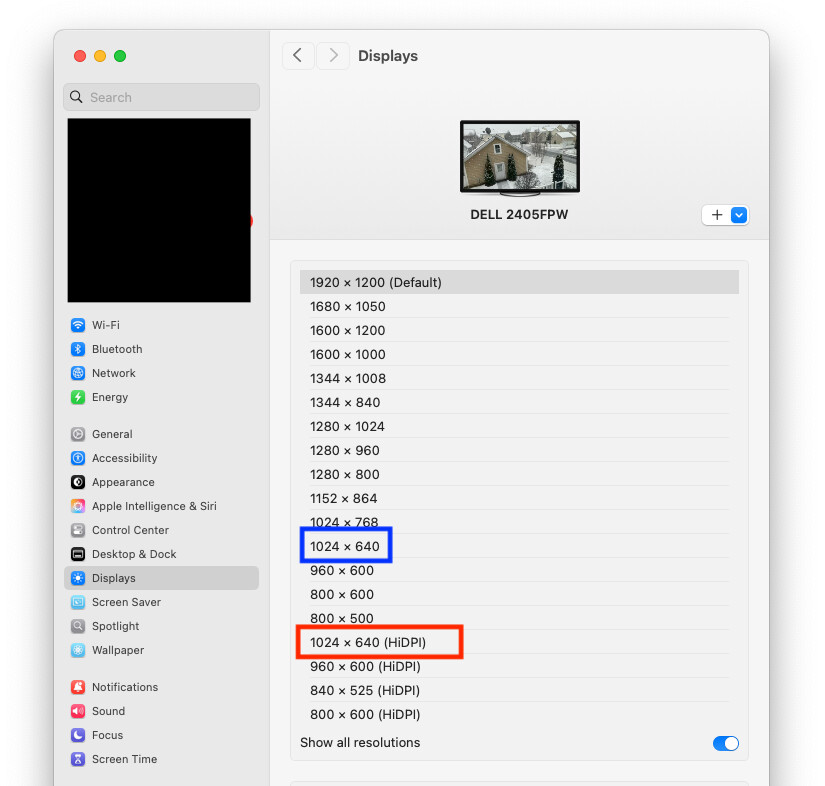
For example, my Display settings (when I tell it to show all resolutions) presents:
Note that several resolutions appear twice. If I would select 1024x640 (blue box), the Mac would output a 1024x640 signal, and my display would upscale it to the panel’s native 1920x1200 resolution.
If I would instead select 1024x640 (HiDPI) (red box), then the Mac would output a 1920x1200 signal, using Retina scaling so I see a desktop scaled to the equivalent of 1024x640. This will render everything internally at 2x resolution (2048x1280) and then use the GPU to scale it to the display’s native resolution (1920x1200). The result will (usually) look better, but at the expense of more memory (for the internal frame buffer) and a higher GPU load (to perform the scaling).
(This is from macOS 15. I realize that this panel may look different on other macOS releases and with other monitors.)
Very interesting. I had not thought of using Retina scaling, but it may not have mattered.
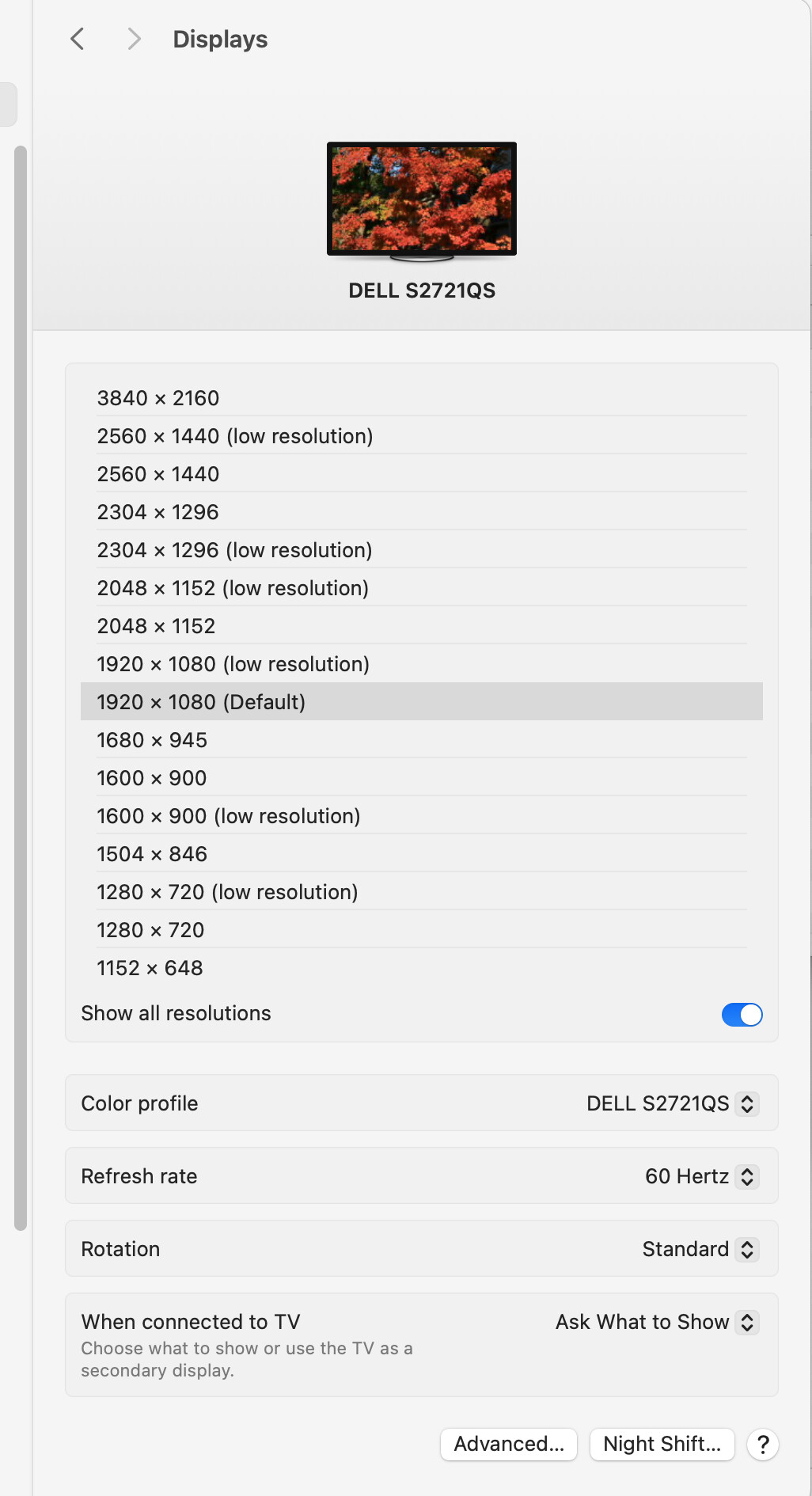
When I opened up all the options on the display, I got a different list (below) which shows either low resolution or nothing (except for the (Default) option which I mainly use). Switching from the 1920 x 1080 DEFAULT to the 1920 x 1080 (low resolution) gives me a more blurred image that is indeed a lower resolution. I don’t see anything marked as HiDPI. So I may have done the right thing without knowing of the option. Clicking back and forth between other normal and (low resolution) settings does the same thing, the default is better than the low resolution. I’m also on macOS 15. So the difference we see on the display screen comes from what’s in the displays, not the version of macOS. I wonder if your screen is newer than mine, which does not use the Retina terminology?
Thanks. The chance to share these insights is one of the very nice things of TidBits.
Interesting. I wonder why we see different things. I’m running 15.7.5 on an M4 Mac mini. The display itself is pretty old.
I can only assume that the EDID data macOS receives from the monitor is saying that you have a 27" screen (byte offsets 21 and 22 are the screen height and width in centimeters), so macOS can compute the pixels-per-inch for the native resolution and conclude that you have a Retina-like display (3840x2160 on a 27" screen is about 163 ppi), and changes the UI accordingly (giving you normal and “low resolution” versions of almost every resolution).
My display is much older than yours - from 2005. Its native resolution is 1920x1200. At 24" diagonal, that is about 94 ppi. I assume that macOS computes this PPI from the EDID information, concludes “not Retina” and therefore presents Retina-scaled resolutions (which I note are only the lowest resolutions) as “HiDPI”.
I looked through your display’s user’s guide, but it doesn’t appear that the on-screen menus will show your current resolution. At least the screen-shots in the manual don’t depict any such thing. Which is a shame. Both of my Dell displays will show you the resolution of the input signal at the bottom of its OSD menus.
Interesting indeed.
I’m running on 15.7.1, if that matters at all on this. The set-up works well for me.
I don’t have a date on this display; it was on sale at Micro Center, which tells me it was probably being phased out, but Quicken has munged some my purchase records so I can’t find when I bought it.
According to DisplaySpecifications.com, this is a 2020 model. The user manual says “2020-2022”, so there might have been a 2022 update (firmware, perhaps?).
I agree. I’ve used laptops with external displays and desktops with the same. Since I prefer a mouse and keyboard with a numeric pad using a MBP open puts the display too far away. Clamshell mode was often a nuisance when rebooting.I think of my iMac as a 24” iPad that runs MacOS.
Well, the Astropod Luna Display arrived. And moderately impressed I have to say. Certainly beats paying what I was going to pay for a new monitor.
I had no pairing until I connected a USB-C cable between two Thunderbolt ports, so two of my M1 Max’s thunderbolt ports are in use with it. That’s not so great. I do have a Caldigit TS4 hub however hanging off the third TB port, between that and my Studio Display, so far all the drives seem to be talking to me, yet to do a Speedtest on them though.
So the lagginess is there for sure with this approach. But my use case for it will centre on it being my secondary display, holding Capture One’s library and tool tabs with the main viewer on my Studio Display. So my use means that lagginess is not an issue, the gorgeous display is the issue, fab to have it back.
added: it didn’t require the USB-C cable to pair the second time I checked it. Presumably via WiFi. Not a noticeable change in lagging with that.
This is a local operation to me but people wanting to try and give more life to older computers can look for similar organizations near them.
They take older tech and try and repurpose it for people with little money. And responsibly recycle what they can’t use.
Curious to know if this was an old issue or a current thing. I do it all the time with a collection of over 30 late 2010s and Mx Mac laptops. Remotely mostly.
With modern display with USB-C or Thunderbolt hubs plus power delivery, clutter is minimal as there is only one cable to the laptop.
And the battery issues either never really were or is a thing that has been solve for over 10 years. I work with a small fleet of mostly Mx Mac laptops plus some touch bar ones. Most are plugged in a minimum of 9 hours a day. Some 20 to 24. No battery degradation issues.