Once a year I convert $ amounts into £ In this NUMBERS spreadsheet. Entries in Col A are copied/pasted from a website. CURRENCYH in Col D doesn’t recognise the pasted value in Col A as a number, I have to use a REGEX formula in Col B to convert the pasted TEXT string into a number.
This year, NUMBERS tells me with the blue triangle in Col B: This formula produces multiple results in newer versions of Numbers. It has been modified using the “@“ operator to return the intersection of its cell references instead. Original formula: REGEX.EXTRACT(F33,“[\d.,]+”)×1
Indeed the automatically amended formula reads: @REGEX.EXTRACT(F35,“[\d.,]+”)×1
My spreadsheet still works, but I’m a bit lost about what happened here. What is an “intersection of cell references”? How can ONE formula produce multiple results?
Basically, in some recent update to Numbers, several functions have been changed so they may accept either a single cell reference or an array-reference (that is, a range of cells), whereas in the past, they only accepted single cells. REGEX.EXTRACT is one such function.
The prepended “@” is an “explicit intersection” operator which forces the function to accept a single-cell-reference (the only way it worked in older versions).
Since your sheet was migrated from an older version where only cell-references were supported, the “@” was prepended in order to make it explicit. The alert icon is to let you know that the formula was modified. You should be able to just dismiss it.
In your situation, it is superfluous, because “F33” is a single cell reference. But if you were using other kinds of references (e.g., “$A”), it would be ambiguous - it could mean “column A on this row” or “all the cells in column A”. The “@” operator tells it you mean the former, not the latter.
Thank you @Shamino . Unfortunately I’m now even more confused.
My spreadsheet still works, I don’t need to solve anything, but:
Isn’t “$A” just an incomplete ref? How can it mean “column A on this row” or “all the cells in column A”
I ask again: How can ONE formula or reference produce multiple results? If there is an “explicit intersection”, is there also an “implicit intersection”? What are intersections?
Why can the “F33” in the Regex formula mean anything else except Row 33, Col F ?
While this doesn’t answer @mHm ‘s questions, I am wondering if there is an easier way than using a formula to convert the web site data.
Would it work if the web site data was pasted into a column of cells formatted as a number?
Or is there a way to copy the web site data without the formatting that seems to be fouling things up? that is, that the data on the site is encoded with some info that could be stripped away? maybe there is a variant on command-c that would copy as plain text or something…
I also use Numbers for my regular bookkeeping, which involves multiple currencies. I think I ran into a similar issue of web site currency values not pasting right, but instead of digging into it, I just put the two windows overlapping and manually type the currency values into my table in Numbers. Lazy I suppose, but it works at my small scale.
@TBTdn Ha, great minds thinks alike. I have indeed gone through the steps you mention to make sure that the figures are recognised a NUMBER, not TEXT. No such luck. Regex clearly isn’t my home turf, I surfed up the formula somewhere, possibly with AI, I don’t remember. AI told me this about said formula:
=REGEX.EXTRACT(A2,“[\d.,]+”)*1
This regular expression will extract number digits and . and , .
The result of REGEX.EXTRACT is Text but you coerce that to a Number by multiplying by 1.
In this particular expression
[\d.,]+
\d means a number “digit”
., means a period or comma
Putting them within the [ ] is sort of a logical or, meaning match either a digit or a . or a ,
The + at the end means match one or more of these characters.
I just tried reproducing your problem in Numbers here, but I was surprised to find that if I enter a dollar amount as text in a cell, I can still use it in a formula and have Numbers interpret it as a number. Maybe you don’t need the regex fix anymore.
I assumed the presence of the dollar sign in the figures in column A was the cause of your initial problem. Is that correct or is there another reason Numbers doesn’t like using it as a number?
In Excel, you would be right. The syntax for “everything in column A” is “A:A”. And "everything in row 4 is “4:4”.
But, according to what I read (remembering again, that I’m not a Numbers user), there appear to be shorthand notations where “$A” can mean either “all of column A” or “the value of column A for this row”. When you have a function that can accept either a cell- or a range-reference as a parameter, such notations can be ambiguous. Hence, the need for a way to tell the app which you mean (e.g., the “@” operator).
IF you apply an operation to a region of cells, the output is a region of results.
It can’t, but the expression REGEX.EXTRACT(foo, exp) is what’s triggering the warning. In older versions of Numbers, “foo” would have to be a cell reference. But now it could be a range as well. And certain kinds of references like $A, which were unambiguous in the past, are now ambiguous. So the app is auto-applying the “@” operator to force it to be a cell reference (the old behavior), and is letting you know what it did.
The auto-upgrade code is not trying to be smart enough to know if the parameter has ambiguity or not. It’s probably just doing this to all instances of REGEX.EXTRACT(), and all other functions that gained array-reference capabilities.
FWIiW In Excel $A is used when copying formula to other cells. It means an absolute value instead of a relative value. For example the formula A2 + $A2 copied from column A into column B will give the result (B2 + A2).
More specifically, Excel (and others) use the “$” prefix on any component of a reference, to indicate absolute, vs. relative. For example:
A1 means the upper-left corner. If you copy/move a formula with that reference, it will be adjusted, to maintain the same location relative to the formula you are moving.
$A$1 is the same location, but absolute. If you copy/move a formula with that reference it will remain $A$1.
$A1, means the column is absolute, but the row is relative
A$1 means the column is relative, but the row is absolute.
And you can mix/match them in ranges and things. For instance: $A$5:$A10 would mean the region from A5-A10, with the column being absolute and the row being relative for the lower bound. So if a formula in (for example) cell C10 has that $A$5:$A10 reference, and you copy that cell to X27, the reference will become $A$5:$A27. A very powerful mechanism for things like copying a formula throughout a grid, or for summarizing tables.
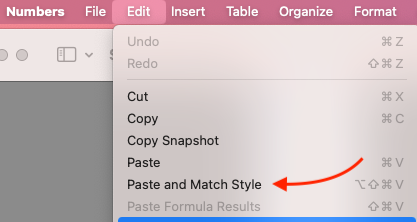
In regard to the original problem (entries pasted from a spreadsheet not recognised as numbers) I have seen a similar problem where dates pasted from a website are not recognised as such. I can coerce Numbers into recognising these as dates by simply changing the format of the cells after pasting (actually a couple of times as the format initially “looks” right). I wonder if this would work for these dollar amounts. Alternatively “paste and match style” might help here. This would avoid the REGEX function entirely.
If it’s not an invasion of your privacy perhaps you could indicate the website you were using so we could check other solutions
That was my first reaction, whether it’s the cause of the OP’s confusion or not. I use Clipboard History, which allows you to paste unformatted if you hold the shift key down. Copying and pasting from websites is often problematical.
Interesting! I wonder how to test this. I just tried (variatious modifiers)-cmd-c and pasted into a TextEdit document, looked all the same. Switched the document to RTF and saw a variety of results, some with different text sizes, some came out as the page url (Orion browser), some looked like html, used the Forum’s Copy Quote option and got a blue, underlined url.
I suppose one could use Developer view of the browser to inspect the text to be copied, to see how it’s formatted, to lead to a workaround. Hm.
Once a solution is found, using Automator/Shortcuts might make a key combo possible to extract OPs web site, convert it to text, and plunk it into Numbers in a couple of short steps…
I was referring to a specific Clipboard History feature. I think Microsoft Word has a “paste unformatted” option. There will be others from other applications or utilities.
Even so, I found some sorts of formatting in copied text don’t always get stripped out—most often background color. I think when desperate I’ve resorted to pasting into a plain text document (not RTF) and then re-copying.
The concept of a ‘paste and match format’ works in Numbers 14.3 in Sequoia.
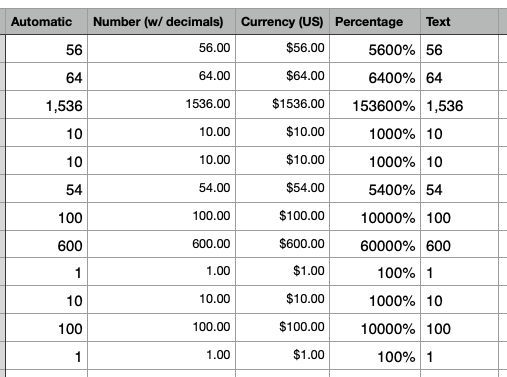
To get a column of numbers for testing I screenshot a bit of a Wikipedia table, opened the screenshot in Preview and copied the numbers via the Live Text function of Mac OS. Next, I opened a new blank Numbers sheet and pre-formatted several columns and titled accordingly. Finally, I clicked in the top cell of each column and pasted using the “Paste and Match Style” command.
I wish I could make “Paste and Match Format” the default. I want that result far more often than I want “Paste and Retain Format”. (Yes, I could change the keybindings so that Command-V returns Shift-Option-Command-V and vice versa, but that doesn’t help in apps that don’t directly support Shift-Option-Command-V.)