I’m curious about Time Machine’s scheduling. I am running the latest Tahoe version and recently bought a 2TB external drive (Samsung T7). Setup was very simple since TM does most of the work for you. The initial backup took about five minutes, maybe less (new iMac M4). I haven’t changed the default scheduling but I noticed that TM made hourly backs during the night while the machine was asleep. Is there a reason for this? Can it be changed? Tahoe may be conducting some housekeeping operations when the Mac is asleep but there isn’t much activity otherwise. No document creation or modification, et cetera. I am assuming that such behavior can’t be changed. Also is there a consensus about accepting the default schedule? Other than that the process has been quite seamless and transparent. Much improved over the earliest version of Time Machine.
Hourly backups are the norm for Time Machine. The Support section of Apple’s website has details on how long each “copy” of your data is kept by TM.
One reason TM operates each hour is to make it easier to recover from accidently deleting a file or making an unwanted change to your computer.
You could use Time Machine Editor to limit backups at nighttime or times when you don’t use the computer.
I would strongly recommend just accepting the default schedule. This is one of those situations where you can spend a lot of time overthinking things and end up with a backup that doesn’t protect you in a disaster, with no actual benefit.
The default configuration is hourly backups. And things may change while it is “asleep”, due to features like PowerNap, which can perform some background tasks while the system is otherwise asleep.
But those backups will complete really quickly if very little changed in the last hour.
Go to Settings → General → Time Machine → Options…
Apple gives you four choices: Manually, Hourly, Daily or Weekly:
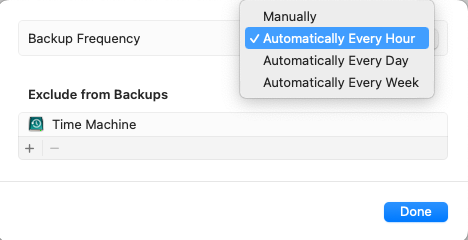
There are third-party tools that can let you customize the schedule beyond these coarse choices, but I’m not personally familiar with any. I’ve never seen a need to change the schedule to anything other than the default Hourly schedule.
Ok. Thanks. Asked mostly out of curiosity since not a lot is happening at night. But I tend to agree with your assessment.
Time Machine editor (see link above) gives you much more control over the frequency and scheduling of backups. For intensive computer use the TM defaults are good but for my occasional Mac use I find TM Editor useful. For example I have set it for backups every 3 hours during the day.
It has successfully migrated over several Mac/macOS updates.
I’ve found TimeMachineEditor to be flaky on Tahoe and later. For example, I’ve set it for to only do backups on a daily basis or at specific intervals (something you can’t do with Apple’s settings). I’ve found that from time to time, hourly backups were being taken -and yes, I have Time Machine set for manual operation.
I uninstalled it, cleared out all files, reinstalled it fresh. Still flaky. I stopped using it as I considered it too unpredictable. And there’s no indication of where to file a bug report.
Perhaps I’m running into the documented bug of unreliability when the Mac sleeps.
My feeling is that it sort of works, but don’t be surprised if you find bugs. And it hasn’t been updated in over 3 years so I wonder if it’s abandon-ware. YMMV.
This is interesting. My system (M2 Mac mini, all software up to date) used to run Time Machine backups hourly, even when the system was asleep but I’ve notice that it no longer does. Copies are only made when the system is awake. I don’t believe I have changed any settings and can find none that might regulate this. Any suggestions?
The system obviously can’t make a backup while it’s asleep.
If it appeared to be doing this in the past, then something was (at least partially) waking it up, and the backup was made during the time it was awake. If it is no longer waking itself, then the backups won’t happen.
That having been said, if it is asleep the entire time, then there’s no problem - nothing will have changed, so there’s really nothing to back up.
I’d take a look at various energy settings. Things like “Power Nap” (which, I think, is only for laptops), “Wake for network access”, or other settings that might cause it to temporarily wake up for background tasks.
Time machine Editor it working OK for me with Tahoe but I will keep your point about "abandonwear in mind.

(P.s. I created this touch wood emoji via Apple AI but don’t know how to make it smaller - maybe I should ask AI!)
Looks like TM on my system is backing up every hour during the night when the system should be asleep. Not sure why because I generally Sleep the system around 8 pm and don’t wake it up before 10 a.m.
If you have an Apple Silicon Mac, it generally doesn’t fully go to sleep. When an Apple Silicon Mac sleeps, it’s actually in a low-power “always on” mode, which enables syncing, Siri indexing, backups, background updates, and other operations, even if the Mac is nominally asleep.
For Intel Macs, @shamino’s suggestion to look into Power Nap is a good one. It also allows operations when the Mac is nominally asleep. If enabled, backups definitely can occur on a “sleeping” system. Support varies depending on the version of operating system, but both laptops and desktops are now supported.
(Note: Some of these behaviors depend on whether the Mac is plugged into an external power source or is running from battery.)
David, I changed the Energy setting “Put hard disks to sleep when possible” to “off” and Time Machine resumed making backup copies while the Mac is in sleep mode. Whether or not these backups are worth having at least I know how to manage them.
Thanks. Current machine is an M4 iMac purchased this June. Didn’t know that about the “low-power mode” feature.
You can also initiate a TM backup at any user chosen time. The Time Machine section in Settings offers a button for that. However, much more convenient for everyday use is to include the Time Machine widget in your menu bar. Not only does that widget tell you when you last backed up (or indicate if your TM is backing up right now), it also offers the convenient “Back Up Now” just one click away at any time.
Yes, I have the menu bar widget, which is useful. And you can browse previous backups.