Local Network Time Sync Possible? (resolved)

No luck searching online for this, looking for keyword suggestions/correct terminology for having a Mac Mini with no internet access to sync its time/date with a MBAir on the local network which has internet connection and is set to a time server.

Search results so far don’t address this so I must be phrasing wrongly.

Is it failing in a particular way?

Assuming that the MacBook Air has a fixed IP address that is reachable from your mini, have you tried typing in the Air’s IP address or hostname in the Date & Time settings on your mini?

@TBTdn
FYI, Eclectic Light Company writes periodically about macOS and how it deals with setting the time and date. For example, I seem to remember some stories about how macOS changed from using Unix components to a proprietary Apple solution several years ago. I think there was also a security issue with some open source code related to time setting awhile back.

I’ll try this idea @josehill ! Might be exactly right.

Your post jogged me into a couple of new keywords which brought up some more useful sites on the topic of setting time in for instance school networks, but I am still not technical-smart enough to know which of the IP addresses one can find in Settings and System Report is the correct one for this purpose. Thank you!

Righto @Halfsmoke , Oakley is excellent! I did find a post from him (didn’t save it, now searched his site 3x and can’t find it again) about this and he only referenced the existence or possibility of Macs with no internet connection and went on to much detail on setting time for those that do.

He often does mention things in the intro and then goes into detail on them in the Post, but this time he didn’t come back round to the non-connecteds alas.

The timed service on a Mac, connects to one of Apple’s NTP (Network Time Protocol) servers, and maintains the Mac’s system clock roughly in time with this. It does not act as time server, so the Internet facing Mac can’t be used as a time source by a non Internet Mac.

But, with a fair bit of fiddling and understanding, you can run the cronyd service (in place of timed) which gets time from NTP servers and can also act as an NTP server distributing time to other devices.

If you want to pursue this, my recommendation would be to use ChronyControl (replacing timed) on your Macs. Not an easy task. chronyd on MacOS X

I use ChronyControl on my 2019 iMac which is particularly bad at keeping time using timed. ChronyControl keeps it correct to a millisecond or two. I now use my Raspberry Pi as the Internet facing chronyd time server, and the iMac chronyd gets its time from that.

The Howard Oakley article is A brief history of time synchronisation – The Eclectic Light Company

Thanks @gilby101 , I think that is the Oakley post I was looking for with wrong keywords. He does reference non-internet connected Macs but doesn’t provide a solution for them.

Also for the ChronyControl link, which at first look appears over my head.

Now it’s my turn to sound like an A.I. chatbot:

Oops! @gilby101 is right! I had forgotten that Apple dropped its version of the ntpd server as of macOS Mojave!

I don’t have any experience with chronyd, but you still have several alternatives, depending on your objective.

I forget how you configured your mini to be “LAN only,” but if you just want to sync to something on your local network, the most reliable method would be to get the time from your router, assuming that your router supports time services and your mini can communicate with the router’s LAN interface.

Many routers have built-in time servers. Depending on the model, the router’s time server (as distinct from its time client) may be configurable via the router’s admin interface…or not. For example, my ISP-provided router has an active time server, but it only exposes the time client configuration via its admin pages. Check your router’s documentation.

If your mini can communicate with the router’s LAN interface, but you don’t specifically see an admin page, you can check to see if time services are available on the router by entering sntp <router's internal IP address> on a Terminal.app command line. For example, my router’s internal IP address is 192.168.1.1, and when I enter sntp 192.168.1.1 from my Mac, I get a single-line response that looks like: -2.227976 +/- 0.023253 192.168.1.1 192.168.1.1. For most home users, the numbers don’t matter very much, just that they exist. If your router does not have active time services, you’ll either get a lengthy “Timeout” error or no response at all.

Another LAN-only solution would be to set up a local time server. You’ve mentioned before that you have a Linux system available. If the router method doesn’t work, consider using the Linux system as a time server. Time service is a very basic capability on Linux. Setup generally is pretty easy, but the specific steps will differ based on the distribution. Do some googling.

If you really are interested in having a Mac act as a time server, you can try third-party tools, as @gilby101 suggested. I also notice that Apple introduced a new macOS time server in Big Sur, but it is disabled by default and is sparsely documented. For more info, search for “sntpd on macOS”, as distinct from sntp (without the “d”). There’s also a man page (man sntpd). Unless a third-party tool offers unique functionality that is important to me, I like to see if the Apple tool works first.

Edited: fixed some typos and made some minor wording changes for clarity.
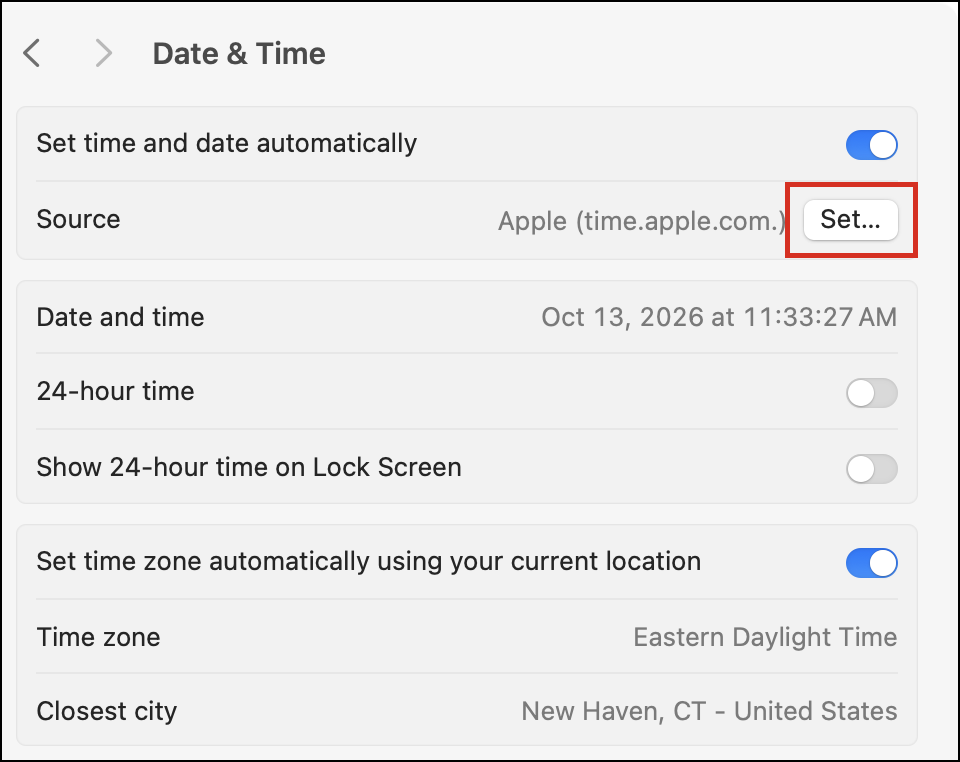
2 Likes

So did I! I searched TBT for one of my old posts and thought it was only a matter of turning on wifi but not connecting to a network (results in gray wifi icon in status menu). Didn’t work. Then found out one needs to connect to the network but prohibit it from connecting to internet. Found out how to do this with Parental Controls in the router’s admin pages. That worked (wifi on and not connected is apparently useful for AirDrop).

Whoa, yeah! I found the instructions in the router Help and set it for the MBAir; the Mini didn’t need to get into the router, I just entered the router as the time source in Date & Time Settings!

Compared time on both and it’s bang-on so this is a fine solution! I’ll try it soon on the Linux laptop and it should also work there.

Quite the simpler solution, especially as it seems problematic using the MBAir as the time source.

Plentiful Thanks @josehill !!!

2 Likes

Is that the MacOS 27 Date & Time setting? My 26.7.1 doesn’t have the Lock Screen option.

The screenshot is from a laptop running Sequoia 15.8.1. It looks like the option was removed in Tahoe. I also don’t see it in Golden Gate.

It must have only been there for a short time as it isn’t in Monterey 12.7.6 either

You have added lots here.

I didn’t know my router was an NTP server. It is! That really is the simplest way to proceed. No doubt it depends on the particular router, but mine is (right now) about 30 mS different to using Apple or Cloudflare (via crony). But that does seem a simple solution which is more than good enough for most purposes.

The man sntpd is pretty poor as documentation, but I didn’t know it existed!! Another way forward (perhaps).

The Linux server solution is pretty straightforward with reasonably current Ubuntu which I run on my Pi.

1 Like

That does seem the best way forward!

1 Like

The Lock Screen Clock options on Golden Gate are near the top of System Settings>Wallpaper.

1 Like

Thanks - I saw that, but I didn’t see an option for 12-hour vs 24-hour clocks there.

I did some fiddling, and it seems that rather than being an independent setting, the lock screen will follow whatever is chosen in the “24-hour time” setting in the “Date & Time” Settings pane.

I’d love to know how many hours a team at Apple spent arguing over those changes. :grinning_face:

1 Like