This is not really about secure storage so much as using iCloud drive to facilitate secure document transfer.
So assume you have iCloud drive space available (free tier only, no iCloud+ options) and you need to transfer SuperSecret.pdf to a friend who’s across the globe and uses neither iCloud nor anything Mac or iOS. Assume also that you can encrypt and password protect SuperSecret.pdf because you will be able to send your friend the password to decrypt over a secure 3rd party channel (assume something like Threema, i.e. a platform agnostic E2E encrypted alternative to iMessage). (Turns out Threema can transfer documents, but let’s assume you cannot use that for this)
Is there a simple way to generate a globally accessible link to a doc you have on your iCloud drive? This can (supposedly) be done on icloud.com, but I’d like to do it right out of macOS. I was hoping to find this in a Finder contextual menu for iCloud drive items or in their share sheet (there is a “Copy Link” extension and it is on, but for some reason it still doesn’t show on the share sheet) or under Services, but no dice. Any suggestions?
I didn’t find a solution, but at least here’s an explanation for what the “Copy Link” extension does (and why it likely won’t work for you).
If you follow the process below, you end up with a link to the document on your clipboard. However, if you send that link to your recipient, when they click it they are required to sign in with their Apple ID, or create one, which falls outside your parameters (i.e., they don’t use iCloud).
Right-click on doc in iCloud Drive folder in Finder
From the contextual menu choose “Share…”
In the resulting pop-up, choose “Collaborate” from the drop-down menu, then click on “Invite with Link”
In the resulting Create Link dialog, enter the email address of the recipient in the “To:” field, then click the “Copy Link” button.
Thanks for that @fischej. It’s a shame iCloud can’t be used for this. I recall many years ago I used Dropbox for exactly that. Quite seamless too as I recall. Just right click on the doc, copy the link and send it off. It’s amazing that these days we have all these great bells and whistles built into our Macs but something as basic as this apparently requires third party software and signing up for accounts and yada yada.
If it were smaller I’d just use Threema, but due to its large size, I was thinking iCloud would be ideal. Back in the day we’d split up compressed files into multiple smaller chunks, but let’s not go back there.
In my “back in the day”, it was: split into multiple chunks, loaded onto umpteen floppies, and stuffed in a FedEx overnight box. (Yes, I’m SneakerNet old.) I still remember when FedEx was not just the fastest way, but the only reasonable way to get any significant amount of data to somewhere out of town without taking it yourself. No, I don’t want to go back there either.
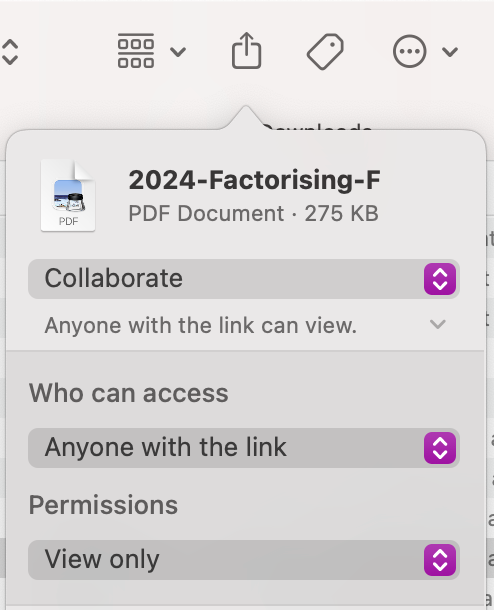
Yes, this is fairly easy but not immediately obvious. If you click on the Share button in the Finder window toolbar (or choose the menu item File ➜ Share…) a popup menu will appear below the icon+title of the item you’re sharing. Change this from ‘Send Copy’ to ‘Collaborate’ (even though you’re providing a download-only link, not collaborating).
By default this will say ‘Only invited people can edit.’ in small text that has a small disclosure arrow to the right. If you click on that text (or disclosure arrow) you get options which you can change to Anyone with the link and View only. The top of the share sheet sheet should now look like this:
Below it will have the standard sharing options (Messages, Email, etc) and also Invite with Link. If you choose that, it will generate the link and copy it to the clipboard and you can do what you want with the link.
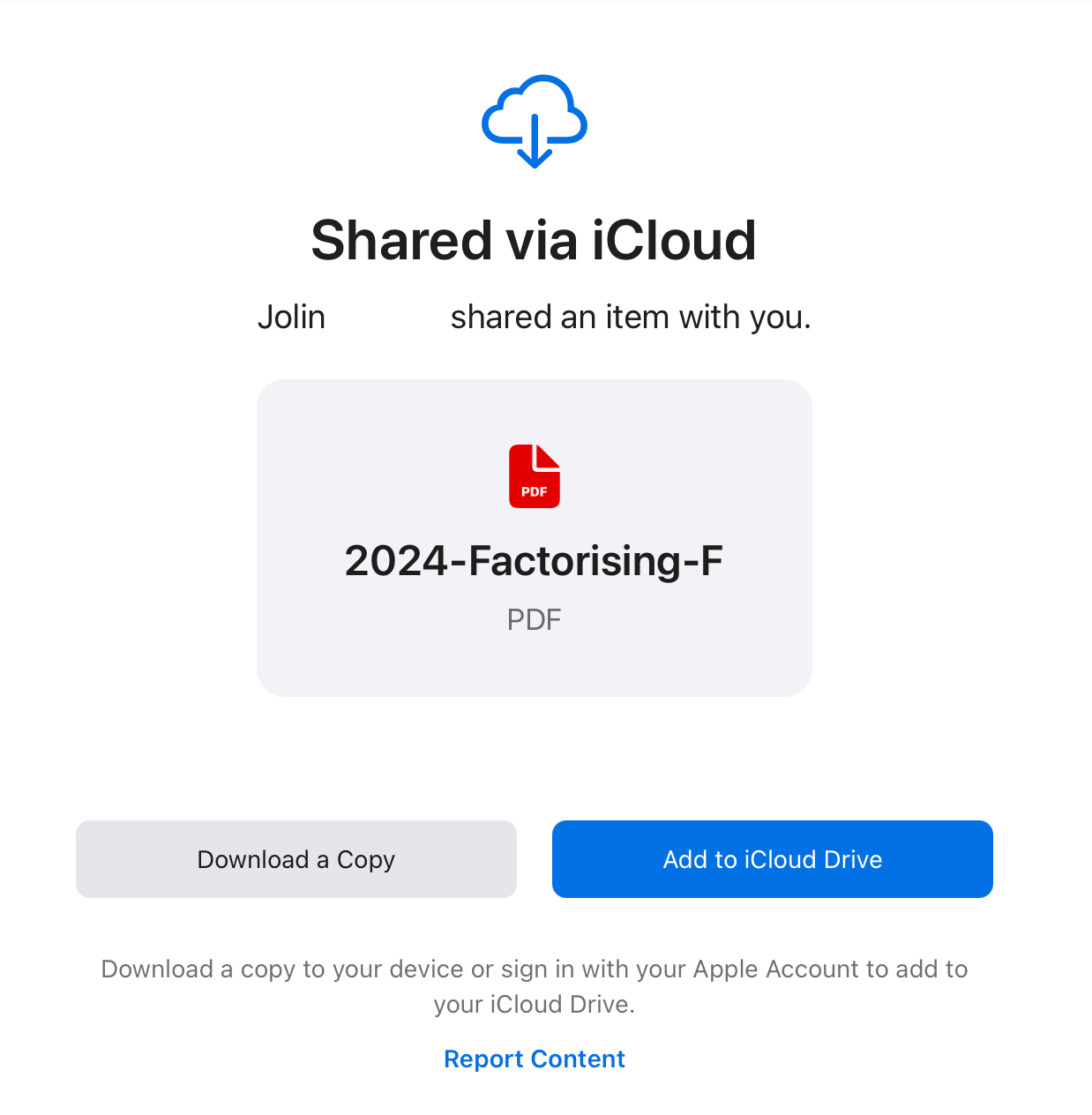
The person who uses the link will have the option to ‘Download a Copy’ (as well as add it to their iCloud drive).
Note that if you share a folder, there isn’t a ‘Download’ option, only the ability to add to iCloud Drive (so they’d have to create an account if they don’t have one). So for a folder it might be better to zip it and share the zipped file (which can then be simply downloaded) depending on your purposes.
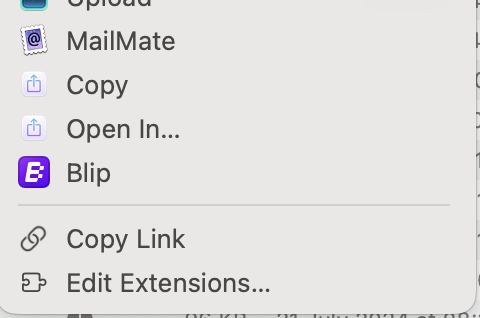
Once you’ve done this, the next time you open the share sheet on the same file it will have a Copy Link item second from bottom for quick access to the URL to share.
Thank you @jzw. Appears well hidden and a bit involved, but gets the job done.
After playing around with it for a bit, I’ll note 3 other details.
It only works for files already in your iCloud drive. It does not support copying or linking to files if they reside elsewhere. You need to do that yourself first.
The whole interface looks a bit different if done out of the document itself rather than in the Finder. But AFAICT it works fundamentally the same.
To cancel such a share, in Finder use right click > Manage Share File… > Stop Sharing. This would also be where you go back to get the share link if you need it again at a later time.
I wonder if there is some kind of interface somewhere that would show me a list of all the files I have shared this way and offers quick access to managing those shares.
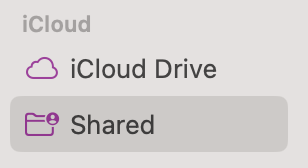
Click on this and the window will show all the files and folders you’ve shared so you can easily choose the one you want and change access, get links, etc.
If it’s not showing in the sidebar, go to the Finder preferences and tick the box next to the appropriate item in the Sidebar section: