Apple Opens Public Betas for OS 27

Originally published at: Apple Opens Public Betas for OS 27 - TidBITS

Want to live dangerously, get a glimpse of the future, and help Apple find bugs? You can now install public betas of nearly all the OS 27 operating systems: macOS 27 Golden Gate, iOS 27, iPadOS 27, watchOS 27, tvOS 27, and HomePod Software 27. There’s even a public beta of the next version of the AirPods firmware, but none for visionOS 27.
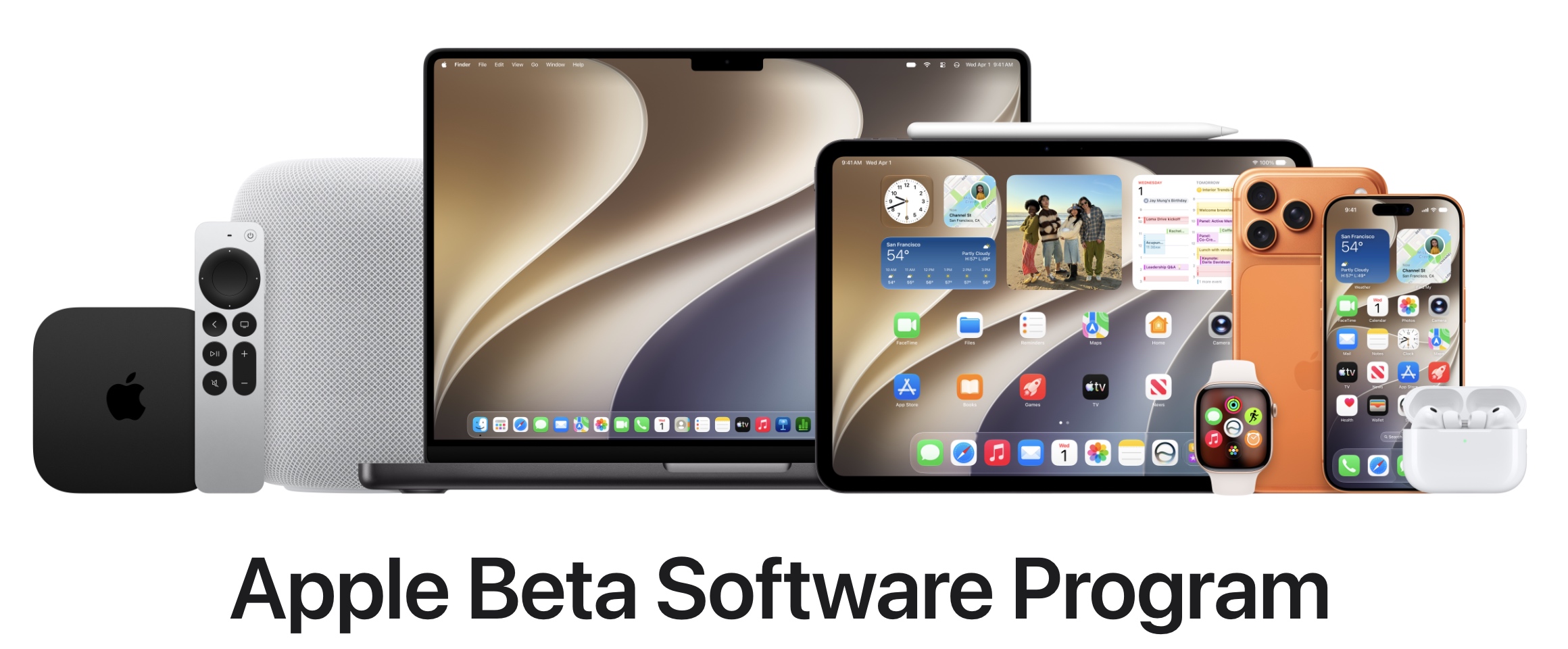
Apple Beta Software Program

Follow those links for Apple’s lists of what’s new in each operating system; you can also read “WWDC26 Keynote Shows Apple’s Tacit Acknowledgment of External Pressures” (8 June 2026) for thoughts on the tweaks and features that will have the most impact on your Apple experience. At Six Colors, Jason Snell and Dan Moren have already written about the main changes in the macOS 27 and iOS 27 betas.

Now for the obligatory warnings. First, you’ll need compatible hardware, although I doubt that will be an issue for most people interested in testing. For details, see “The Real System Requirements for OS 27” (20 July 2026). Second, install betas only on devices where you can tolerate catastrophic failure that might require wiping the device, reinstalling the operating system, and restoring from backup. Bugs and conflicts are par for the course—that’s the entire point of a beta program. Ideally, you’d dedicate devices to testing, though I suspect many people don’t.

A full backup is essential before installing any beta on a Mac, iPhone, or iPad. Apple TVs and HomePods store all their data in the cloud, so they can’t be backed up. If you want to revert to a shipping version of one of these operating systems, you must erase and restore from backup. The exception is the Apple Watch, which can’t be restored to a previously released version of watchOS once you install a watchOS 27 beta—it’s a one-way street to the future.

Also, consider not connecting your primary iCloud account with the betas to avoid bugs that might cause synchronization or other upstream problems. You wouldn’t want beta iCloud Drive code to corrupt important data you use on your everyday devices or mess with your iCloud Photos library.

If it sounds like I’m trying to dissuade you from installing the public betas, I am. You could lose data or waste time recovering from problems. But if you’re comfortable with the technical implications and won’t be upset if you lose data or waste time recovering from technical problems, have fun exploring and reporting bugs! I certainly intend to do so between now and when these updates ship, likely in September.

To test one or more of the betas, go to the Apple Beta Software Program, read the FAQ, and sign up for the beta program. Once you’re in, select which betas to install in Software Update, then proceed with the installation.

Golden Gate and iOS 27 update screens

Finally, remember that the main reason to test public betas is so you can report bugs, so revisit David Shayer’s advice in “How to Report Bugs to Apple So They Get Fixed” (17 June 2020).

1 Like

What I want to do is create a partition on my main drive, then install the beta there. I officially signed up for the beta program at Apple. The screen caps above sure seem to indicate it will be installed over my current Tahoe, something I do NOT want to happen. I think that if had an actual installer I could choose where to install it. How can I go about this?

Every macOS installer package (which is actually a folder) contains a script called createinstallmedia. You can run it to make a bootable USB flash drive containing the installer. Booting it will drop you into a Recovery Mode that can be used to install macOS from that flash drive.

I don’t know if the macOS 27 beta installer will force you to upgrade an existing system, or if it will let you choose the destination (e.g., an external SSD or a new APFS container on your internal storage, or maybe new volumes in the existing container), but if it is possible that is how you will go about it.

Note, however, that even if you install it to a separate set of volumes, the installer may include firmware updates, which will affect your existing installation. These updates are usually harmless, but since we’re talking about a beta installation, there may be bugs there.

In general, I would recommend against installing a beta OS on a computer you are using as your daily driver. If it fails, you may be forced to restore your old system from a backup.

Perhaps it would be better to install the beta in a VM, where it should be isolated from your main system.

3 Likes

Ugh… I thought this might be simple. Never heard about firmware on my M4 Mini. Both my main drive and 2 externals are a APFS, with plenty of room to create new containers (which seems I used to call partitions… is there a difference?). AND everything is backed up daily.

Could swear I read something talking about a link to download the installer…

A partition is a fixed-size region of a storage device, which may contain any arbitrary kind of data.

Before APFS, you would typically format each partition to contain a single storage volume.

With APFS, a partition holds a container. Within that container, you can create multiple volumes (and all of a container’s volumes share the same free space).

If you want to create a non-APFS volume (e.g., HFS+, FAT, etc.), you need to create a new partition for it.

If you want to create a new APFS volume, you can create it in an existing container, where it will share free space with the other volumes in that container, or you can create a new partition with a new container and put the volume in there, so it won’t share free space with any other container.

Apple publishes links to most older macOS versions here: How to download and install macOS - Apple Support

But that doesn’t include the current release (officially only available via Software Updates) or betas (via the beta program). It also doesn’t let you access more than the latest revision of each major release.

You can also download full installers for many versions using the softwareupdate command-line tool.

There are also links to download installers directly from Apple’s CDN servers. Which is usually the only way to get a specific version that’s not current.

For all the ugly details, see: Mr. Macintosh: How to Download macOS Golden Gate, Tahoe, Sequoia, Sonoma, Ventura, Monterey, Big Sur, Catalina & Mojave Full Installers

Once you have downloaded the full installer, you can use the createinstallmedia script (contained within it) to make a bootable flash drive.

1 Like

Don’t install this if things not working correctly bothers you. This is a testing phase designed for you to find the bugs and use the feedback app that will be installed on your device when you install the beta that will allow you to report the issue to Apple. Take screenshots, take screen recordings, log the exact time that the issue happened, and report all of that to Apple in the feedback app.

If you don’t like things not working correctly or possible data loss, then do not install a beta. This is literally a common sense statement. :)

If you do have issues with a beta, AppleCare cannot help you.

2 Likes

Yep, on my test Mac for example, the menubar app I use (and it doesn’t matter which, this affects all of them) is borked. macOS 27 Golden Gate - Menu Bar Management Broken / Solutions (Ice, Thaw, Bartender, Barbee etc.) - Configuration Help & General Discussion - BetterTouchTool Community

1 Like

I always install Mac OS betas onto an external SSD (had the Golden Gate up and running a couple of days after initial release).

That way, nothing on my internal drive gets affected.

I -do- believe firmware (on my “main Mac”, an m4 Mini) gets upgraded, but in the past it’s never really been a problem, except once.

That was back on my 2018 Mini (which is forever running Mojave for its 32-bit capabilities). I installed an updated version of the OS on to an external SSD (can’t remember which one, may have been Sequoia), and afterwards, I could not de-activate the screensaver (once activated) without entering my password. I could do so when booted to the updated OS, but back on Mojave, there seemed to be no way to disable that option…

Interesting. That’s the first explicit (as opposed to rumored) description of something breaking when trying to run an older OS on updated firmware that I recall seeing. I’m not sure it’s necessarily because of a firmware issue, as opposed to some other configuration issue. I’ll have to mull that one over for a bit.

PS. The only way to avoid updating system firmware when installing a new version of macOS that has a newer firmware version than the one currently installed on the Mac is to install the new version of macOS into a virtual machine. Any direct installation onto an internal drive or an external drive will update the firmware.

PS. Did you compare the macOS system settings for screen saver passwords between the two operating systems on your Mac, especially the “Require password after sleep or screen saver begins” settings?

On Mojave: System Preferences > Security & Privacy > General
On Sequoia: System Settings > Lock Screen

I did some searching and found that Sequoia’s iPhone mirroring feature can override the Lock Screen settings, so that also might be worth investigating.

jose wrote:
“Did you compare the macOS system settings for screen saver passwords between the two operating systems on your Mac, especially the “Require password after sleep or screen saver begins” settings?
On Mojave: System Preferences > Security & Privacy > General
On Sequoia: System Settings > Lock Screen”

Once I had done the firmware update (via software update on the Sequoia external boot drive), I could no longer “unlock” this setting.

By that I mean – no matter what setting I set in Mojave, it still required a password every time you woke up the display from sleep.

“I did some searching and found that Sequoia’s iPhone mirroring feature can override the Lock Screen settings, so that also might be worth investigating.”

No iPhone or other iDevices here.
I’m strictly a Mac-only guy for the last 39 years…

Very interesting. Is FileVault enabled on either system?

Jose asked:
“is FileVault enabled on either system?”

I’ve never used FileVault on the Mac, not once, ever.