Originally published at: Comparing the Classic and Unified Views in iOS 26’s Phone App - TidBITS
I suspect many TidBITS readers are of the generation that still uses the iPhone as a phone. Heck, many of us remember rotary phones that needed actual dialing, and some may even have had party lines, which were, sadly, a lot less fun than they sound now. Since then, phones have switched to keypads, gone cordless, shrunk and grown again, and become our constant companions. As a result, we’ve grown accustomed to the iPhone’s Phone app, and for the most part, it works reasonably well.
Nonetheless, Apple decided to redesign the Phone app for iOS 26. Some of the redesign revolves around the new Liquid Glass design language, so the bottom toolbar and top controls hover over scrollable call and contact lists. But Apple went further, introducing a new Unified view that combines the Favorites and Recents screens, shuffles the toolbar buttons, and hides a number of call lists behind a menu. In a tacit acknowledgment that the people who use the Phone app the most are the least likely to be amused by a twenty-something engineer’s design opinions, Apple made it possible to continue using a Classic view that retains the same layout as in recent versions of iOS.
So let’s take a look at the two views and see if the twenty-something engineer working on the Phone app in iOS 26 did a better job than, let’s face it, the twenty-something engineer who last designed the Phone app. Spoiler—the Unified view is an improvement, primarily because it reduces the likelihood that an errant tap will accidentally initiate a phone call. Whichever you decide you prefer, you may learn some things from the article—I certainly did while writing it.
First, so everyone knows how to switch back and forth, make sure you’re in Recents (if you’re in Classic now; below left) or Calls (if you’re in Unified now; below right), and tap the menu button in the top-right corner of the screen. In the menu that appears, you can switch between the two views (and filter the call list, which I’ll get to later).

Since the various screens in the two views aren’t directly comparable, let’s compare the tasks you need to perform between the Classic and Unified views.
Dial a Number
Talk about dated terminology! Nevertheless, we still “dial” numbers by typing them into a keypad. As you enter numbers, the Phone app autocompletes against your contacts, so you can always stop typing and tap a matching result from the list. Amusingly, it matches both the actual numbers and the letter equivalents (so 2 could be A, B, or C). None of this is new, nor is the hidden feature that lets you touch and hold the blank area above the keypad to bring up a Paste button for pasting a number from the clipboard. But I couldn’t resist sharing that tiny tip.
As far as I can tell, there’s no difference between the Classic (below left) and Unified (below right) versions of the Keypad screen. They look and work identically, and both are accessible via an always-visible toolbar button.

Find a Contact
Let’s say you want to call a friend you haven’t spoken to recently, so you need to look up their number. (Of course, the number is irrelevant in today’s world, but it’s still how we talk.) Regardless of view, you’d start by tapping the Contacts button.
There’s only one cosmetic difference between Classic (below left) and Unified (below right) views. In Classic view, Apple kept the Search field at the top of the screen, where it glassily hovers over the scrolling list of contacts. In contrast, Unified view places its Search button in the toolbar at the bottom. It’s still one tap to start a search.

The search functionality also differs. The Classic view’s Search field is dedicated to searching contacts, as you’d expect, given that it’s tied to the Contacts screen. However, the placement of the Unified view’s Search button on the omnipresent toolbar gives away its enhancement—it finds both calls and contacts, with any matching calls listed first. If there are more than five calls or contacts in the results, a See All link reveals the rest.
Both approaches have their advantages. The Classic view’s dedicated Search field is more obvious and returns only contacts, as you’d expect from starting a search in that screen. The Unified view’s search is more capable, so you don’t need to switch to the Contacts screen before searching, but finding a contact may require scrolling and possibly another screen, though savvier users can refine their searches to reduce unwanted results.
I’d give a slight nod to the Classic view’s approach here. The Search field is more obvious and returns less ambiguous results. But the Unified view’s rethinking of search eliminates the need to decide whether you’re searching for a contact or a call.
Call a Favorite
To simplify calling the people or organizations you communicate with most frequently, you can set a contact as a favorite. In Classic view (below left), a standalone Favorites screen displays a scrolling list of user-arranged favorites. The list can get fairly long because the Phone app lets you create favorites for multiple communication channels: different phone numbers, Messages, Zoom, and so on. I used to have separate favorites for each of my parents’ mobile numbers as well as for their landline, which they eventually dropped. Regardless of view, tapping a favorite calls it or starts a message.
In Unified view (below right), Apple moved favorites to the Calls screen, displaying up to seven favorites with the newish contact poster format, which is sufficiently fussy to set up that almost none of my contacts have done so. (You can create your own posters for contacts, but it’s a rather involved process that requires editing the contact, finding a photo, and choosing between the avatar and poster.) If you have more than seven favorites, up to four more appear as tiny icons in the eighth spot; tap it to see the full scrolling list.

By adding favorites to the Unified view’s Calls screen, Apple is trying to simplify starting a call by putting favorites and recent calls right up front. That’s not unreasonable, and it eliminates the need for the user to pick the screen from which to start the call. If you have seven or fewer favorites, it’s a win. With more favorites, you may have to bring up the full list and scroll.
For calling favorites, I prefer Unified view, although Classic view can display more entries. Unified view is slightly easier to use and more attractive, particularly if you take the time to customize contact posters for your favorites.
Work with Recent Calls
Although the Classic view’s Recents screen and the Unified view’s Calls screen seem quite similar, there are in fact numerous differences. On the Classic view’s Recents screen (below left):
- Incoming and outgoing calls appear, but calls that resulted in voicemail do not. That makes a twisted sort of sense, given that there’s a separate Voicemail screen.
- An always-visible All/Missed filter lets you easily see missed calls. Again, the missed calls list doesn’t include those that resulted in voicemail.
- An old-style Search field appears at the top of the screen and disappears out of view as you scroll. Why isn’t it a floating Liquid Glass field? Like the Unified view’s Search button, it finds both calls and contacts, which feels weird on the Recents screen.
- Tapping a recent call dials it, whereas tapping the ⓘ button to the right opens the contact card associated with the call. I have hated this interface with a burning passion for years because it’s far too easy for a stray tap to start an unwanted phone call that I must then frantically cancel and often explain in a message to the accidental recipient so they don’t call me back.
In contrast, on the Unified view’s Calls screen (below right):
- The Recents list shows all incoming and outgoing calls, as well as missed calls associated with voicemail messages. The addition of voicemails works more the way I expect.
- The All/Missed filter disappears. Filtering the view to show only missed calls requires tapping the Filter button in the upper-right corner and selecting Missed. Even though there’s also a Voicemail filter, the Missed screen also shows missed calls that resulted in voicemail.
- The app-wide Search button finds both calls and contacts, which feels sensible because it’s at the same interface level as the Calls and Contacts screens.
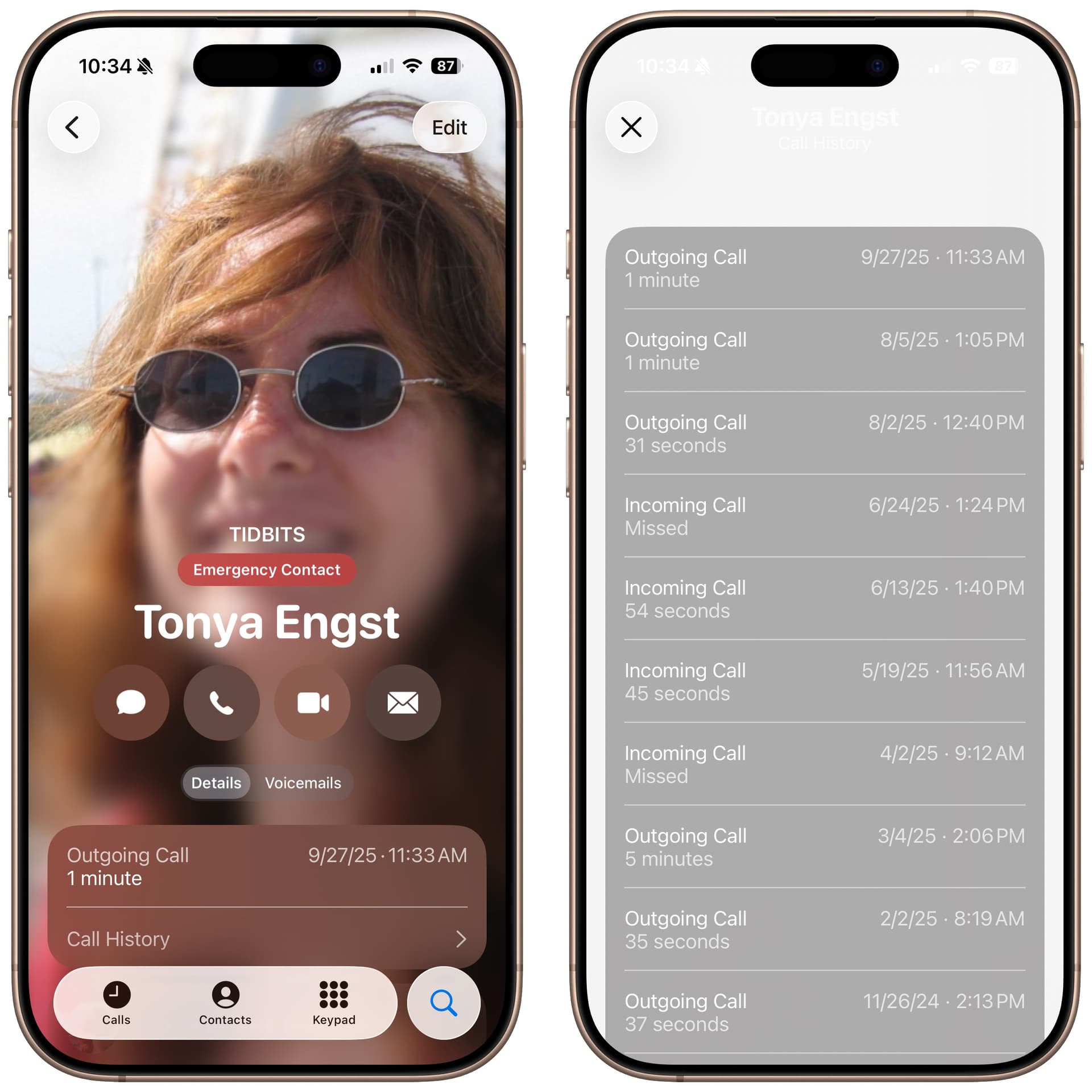
- Tapping a recent call shows the associated contact; to redial the call, you must tap the blue phone or camera (for FaceTime) button to the right. That’s far more sensible and will reduce the number of inadvertent calls.

The only downside I see to the Unified view is that you see fewer recent calls before having to scroll. If you receive many calls per day, you might need to scroll slightly less in Classic view. However, the way that the Unified view’s Calls interface reduces the number of calls I accidentally trigger with an inadvertent tap is a huge win. I’ll be using the Unified view purely because of this change.
Did you know that, regardless of view, you can now swipe left on any call to reveal a blue clock icon that lets you create a reminder to call back in 1 hour, tonight, tomorrow, or at any custom time (below left, slightly doctored)? Reminders appear at the top of the Calls list and in your default Reminders list. You can also touch and hold a call associated with a contact to connect with them in other ways (below right), or touch and hold a call from an unknown caller to add them to Contacts.

Listen to Voicemail
Catching up on voicemail messages is easy in Classic view—just tap the Voicemail button on the toolbar to see the full list, with transcript excerpts or Apple Intelligence–created summaries (below left). There’s also a tiny P icon next to each one to indicate that it came in on the Primary eSIM; presumably, if the secondary eSIM received voicemail, it would have an S icon.
Unified view is, again, both easier and a bit more involved. It’s easier to access your most recent voicemails on the Calls screen because they’re mixed in with recent calls. You can identify them quickly because they’re in red (since you missed the call), have the little P icon, and either have an excerpt or summary or the word Voicemail under them. However, seeing just voicemails requires tapping the Filter button and choosing Voicemail (below right).

While I’ve never been confused by the Classic view’s Voicemail screen, I am now a little bothered that its Recents list doesn’t include voicemail. Unified view gets it right by providing immediate access to recent voicemails and offering a slightly more involved way to limit the view to just voicemail, if you need to catch up on a bunch all at once. A point to Unified, again.
Unknown Callers and Spam Filters
In iOS 26, the Phone app can filter its call lists to remove calls from unknown callers, which seems to mean numbers that aren’t in Contacts or that you’ve never called. It can also filter out calls identified by your carrier as spam or fraud. Since these forms of call filtering are new, Apple made them optional in Settings > Apps > Phone.

When those switches are turned on, you’ll find Unknown Callers and Spam options in the Filter menu in the upper-right corner. I don’t know what the Spam list looks like because T-Mobile hasn’t identified any phone calls as spam yet. (I’ve definitely gotten some that are telemarketers; I don’t know how T-Mobile defines spam.) Unknown Callers, however, works well for collecting calls from numbers that you haven’t marked as known or added to your contacts.
The Classic (below left) and Unified (below right) versions of the Unknown Callers screen differ in the size of the page heading and the location of the Search field, which looks through both calls and contacts regardless of view. A more important distinction is made clear by how the Classic view puts an ⓘ button next to each call and the Unified view displays a phone button. As with the Recents/Calls screens, in Classic view, tapping an entry calls it; you must tap the ⓘ to get info about it. In Unified view, tapping an entry displays its info; you must tap the phone button to call it. Again, the Unified view’s approach is far more forgiving of accidental taps.

In either view, for any call in this list, you can tap Delete to remove the call (and optionally report it as spam) or tap Mark as Known to prevent it from being caught again—either by moving the call to the Calls list or by adding it to a contact.
I’m glad I took the time to pore over the differences between the Classic and Unified views. Otherwise, I would never have realized that Unified view flipped the previous behavior of initiating a call with a tap anywhere on a recent or missed call. That alone is enough to make Unified view my choice, but even beyond that change, I think it’s better. Even when it comes to something as basic as phone calls, there’s room for improvement.