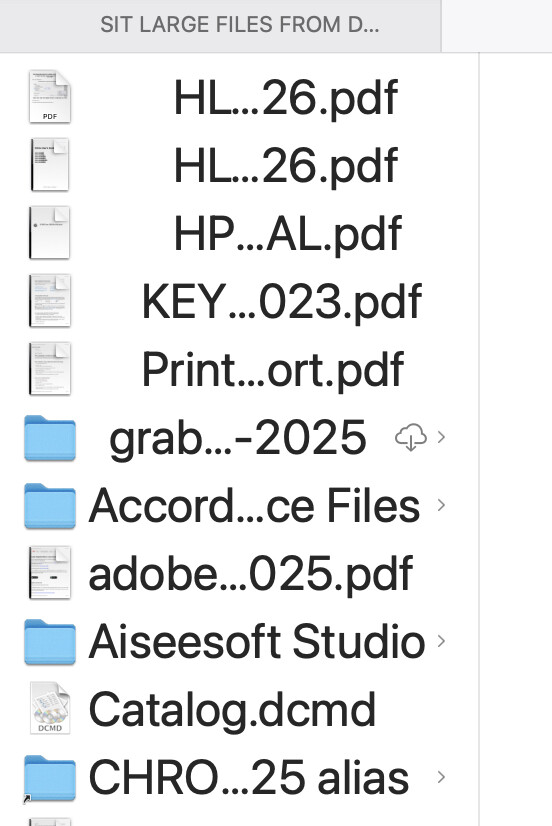
I am having a horrible time keeping the widths of my column view. I set it but when I start the computer it shows all the columns per the attached illustration. I have to reset it all over again. I’ve tried all the different suggested ways of using a command, option or control key or combination there of but they don’t work. This has only been happening in the last week or so. Previously it all worked fine. Since I have at least six tabbed windows in my Finder most of the time it means I have to go to each tab and reset them.
The first uploaded file shows what I see when I open the computer. The second shows what it is supposed to look like.
Frustrating and curious because it just started suddenly. Any help will be greatly appreciated. Thanks.
Have you tried removing the .DS_Store file in that folder? It’s where the information is stored and it might have become corrupt. I would do it through Terminal, but they’re might be other ways.
Thank you for your response. That has been there for some time but I copied it to an external disc, removed the disc and rebooted the computer. The same issue came back again. Thank you for your suggestion.
How would I go through terminal? What should I enter to do so?
I’m kind of confused as to which folder I should put into terminal since I removed the one that seemed to be the problem. The problem seems to be a finder issue rather than a specific folder since I deleted the one you saw. The Microsoft article seems to be a single folder focused. Sorry to be a pain here but I’m old lol.
Thank you for your help. I will try to see if Apple support has an answer although they are really hard to wade through lol. I very much appreciate your assistance.
I wish I had a useful piece of advice. But all I can offer is that IME this is a problem without a proper solution.
I have, to this day, not come across a real solution to ensuring that column view always opens a window default with my choice of mode, size, location, column width, etc. In fact, I have over the years engaged in several threads right here trying to figure out and fix this issue. And after hundreds of posts and all kinds of tips from many folks, the result is still that it just doesn’t work the way it should. Reboot the Finder, and the set default is gone. Build an Apple Script to set the right window size and location, and you’ll learn that there is no scriptable parameter to ensure column width is set to x pixels in width.
I have essentially given up and resorted to using Apple Script upon Finder launch to set the window mode/size/position and then used Finder > View Options > Resize columns to fit filenames. The latter is a poorly executed hack, but it’s better than nothing, i.e. random resets of column view windows from how I want them.
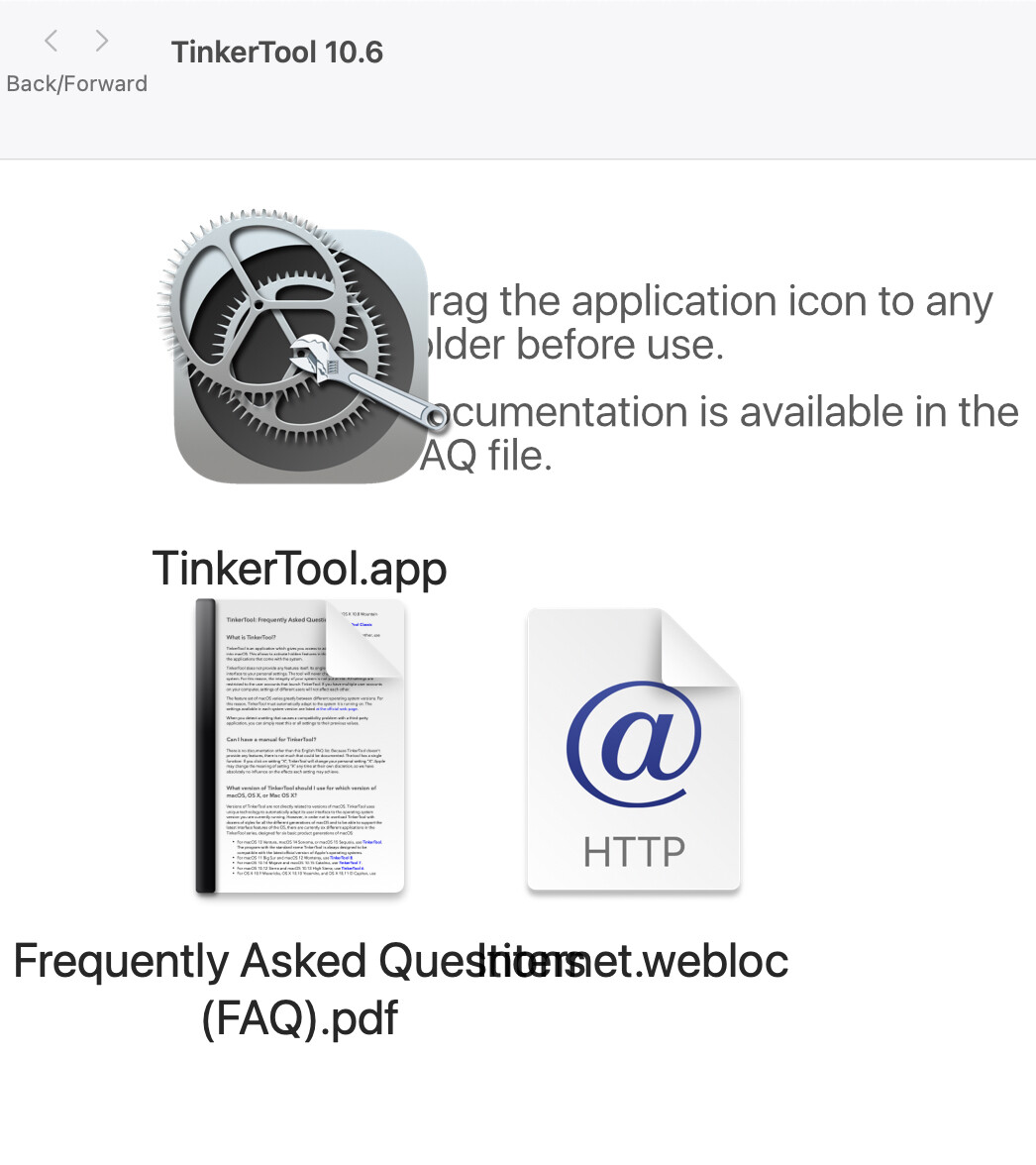
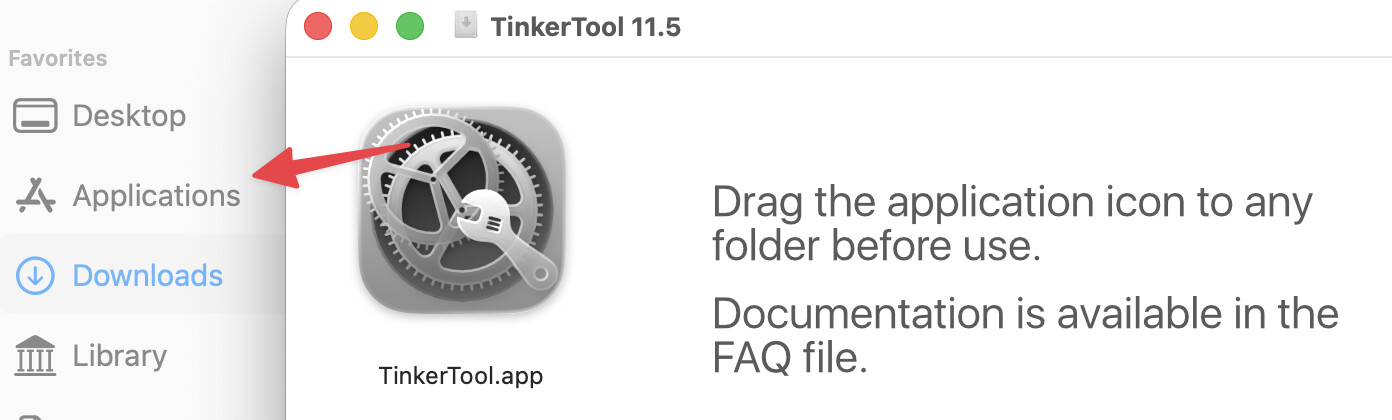
Thanks Ken. I downloaded TinkerTool 10 (I use Sequoia) and followed directions but have not found any way to install the application DMG. I tried to just double click the download but got this view:
Is this option available only for Tahoe? I’m running Ventura and downloaded Tinker Tool 10…and cannot find anywhere the option to automatically resize column width to file name size.
Tinker works perfectly. Thanks to all for the assistance and to you Ken for guidance to drag the app icon into apps folder. That is the oddest looking item to an app ;-( but the app is perfect.