Originally published at: Beyond Streaming: Why and How to Download Videos from YouTube - TidBITS
A while back, a question on TidBITS Talk sparked a lengthy discussion about YouTube downloaders: apps, utilities, and services that let you download YouTube videos to standalone files on your Mac.
My initial reaction to the enthusiasm for YouTube downloaders was puzzlement. I’m not sure I’ve ever wanted to download a YouTube video. In the rare event that I’ve wanted to rewatch something, finding and streaming it again has been trivial. Apart from occasionally viewing something offline, why would so many people want permanent copies of videos that are readily available on YouTube to watch at any time? So I asked just that.
TidBITS Talk readers were quick to share convincing answers, and while I haven’t personally become an inveterate downloader, I can easily see why someone might. Here then are six reasons to download YouTube videos, followed by suggestions for apps that make it easy.
Why Download Videos from YouTube?
All of these reasons revolve around the fact that YouTube, as ubiquitous as it is, can’t meet everyone’s needs at every moment. They include:
- Offline viewing: The most obvious reason you’d want to download videos from YouTube is to watch where Internet access is unreliable, unavailable, or expensive. Readers cited planes and trains, classrooms with spotty Wi-Fi, homes dependent on limited cellular Internet, and repair scenarios without connectivity. Downloading and watching offline also ensures that a presentation will not be derailed by network failures, buffering, or advertisements. Jeff Fischer, silbey, Jolin, David, and MacGuyver described variations on this need.
- Preservation: YouTube is not a reliable archive. Streams of live performances may be available for only a few days, recordings may disappear after copyright complaints, and creators can remove videos at any time. Even when a video remains online, the addition of new videos or tweaks to the search algorithm can make it difficult to locate again. Readers have used downloading to preserve limited-time theatrical performances, rare concerts, long-out-of-print recordings, decades-old school footage, and videos featuring family members. See posts by Halfsmoke, Alan Forkosh, turbineseaplane, and MacGuyver.
- Research and reference: Many videos are informational or training resources rather than entertainment. Readers maintain local collections of photography documentaries, linguistic research material, craft demonstrations, repair instructions, and tutorials they may need to consult years later. A local archive of video is searchable (particularly with the addition of transcripts), independent of YouTube, and available whenever it’s needed. Tommy Weir, P. Boersting, Sherman Wilcox, Jane Sprando, and Jeff Swart offered examples.
- Teaching, presentation, and editing: All you can do with a video on YouTube is play it. In contrast, a downloaded file can be trimmed, incorporated into another project, or queued alongside other material without depending on YouTube during the presentation. Students use clips in documentaries and mashups, instructors incorporate footage into classes, and one reader loops college sports videos at reunion luncheons. See posts from David Tuma, Tommy Weir, josehill, and silbey.
- Better playback control: Local files eliminate YouTube’s advertisements, suggested video overlays, and interface limitations. They can be looped for music practice, replayed repeatedly while following a complicated repair, organized into a curated collection for watching on an Apple TV via Home Sharing, or paused and scrubbed using a preferred player. Ladd, Suman Chakrabarti, Jeff Meyer, and MacGuyver cited these advantages.
- Audio extraction: Sometimes the video track itself is irrelevant. Readers download DJ sets as MP3 files, turn talk-oriented videos into personal podcast episodes, and import rare musical recordings into the Music app. Jolin, adamrice, josehill, and Jeff Swart described audio-oriented workflows.
These categories may overlap to an extent, but you get the idea: there are numerous reasons to create your own local archive of videos.
Recommended YouTube-Downloading Apps
How do you go about downloading a YouTube video? It’s not as though YouTube itself offers a download button. (YouTube Premium does allow offline viewing within its app, but those downloads expire, can’t be transferred to other players, and don’t address most of the use cases above.) TidBITS Talk participants suggested numerous ways to download YouTube videos, but two stand out:
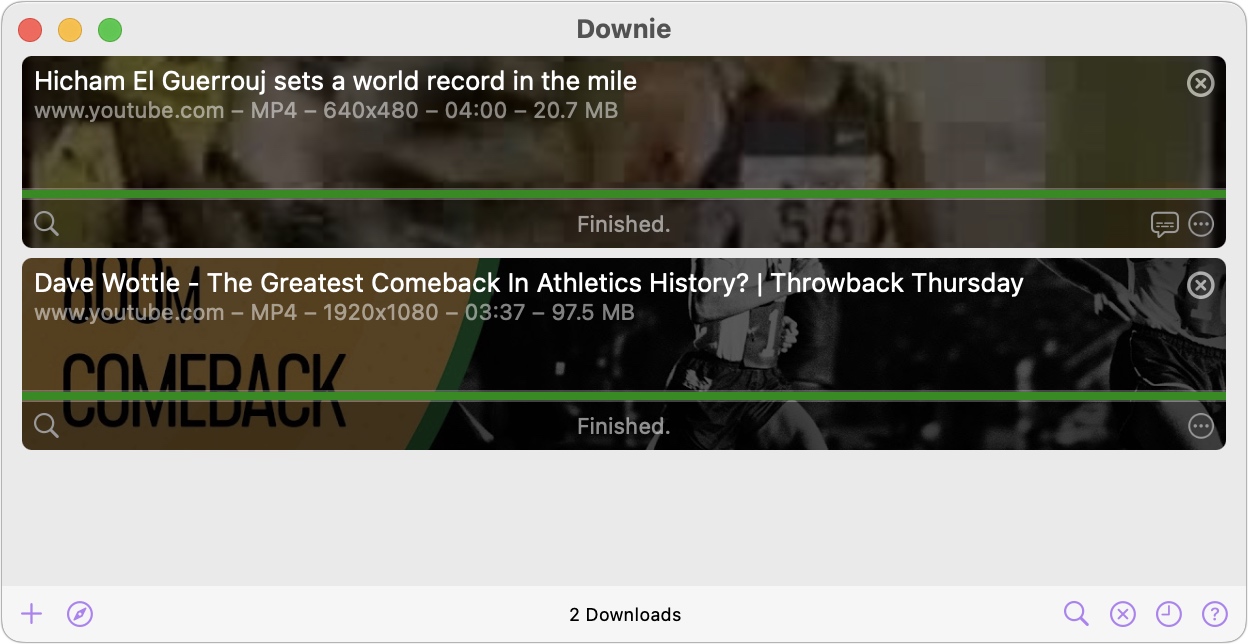
- Downie: Charlie Monroe’s Downie was the clear favorite among Mac users in the discussion. It lets you paste or drag in a URL, use a browser extension, extract audio, and download subtitles or transcripts. Downie also works with many sites beyond YouTube and can handle authenticated downloads. Several people noted that Monroe is extremely responsive to user inquiries, and updates appear frequently. Downie costs $19.99 and is available in Setapp. Recommendations came from Suman Chakrabarti, Halfsmoke, Nalarider, Tommy Weir, Gordon Meyer, Jeff Meyer, Jörgen Olsson, Richard Ripley, Ray, Bill Stanford, Jeff Swart, and osric.
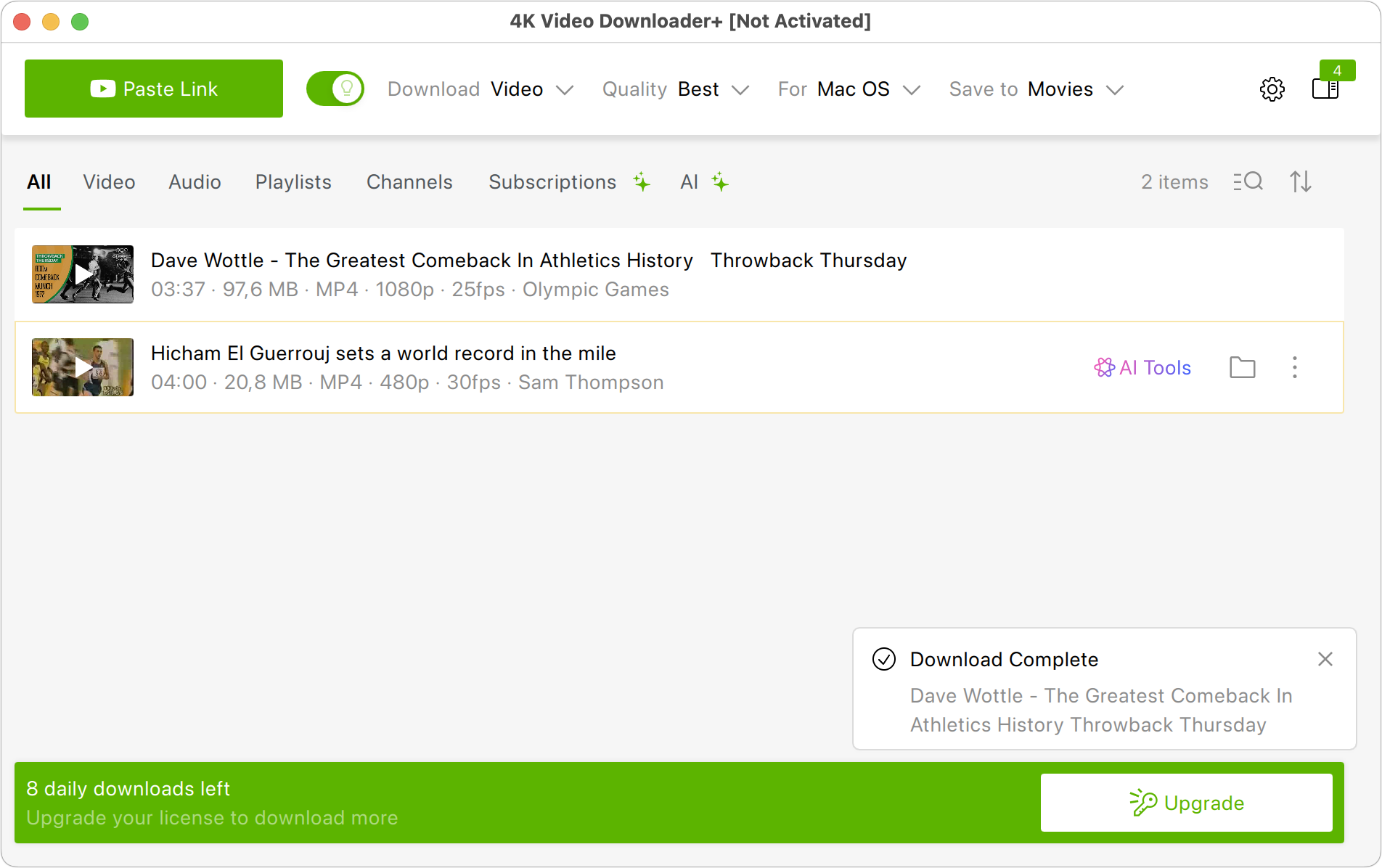
- 4K Video Downloader Plus: Several participants recommended 4K Video Downloader Plus, which can download YouTube playlists, channels, and search results, as well as YouTube Watch Later, liked videos, and private YouTube playlists. It provides control over resolution, file format, subtitles, and audio extraction. As with Downie, it supports numerous other sites, and updates appear frequently. The free version of 4K Video Downloader Plus allows downloading 10 videos per day; the pricing page outlines the differences between the $15-per-year subscription, the $25 lifetime Personal version, and the $45 lifetime Pro version. Jeff Meyer, Ladd, Donnie, David C., and David Bilides provided recommendations.
A few other mentioned solutions included ClipGrab, a free graphical downloader that occasionally succeeds where other apps fail but is still Intel-only; Cobalt, a free browser-based downloader; JDownloader 2, an open source alternative that’s flexible but complicated; Yout, another free browser-based solution that lets you convert online videos to several different downloadable formats; and yt-dlp, an open source solution for those who want a powerful, customizable command line tool (another app, Stacher, offers an optional graphical front end for yt-dlp).
Storing, Cataloging, and Finding Downloaded Videos
As I was writing this article, I realized that no one had said much about what they did with these videos after downloading them. How do people store, catalog, and find these videos in the future?
Several people said they maintained Plex servers and would add downloaded videos they wanted to keep to their Plex library. Although Plex is free, it’s designed to serve media to multiple devices, so it’s more of a commitment than a simple video library.
Although the video players VLC and IINA were mentioned in the discussion, neither came up in the context of accessing a personal archive of stored videos. Nevertheless, it appears that VLC’s Media Library can maintain a list of video files stored in the Finder; double-clicking one plays it. After brief experimentation, I found VLC’s approach frustrating: videos and the Media Library occupy the same window, so closing a video also closes the library, requiring me to reopen it manually each time. Infuse looks like an easier option.
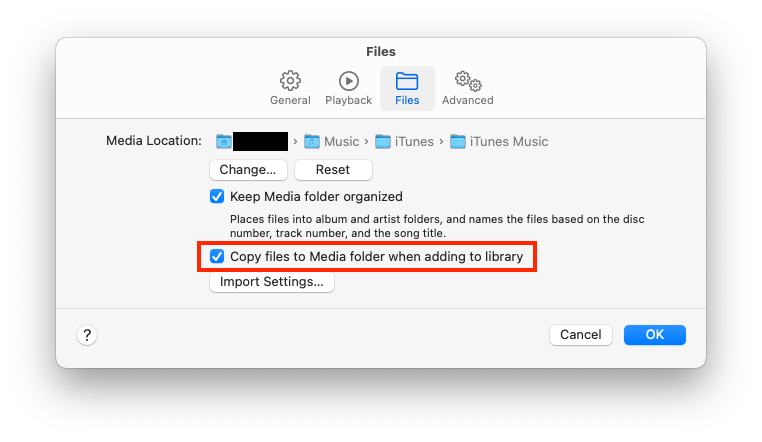
When I asked about this in the TidBITS Talk discussion, most people said they simply stored everything in Finder folders. Michael Paine supplements Finder storage by adding videos to specific playlists in iTunes while not copying the files from his external drive. Tommy Weir stores his research-focused videos in DEVONthink, and I could easily see DEVONthink also making it easy to search through stored transcripts.
Perhaps the Finder is all that’s needed here, though this situation feels ripe for custom app development for those with specific or intensive cataloging needs. If you’re a video packrat, how do you solve this problem?