So I am running 15.6 Sequoia on a M4 Mini. Everything seems to be working great. Discovered credible gaming on my Mac so what I had planned for storage is almost bursting at the seams. Did a load of reading and decided, like MANY, I’m going to migrate my user folder to an external drive. Pretty straightforward. Got a bunch of graciously given advice from Mike Bombich.
While I’m not doing this tomorrow, I am kinda laying the foundation. That means needing a second admin account so that after migration I can delete the old user folder on my internal drive. Sound simple, right?
Mmmm, not so much. First time I logged into this new account I thought to not go through the woile sign into Apple, after all, the plan is to perform exactly one function, log into my new dupe Home folder on an external disk and delete this temp. admin account.
The first account was totally unusable and it kept popping up a cmd J dialog that kinda jumped around the screen while I was trying to simply get rid of it. WTF?? Deleted it and created another new admin account. Fared slightly better until I tried to run my Logitech software for my mouse (it was glacially slow by default). Of couirse it would not run, just kept playing the opening animation. Oh well.
So I tried running System Prefs… except I kinda can’t. The window launches but the whole list of options on the left side are grayed out and I can’t select ANY of them. No way can I be deleting my :moved Home folder.
This is a brand spanking new account, I should NOT be having such issues. Anyone have ANY clue how I can run this one down?
I completely disagree. Although it is possible, people have reported weird problems when your home directory is not on the boot device.
Much better that you just move your large libraries (e.g. photos, music, movies) to external storage, but leave your home directory in place.
Strange. I’ve got several accounts on my Mac - one administrator (named “admin”) and three non-privileged accounts (myself, my wife and my daughter) which are the ones normally used.
I did log on to the admin account once or twice, and I did go through the full setup (including log-on to iCloud) the first time. But I’ve also done this without setup. I’ve never seen problems like you’ve seen.
WRT mouse software, are you sure you need the special software? Can’t you adjust the tracking speed with the normal system setting page? In my case, I’m using a generic Microsoft wheel-mouse, which has no special drivers, but even the most fancy mouse should be configurable (for positions, two buttons and a wheel) with the generic system settings.
Unfortunately, I can’t help you with this. I haven’t seen this kind of problem in person.
My first reaction is that there is a User ID + access privilege problem. I haven’t looked at Oakley’s article yet—I regard him as a good authority on everything he writes about in any case—but if I recall correctly, the only time you can get User 501 assigned to a user account is at first setup. So an existing Home folder might be owned by User 501 and contain many files restricted to User 501. A temporary or non-first setup user account will consequently have access problems because neither can be User 501.
I’ve run into this problem in the past when setting up a new Mac. I had seen a recommendation to boot a new Mac and make sure it could get to the Finder before manually running Migration Assistant. This was to make sure no damage had occurred during shipping. But I didn’t factory reset the Mac before using Migration Assistant so the migrated Home folder was assigned to User 502, in order to avoid a conflict with User 501. So I had trouble using applications and opening files until I did a full erase and restore. (Note this was several years ago so more recent versions of macOS might handle things differently)
Thanks. FWIW, I’ve never deleted that primary admin account. I set up new systems as “admin”. And as soon as setup is complete, I use that account to create a new non-privileged user, then log-in as that account and do everything else I need to do.
So “admin” is that initial 501 account.
Strangely, Apple seems to have changed the numbering pattern over the years. Even though I’ve migrated accounts across several computers over the years, the user IDs are not sequential:
admin is 501
My login is 1025
My wife’s login is 1026
My daughter’s login is 505
Looking at the gaps, I see that they are system-type accounts
502 is ldap
503 is macports
504 doesn’t exist
I’m not sure why my account and my wife’s account got new numbers at some point over the years. They were all sequential starting from 502, years ago when I first created them, but I assume something related to migration caused them to get new numbers.
That seems to be the case. Once upon a time, there was an expert mode on the create-user panel, which would let you assign any number not already used by another account, but that option doesn’t seem to exist on Sequoia.
It appears that it may be possible using command-line tools, but I don’t know if that’s a good idea. If it only creates the user account without creating a home directory and its default content, then it may create more problems than it solves. But it might be a fun experiment to try in a VM, where you can blow it away when you’re done experimenting.
Create the user first, then right click or control click on the newly created user’s entry in the account list. That will open Sequoia’s version of the “Advanced Options” dialog, allowing changes to UID, default shell, home directory, etc. That said, the cautions you sounded remain.
Changing the user ID after the account has been created is potentially very dangerous because any files created by that account between the time you created the account and when you changed the ID will have the old ID as owner. And that number may have been cached in other files as well.
Unless you’re an expert and have an iron-clad reason why you have no other choice, you should never change the user ID of an existing account.
If you need a specific number for a specific account, then you really must create the account with that number. If you can’t figure out how to do that, then you should just consider yourself out of luck. Any other option is, IMO, too risky to be worth trying.
Likewise for the home directory.
Default shell is no big deal, although I generally prefer using the chsh command from a Terminal window.
David, the biggest folder in my user folder is Users//Library (games I am playing seem to love to put all there stuff in there). I know your advice is echoed by some, but we’re not talking about something that Apple doesn’t officially support. I have a Logitech multi-button mouse whose tracking can get much faster than what the OS offers… with a 1440 display, this comes in handy. Not the biggest deal as my admin 502 account is only for one use.
Another wonky thing is that on the second try to create another account, if I click on am menu bar item the dop down with choice will ever so briefly appear then disappear. It should NOT be doing something like that. Despite my ultimate goal, it bloody well should not being doing anyting like that.
Mindful of the article linked, I have an idea but am not so sure it would work. Create symlinks to:
Library
Music
Movies
Pictures
Documents
Would that work?
Re-reading the article… if I move my home folder to an external disk, then bless it does it not retain my 501 notation?
Since I don’t play those kinds of games, I can’t help here. I assume you’re using something like Steam to install and manage your games. Can it be configured to use another location?
If they are Apple Arcade games, then I really don’t know. I’ve always been nervous about moving anything installed via the App Store.
I would be very nervous about symlinking Library. Maybe some specific folders in there, but I’m pretty sure things will break if that is elsewhere.
Music, Movies, Pictures and Documents? No problem. Go for it. But you don’t really have to. The contents don’t have to be located in folders with those names.
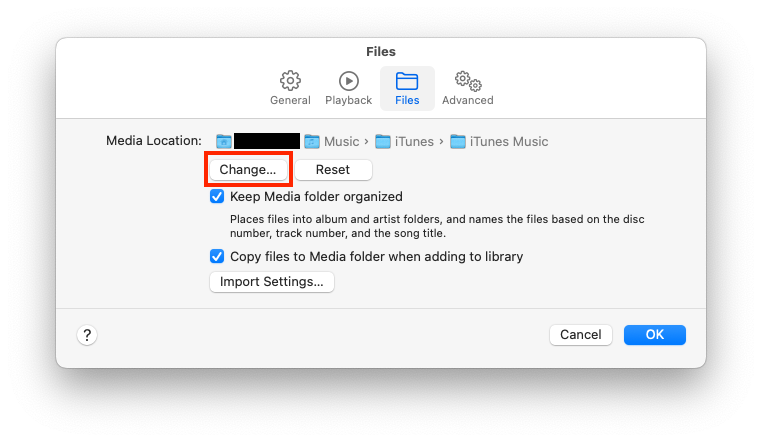
For instance, to relocate your Music library, you can go to Settings → Files and click the “Change…” button:
Music will copy all your music files to the location you specified for the media folder and update its databases. From there, you can delete the music from the original location.
The “Music Library” file will remain in ~/Music, but it is very small, compared to all the audio tracks you moved. (You can move it manually, if you like, but it’s not necessary).
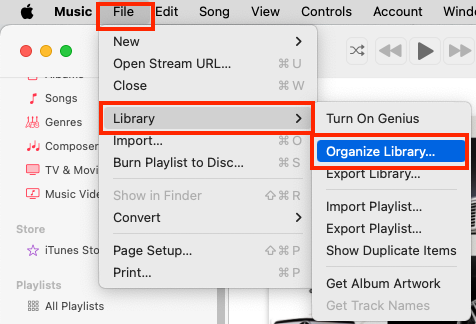
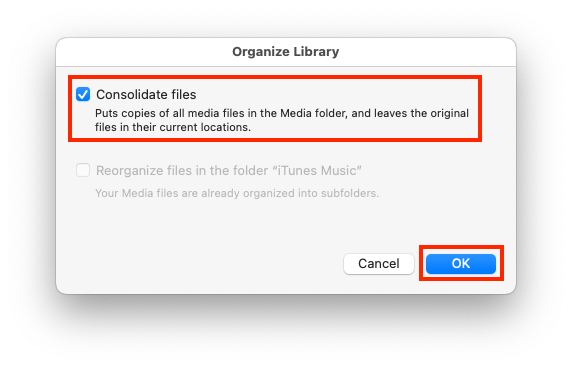
You can do the same for the TV app, if you use it for movies. Go to Settings → Files and change the media location. Then File → Library → Organize Library… and consolidate the files to copy them to the new location. Then you can delete the originals.
For the Photos app, you can simply drag/drop your “Photos Library” file (containing all the pictures) to your external volume. Then double-click it to open it and tell the Photos app to use that one by default going forward.
Then go to Settings in Photos and click the “Use as System Photo Library” button so system services and iCloud will use it instead of the original one.
Once it is copied and working, you can delete the original one from your internal drive.
If you want to maintain multiple libraries (if yours is too big for any single device), you can do that too. Hold down Option when launching the app (Music, TV or Photos) and you will get a dialog that you can use for creating new libraries. Each of the three apps will let you import content from other libraries, which you can use to copy music/movies/photos into the new library. Then you can delete the moved media from the old library (by launching the app with the other library and deleting the content).
Documents is just a folder. There’s nothing special about it. So you can just create a folder on your external volume and move your documents there.
The only app where this isn’t possible is Books. For some reason, that app stores downloaded books deep within an app-sandbox folder where they can’t be found or moved.
If you drag/drop any folder (not just your home), it should retain all of the original’s metadata, including the owner ID and permissions.
In Music, what is actually the exact difference between
Settings > Files > Copy files to Media folder when adding to library
and
File > Library > Organize Library > Consolidate files
It also sounds like both methods copy rather than move, but I suspect there is some at least subtle difference somewhere.
It’s a matter of what happens to newly-added files vs. existing files.
“Settings → Files → Copy files to…” specifies what happens when you import new music to the library.
If the box is unchecked, the app simply adds a reference into the library, pointing to the location of the files you added. Meaning that if the files are later deleted or moved to another volume, Music won’t be able to play them.
If the box is checked, then adding new songs will copy the song to the library’s media folder. You can throw away the original without breaking anything.
In contrast, “File → Library → Organize Library → Consolidate files”, will copy everything in your library to the Media folder. If the files are already there, it will do nothing, but if they are located elsewhere (e.g. if you added them without making copies or if you have changed the location of the media folder), then they will be copied to the media folder.
Ah yes, so consolidating right now would do exactly the same thing as if copy files had been checked the entire time. Or in other words, the consolidating only becomes necessary if you hadn’t always already copied media but for some reason you now wanted all of it in your music library. In either case, nothing ever gets deleted outside of your music library. It’s all just about copying to it. And doing it continuously vs. one-time collection.
This thread quickly turned to one specific issue so I thought it best to separate out a specific thread about creating a second account with this thread which is 95% about moving files off my internal drive. As I didn’t get many responses to that specific issue here, thought I’d try MacRumors.
Yes David, I DO realize that sym linking my Library may be an issue. Turns out I have something like 280Gs of stuff in there relating to 2 of my games… and in both cases, the developers DO provide mechanisms to support external drives… that issue solved.
One issue is that not all the files in either Music or Pictures are catalogued by Apple software. Which is why I’d like to copy the entire folder to an external drive. For Music the files I DO have organized live in a specific folder ~/Music/Music. Can I use the Music app to simply point to a new volume there where the files are (will be) stored? I DO see a 47G folder called iTunes, most of which are old TV show episodes that I got for free along with Mobile Applications… all from the iTunes days, think I can just kill that entire folder, I do run a daily backup with CCC so they willl always be enshrined there.
Photos… my catalog is mostly stuff that lives in the cloud being shoot mostly on my phone. BUT there are also individual files I have manually added. I DO have one very large folder that is not cataloged at all, I’ll probably wait until I can accomplish all this moving before bringing them into Photos. I DO wonder exactly what will happen going forward now that the fruit owns Photomator. Seems to me the best solution is to sunset Photos and use Photomator going forward. I do hear talk about “bringing Photomator’s editing tools into Photos…” which would be a classic dumb move the fruit might actually do!
Let us know, if you get a chance, which site worked best for you. The message board community at MacRumors seems to be different in many ways from TBT.
:-)
I spent about a month last year on my M4 Pro Mac mini struggling to move my User folder to an external drive. I finally gave up and followed @shamino’s advice and moved individual sub folders instead of the entire User folder. Making even these seemingly innocuous changes lead to dead-ends and compromises.
In my kinda defense, this was originally suggested to me by Mike Bombich (CCC author)… but the more I dug in to it, the more I saw massively complaining about it. Plus I have also learned that I can get something like 280GBs moved to an external by using those games own facilities.
I DO see that I am going to have to pay attention to Music & Photos by going too symlink route… lets just say this is my due diligence phase, installation may wait on catching some price breaks as they occur.
Yes things have changed, not sure when but now if Migration Assistant detects an existing user with the same name as the one being migrated it will ask you if you want to replace the existing user with the new one. If you do this the migrated one will have UID 501 not 502.
So you can check out a new machine quickly with a temporary user but use the same name as the one you are going to migrate.
Probably better is what you mentioned, use the Erase All Contents and Settings to quickly and safely return the machine to original factory state after using a test user account.
… Or as a reliable way to move your library to a new storage device.
Once upon a time (when iTunes was new), people objected to Apple managing the library, and insisted on a way for them to keep the files in folders of their own choosing (with their own organization). Especially important if you have multiple music player apps sharing the same library of files.
I don’t know how many people still do this, but that’s pretty much the reason why you might not want to move imported tracks to the media folder. And Consolidate is the way to change your mind later, by moving everything into the Apple-controlled library directory without having to remove/re-import everything (and then recreate playlists and metadata).
Glad to hear it. It would be a really lousy game/developer that didn’t provide a mechanism for this, if it needs that much storage (more than the total capacity of some systems’ internal storage).
If the files are not managed by the Music or Photos (or Photo Booth, which has its own library) software, then you should look into what might be managing those files.
In my case, all the other content in those locations are files that I put there on my own, so there’s no big deal moving the files.
See my post, above. You can tell the Music app to use any folder for media storage. But note that the list of songs you see in the app are based on a database (e.g. the ~/Music/Music/Music Library.musiclibrary folder/package). Changing the media folder does not change the content of the database - it will contains the same songs, and its entries will point to the same files in the same locations.
When you specify a new media folder, then newly imported music will be copied to that folder (if you have Music configured to do so). If you want to move your existing music to the new location, use the “Consolidate” feature. This will copy all your music to the new location and update the database to point to the new locations. Afterward, you can delete the files from the old location.
I’d find out if any app is pointing to them. The old iTunes app managed videos and books as well as music. This has since been split into multiple apps (Music, TV and Books).
For the videos, I’d launch the TV app and see if the files appear in its library. You can move that library’s media folder in the same way you would move the Music media folder. If you want to get rid of those files (and not move them to external storage), delete them from the TV app. This will update the database and not leave behind broken links (entries in the database that can’t be played because the file is missing). If the videos were purchased from Apple, then the app should still let you access them as cloud-hosted files, available to stream or re-download.
If you want to use Photomator, then go for it. But if you’re only doing this because of what you think Apple might do in the future, I wouldn’t consider that a good reason. You don’t know what they will actually do until they make an announcement. The forced migration you’re worried about might not happen for many years, or it might not happen at all.
It is just as likely (more likely, IMO), that Apple is targeting Photmator at those who were using Aperture or who are using Adobe Lightroom. Apple never made anyone migrate from iPhoto to Aperture. They may not make anyone migrate to Photomator.
So, go use Photomator if it’s an app you want to use. But don’t migrate to it simply because you think you’ll be forced to at some unknown time in the future.
And again, I don’t see a need to do this. The Music and Pictures folders are nothing special. They are ordinary folders that happen to have custom icons. You can move your libraries to any location on any storage device, and you can create new libraries in any location on any storage device. So move your libraries wherever you want them to go and don’t worry about symlinks.
“Copy files to media folder” was probably more important when iTunes managed video as well as music. In fact my media-server Mac still runs iTunes/Mojave and all the video files (>1tb) are on an external hard drive (the Copy Files setting is unchecked). Music files are on the Mac hard drive.
Dragging new video from the external drive to the iTunes window adds them to the library (but not the Mac hard drive). The default type is “Home Video” so I sometimes need to select “Video Info” (right click) and change them to Movie or TV Show. Having files on an external drive does seem to slow down this process but once the library is complete iTunes/Homesharing works well.
My main Mac - an M2 Macbook Air - has the photo library on an external SSD because the standard 500Gb out-of-box was too small. I just have to remember when travelling that I don’t have my main photo library and need to reselect it when I get home (and transfer new photos to it).