I sometimes set my web browser to what I call “speed reader” mode, so that it loads only the page formatting and text content. No images, audio, video, etc. While this does not work with every web site, it does allow me to load news and information sites VERY fast.
Yes, I know, we all have 24/7 access to warp-speed internet and never have any problems. Well, sometimes those connections do falter. You might be in a location with heavy network congestion or where the internet is NOT so amazing. You might have to use a connection that feels like being on an old dial-up modem.
Past methods to block all media on web sites used software that mostly is incompatible with the current OS versions. However, you can do this very easily with the uBlock Origin extension (aka. “uBO”). This should work on macOS, Windows, Linux and with any web browser that can install and use uBlock Origin (such as Firefox or Opera).
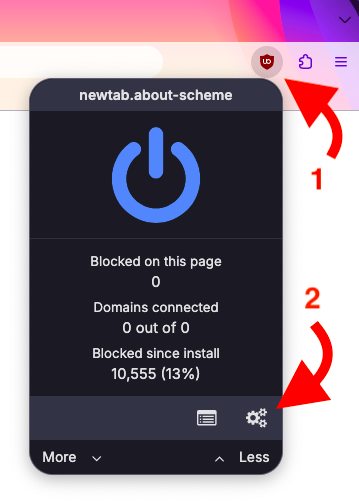
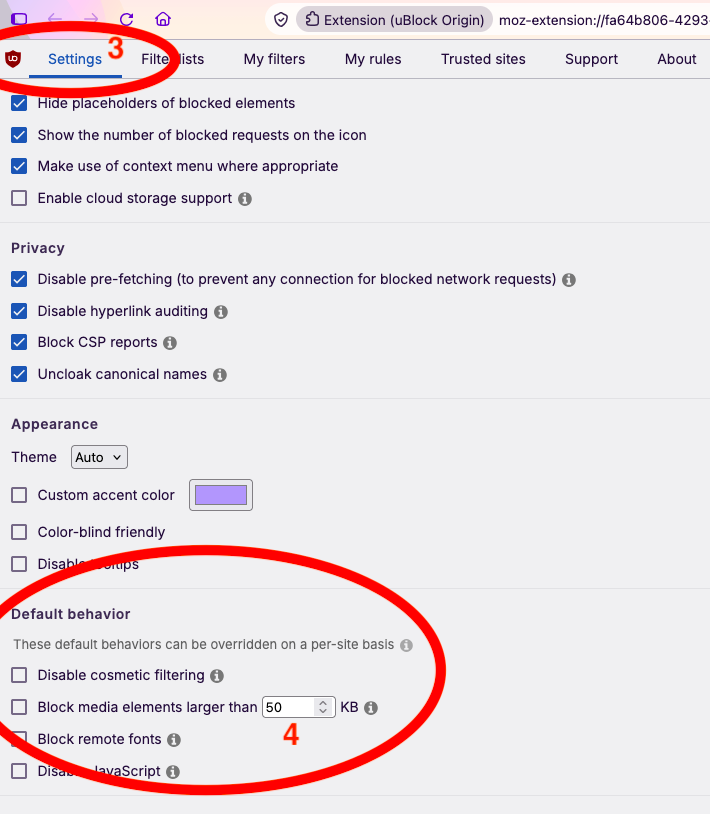
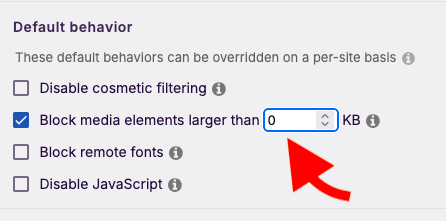
uBO has a built-in feature for this and you do not need any advanced knowledge. Open uBO’s settings (click its icon from your toolbar and then click the 3-gears icon in the lower, right corner). Once uBO opens full size, click the “Settings” tab at the top, left next to the red shield logo. Now look for the fourth group of check-boxes labelled, “Default behavior”. Check the box next to “Block media elements larger than ___ KB” and type a zero (“0”) in the little box (to the left of “KB”).
That will block all (or most) media types whenever uBO is active. You may need to reload any web pages that were open prior making this change.
With this feature active, if you encounter a web site that does not work, you can disable uBO for that site only (click uBO’s icon in your browser and hit the power symbol, then reload the page).
You can of course reverse this process to restore media on web pages by un-checking the Settings box next to “Block media elements…”
Easy. Fast. Enjoy.