We had an attempted security breach on a MBP. My wife was viewing a good website and had a red flash notice that her MacBook system was compromised and to call Apple Support. Unfortunately, I was in the hospital and the numbers in our contacts for Apple support were probably outdated and picked up by the scam team (an old 800- something). She called “apple support” and they answered. The agent had her open “terminal” (I know and so does she now). They gave her a passcode to open terminal and supplied the data to add an app - “Screen (something.” The app opened and gave two choices to start - she didn’t click on either and started asking questions. The guy hung up. She brought me home from surgery and called “Apple Support” and got a new person. He wanted her to open the app - the icon on the screen wouldn’t go away. He said he was with Apple’s Fraud Protection Team. She decided to wake me - still recovering from anesthesia - and told me what was going on. I talked to the person on the phone. He had a name and said I needed to call my bank with him on the phone in order to ensure no one had compromised our financial systems. He said he had filed the attack with the FBI and FTC and had phone numbers for them and a case number. He said we had to go through his process (with the bank) as it was required by the FBI and FTC. I said we’d get back to him. He was insistent that we complete his protection plan before getting off the phone - that the phone and any conversations on it could be compromised by the hackers listening in. We didn’t. Instead I contacted Apple Support on line - they, of course had no information about it, had no case number and said their Fraud Protection Team didn’t work like that. We went through a number of steps to get rid of anything that may have been downloaded, including using Malwarebytes and clean my Mac. I used Clean My Mac to delete the unwanted app and was able to get the screen icon to disappear. I also checked the bank for any kind of non–approved activity. These guys were good. I don’t know how they accessed my wife’s computer and put the first large notification of a compromise up while she was visiting good website. It looks like we dodged a bullet but these guys were very good - except for the foreign accent (but many legit have that) and continued insistence to stay with them and finish their process - the only “tells” I could detect other than the phone number. Very sophisticated scam. David
Glad to hear you were able to terminate the scam before any financial damage was done.
One way “good websites” can place malware or serve as a channel for attacks is through ad banners. Often a given ad space is sold to multiple ad networks and aggregators in a long and convoluted chain. So even if somebody is using a well-known website (say, the New York Times), the website operator frequently has little to no control over the contents of ad banners, popups, and videos.
Best wishes for a quick recovery from your surgery.
Not to say this incursion on your wife’s system did not come from another method, but it does sound like ad banner/embed from the description. While I believe in supporting sites (especially independent ones), I religiously use tools like uBlock Origin to prevent as much malware vectors as possible.
I try to support sites via direct payments/donations, but more are denying access unless you disable “ad-blockers”. I don’t know what the solution is in these cases.
To date, and to my best knowledge, the only malware I ever allowed on one of my systems was via ad banner injection. This was on Windows XP with the dreaded Internet Explorer. Back then I usually had IE locked down to the point it would not function, but occasionally needed to unlock it for a specific app at work.
After using it one day, I was talking with someone and then came back and foolishly checked a news site with the same browser. In that case I was lucky, because it was just a pop-up ads variant (restart and get lots of browser windows popping up with ads) that wanted to shove ads and not do anything else. Being a new, unknown variant, I had to dig through the system and manually remove it.
So, better lucky than good, I suppose.
Today’s variants are much more strategic and often wait a while or never reveal their presence.
This can be really scary, but 99% of the time, there has been no compromise.
The scammers buy advertising from some ad network that doesn’t vet their customers (although it seems these days that none of them do). The ad includes some kind of JavaScript so it can break out of its ad-container and present a full-screen “warning”, complete with ways you can contact the scammer (pretending to be somebody legitimate).
IMO, the best way to prevent most of these is to run an ad blocker. Yes, it will hurt legitimate web sites that depend on ad revenue, but since those ad networks seem to be major malware distribution networks, I don’t feel guilty about it. (I do whitelist certain specific sites, like this one, that I explicitly choose to support).
Now that we’re talking about defenses against the scam the OP experienced, I just want to add that in addition to using ad blockers or multiple, differently configured browsers, a good habit to establish is to not ever call customer service phone numbers offered up in search engine results, text messages, emails, and social media posts. The safest thing to do is go directly to a company’s website and look for its contact number or get the number from something you already have, such as the back of a credit card or a monthly statement.
Halfsmoke, MacGuyver and David Shamino:
Thank you for the info on how they get there plus other.
Much appreciated.
David
100% (or even 200%).
I always encourage people to look at their card or statements older than the last few months, if possible. There is always a chance of typo-misdirect when going to the web site for a bank, etc. I keep bookmarks for regularly visited, important sites in a Sensitive-Only browser profile. That way you don’t accidentally bring up a newly registered typo site that is faking Bank of America with “bankofamerca” or “boffa”. 
sigh
This is a common story. I’ve had a number of clients (mostly elderly) fall for this. It’s a JavaScript trap, as I understand it, usually associated with an ad presented by a website that subscribes to an ad service.
The part that usually freaks people out is that they can’t get rid of the warning, even if they want to. If they quit their web browser, it comes right back. Since most of my clients are as old as me  , when I describe it as one of those Chinese finger puzzle traps* we had as children, they understand it. It’s easy to get out of the trap once you know how (quit the browser, restart the browser holding down the Shift key).
Years ago, the scammers would extract a couple of hundred dollars after gaining remote access and usually opening Terminal to overwhelm client with a lot of technical gobbledygook. There are variations, as described by the OP. These days the money is in the thousands.
So I encourage all my clients to call me first whenever they get something like this. I tell them Apple will never ever pop up a webpage telling them they have a virus. Even so, I’ve had one client (a PhD, no less) fall for it twice.
*You youngsters can look it up on Wikipedia.
That sounds like adware, which is a little different from the JavaScript trap described by the OP. It’s really the only kind of malware that I’ve seen on any Macs for quite a few years now. It’s pretty easy to get rid of with MalwareBytes.
One client’s computer was so heavily infested that he originally contacted me about buying a new laptop. MWB removed 70+ piecesparts of adware, and all of a sudden he didn’t need a new computer anymore.
I can’t say about Windows, but with a Mac, the weakest link is IFOK.
In Front Of Keyboard
IFOK - 
Thank you for the hint on getting rid of the banner.
David
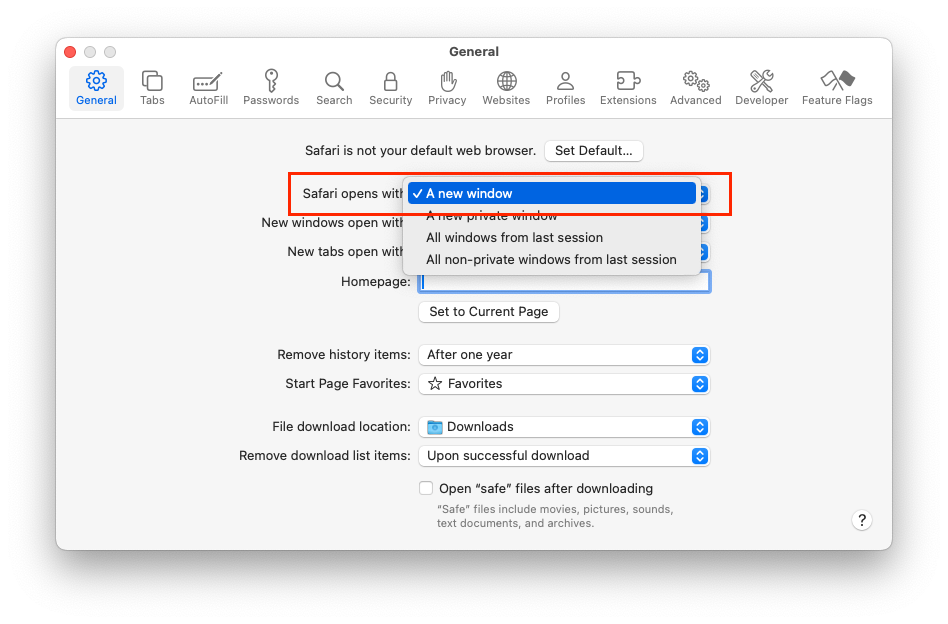
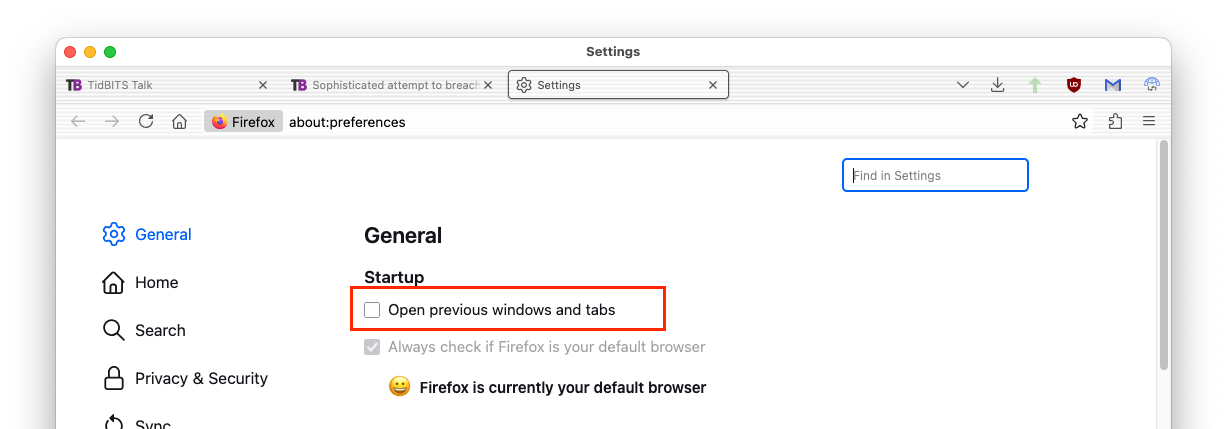
Never, ever, ever configure your browser to auto-restore your previous session. If it ships with that feature enabled, go turn it off. This way, when something goes horribly wrong (whether malware, a scam or just a big) you can just quit and restart it. If it restores your old session, it may well restore the problem as well.
On Safari, this is: Settings → General → Safari opens with: → A new window. Do not select either of the two options that restore windows from the previous session:
On Firefox, it’s Settings → General → Open previous windows and tabs:
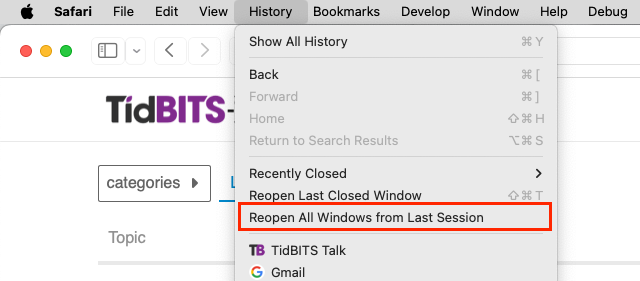
If you actually need to restore the previous session once in a while, there should be a menu option to do it.
On Safari, it’s on the History menu:
Similarly for Firefox:

Chrome prompts upon restart to restore or not. My wife uses Chrome on Windows and hits these bogus “ads” frequently. I’ve gotten her trained to:
- Alt-ctl-delete
- Select task manager
- Terminate Chrome
- End task manager
- Restart Chrome
- Select DO NOT RESTORE
I don’t have the menu command you mentioned for Firefox. Is that because I just now turned off Open previous windows and tabs?
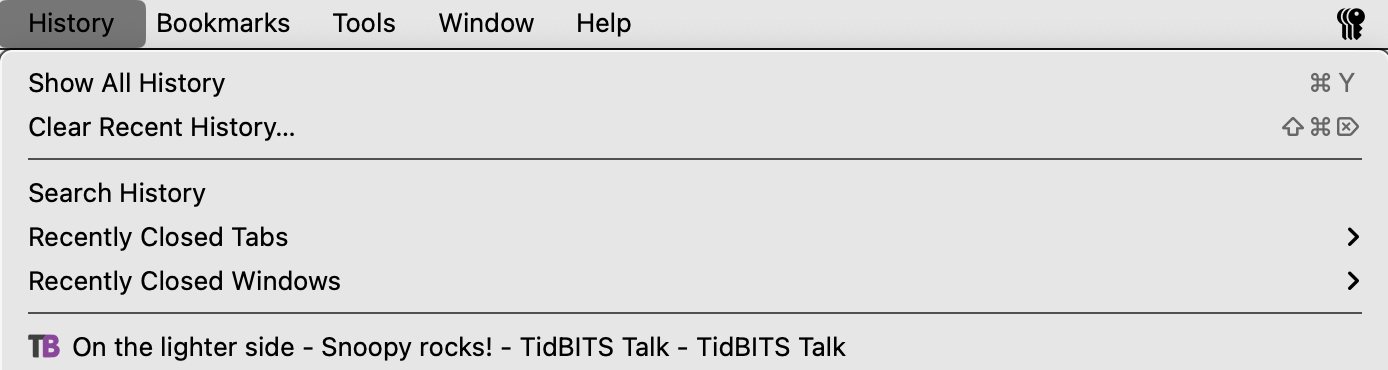
I think so. According to this support question, that option doesn’t appear if Firefox is configured to auto-restore sessions at startup.
Thank you for sharing this story. Unfortunately, scammers have lots of tricks up their sleeves. I’m not a programmer, but if I am asked to open Terminal (unless I am working side by side with my tech guru), I hope it would make me think twice that something might be amiss.
Frankly, in this day and age, I find it hard to equate “legitimate” with “depend on ad revenue.” Everyone and their uncle, including the BBC, are now charging for use. While I can’t afford to support every site, I long ago decided that (1) I would always pay for software and not pirate it, because is represented someone’s skilled work, and (2) the same goes for most online sources of news and information, within limits (e.g. Alphabet and all its minions will never get so much as thew time of day from me).
It may have been sophisticated for five or six years ago, but it’s such a common m.o. these days that I’ve gotten cautionary email on how to recognize online scams from banks, Social Security, the US Postal Service, &c., &c., and even the Better Business Bureau has ten ways to spot a scam (inlcuding some that you will recognize): https://www.bbb.org/article/tips/8767-bbb-tips-10-steps-to-avoid-scams . As you say, the pressure to stay on the phone and finish helping plunder your bank account is a dead giveaway, even for smart guy still recovering from anesthesia.
Another good tip is not to respond to anything, no matter hpw legitimate looking, first thing in the morning. Whether it takes a cup of coffee or just washing your face, you want to be more awake before dealing with stuff like that. (I know whereof I write, as about then years ago I fell for a pretty obvious phishing attempt via email when I was still half asleep. Fortunately, for me, it turned out to be a test by my employer’s IT security folks. They were understanding, if disappointed.)
I use the BBC’s website and iOS app to listen to the World Service every day, to access podcasts, and to occasionally watch its live News feed. I haven’t ever needed to register or pay anything. On my AppleTV, though, I seem to recall a service called BBC America—or something similar—does charge for access.
You also have to be careful with search results. Some years ago, my Windows-using brother used Google to look up something like McAfee, and clicked on the first result, without noticing that the link did not lead to McAfee. He ended up getting talked into installing some sort of remote access software and these “support” people were able to poke around in his computer. He did figure out that he shouldn’t have done it and I told him to delete whatever they had him install. He never went with my first suggestion, which was to nuke and start over. He didn’t have any backup or knowledge of how to do it.