Originally published at: Taming Email Overload: Avec Makes iPhone Email Triage Almost Fun - TidBITS
My first effort at making it easier to get through my email every day with the help of AI was not successful, as you read in “Taming Email Overload: Google’s CC Daily Briefing Agent” (29 May 2026). Google’s CC failed on two counts: its lack of accuracy and the fact that I still had to read and process all the messages it summarized for me.
What I needed was an email app that would let me quickly dispose of messages that didn’t require a response or follow-up, and keep those that did require some interaction around for later. That’s one of the main thrusts behind the AI-powered Avec, which exists only on the iPhone for now, though a desktop version is in the works. It also works only with Gmail, although integration with iCloud, Outlook, and standard IMAP is also promised. I’ve been using it for a few weeks now, and I’m quite liking it as a way to triage my email quickly without getting sucked in.
Swipe Right on Your Inbox
As a card-carrying married person, I’ve never seen, much less used, the Tinder dating app, but my understanding of its mechanics is that it presents the profile of another person on the service. Swiping right indicates that you’re interested; swiping left is a pass. If both people swipe right on each other, they can message.
Without editorializing about Tinder, its interaction model has two interesting aspects: you focus on a single item at a time and make an easy binary decision. It’s quick and requires little thought—you’re making snap judgments. (I initially planned to reference Hot or Not, which I also never used, but apparently it incorporated a rating system instead of the simple binary choice implied by the name.) Avec’s key insight is that this approach can work well for email triage, particularly on the iPhone’s small screen.
When I wake up in the morning, one of the things I like to do is read my email on the iPhone in bed after Tonya has gotten up to do Pilates or drink coffee or whatever. I have to read all my email at some point, and I find it a good way to ease into the day. Because I’m using the iPhone, all I can really do is read—I seldom reply to messages because typing accurately is so hard and dictation often requires too much editing. Plus, I’m often still a little fuzzy and shouldn’t be replying to important things until I’m fully awake.
As a result, I have long employed a Tinder-like approach in whatever email app I’m currently using on the iPhone, which was Gmail for a long time and most recently a test version of Mimestream to match what I use on the Mac (see “Why I Use Mimestream for Gmail,” 24 May 2023). I read each message in order and mark as unread those that I want to return to when I’m “at work” on my Mac. In essence, I’m triaging my inbox so I can deal only with important messages once I’m at my desk. I can also use it to catch up on email during weird little bits of downtime, such as a brief wait in the dentist’s office.
This approach works, but isn’t always fluid. Marking a message as unread in the Gmail app requires a button tap but takes you back to the message list, where you have to select another message, so two taps. In Mimestream, marking as unread and moving on to the next message requires three taps: tapping a ••• button to open a menu, tapping Mark as Unread, and then tapping a down-pointing arrow that takes you to the next message. Neither is hard, but both are a little clunky.
Quick Email Triage
With Avec, you’re presented with either a stack or a list of your important messages (more on what “important” means shortly), and you can easily switch between them. The stack best mimics the Tinder approach by showing you a single message at a time; the list is better if you want to pick and choose which messages to process.
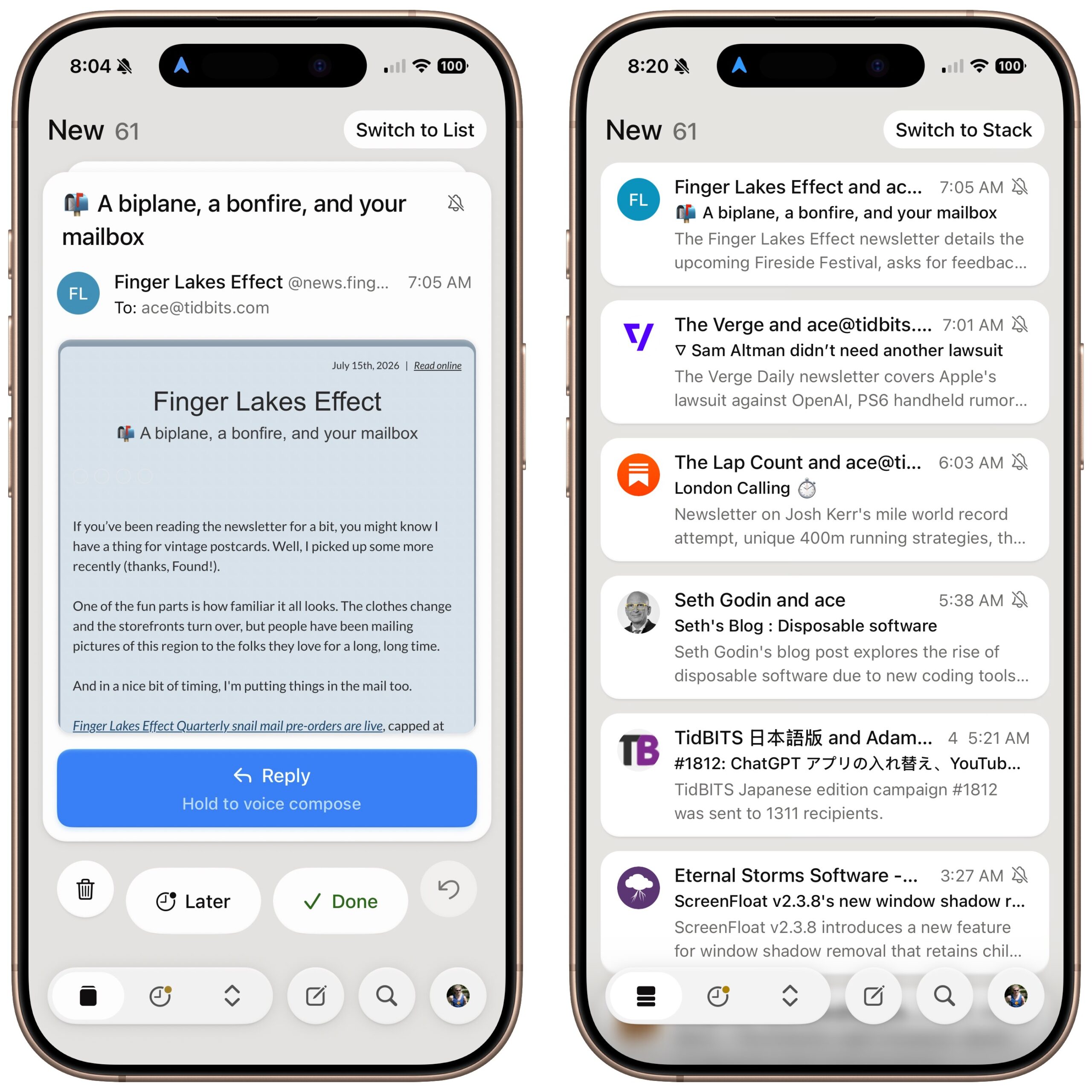
By “process,” I mean swipe left or right. In stack view, you can base that decision on the roughly half-screen preview; in list view, you get four lines of sender, subject, and summary, plus an avatar icon and timestamp. Either way, however, a simple swipe left saves the message for later; swiping right marks it as done so Avec won’t show it again. Saving for later relies on a Gmail “Handle Later” label, but crucially, it preserves the unread state—so I can still see those messages in Mimestream on my Mac. In contrast, marking a message as done also marks it as read, and Avec is smart about not showing you messages that you’ve marked as read already in another app.
In fact, Avec figured out on its own during setup that I use Unread/Read to indicate that a message should be kept for later or marked as done. It performs this check when you start, and if it determines that you archive messages when you’re done with them, it will use that as the default instead. If it guesses wrong, or if you change your mind about how it should work, you can choose different actions in Avec’s settings.
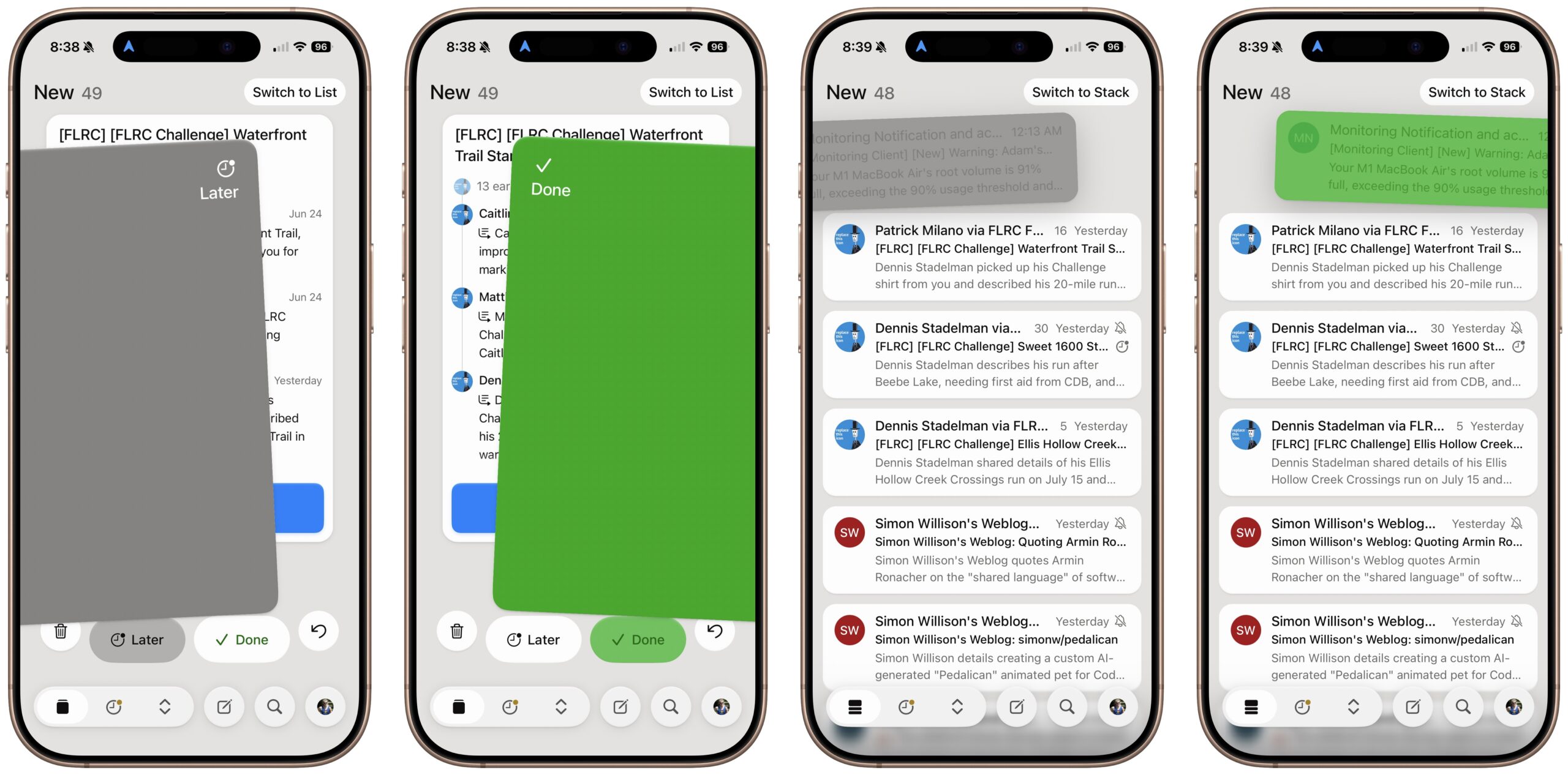
Avec’s interface is buttery smooth, and the illustration above only hints at the care that’s gone into the presentation. As you start to swipe, what you’re swiping gets either a gray or green background (right two screenshots above), and as you continue, the text is replaced with a Later or Done label (left two screenshots above). When you mark a message as done, a brief popover at the top of the screen lets you undo that action. You can’t undo saving a message for later, but a similar popover lets you add a due date (more on that later, too).
What if you need to see more of the message before making your decision? In stack view, the message is live; you can scroll in the half-screen preview area to see more before acting on it. If that isn’t enough—or if you’re in list view—tap a message to open it full-screen and read it fully before deciding.
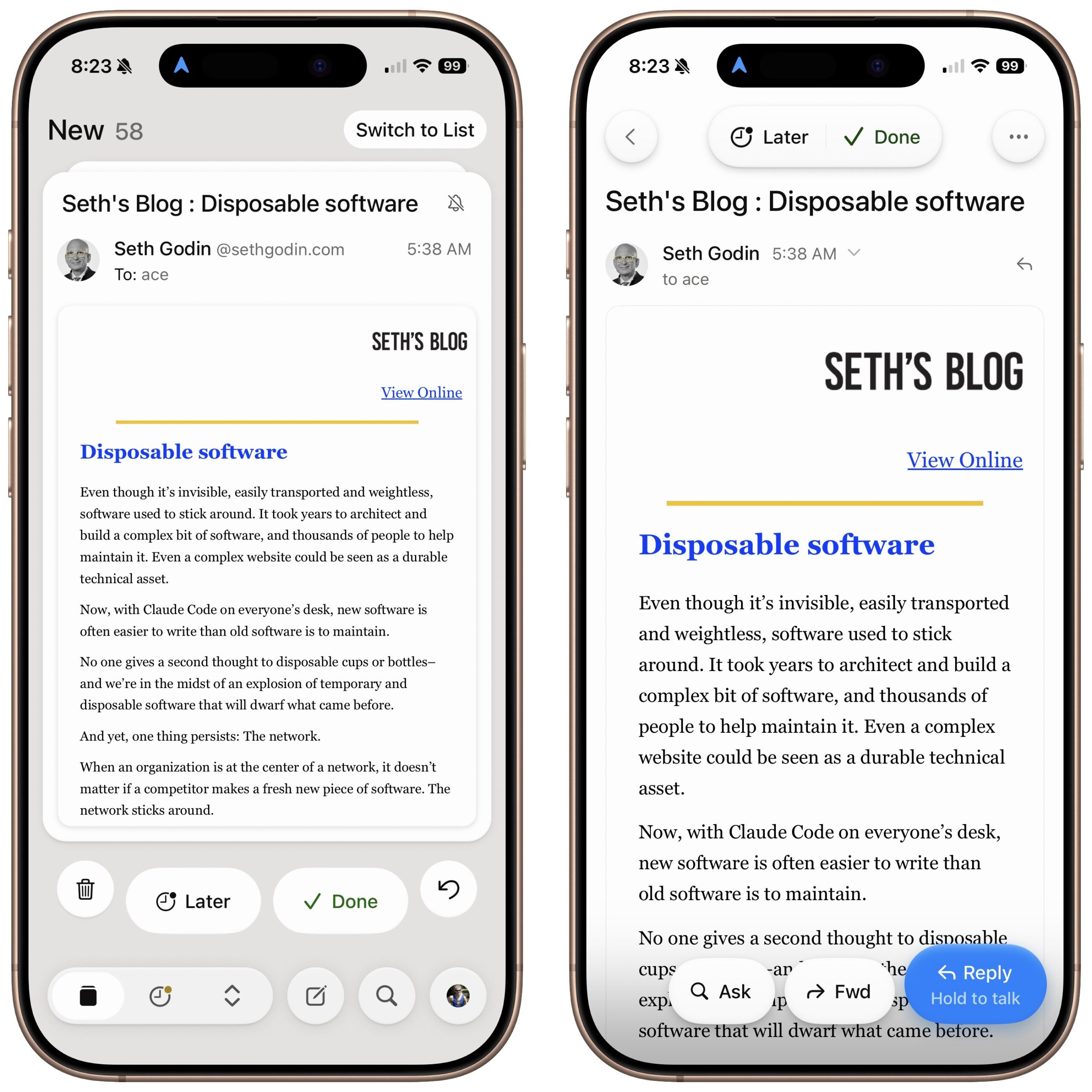
Before I get into the main things you want to do with a message other than triaging, a few notes on the preview and message views above:
- Later and Done buttons: Notice the explicit Later and Done buttons in both the preview and message views. Why have those in addition to the swipe interface? To an extent, it’s discoverability since you have to be told about the swiping, whereas the buttons are obvious. But the other reason is that some email messages do wacky things in their HTML to capture taps and prevent swiping. Every so often, I find myself unable to swipe a message and must resort to the buttons.
- Contextual Reply buttons: In the stack’s preview, you’ll sometimes see a big blue Reply button and other times not; a smaller Reply button always appears in message view. I believe Avec is trying to be smart and display the preview’s Reply button only when it makes sense. Since Seth Godin’s blog messages are meant for one-way distribution, their previews don’t get a Reply button.
- Trash and Undo buttons: In the preview, you see a Trash button and an Undo button on either side of the Later and Done buttons. The Trash button does what you expect. Undo is there because swiping right to mark as done in the preview doesn’t display the same Undo popover as when you’re in a message.
Working with Messages
For the most part, all I do with Avec is triage my email so there’s less to deal with on my Mac. But it is a full-fledged email app with some interesting features:
- Voice replies: Tapping a blue Reply button opens a standard compose window where you can type your reply. However, if you press and hold one of those Reply buttons, you can dictate a response that a speech-to-text model will turn into a reasonably written reply. I’ve done this only a few times, but each time I have been pleasantly surprised by how well the replies turned out. You can add instructions about replies, which I had to do to get it to insert my standard “cheers… -Adam” sign-off without a line break in the middle. Voice composition is also available for new messages. Processing is done by Anthropic, Google, Microsoft, or OpenAI, and Avec says providers won’t train on your data.
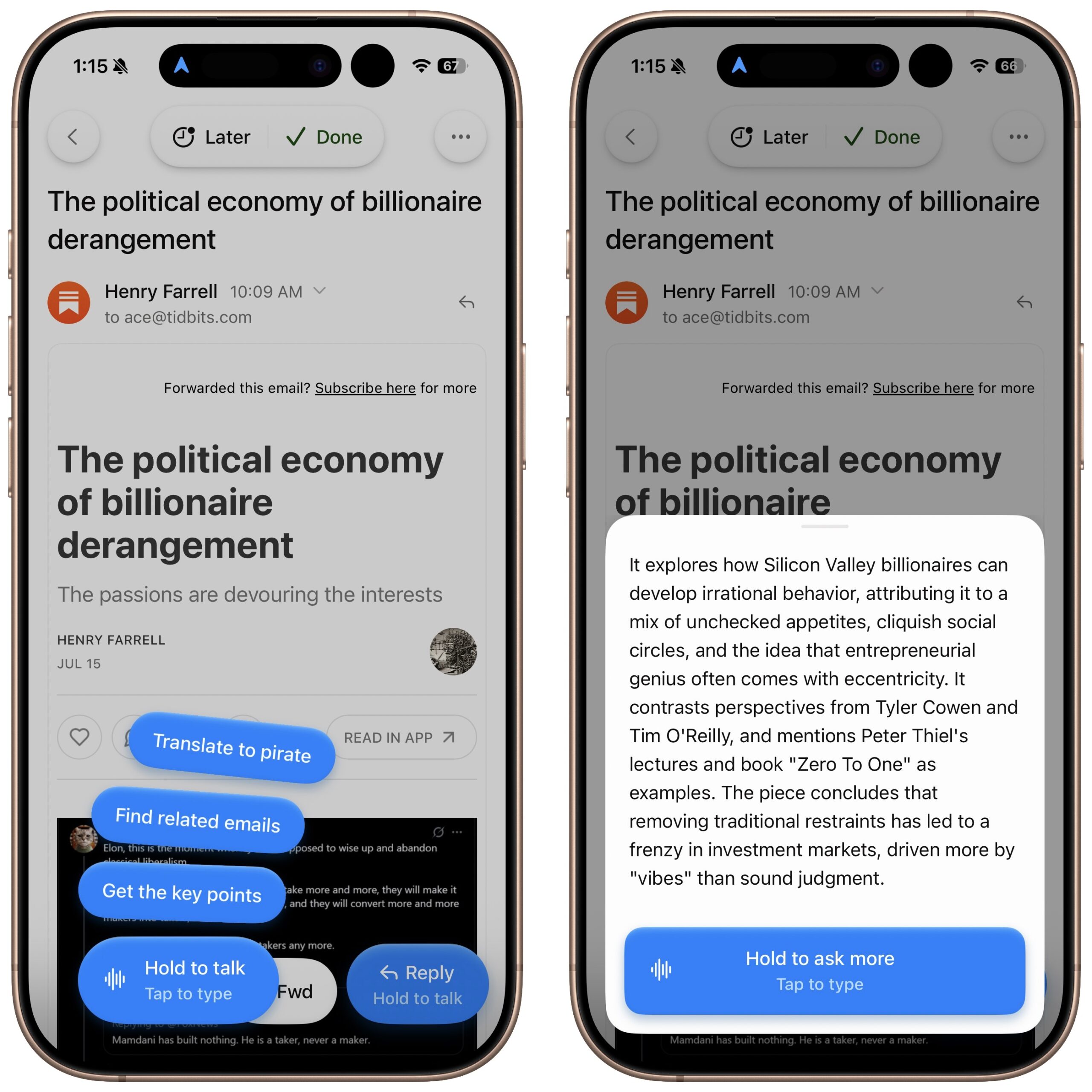
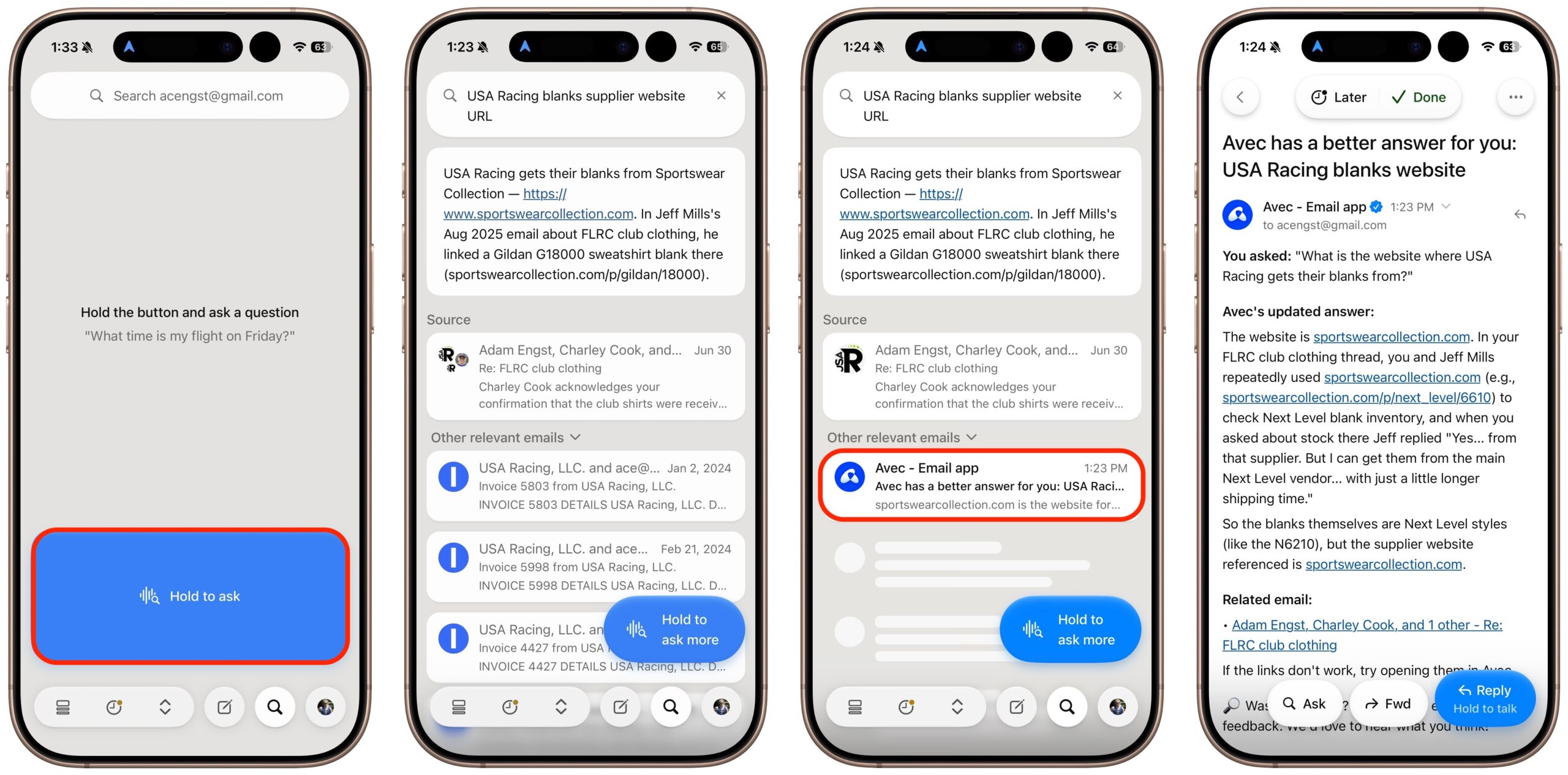
- Ask questions about messages: When you tap the AI-powered Ask button, Avec provides a few canned options (a silly one at the top, find related emails, and get the key points), or you can press and hold to ask any question. I haven’t been able to come up with reasons to use this personally, but it seems to work as promised.
- AI-powered search: When you tap the magnifying glass search button in the toolbar at the bottom of the screen, you can either type search terms or press and hold to do a voice search. Avec translates your text to good search terms and presents the results. I found it quite effective because I lack the patience to type a long search phrase on the iPhone. You can refine your search via text or voice if you wish, and in a feature I hadn’t previously seen, Avec sent me an email with a “better answer” that was indeed more informative. Presumably, the developers are walking a fine line between quick responses and being comprehensive.
More AI-powered Message Collections
I mentioned briefly that Avec’s stack and list views display “important” messages. It determines those using some heuristic, presumably driven by an AI backend. Messages that don’t clear the bar show up in a Low-importance collection that appears only after you’ve handled everything in the Important collection. It’s quite accurate, and if Avec makes a mistake, it’s easy to swap the important/low-importance designations to retrain the system.
Low-importance Messages
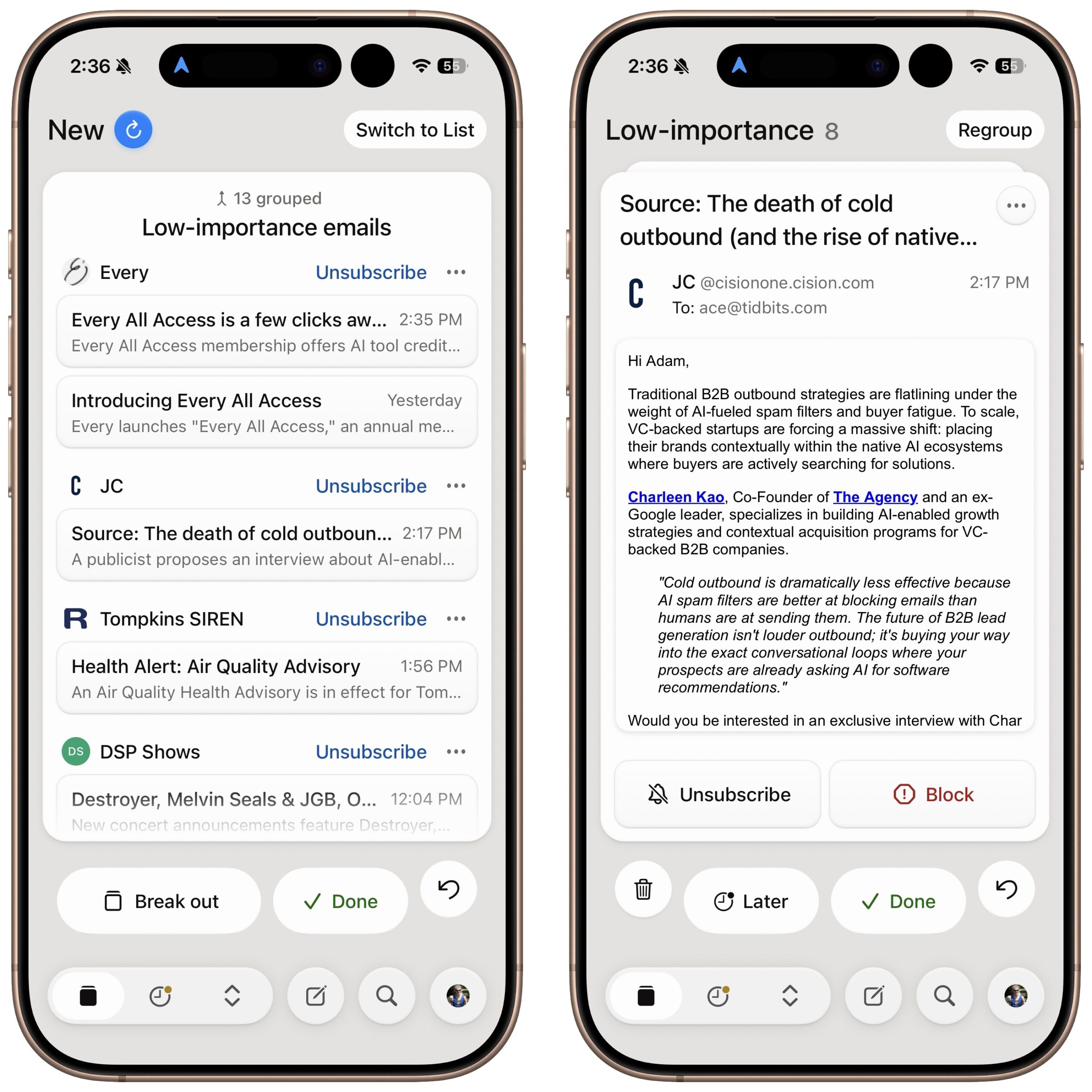
Avec is still figuring out how to handle low-importance messages. It wants you to mark them all as done at once—a right-swipe on the group or a tap on the Done button. That doesn’t work for me; just because a message isn’t important doesn’t mean I don’t want to read more than its sender and subject. To address that, Avec added a Break Out button that turns the group into individual messages that you interact with in the stack view metaphor. Or you can tap Switch to List to see them in a list view—it’s all a bit muddled. When you’re viewing an individual message, the Unsubscribe and Block buttons let you ensure you won’t see more from that list or sender.
Dealing with Your Backlog
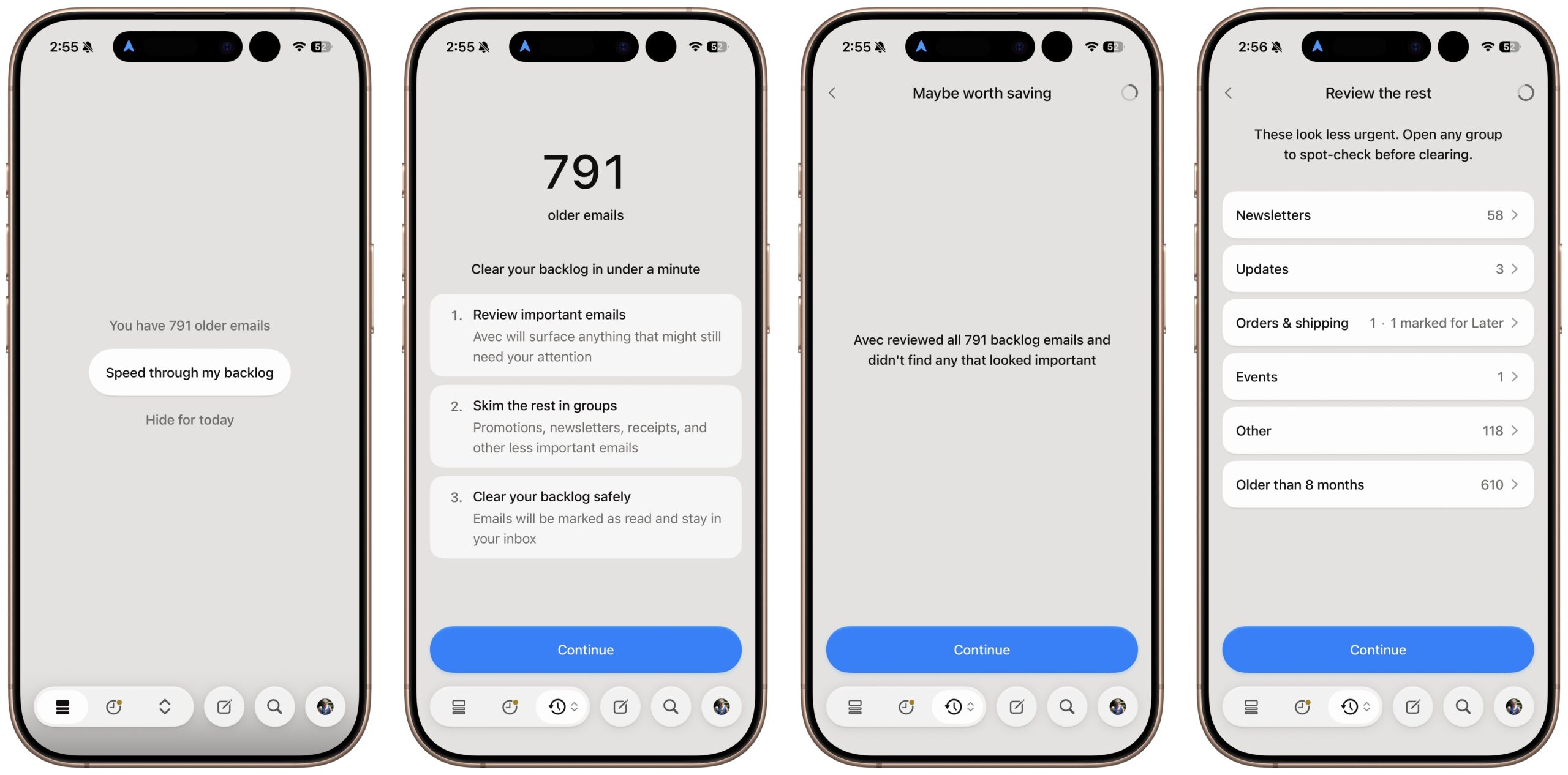
Once you clear your low-importance messages, there’s another likely collection: your backlog. These are much older, unread messages in the inbox, and Avec will cheerfully help you process them. It’s a nice idea, but every time I start, I get scared that I’ll lose the unread status on messages that I still need to do something with. Perhaps I never will, but if I lose that unread marker, I certainly won’t ever find them again. The process involves checking for important messages, skimming the rest in groups, and marking everything as read.
The problem is that skimming the groups doesn’t use the familiar swipe interface but instead requires tapping to load a message (so you can see what’s in it), then tapping either the back button or the Save for Later button, and manually opening another message. You can also tap a button next to each message to save it for later.
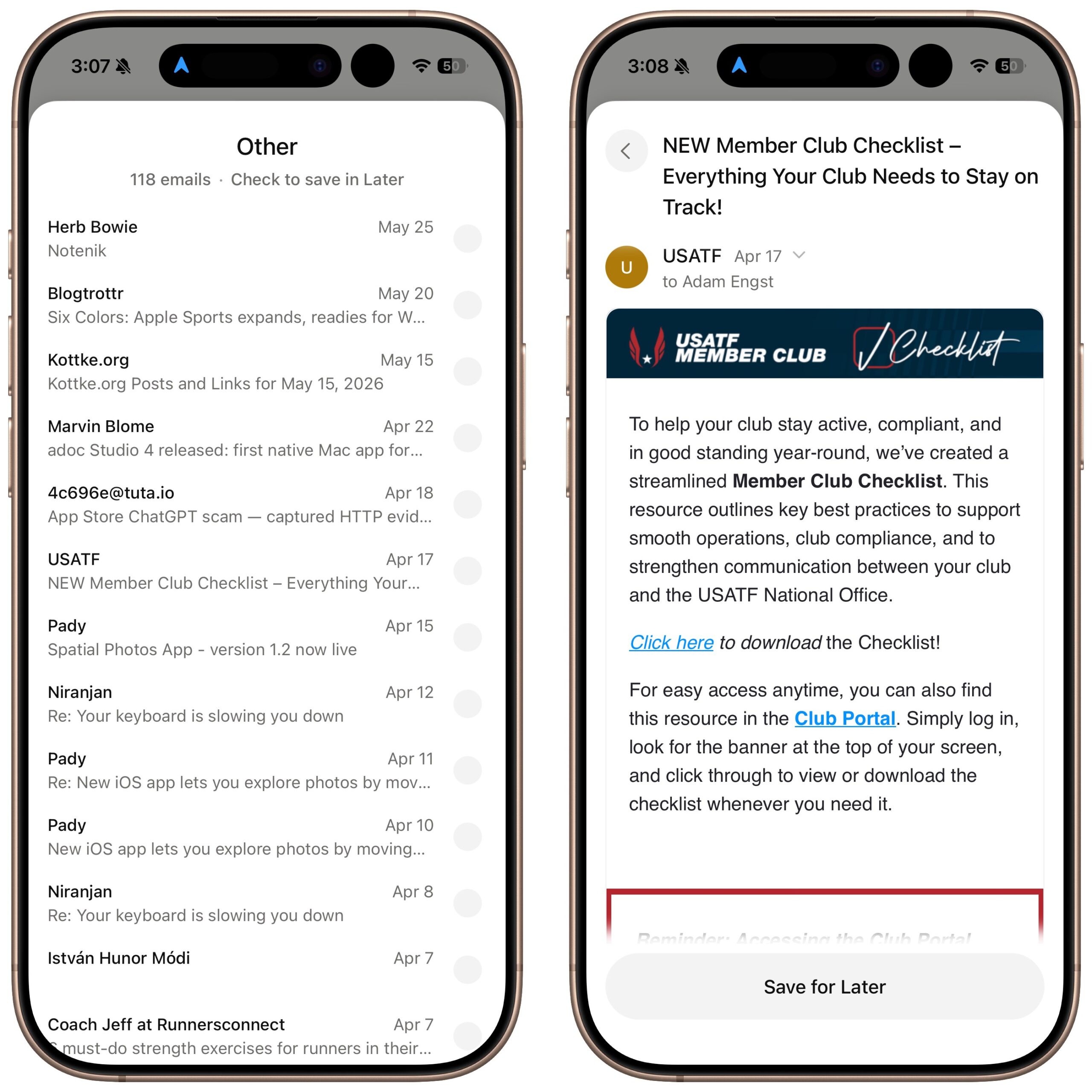
It’s inexplicable to me why Avec would switch from its quick, fluid swipe interface to a tedious back-and-forth when you may have hundreds of messages to get through. I have nearly 800 (don’t judge), and while I could undoubtedly winnow that significantly, it’s not going to happen if I have to look at all the questionable messages in this fashion. Plus, the current categorization isn’t useful, particularly when most of my messages appear in Other or Older Than 8 Months.
I’d prefer to see Avec let me tackle the backlog in 20-message batches, optionally starting with the oldest first. If I were given the option to clear a handful of messages at the end of each session, starting with the oldest and easiest to dispose of, I might actually make a dent in that backlog without losing the messages I should still deal with.
Messages Marked for Later
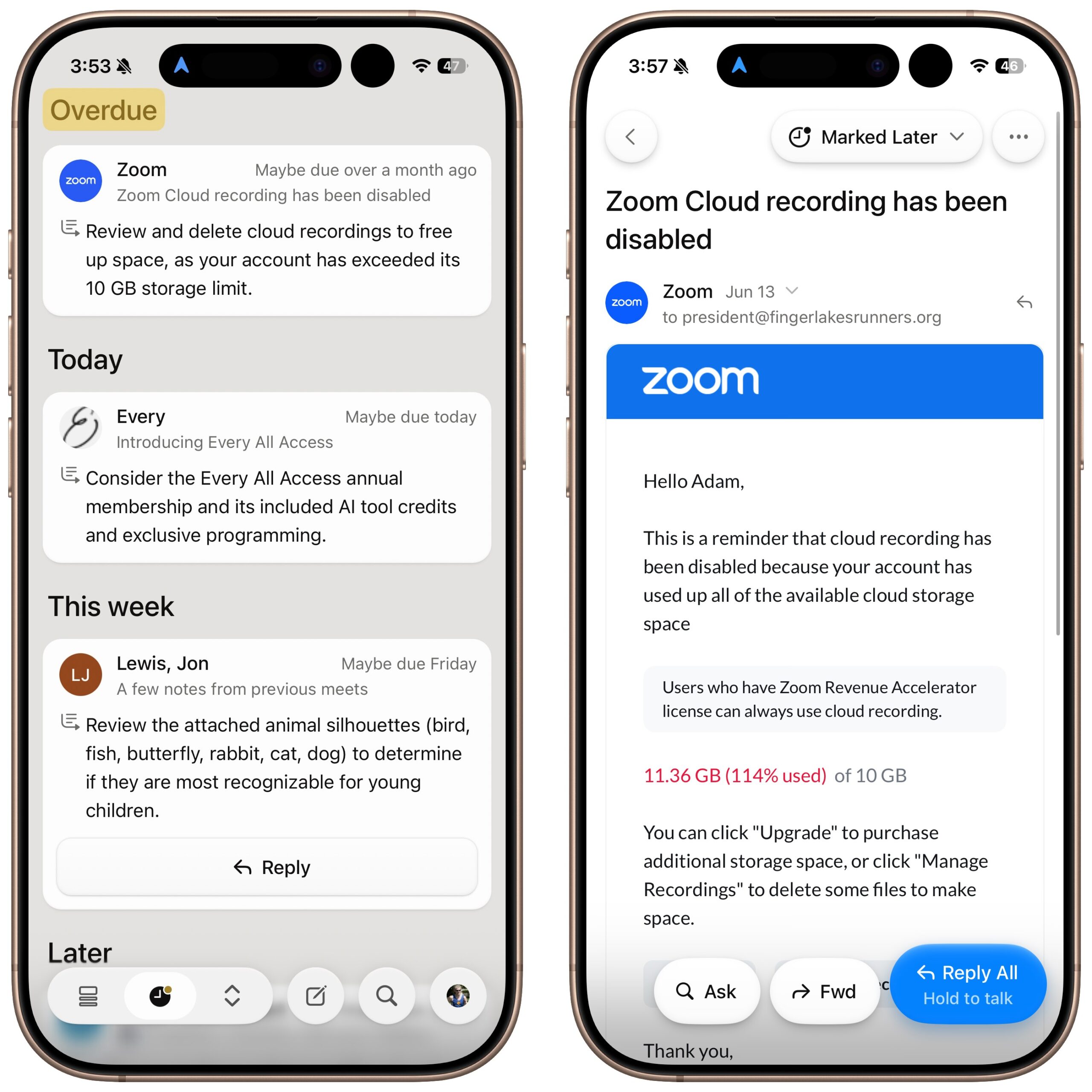
Avec’s standard flow has you dealing with important, low-importance, and backlog messages. But what about all those messages you swiped left to handle later? Those appear in a special Later collection, accessible from the clock button in the toolbar. Sections break messages into Overdue, Today, This Week, and Later—the dates are either guessed by Avec based on message content or specified by you when you marked the message for later. Tapping one opens it for further processing, just like from the stack or list views, and you can swipe left or right on a message in the list or while viewing a message.
Even More Message Collections
Additional collections are available from the up/down arrow icon next to the clock icon in the toolbar. Tapping that lets you choose from four standard Gmail collections—All Mail, Starred, Drafts, and Sent—plus three Avec collections—Awaiting a Reply, Needs Your Reply, and Backlog. Avec does a pretty good job of identifying conversations that are awaiting a reply, either from you or someone else. Within one of those two collections, you can dismiss it from the list or view the message and reply.
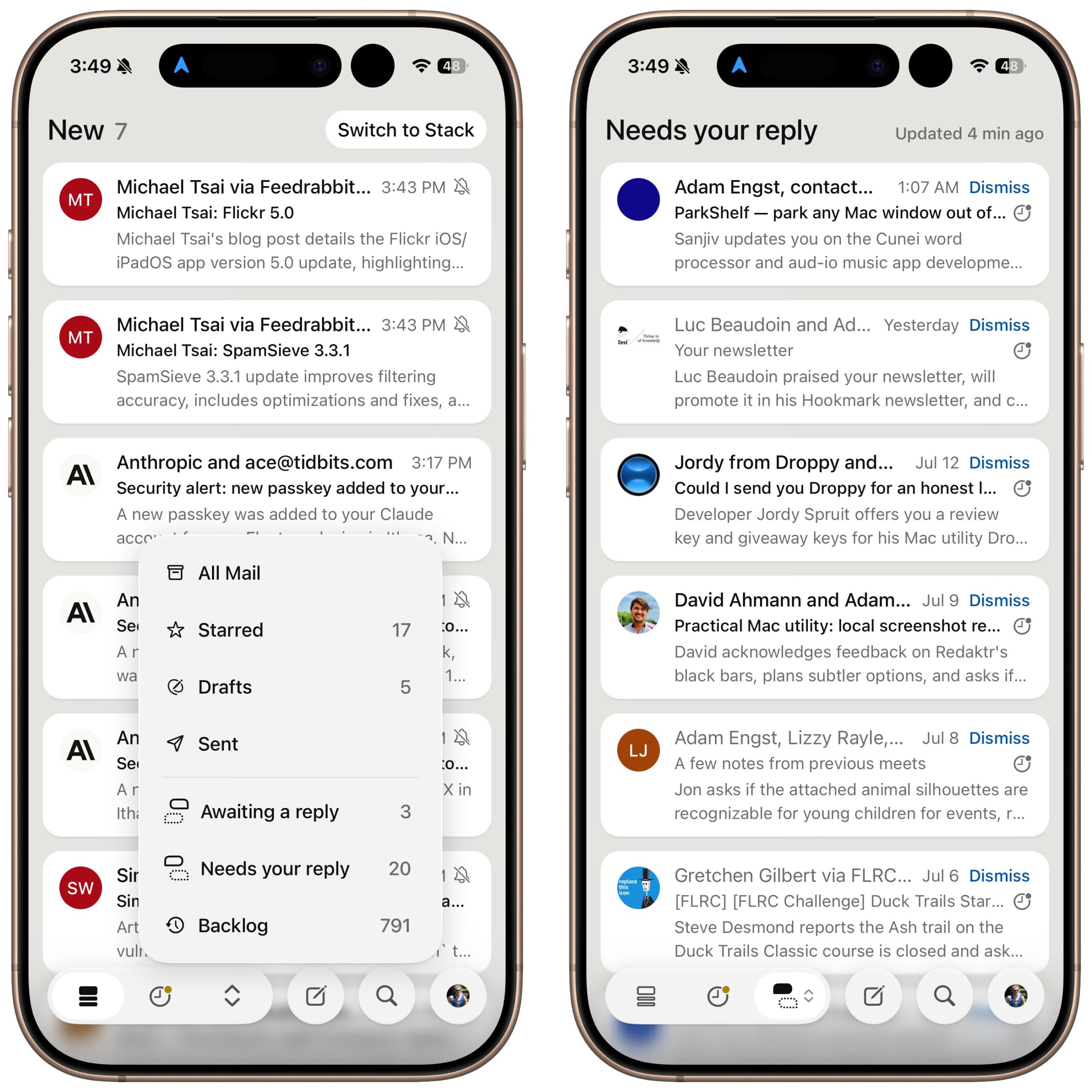
I haven’t used the Later and Reply collections much because Avec is currently iPhone-only. While I use my iPhone heavily, it’s not where I do important work because it’s hard to focus while using it, and I don’t have quick access to the same resources I have on the Mac. By definition, everything that ends up in these collections is somewhat important and therefore needs to be dealt with on the Mac.
Right now, that means Avec has to maintain the read/unread state of the messages I interact with in Mimestream on my Mac. It does that well, except for the threat of marking everything in my backlog as read, so I’ve had little trouble switching back and forth between Avec on the iPhone and Mimestream on the Mac. Nonetheless, I’m looking forward to the desktop version of Avec, which the developers say they’re using now and expect to start showing off in early August.
Avec is free, and the developers say they plan to keep the current feature set available for free while adding paid features in the future. If you’re looking for an interesting iPhone email app that helps you speed through your morning email, give it a try. That said, Avec needs access to the full content of your email to deliver its features; although the company’s privacy policy says all the right things, if that level of access concerns you, Avec isn’t a good fit.
