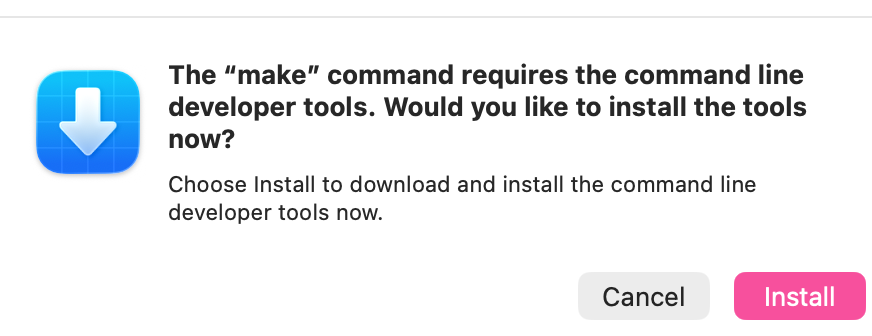
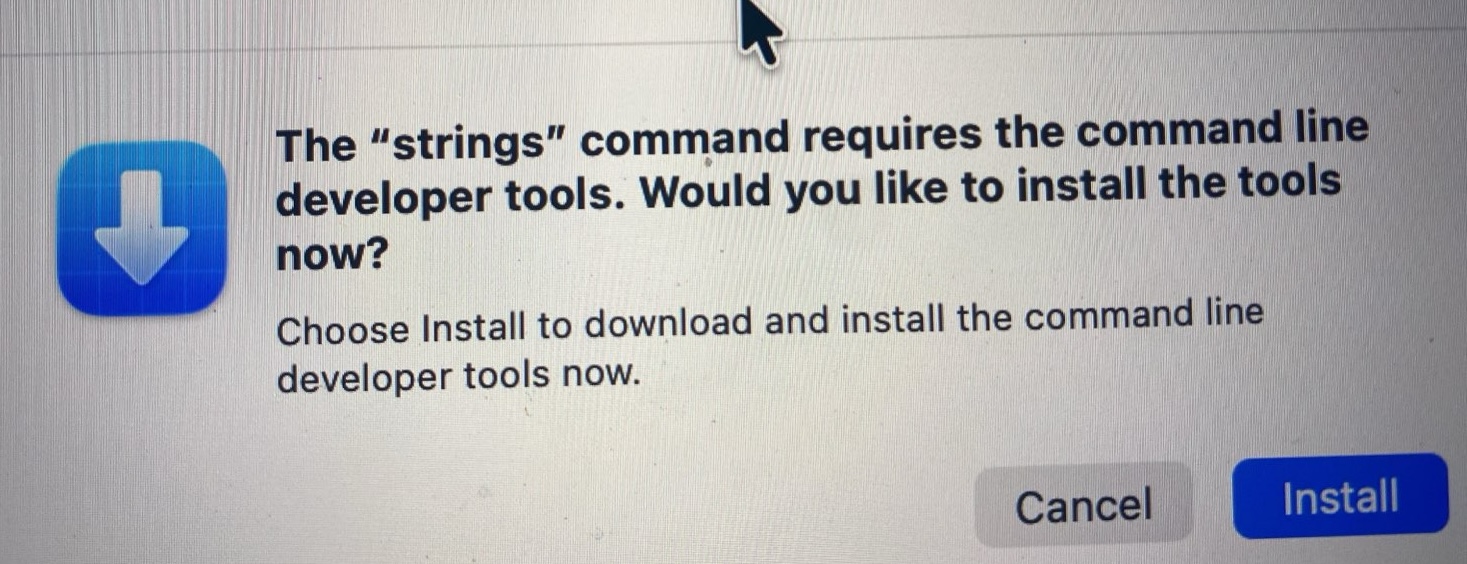
every few minutes. I’m not a developer and occasionally use Terminal for small things on my Mac but close to never on the MBP in question.
We have limited internet usage here and have already had to top up many times for the update so am hesitant to click Install for something I don’t even understand.
So I’m wondering
a) if this is safe to do-there’s no indication if this is MacOS asking or who is putting up this dialog
b) if so, any idea the size of download? (ie dozens of MB or several GB)
c) I don’t want to overload anyone with a writing task, but a one/two sentence explanation for dummies about what this dialog text means would suffice ;-)
My internet searching came up with mostly technical sites that were not really on target to what I’m wondering but I did see one forum post result dating to 2013 with nearly the same text and dialog options.
I won’t comment on the safety, since it is not obvious what is asking for the strings command. The strings command searches for strings of text in binary files, so I’d be hesitant without digging into it a little further. Most likely, it is a benign echo from some software someone installed long ago, but more info would be needed to judge.
FWIW, the current version of the command line developer tools is approximately 840 MB.
That seems very iffy to me, so I definitely wouldn’t agree to installing Apple’s Command Line Tools, if that’s what’s actually happening. You might download free version of Malwarebytes and see if it identifies any malware that’s behind the dialog. I’m not sure of the best way to identify what app might be behind it otherwise, other than to launch only one app at a time and see when the dialog appears/
If the popup is legitimately from some script using the strings command, that will satisfy it. And if it’s malware trying to spoof an Apple dialog, you won’t have fallen for it.
The strings command examines a binary file, printing out any block of data that resembles printable text. The most common use is to assist with identifying the contents of an unidentified file.
Here’s the manual page for the GNU version of the command (typically bundled with Linux distributions). The Mac version (part of the Xcode command-line tools) will be very similar, if not identical.
With respect to that pop-up dialog, Apple bundles this tool (and many others) as a part of the Xcode Command-Line Utilities. If you have Xcode installed, they are available for use within the graphical environment, but not from a Terminal’s command-line window. Xcode provides stubs so that if you type one of these commands, it will ask if you want to install the command-line utilities.
So, if you have installed (or recently upgraded) Xcode and have not installed the command-line utilities designed to accompany your Xcode installation, you may see this if you or any script tries to execute one of the commands bundled with that package.
Thank you. Size is of importance as I usually use an inexpensive cellular data plan of 25Gb/month which suits my regular needs but not updates. On occasions like these I have to book extra over and over whenever internet stops working. Or when I know visitors are coming, change plans at the 4-week cycle renewal, which this time I missed by a day .
how can I know if it’s already installed? On my Mac I don’t see anything called Xcode in the Applications (including Utilities) folder or in LaunchBar when typing Xcode. There’s a Terminal command or something…
Are such pop-ups supposed to have an additional small icon in the lower right of the main icon (blue square with white down arrow in this case) if coming from the OS? I vaguely recall reading that somewhere. Or is that even a reliable indicator?
Thanks for the explanation!
I might just need to buy some more and download the utilities directly. Oh, followed the link and appears I need a developer account.
Thanks @mpainesyd yes the MBP in question has Chrome running with dozens of tabs open all the time. Best for use case says the user.
I was blocked from accessing by Reddit at the link but will search elsewhere with chrome related keywords. Sometimes the right keywords are the key to finding the solution; the technique of searching for the exact text of the dialog didn’t work very well this time.
Interesting. I thought the stubs only exist when Xcode has been installed. Maybe they’re present all the time on modern version of macOS.
One easy way to check if they are installed is to just run one those commands. One possibility is the make command. Run it from a command line:
$ make -v

GNU Make 3.81
Copyright (C) 2006  Free Software Foundation, Inc.
This is free software; see the source for copying conditions.
There is NO warranty; not even for MERCHANTABILITY or FITNESS FOR A
PARTICULAR PURPOSE.

This program built for i386-apple-darwin11.3.0
If the command-line tools are not installed, you should see a popup asking you to install them.
And if you’ve installed them, but not accepted the Xcode license agreement, you’ll see a block of text asking you to review and accept it. (The same text you’d approve via the GUI Xcode app).
Another way is to open the file /Library/Receipts/InstallHistory.plist and look for it. On my system, it has a few entries that look like:
David is correct, but perhaps it will be easier to use Apple’s pkgutil command, which can read the Apple Installer app’s receipts database and display the results in an easy-to-read format. For example, open Terminal.app and type the following:
Sorry, was not 100% clear. The dialog in question was on a family member MBP, I still need to wait for that machine to be available to run the commands. I searched for the Xcode on my MBAir and didn’t find it. Kind of mixed things up, duh!
Anyway, ran make and looked in the InstallHistory.plist for “Xcode” and “Command” and neither was found, so it looks like no developer tools on my MBAir. Ran pkgutil from @josehill s post and this dialog popped up behind Terminal:
so that makes it appear that the blue icon and verbiage comes from the OS.
Will search some more on Strings and Chrome to see if there is an explanation there. Added 10GB to the account here at home so might be able to download the tools tonight or if not, remotely when family reaches base abroad, where the internet plan is fast and unlimited.
I’d be surprised if running pkgutil by itself triggered that particular pop-up. It probably came from when you tried to run make.
pkgutil is a standard part of macOS and shouldn’t need anything else to run.
I do agree with Adam that you should run Malwarebytes as a safety check.
There are a few ways to try to track down what asked for the command line tools in the original post. Some of them can get get very technical, so I would try something simpler first, though it’s a little tedious. Open System Information (hold the option key down while clicking on the Mac’s Apple menu; it will be the first menu item), and then look through the Software category on the left sidebar. Inspect the items in the Applications, Extensions, and Installations sections first to see if there is anything there that you don’t recognize. I’d also check to see if there are any browser extensions installed that you don’t recognize.
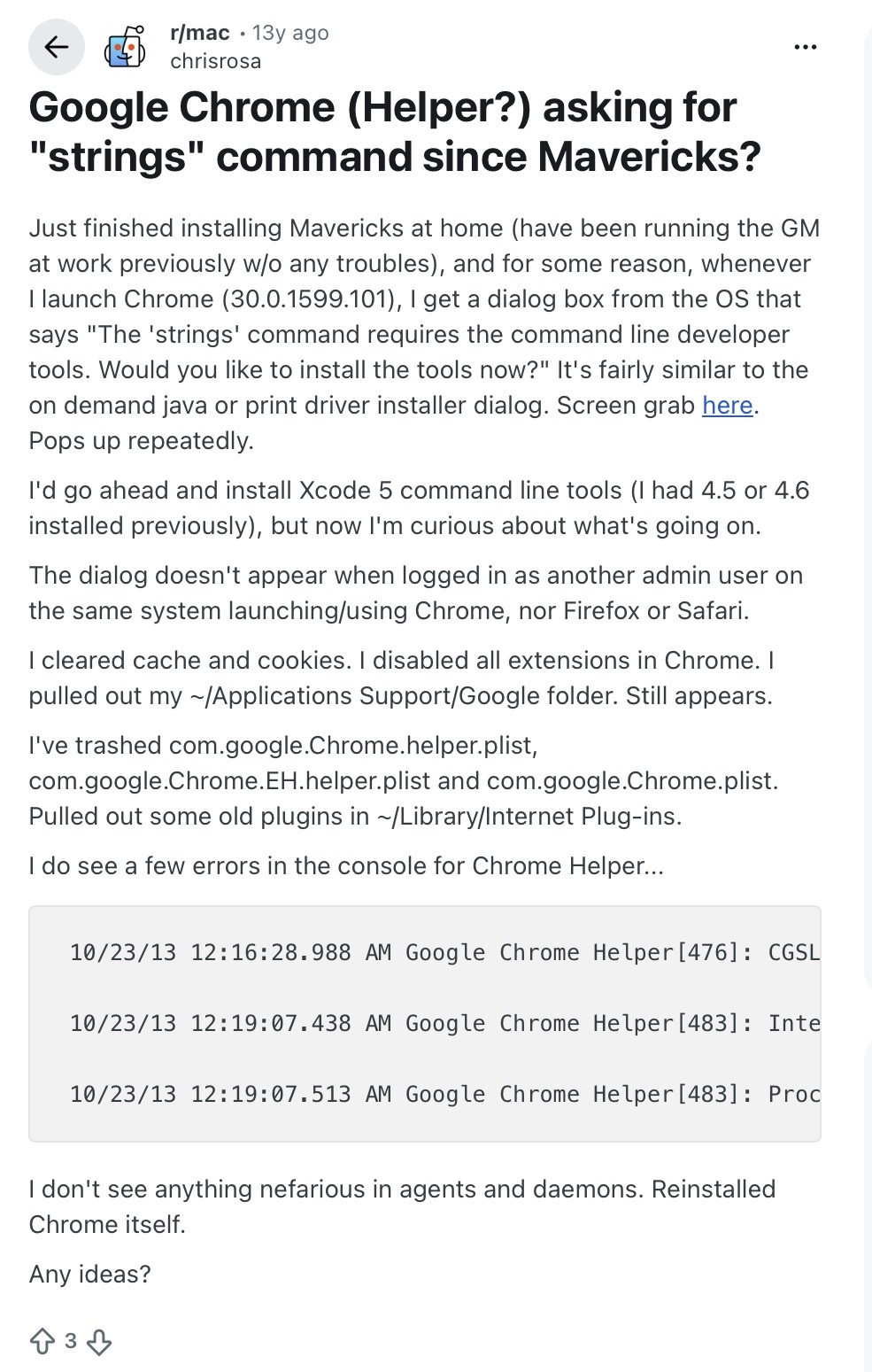
Here is a screenshot of the Reddit post. If the issue is caused by Chrome then you would expect many users would be encountering it but that doesn’t seem to be the case. So it might be that certain Command Line Tools have somehow been corrupted/deleted. In that case the advice of others (above) may work.
Maybe look for Chrome Helper in Activity Monitor and close it to see if the dialogue goes away?
The strings command is used quite a bit by people reverse engineering binaries to see the readable text within. You’ll typically see text error messages inside a binary. The strings command parses this and displays it in a more human readable manner. Infosec people use it quite a bit. But it’s not something that is used normally. Hence, everyone advising caution.
The average user of macOS who is not a developer nor engineer isn’t going to need Xcode Command Line Tools nor the strings command. It could be malware that existed on the Mac before you upgraded macOS. That malware is likely broken due to the large number of security changes between Monterey and macOS Tahoe 26.3.
Highly recommend you run EtreCheckPro, a free utility that will scan you Mac and generate a text report that strips out any personally identifiable information so you can paste it in support forums. It’s used quite a lot on Apple’s macOS Community support forums. The developer participates on the support forums frequently and others on the forums use this tool extensively. It’s similar to something like MalwareBytes but it doesn’t normally fix problems. It’s primary function is to provide system hardware and software information in a detailed report. Mac experts can analyze it and spot suspicious software and then advise how to remove it. I manage fleets of Macs in high-security enterprise environments.
Go to etrecheck .com or google etrecheck and click on the free download. Copy it to /Applications and run it. All the prompt to open a file downloaded from the Internet. If it doesn’t ask you to allow Full Disk Access go to System Settings > Privacy & Security > Full Disk Access and turn it on for EtreCheckPro.Run the scan, it doesn’t matter what you put in the initial prompt about a problem description. Click the File > Save in EtreCheckPro, save it to Desktop or Downloads. Reply to me and click the upload arrow button on the formatting toolbar in the TidBits Talk forum, point to the EtreCheckPro report (‘macName date code’). This will attach the report to the reply.
I will analyze it and offer advice, others are free to also read and see if they can spot anything that shouldn’t be there. Many times people have cleanup software or antivirus scanners, etc. that are now broken by the macOS upgrade.
Best practice when upgrading macOS is to backup your Mac (Time Machine / Carbon Copy Cloner / SuperDuper!, etc.) It is best to not skip major macOS versions. Also to check all your software versions as many will break when upgrading macOS versions.You should uninstall any cleaners, printer drivers and security software before you upgrade. Installing the latest versions of what you want to keep after the upgrade. Upgrading all your applications as well.
You just jumped four major macOS versions and many things changed dramatically that will break old software. Sadly, Apple doesn’t make this easy. They hide the in-between macOS versions from the App Store for normal users. Keeping a Mac up-to-date with major macOS versions is highly recommended and will avoid this pain in the future. I don’t recommend upgrading day one when a new version is released. I typically wait three months or more, keep an eye on the Apple Community forums for people experiencing problems. When Sequoia & Tahoe launched it broken lots of software and hardware. Some monitors didn’t work, docking stations stopped working. Eventually the vendors will update and those issues are all fixed. But you can break stuff upgrading macOS and if it’s day one you are stuck and need to either restore from backup or wait weeks, months for things to get fixed then manually fix it yourself.
Here is how you can incrementally upgrade macOS one major release at a time: How to download and install macOS - Apple Support Look for Use the App Store. Click Ventura 13 install that, rinse and repeat for each till you upgrade to Sequoia. Then use Software Update to install the latest which at the time of this reply, is Tahoe 26.3.
 .
.