Spotlight much worse at finding files in macOS 26; any cure?

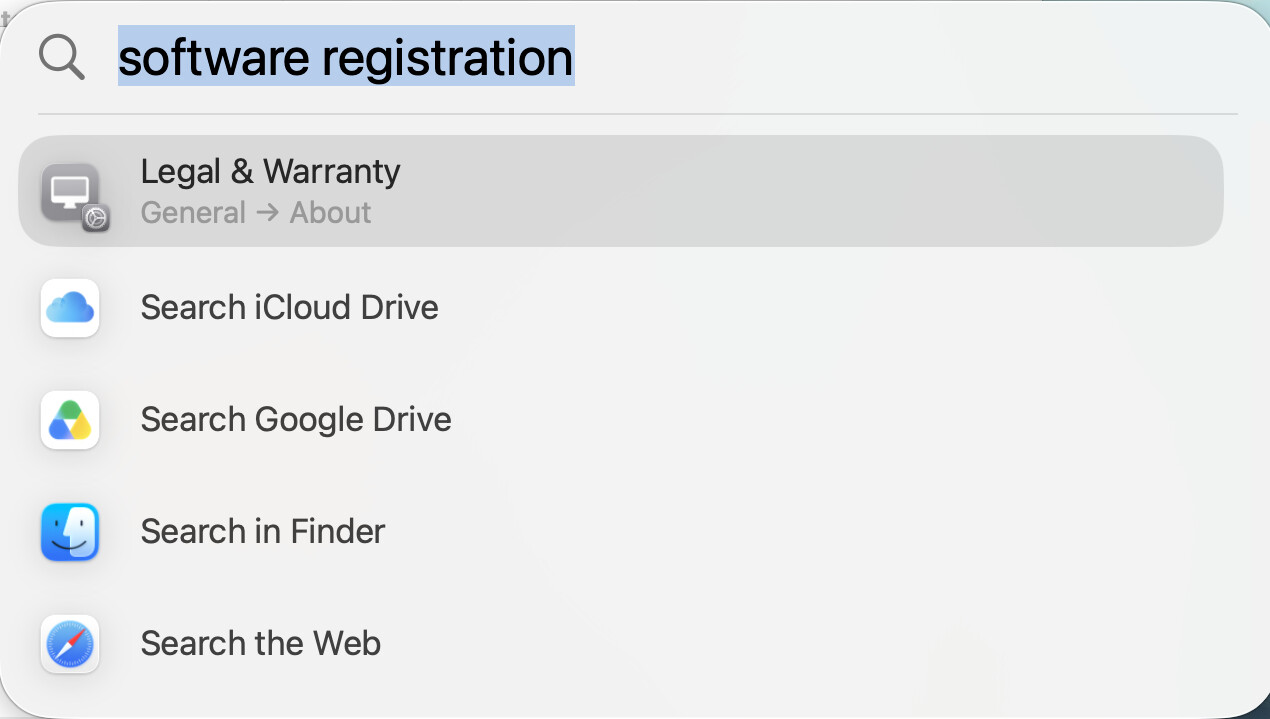
When I finally updated to macOS 26 (with trepidation, since I dislike liquid glass), I found that Spotlight is terrible at finding files. Typically when I enter the name it will show many irrelevant items one of which allows me to search iCloud Drive – and only then will it find the file. Is there a way to get the old behavior, where it just showed the file “first go”? Is macOS 27 any better?

Here is an example:

I have rebuilt the Spotlight index, but it didn’t help. Nor are any of my Spotlight settings obviously wrong (or changed). Results from System has Files enabled and all file types selected (in the panel that comes up when I press the tiny “i” button).

As far as I recall Spotlight has been in decline for a while. I stopped using it round about the time, years ago I think, when it started including sources I didn’t want, like the internet, as top results, with no way to turn that off.

Recently I tried Spotlight on some other pre-27 (maybe even pre-26 too) Macs in the family and found its results disappointing, and these undesired sources listed still at the top.

IIRC, Used to be, one could select the main storage volume and not index it, wait a bit and deselect it; is that what you mean by ‘rebuilt’? Similar feature appears to be buried at the far bottom of the Spotlight Settings panel, called “Search Privacy”.

Now the choices are more fine-grained. I did experiment with turning off everything and turning off the keyboard shortcut for Spotlight. Initially, searching in Mail worked but some days later it was not so good and I also tried searching in a Finder window when I couldn’t find a file with LaunchBar, my preferred search app. No results. Hm. So then I turned on Spotlight for Files and its “i” items, and Finder searching worked again.

So I can suggest, if you haven’t already done this, to put your main volume in the privacy section, turn off everything you can in Spotlight Settings, wait a while, maybe even reboot, take volume out of Privacy, then one at a time turn on search options, and see if that improves results.

Haven’t changed to 27 yet so can’t answer that, but I think I remember reading that Spotlight has been fully redone for 27 (in technical ways I don’t understand), including reaching deeply into many apps so the “AI” can “help” you. After updating I need to dig into its settings to see if I can configure it the minimal way I want and see if it is as good as LaunchBar.

Looking forward to replies from 27’ers.
One of the more recent 26.x updates rebuilt the index in a different manner in prep for 27 (Golden Gate) and that improved search accuracy for me.

That said, I think the first thing to do is make sure you weed out all the possible categories that Spotlight wants to serve up so you concentrate it on being a file finder/launcher rather than Apple’s attempt at being Google.

System Settings > Spotlight > Results from Apps
System Settings > Spotlight > Results from System
System Settings > Spotlight > Results from Clipboard

Turn off everything in there that leads to false positives or distractions from file search.
At the very bottom is Search Privacy that can be used to blacklist certain items from showing up. Unfortunately, in my experience it’s buggy in that it tends to forget to honor settings across reboots (even though items still appear listed).

I’ll also note that Howard Oakley always suggests people use Finder search rather than Spotlight, And he has a point. Those two do not do the same thing and if you’re trying to find a file or folder, chances are Finder search is better equipped to do that compared to Spotlight. However, that helps little if you tend to use Spotlight as a launcher. For that it needs to find the file, folder, or app first so you can launch it. Reverting back to Finder search to open from there, is by far not as minimalist and fast as compared to cmd-space and type followed by hitting return to launch.

1 Like

Good suggestion, esp if one is searching for specific items on the Mac. Spotlight’s orientation seems to be towards very wide search on and off the Mac, and deeply into the Mac’s content as well as launching apps.

To search in Finder though as far as my experience went, one has to have Spotlight’s File searching capabilities on in Settings. I’m hoping this will be a good supplement to LaunchBar in 27.

That said, I think the first thing to do is make sure you weed out all the possible categories that Spotlight wants to serve up so you concentrate it on being a file finder/launcher rather than Apple’s attempt at being Google.

Yes good suggestion, but, unfortunately, the first thing I tried. I rely on Spotlight being an app launcher, file finder (and simple calculator). It used to do both pretty well. Now the file finding is hopeless.

Your other suggestion to do file searches in Finder does work, and is what I’ve ben having to do. But I miss the convenience of only having one key combination bring up Spotlight and search.

This intrigued me so I poked around for some workarounds, which may not be as satisfying as all-in-one Spotlight, but well anyway, wanted to try to help.

For a Finder search:

To perform a Spotlight search from a Finder window, press Option–Command–Space bar. (In some versions of macOS, if you use multiple input sources to type in different languages, these shortcuts change input sources. Learn how to change a conflicting keyboard shortcut.)

For app launching, it appears Spotlight is summoning the Apps App, which according to a blog I’ve never looked at before (so cannot recommend but its content seems accurate), has replaced the full-screen Launchpad feature. As Apps is a choice in Spotlight Settings under Results from System, I suppose it can be turned off and not appear in Spotlight, or continue to use Spotlight as a launcher.

Alternatively, you can set a Keyboard Shortcut of your own design from Keyboard Settings’ App Shortcuts to open the Apps App and launch from there. Apps can also be summoned with thumb and three finger pinch on a Trackpad, or in one of the Hot Corners in Desktop & Dock Settings.

Calculator. Hm. I don’t see a setting for the Calculator App in Spotlight settings and it oddly doesn’t seem to have a Widget for Notification Center but can be in Control Center. I vaguely recall something about ‘show maths results’, maybe some “AI” in Notes or something where you could type a formula and the calculation would occur. Again, not as smooth as command space and type. The latter is in LaunchBar if you have it and probably other keyboard helper apps like it.

Edited to add: Firefox can do basic math and conversions in the browser address bar itself.

Hope some of that is useful.

My “cure” for spotlight – way back years ago when it was first introduced – was to turn it OFF, and use other search tools instead.

I’d suggest both of these small apps:
EasyFind:

Find Any File:

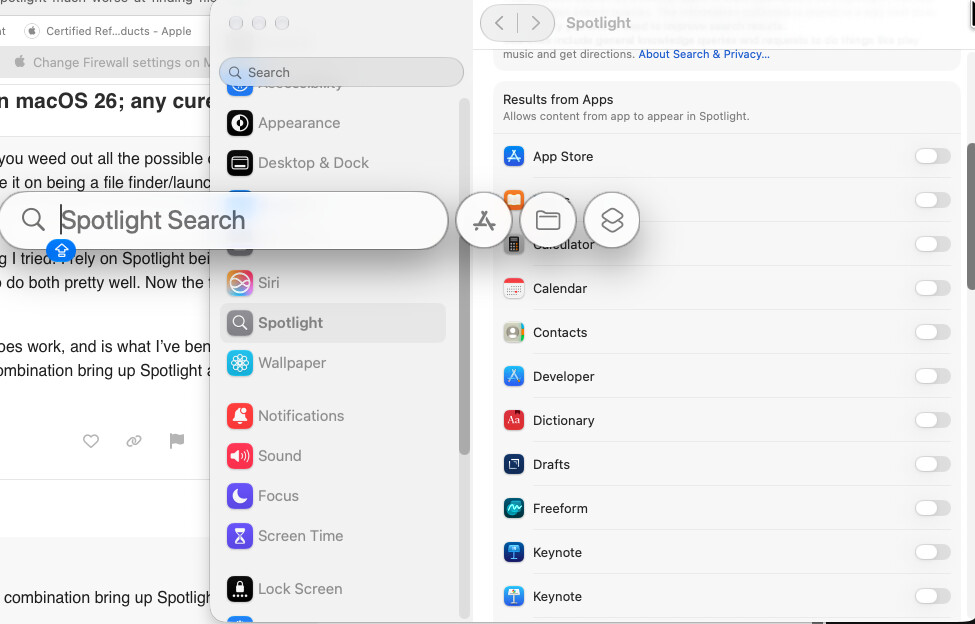
With MacOS 27, what I see when I hit Command-Space on the keyboard is a text entry field with “Spotlight Search” greyed out inside it. Then when I place the cursor on that, three circular buttons show up:

(You may ignore the background, which happens to be my Systems Settings > Spotlight settings – showing that I have Results from Apps turned off for all apps …)

Clicking on any of the three labeled buttons, turns the search field into a:

Applications Search [by app name]

File Search [by file name]

Applications Search [by name of action usable in Shortcuts, or simply running just by clicking on it]

1 Like

Also, if, after hitting cmd-space, you hit cmd-1/2/3/4 you cycle through Apps, File, Actions, and Clipboard Search. That way your fingers never leave the KB.