Since upgrading (??) to OS26 Spotlight is not finding files on the disk, only web locations. According to Perplexity this is a known problem:
”The issue with Spotlight in macOS 26 (Tahoe) not finding local documents and showing mostly web results is a recognized problem reported by several users. It appears Spotlight sometimes disables or fails to index local files properly, causing search results to prioritize web content over local documents.”
Advice is given to remove the Spotlight file (via terminal), re-enable Spotlight, and restart the computer to force a rebuild.
I rely on Spotlight to find files! Surprising this bug was not found at Apple.
While I’m not on 26 yet, you might be able to (based on my looking at Spotlight Settings in Sequoia) simply untick everything, turn off Help Apple… if it’s on, close Settings, reopen it (consider a restart if it’s not too inconveneint) and tick the stuff you want Spotlight to look for. Maybe that jolts it back into action. That’s sort of the good ol’ simple first step that sometimes helps.
If that doesn’t work there might be others here with better tips.
Thanks for the tip. I had already deleted the spotlight database and re-enabled it, as recommended by Perplexity, and then a restart. That did the trick, now files are found. Your tip was also helpful to remove Spotlight indexing from sources I don’t care about.
This thread got me to look at Spotlight settings, and I see that Tahoe reset all of mine, including enabling sending my search info to Apple. I’m losing my edge, I used to check all settings by default after a major OS upgrade.
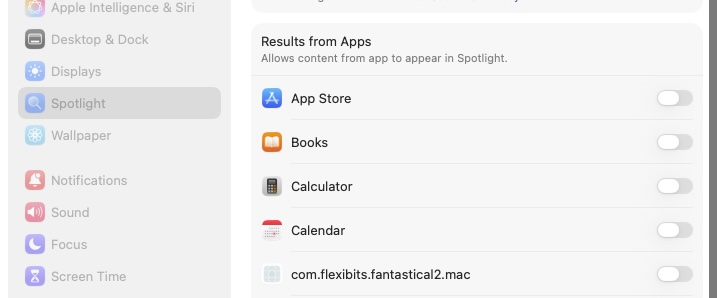
Furthermore, it is indexing a process that shouldn’t be there, and I can’t figure out where it’s from:
“com.flexibits.fantastical2.mac”
I haven’t run Fantastical or anything from them in years. And Spotlight can’t show it to me, nor Find Any File…
I had long found Spotlight to be impressively unreliable at finding local files and emails. This goes back years. Reported multiple times with, of course, no visible response from Apple. Rebuilding the index almost always fixed it (almost!), but I found that I was often relying on a negative result (“no, you didn’t ever notify me of the meeting tomorrow that you’re now ‘reminding’ me about”) which rendered Spotlight absolutely useless. Of course, I could rebuild the index every time I wanted to do a search and make Spotlight (almost) reliable, but at the cost of a huge amount of time and trouble.
Alas, the file search feature on the Linux distro I’m using (Fedora KDE) isn’t much better, leading me to believe that this kind of indexed searching is somewhat trickier than it appears on the surface. These days, I often just use grep -rail from the command line, though that only works reliably with plain text files.
Sigh. It’s 2025 and file search still isn’t a solved problem.
Thanks for reminding me about old reliable grep. And an option I didn’t know about (or had forgotten), “-l” to list the file names, not the text matches.
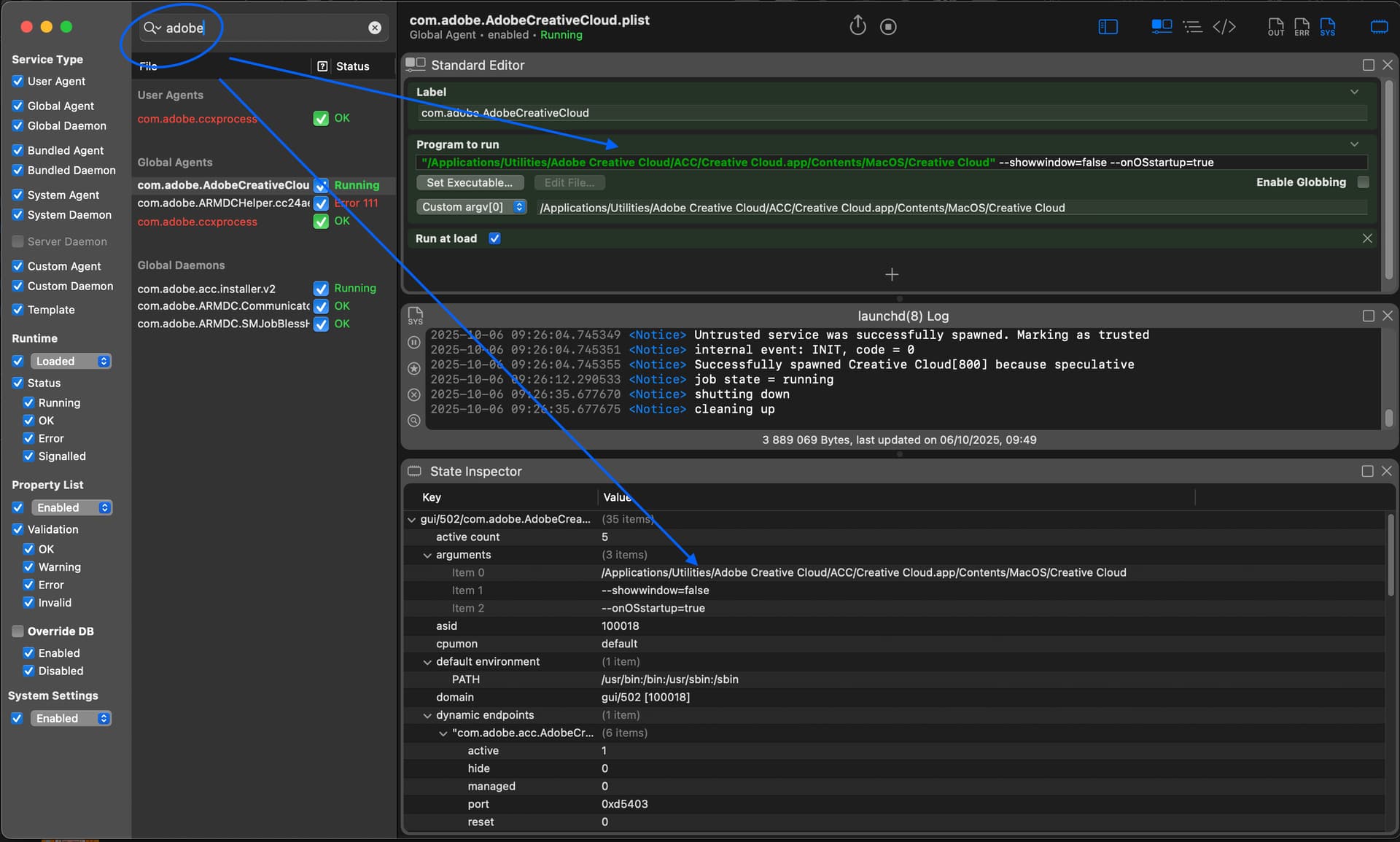
When you know the path you can use the following command in terminal to disable it. Use ' ' if there are spaces in the path. Depending on where it is you might have to use sudo.
launchctl unload '<path found in LaunchControl>/com.some.developer.plist'
sudo launchctl unload '<path found in LaunchControl>/com.some.developer.plist'
It didn’t find anything; although, FindAnyFile says there are over a hundred files with that text string in them. Most have random names such as “2471950CFA37198EEE8CAAF2D2D38B” - some are .xml, some binary… nothing that would obviously be putting that string in settings. And way too many other apps referenced to just zap them.
Yes, any process with fantastic in the name would have returned the path to the app. At present we have to conclude it has exited after doing whatever it did.
The command is printing out information about every process whose command-line contains the string “fantastic”.
Since the only thing returned is the “grep” command you typed in order to do the search, then the “fantastical” app isn’t running (or at least wasn’t running when you typed the command).
The “f” option to the ps command is specifying that the output columns are:
I’m a bit confused at Spotlight indexing a process, as opposed to files.
Maybe try contacting Flexibits support and asking what is going on. I suspect there is nothing to worry about, and you can safely ignore this. If you really are motivated, try seeing if anything with “flexibits” or “fantastical” is listed as a service with launchctl list and then disabling it using launchctl. You also should be able to look for anything with “flexibits” or “fantastical” in the following directories and remove them safely: