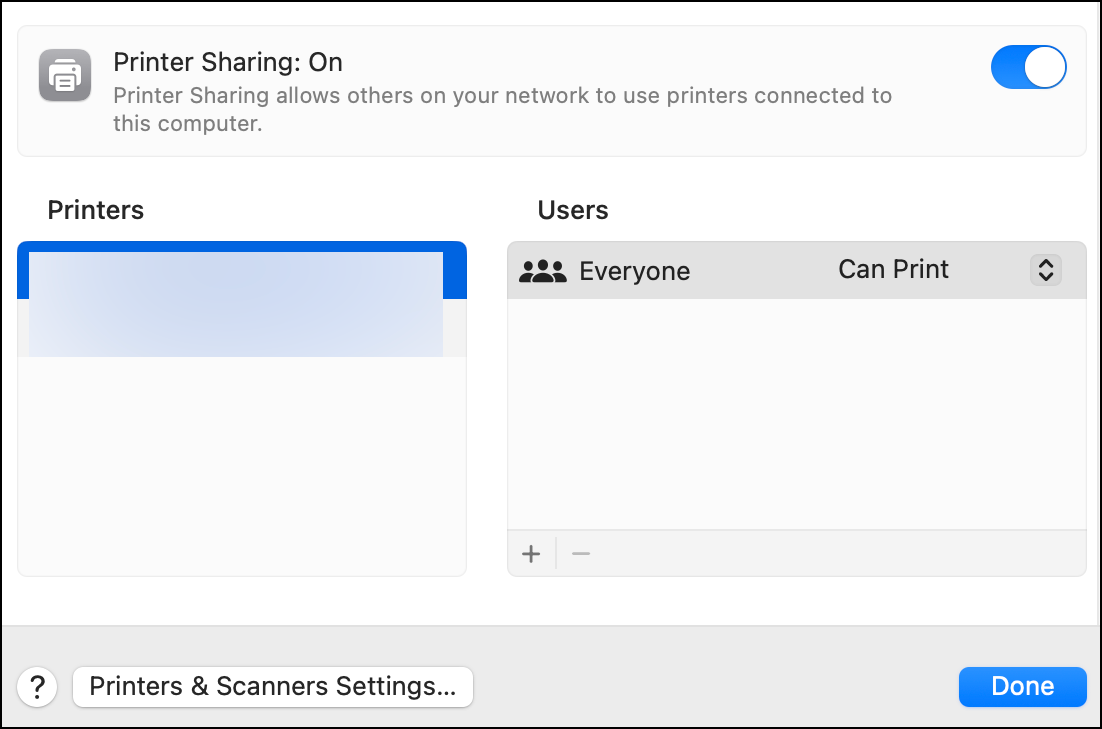
Made some home network setup progress but stuck at this.
MacMini M4 and M2 MBAir both on Tahoe. Printer attached by usb to Mini. Turned on Printer Sharing on Mini. Mini prints fine. MBAir sees printer attached to Mini and will start a Job but nothing happens. Looking at Print Center on the MBA, the Job status is “Hold for Authentication” and it just sits there (Mini Print Center shows no jobs in progress). No additional windows visible anywhere to provide an authentication.
Various internet sites suggest various fixes, tried removing and readding the printer on both macs, resetting print system and readding on both but result is same, holding for some mystery authentication between Mini and MBAir.
Airprint/wifi printing not desired. This is supposed to work and would like to make it do so .
Taking a walk now, maybe that helps. Suggestions/search keywords etc appreciated.
added: Linux laptop sees printer too and starts a job but also goes nowhere.
What do you see when you go to System Settings > General > Sharing > Printer Sharing? For the simplest setup, make sure that sharing is on, and “Everyone” is listed under “Users”. It’s possible to tighten things down further, but for home networks, that’s usually overkill.
Thanks @josehill I forgot to mention that. The only entry is indeed Everyone, and I did also turn it off, close System Settings, reopened and allowed everyone to Print again, and still not working.
Printer is a Brother MFC-J1010DW if that helps. Its wifi is turned off. Only connections are electric and USB to the Mini.
It is only a home network with me primary user from 2 laptops and the Mini. Occasionally another family member but I usually do their printing. Home network is set to not broadcast its name and neighbors are at least 50 meters away.
I fail to see the point of working this way. Since you’re using printer sharing and you don’t want access controls, then your printer is (or will be, if configured as you want) accessible by anybody on your LAN.
On my network, I have the printer’s Wi-Fi disabled, but I connect it to my LAN via Ethernet (cable to a switch). It is accessible via my home Wi-Fi, because my router bridges traffic between its Ethernet and Wi-Fi interfaces (the typical way consumer routers work).
I understand not wanting your printer to create its own separate Wi-Fi network for direct connections - I wouldn’t want that either, but you should be able to do something like what I did - connect the printer to your LAN, either via Ethernet, or by configuring it with your Wi-Fi SSID and access credentials.
The result will be the same - every computer on your LAN can print, but now the print jobs won’t have to go through your Mac mini. People will be able to print when the mini is shutdown or asleep, and print jobs won’t consume the Mac’s CPU resources.
That having been said, if you really insist on running all print jobs through your Mac mini… The “Hold for authentication” error is not a printing problem, but means the client Mac doesn’t have permission to access the print server for some reason. Here are some articles I found, which might help:
MacOS printing is based on CUPS (specifically Apple’s CUPS, from which Linux’s OpenPrinting CUPS forked off a while ago), which is extensively documented and also has an optional web interface (in your shell, run cupsctl WebInterface=yes, then go to http://localhost:631 and accept the HTTPS warning.)
You can read up on CUPS’s sharing and “policies” and try to troubleshoot it from there, and run searches on your favorite searcher for “cups sharing” and the like, and…good luck to you, because I ain’t got no patience for any of that.
Is there software for managing shared printers? For years I have used Printopia to manage my printers, which is easy for even my wife to understand, but it will be closing with the demise of the Intel apps. If anyone can point to a replacement that is not a subscription model, I would appreciate it. Only slightly off topic but still pertaining to printer management.
I want to use the Mini as our home network ‘hub’ so to speak. Plug in printer by usb, plug in an external ssd volume, and access the printer and volume by wifi from mac and linux laptops.
At the mo, I need to plug in laptops to printer directly with usb cable to print. A minor inconvenience, but macOS offers printer sharing so I thought I’d try it.
Printing is an occasional exercise so I might just return to direct cable instead of spending hours on troubleshooting what appears to be a simple solution but isn’t actually.
My printer is connected with a cable to an iMac. I’ve never been sufficiently motivated to connect the printer to my home Wi-Fi or Ethernet networks.
I agree that carrying laptops and tablets to the printer to print can be a hassle so my halfway solution is to have a 3-meter USB extension cable connected to one of the iMac’s USB ports (that’s the scrounger’s way to give an iMac a front USB port, ha). I then use USB flash drives to “carry” documents from the originating device to the iMac (betcha a lot of us TBTers already have cables and thumb drives sitting around). I’d have to go to the printer to pick up the pages anyway, so I feel the total amount of effort isn’t that different from printing the network way.
Am I correct in presuming that “electric” is a typo, and you have your printer connected to the mini using both Ethernet and USB?
If so, either connect the printer to the mini using only USB and then set up printer sharing, or as @shamino suggested, connect the printer to the LAN via either WiFi or Ethernet. I suspect that the dual connection may be behind the problem.
(Note that the WiFi and Ethernet interfaces on this printer are mutually exclusive; you can have only one of those interfaces active at any given time. As far as I can tell, your printer received a firmware update earlier this year, so security probably is not a major issue that would prevent using the WiFi interface, especially given your geographical isolation.)
I agree with @shamino that the setup is unnecessarily complicated for your use case.
Thanks @josehill I wasn’t clear on the connected cables. I just meant to indicate the only physical connections to the printer are the USB cable to Mini and the electrical power cord.
We’ve been doing the usual non-wireless dances of getting digits on paper for years, ie USB sticks, saving as drafts, sending by Signal etc, getting up and fishing out the cable etc, variations on sneakernet.
For a long time I’ve wondered if Printer Sharing was as easy as it looked but never had a stationary Mac with enough ports to always have it connected. Now I have the Mini, wanted to give it a whirl if that would do it. So far, it’s more inscrutable than it appears so I might try one or two more of the linked references above and if still a no-go then go back to sneakering and focus on getting home network/file sharing successfully going.
Thanks for the clarification. I’m now thinking about what “auto-correct” has done to me. Twenty years ago, I never would have thought you meant “Ethernet” instead of “electric.” Now I see auto-correct errors so often that I see them even when they’re not there!
righto, good one @josehill ! I turn off predictive/suggestions/auto-corrects everywhere I can. I want to own my own mistakes !
My native language is English but I live where it is not so after some years I write my English with some unintended local spin. When I wrote ‘electric’ I was thinking ‘Strom’ and perhaps the right translation didn’t get into the post…
Never heard of such switches, will bookmark your comment and come back to this. Was struggling with the Macs in both directions not accepting username/password for file sharing so didn’t get back to the printing issue. Let both sit overnight plus a bit and now the same un/pw’s are accepted and I can file share again.
 .
.