I’m guessing that it would have been done by now.  I’d also caution against thinking that you can outwit syncing software. If you’re going to be cloud-syncing those 1000 photos anyway, trying to sneak them in locally may not even work—the syncing code may see them as different and upload to verify that they’re duplicates anyway.
Photos does exactly that inside its library package.
If you look inside a Photos library package you will discover that photos are not stored in folders by date and that the photo files do not have the original names. The database part of the package holds all the information that ties those photo files to names, dates, albums, edits, etc. Here is a look inside my system Photos library (Finder in column view).
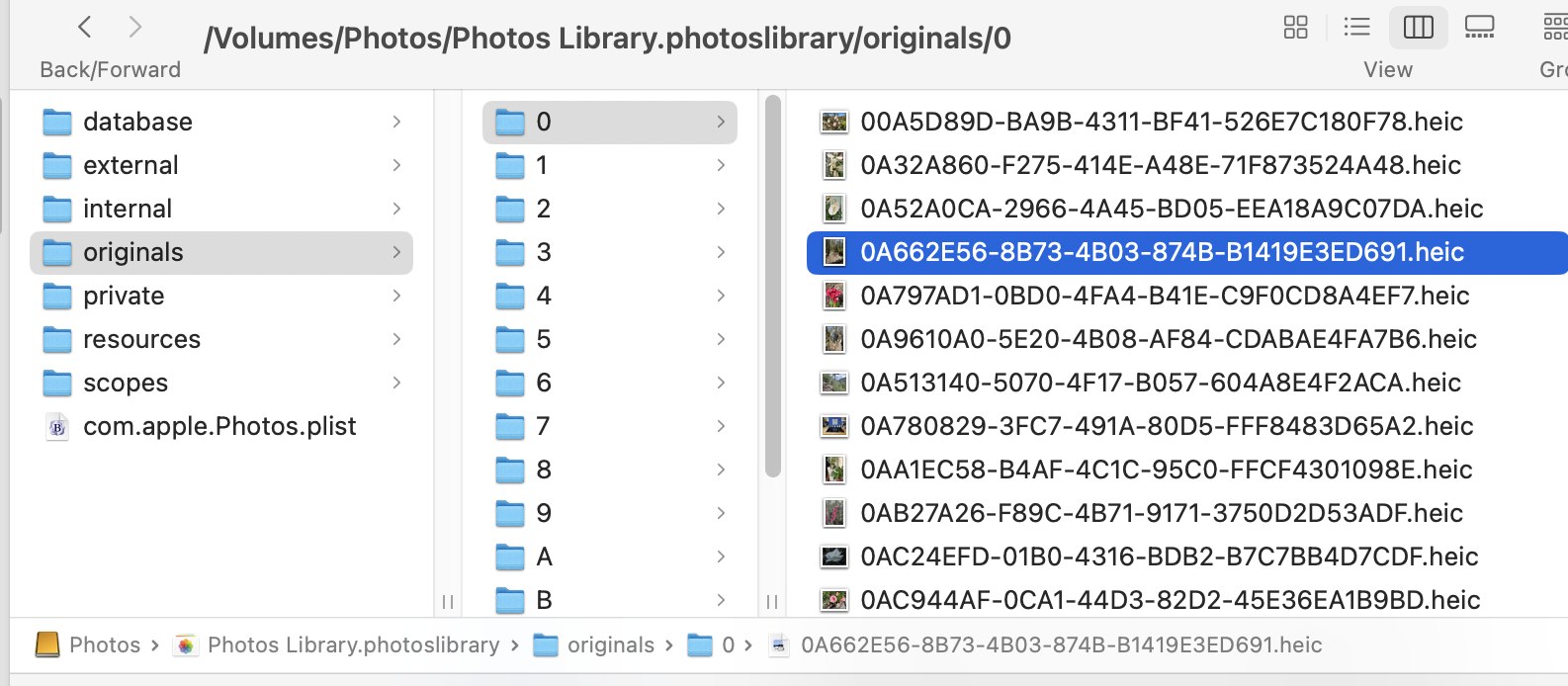
I don’t have a problem with that particularly as there are apps like PowerPhots and osxphotos which “know” how to extract photos complete with their metadata.
3 Likes
Thanks for that. It seems my knowledge is outdated - they changed it from date folders to this method in 10.15 Catalina (2019)
The organization has changed several times since the first release of iPhoto.
But you generally don’t need to know or care. You can just drag/drop a photo from the app to a Finder folder if you need to make a copy.
If you want to be more specific, you can use the app’s Export command:
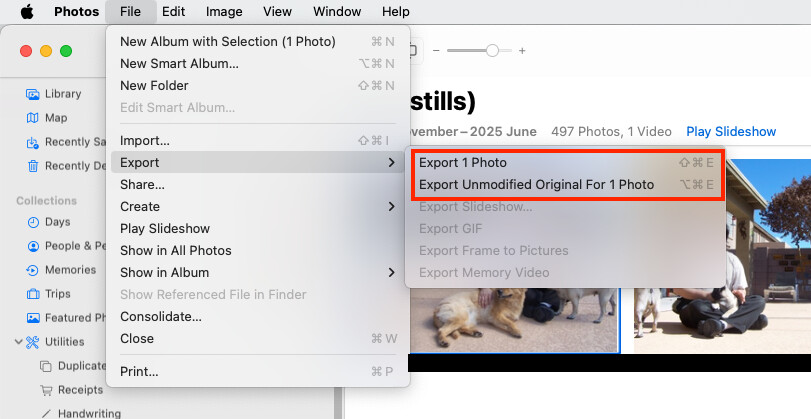
If you choose “Export”, it will export the latest version (with all your edits), in a format you choose. Or you can “Export Unmodified Original”, and you’ll get the image that you originally imported into Photos.
These menu options have changed a bit over the years, but the capability has always been there.
So you normally shouldn’t need to go digging around in the guts of a Photos library bundle.
3 Likes
This is what we somewhat shifted to for personal photos after a couple “disasters” with Adobe products. One was after we spent a lot of time adding metadata and cataloging images with Lightroom, only to discover it had altered the Creation Dates for these images despite settings to the contrary.
My system is similar to harriska2’s with some sub-folders for major events in that year. My addition is to create text-only keyword indexes for each year as a sort of manifest. These are easily searchable and indexed by any modern OS or 3rd party tool. I leave them in each year’s folder and sometimes create one for major events folders. Folder and file naming need to be restricted for compatibility, of course. I avoid any special characters (only hyphen, underscore and period) and keep the filename length within 255 characters for safety.
This is certainly not an ideal system, but it is completely cross-platform and usable by any OS with out needing proprietary software. It can also be easily copied to any new storage device.
The only compatibility issues then lie with the photo/video file formats. It also helps to include a copy of VLC player and one or two image viewers on the drive just in case. FastRawViewer is a good one, albeit requiring a license code (which can be kept with the installer as a text file).
That is my pseudo-luddite, “future-proof” system. 
2 Likes
@Ladd did you find a solution for this? the discussion has wandered a bit and I don’t use Photos much but am still interested. I looked in the Photos Help and didn’t find anything clearly similar to what you’re looking for, alas. Apple seems to want to direct everything over iCloud.
I wish I could help more and sympathize with the situation. We are also non-cloud/local-files kind of people and as I’ve been burned on several photos apps over the years I’m also like TBTers above saving my photos and videos in a by-date kind of structure in Finder, and pointing photo editing software at them, not ‘importing/duplicating’ them into an app. This way, I can use the editing software without losing track or control of the originals.
I’m kind of leaning now to Nitro photos, which saves edits in a file next to the original in the Finder, in an, as I understand it, standard format so if I was to change in future the edits should be readable by another similar software.
Anyway, not a solution to the question but hopefully useful anyway.
As @mpainesyd pointed out, her Photos library would need to be deactivated from System Photo Library status in order for PowerPhotos to access it. That may be the cause of the error mentioning Time Machine.
With the caveat that disabling the System Photo Library status on a library that is also actively using iCloud Photos and/or Shared Albums will have consequences you’ll want to consider. Have you tried creating a new empty Photos Library on her Mac to serve as the temporary System Photo Library, then attempting to make the remote connection with PowerPhotos?
Alternatively, use a new empty Photos Library on her Mac as the destination for an import pulling from her Photos Library the images/videos that will ultimately be added to your Photos Library (according to Apple the only metadata loss will be keywords). Now you can pursue the remote assess via PowerPhotos without concern for System Photo Library status –or– perhaps copy that library bundle onto your Mac and work locally to complete an import into your Photos Library.