How to Eliminate HEIC Everywhere on my iPhone

I’ve been working hard to eliminate HEIC format for photos on my iPhone and have largely succeeded. (Why, because I do a newsletter and the software doesn’t allow HEIC.) However a new one snuk up on me today: a screenshot taken on my iPhone (yes, SDR is checked for Screen Capture) which I then marked up (where the HEIC returned) and airdropped to my Macbook.

Any ideas on default settings to stop this (I know I can do it on each send, I know I can email the photo to myself etc etc.), so I’m really just curious about any HEIC-hating defaults I may not know about to eliminate yet another appearance of this dastardly format.

I don’t have an answer for the question you asked, but if you just need to make JPG/PNG images for your newsletter, one or more of the following (which I’ve used) will work to convert the image:

  • Preview. Double-click the HEIC image to open it. Then either do a save-as from there, or (if your newsletter software permits), select/copy from there and paste into your newsletter software.
  • I’ve also done this from Photoshop Elements. Although the version I’m using (Elements 2021) doesn’t let me directly open HEIC files from the Finder, I can open them from its File → Open command. Then save as another format or copy/paste.
  • I suspect many other image editors have similar capability.

I do this when sharing images here, since the Discourse software used by TidBITS Talk doesn’t support HEIC. I open it either in Preview or Photoshop Elements, copy there, and paste into Discourse.

1 Like

I also don’t have an answer for marked up iPhone Screen Captures. As you wrote, using SDR Format saves originals as .pngs. Since I also am irritated at the .heic file format for marked up images I tried a few ideas.

Searching for “Markup” in iPhone settings > “No Results”. Searched a bit online also nothing definitive.

Just took a capture, tapped on its briefly displayed lower-left thumbnail, marked it up and chose Share… Save to Files and it appeared, marked up, as a .png (instead of .heic as it does when I mark up an image in Photos App) there. It did not save to Photos App (which I suppose is what happens when you tap the thumbnail). If you’re not doing loads of these, the extra steps might be worthwhile. If you need to do a lot, maybe there is a more efficient way.

If you’re doing the newsletter on a Mac, you could try the following.

I pointed my novice-level knowedge to Shortcuts for a solution, built one as a Quick Action that converted an iphone .heic (used markup on iPhone to add a notation, thus creating the .heic) but the conversion removed the markup I added, so it looked like the original photo, sort of negating the intent. (wanted to duplicate it first but could not find a “duplicate” feature in Shortcuts).

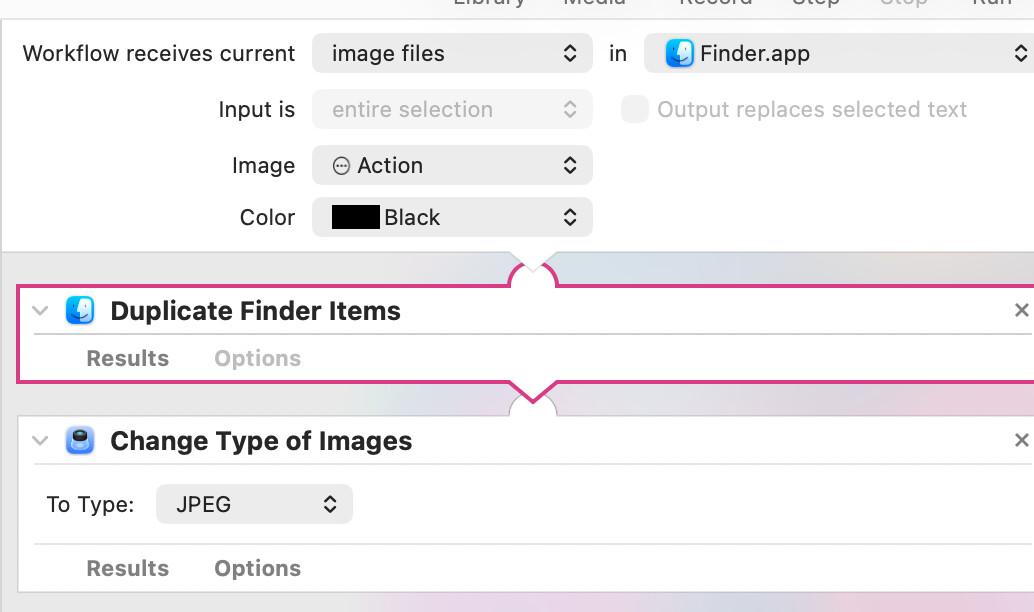
Then I turned my just-beyond-baffled knowledge to Automator and built a short Workflow which is also implemented as a Quick Action and it preserves the added markup in the new jpg file:

The description of “Change Type…” action:

Image files of type BMP (.bmp), GIF (.gif), JPEG (.jpg or .jpeg), JPEG 2000 (.jp2), PDF (single page .pdf), PNG (.png), or TIFF (.tif or .tiff).

doesn’t mention .heic but it still resulted in a .jpg showing the markup when tested on one file.

It would appear to work on multiple files. I’d suggest testing that first and if you are confident this is useful, remove the duplicate step. Or maybe there are even additional actions that would move the duplicates to an external drive or separate folder or something so they are not lost.

So… maybe this helps.
You could also consider the excellent Retrobatch on your Mac. You could use it to set up a droplet which configures images to your needs, I have one which ensures images are JPEG, EXIF data, GPS etc, is stripped out and size is small. Just drag on a folder of images and all are converted. Handy for sharing images online, perhaps also for your purposes.

5 Likes

I’m not sure what “save-as” is from my iPhone photos? I don’t see that, what am I missing?

Oh wow, you went above and beyond, David.

Never heard of Retrobatch. I see it co$ts, but looks like it’s one-off not a sub-based thing (if I’m reading it correctly) which I could spring for. I will investigate as to whether it’s worth it for the work (volunteer) I do re newsletters and websites. Thanks.

Sorry. I was referring to what you would do after transferring the image to a Mac. I don’t know if you can do this conversion from the phone.

When I embed images into blog posts, I use AirDrop to send the file (JPG, HEIC, or whatever) to my Mac. Then I open it in Preview or Photoshop Elements. Then I do what I described (save-as PNG or copy/paste).

I hear you. Yes I just tried that (export as…). That works. Ditto emailing it to myself from my phone, which also has the added advantage of being able to reduce the file size for Website/Newsletter use. Was kind hoping to be able to make my iPhone a 100% HEIC-free space.

Retrobatch is excellent and very powerful. It’s made by the author of Acorn.

FYI in iOS photos the share panel has an Options button which allows you to change the export to Compatible–AKA jpeg.

Dave

1 Like

When I first purchased my iPhone SE 3, it was saving all images taken with the camera in HEIC format rather than JPG. To remedy this, I changed the following setting:

Settings > Camera > Formats > Most Compatible

‘Formats’ was originally set to High Efficiency. Once that was changed to ‘Most Compatible,’ going forward all my photos saved as JPGs. When I transfer the images to my Mac laptop, I use Lightning cable and the Image Capture application – they all come through as JPGs. [Screen captures, however, save as PNG files, which can be converted on the Mac to JPG format using Preview.]

Not easy to do, maybe not possible. Collectively, the suggestions in this Topic will get you close.

imho Apple makes it difficult on purpose as they want to promote use of these formats. But they do provide veiled language with some of the settings that allow users to infer what the settings will do.

Go to the Mac App Store and search for iMazing Converter. I think it is what you need. Free.

Website is here:- iMazing Converter | Free Photo HEIC to JPEG and Video HEVC to MPEG-4 Conversion Tool

1 Like

Unfortunately it looks like iMazing does not change the settings for iOS so that JPGs are the default.

I was thinking of just accepting the IOS camera format. But when transferring photos to mac for use in macos send them to a folder which you then drop onto iMazing Converter to achieve your desired result. Seems simpler than battling with ios to accept your wishes.

I can see how people would be irritated by the inability of some web services & others to display HEIC format. It is, nevertheless, better than jpeg. Far more flexible, produces 50% smaller files, and has been in use since 2017.

There are innumerable ways to convert to jpeg on your phone or on your Mac (see multiple suggestions above) but the easiest is as I mentioned earlier:

In iOS photos the share panel has an Options button which allows you to change the export to Compatible–AKA jpeg.

Even more basic, in Settings / Camera / Formats you can set the default output to Compatible / jpeg.

This is not an insuperable problem requiring specialized apps though there are good reasons to use the aforementioned specialized apps. :blush:

Dave

2 Likes

If I was running into this, I’d figure out where in my workflow the images appear in the Finder (such as on the desktop or in a particular folder) and then I’d get Claude or ChatGPT to help me write and install a folder action script that looks for any new files in HEIC format and converts them to JPEG.

I have such script attached to me my desktop that renames .jpeg (which irritates me) to .jpg (which does not).

1 Like