Check out your Spotlight settings in System Settings. Turn off as much as you can, then your App searches will speed back up. In my case I turned everything off except Applications, because if I want to search in most of the other areas I do the search in the Finder, or in Mail or Messages.
M4 Mac mini (2024), Apple Studio Display, macOS Tahoe 26.0 (25A354)
I use the ‘Flurry’ screen saver, and set it to activate after 10 minutes of inactivity.
While the screen saver is running, the following things occur:
(a) (Last week and earlier) under macOS Sequoia 15.6.1 and earlier: Press the Control key ONCE, and the screen saver would go away, the normal screen comes back, and I can return to work.
(b) But now, under macOS Tahoe 26.0, THREE presses of the Control key are required! – While the screen saver is running:
The FIRST press of the Control key → the normal screen comes back, but then, in less than 1 second, the Flurry screen saver magically comes back!
The SECOND press of the Control key → nothing happens, and the Flurry screen saver keeps running.
The Third press of the Control key → the normal screen comes back, and I can return to work.
So, now I need to press the Control key THREE times in a row, to dismiss the Flurry screen saver.
Note: If I activate the screen saver by moving the pointer to screen corner, then there is no problem: Press the Control key ONCE and the screen saver is dismissed, even in Tahoe. The problem occurs in Tahoe, 100% of the time, if the screensaver had been activated by waiting for 10 minutes.
(Also, I tried a couple of other screen savers, but the situation didn’t change.)
I don’t think so, I think it’s a system bug.
In Menu Bar I had ‘Show menu bar background’ off — which I believe is the default. I toggled it on and it correctly showed a faded white background rather than being transparent. I toggled it off again and the problem doesn’t come back. Given it’s version 26.0 I suppose there’s going to be glitches.
Given it’s version 26.0 I suppose there’s going to be glitches.
Well, I thought Apple was different, but it appears they’re increasingly adopting the Microsoft model of “ship it on time, and let the users debug it.”
1 Like
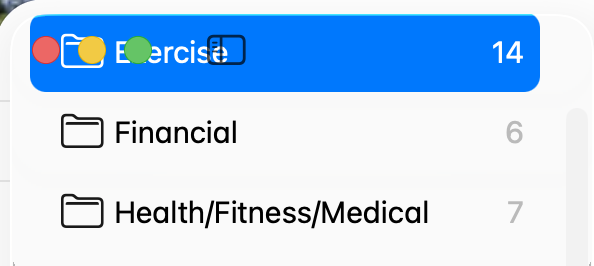
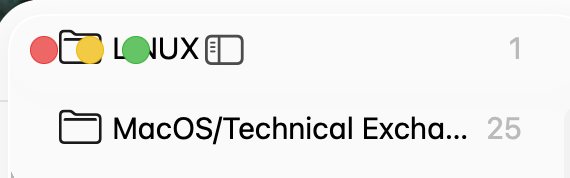
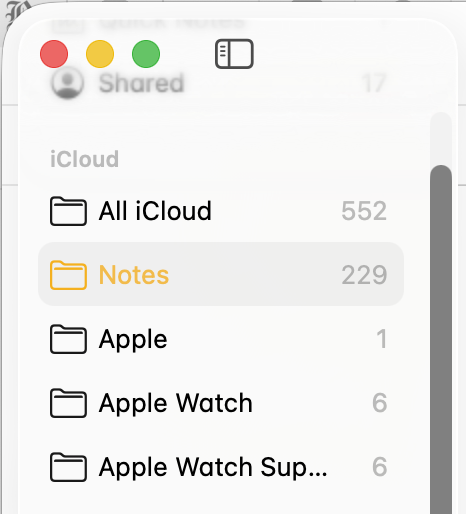
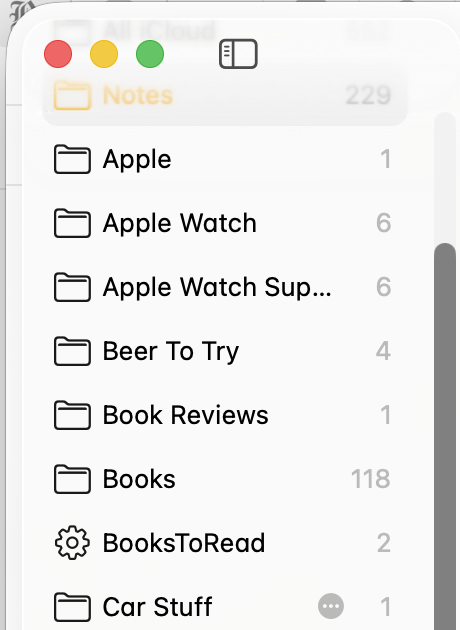
The darker text under stop-light icons; the blue highlight for the currently selected folder, rather than the yellow in mine - your photos look like something is set differently from the default.
Your examples look different from @trilo’s, but IMHO it still looks horrible. I get that transparency is supposed to make it look cool and all that jazz, but if things become harder to read or find, the user is disadvantaged just to please the designer. I will be searching for settings to undo the effects of those misguided priorities.
It’s a shame it has come to this. You’d think that’s what we have betas, public betas, and RCs for, with all their millions of downloads and GBs worth of social media posts covering the “experience”, yet here we are. Apparently the .0 version is now supposed to be treated like Public Beta v2.0. I’ll take this as another exhibit in support of all those cautioning not to update systems used for more than play before .1 or .2 is released.
1 Like
So far, Tahoe has worked well for me without major annoyances. No show stoppers. VMware Fusion has a glitch with Tahoe when the Mac returns from sleep that didn’t happen in older macOS versions - but since Fusion has not been qualified or tested for Tahoe I’m not surprised. It’s able to be worked around. I expect the issue is due to something that Apple changed.
I’ve also had to tweak some of the Liquid Glass/Accessibility setting for my tastes.
Most of the other applications I use (MS 365, Zoom, TeX, Vorta, UTM, VirtualBox, BBedit, Xcode, DaisyDisk) have had zero issues. No show-stoppers.
Software has always had glitches on initial release for as long as I can remember. Given the definition of a working program is one that has un-observed bugs/defects, we’re all “beta testers” to some extent. (Use some Linux distributions if you really want to feel like a beta tester, though).
Yes things seem worse lately — and that’s not just an Apple or Microsoft thing. I have to think that some of that is because software is doing more and is more complex. No software I know of can be proven correct, so testing is the only way to get a feeling for how “ready” for release software is. It’s a difficult task to test all possible permutations of a complex system and then interactions with other software that you didn’t develop to find all of the problems. There is a never ending debate to be had about when to ship software
I also question how many beta testers actually report errors. I get the feeling that too many “beta testers” have FOMO and are using pre release software simply to say they’re using it or succumbing to the hype of the marketing.
4 Likes
Two decades ago, Apple shipped an iTunes update that deleted people’s music libraries. Apple has always shipped buggy stuff. It’s nothing new.
1 Like
Here’s one that’s been bothering me in Safari:
When you have the sidebar open showing “Tab Groups”, the current tab group opens up as if you had clicked the disclosure triangle. This is already bad enough — I’ve got the tabs open on the tab bar itself, so I don’t need to see them all on the side.
But the worse part is: the group in the sidebar stays “disclosed” even when I click to a new tab group!
This seems so wrong that I thought there must be a setting — but I couldn’t find one. Am I wrong?
(And this doesn’t happen on iPadOS 26…)
Yes, I imagine we have different theme colours. In my eyes, the fact it was resolved by simply toggling a setting off and on suggests it’s a bug.
Upgraded today to Tahoe, didn’t see any immediate problems. Wanted to scan something using my printer, don’t keep the printer/scan app in the Dock as I only use it a couple times/week. Used to access it using Launchpad; at least I think that’s what it used to be called.
In Launchpad, all Mac & non-Mac apps were shown, had 1 page for Mac apps, a 2nd page for non-Mac. I had them all arranged alphabetically (on each page) & had set up 2 folders: 1 was for not frequently used apps & 1 was for never used apps; didn’t want to scroll thru everything. Frankly, didn’t use Launchpad that frequently but it was useful, especially for accessing my scanner.
The replacement for Launchpad (think it’s called Apps) only shows Mac apps; doesn’t appear to allow rearrangement of the order or category of the apps nor a way to show non-Mac apps.
Is there a way to make Apps more functional? Add non-Mac apps? Choose your own categories for apps? Am I missing some obvious functionality of Apps?
A 2nd issue I noticed: used to be able to right click on an icon in the Dock to close an app. Now it appears Control-Right click is necessary. Took awhile to figure that out. Is there a way to change something in System Settings to have a simple right click work to close an app?
Neither are huge issues, but both are inconveniences.
Thank you.
A PS to my previous question: Have noticed that right click doesn’t work for many things in Tahoe, Control-Right click is needed. In Safari, used to right click to open a link in another tab, now it seems Control-Right click is necessary. Is there anyway to change something overall in System Settings so right click works again?
Nothing new here. Apple has had problems with nearly every *.0 release of system software, going all the way back to the Classic days (I remember 7.0 and 8.0 also had problems, which were fixed in the next update/release). At least today, the updates will be downloaded - you don’t need to bring a stack of floppies to an Apple dealer to get them.
1 Like
On point one, I see all apps in the Apps app. There are a few options in the Spotlight System settings which you could check to make sure something you want isn’t turned off. Also check you haven’t inadvertently selected one of the filter tabs which only shows certain apps. I sympathise with your loss of organisation - these things can be very annoying.
On point two, I’m not seeing any issue with right-clicking. It works as expected and I don’t need the Control key. You could look at the Keyboard Shortcut options in System Settings/Keyboard and see if it all looks OK. Also check the mouse settings to make sure Secondary Click is correctly set to Click Right Side. It’s not unheard of for Apple to trample over previous personalisation settings during an update.
1 Like
Went back into Apps (formerly Launchpad); it changed overnight! Guess it needed several hours to set up in the background. All apps are now showing, even the ones from my iPhone & iPad! Still kind of crazy as it doesn’t appear you can rearrange the apps yourself or create your own folders/categories for app.  So all apps are included, will just be more tedious to use. Will likely put the scanner app in the Dock to make it easier.
Have checked my Trackpad settings, it was already set as the Secondary Click (right click) as Click w/Two Fingers. Turn the setting to Off & then back to Click w/Two Fingers; now it seems to be working correctly. Thx for your input.
You can turn the iPhone apps off in the spotlight settings if you prefer not to see them.
If you want a simple way to have a group of apps available, put an alias of each app you want into a new folder (named appropriately), then drag that folder to the right hand side of the dock. You’ll now have quick access to those apps in the dock. Create as many folder as you need.
The setting from System Settings is the default. You can also turn them on and off from the options button (the circled ellipsis in the upper right corner of the window). You can also toggle the view to a grid or list from the same button. That option also works for the Files Spotlight group.