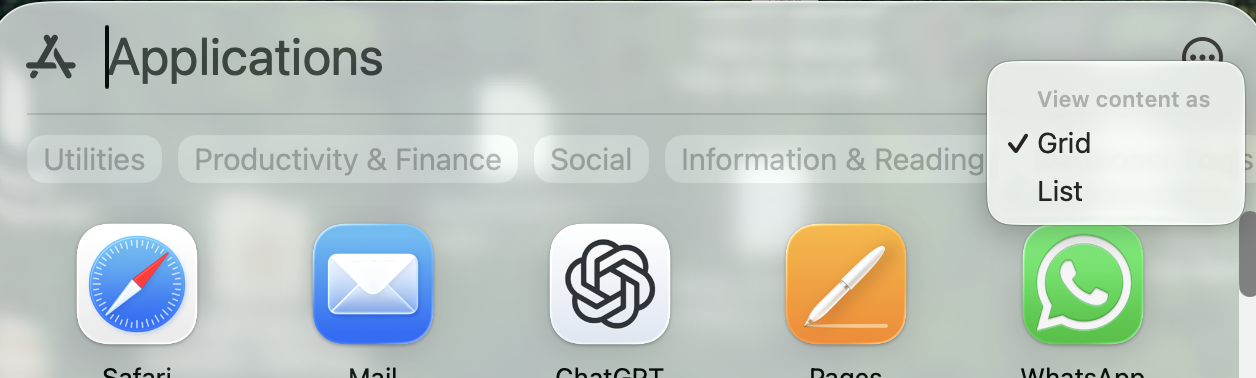
Thank you; helpful to cut down on the # of app showing, especially since I don’t need to see iPhone apps on the Mac.
A new question: Keep getting a notice that I need to accept New iCloud Terms & Conditions. Have gone to System Settings multiple times & accepted the new terms & conditions; have restarted the iMac each time. Can’t get rid of the notice about accepting the terms & conditions, System Settings icon in Dock still shows a 1 in the corner. Is there some trick to getting Tahoe to notice I’ve already done this?
Thanks. Yesterday, the Options button didn’t include the iPhone settings, just showed up tonight. Also, yesterday the iPhone apps didn’t show up in the Apps “box” and the appearance was the same whether I chose Grid or List, it always showed up in Grid format. Today I can toggle between them & the appearance changes. Apparently it takes a long time for all the Tahoe setting to fall in to place.
I’m not seeing this here, just the option for list or grid. I thought it may only be available when iPhone apps are displayed, but I tried turning phone apps back on, and the option to turn them on or off still doesn’t show in the Spotlight ‘window’.
I discovered a strange quirk in Tahoe last night. My wife accidentally dragged her Downloads folder out of the Dock and so it was removed. She asked me to put it back, and no matter what I did it would not let me add the folder. She keeps her dock on the left side of the screen and has recent apps turned off. So I moved the dock to the bottom off the screen and turned on recent apps. Then it let me add her Downloads folder with no problem. So I then turned off recent apps and switched it back to the left side of her screen, with the Downloads folder remaining in place just above the Trash. And now it will let me add things next to the Downloads: it was just when there was only Trash below the divider that nothing was allowed to be added. Odd.
I’m finding a lot of little not-too-serious quirks in Tahoe, many seem to resolve on their own after 24 - 48 hrs. I don’t remember a previous OS that took so long to “settle” into place; maybe I didn’t notice past quirks. It’s as if the iMac & the OS are getting to know each other & deciding what & when to accept changes. FWIW. My iMac still doesn’t seem ready to “accept” the new iCloud terms & conditions, no matter what I do.
Anyone happen to have read the T&C and know what is changing, in summary/simple terms?
I would make a stab at it myself but have to tend to some urgent admin first. Or maybe someone knows a trustworthy T&C explanation website (using HI, not LLC/AI).
(I noticed iCloud grayed out on a family member iPhone and a notice to accept new T&C and would like to be able to broadly explain what is new if asked).
For the first time ever I’m not upgrading to the latest macOS release day one. OK I run it on an old spare machine to check it out and it’s awful. iOS and iPadOS 26 are fine BTW (well with reduced transparency).
The big rounded corners on windows is really a backwards step to I’m not sure when, the 1920’s?
The misalignment of labeling of icons in mail is an embarrassment. how could Apple let this ship, where is the person who stops garbage going out the door nowadays?
I’ll admit it, didn’t read the T&C; just don’t have the patience any longer for reading them. My iMac continues to show I haven’t accepted the T&C. When I have the time, I’ll probably call Apple, only as I’m worried something will eventually malfunction if the T&C isn’t accepted.
I have updated, and not sure where HomeKit is on the devices, but with my buttons there is a definite lag when activating an action and having it occur. Are others seeing this?
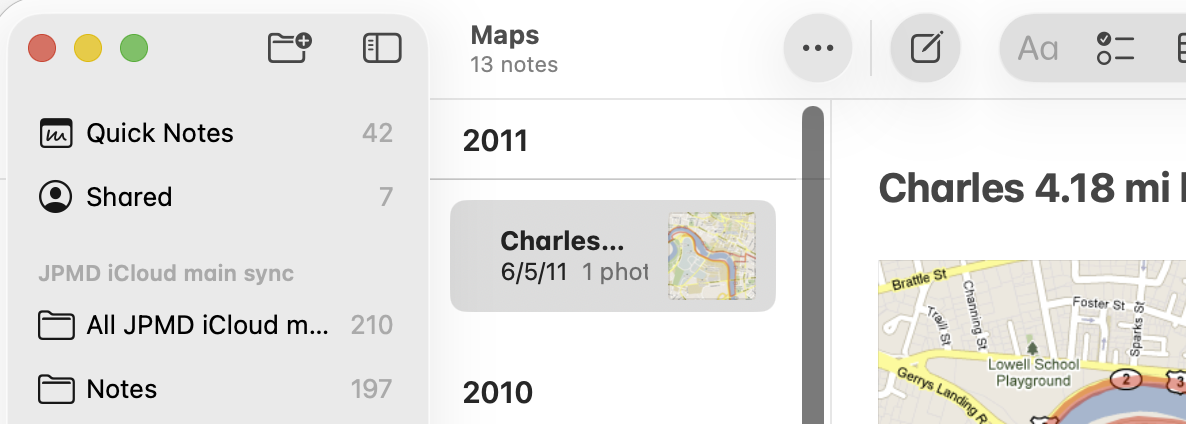
My Notes app looks fine also. I had reduce transparency turned on before installing Tahoe, visibility and general esthetics seem fine to me after 2 hours of use.
I suspect with my efforts to remove the most offensive aspects of “Liquid Glass”, I also reduced Safari’s ability to highlight the currently active tab. That’s something I miss.
I found a rather nasty little bug in the Tahoe Contacts app (I store contacts in iCloud, making no use of Microsoft or Google options). Note that the bug is not in iOS or iPadOS 26.
If you have more than 8 or so lines of text in a contact’s Notes section (as shown in the Notes box, with word-wrap to a 2nd line counting as 2 lines), the first line(s) of the notes are not displayed in the default view. And there’s no vertical scrollbar to indicate additional lines. This can cause the user to be unaware that additional information is stored in the contact’s Notes.
The only (reliable) way to see these hidden notes are to mouse-click down and then drag upwards in the Notes field, or switch over to one’s iPhone/iPad and look there.
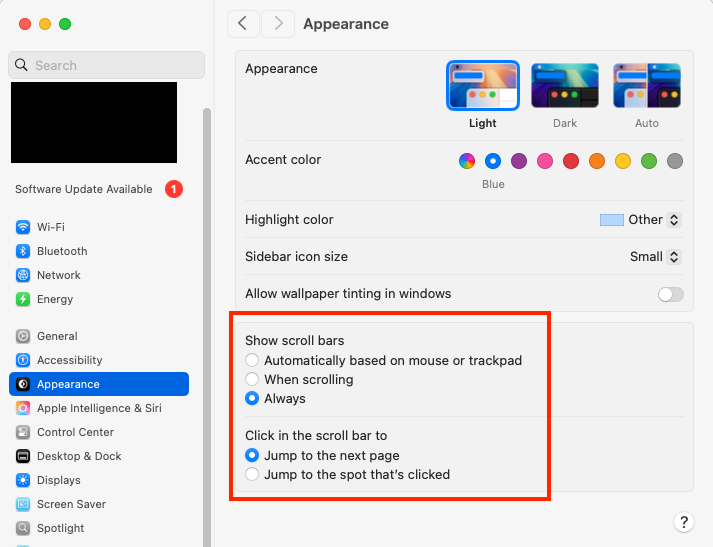
That’s why hidden scrollbars remain my biggest user interface pet peeve and the first setting I change when I set up a new machine. Even worse is when apps ignore those system settings or substitute the skinniest possible scrollbars. There have been a few occasions over the years where I have missed important information because of hidden scrollbars. Grrr…
It might be nice if someone could write an equivalent to Greg Landweber’s Kaleidoscope, so we could pick our own interface appearance. When I convert old Macs to run Linux Mint I am always surprised at the variety of appearance schemes that are available.
One of the advantages of completely separating the GUI from the operating system - as it’s always been in the Unix world. You can pick-and-choose whatever you want, including:
Hundreds of skins/themes that can be configured for window managers.
And for most window managers, it’s not terribly difficult to design new themes.
I know that macOS has the capability for skins and themes. Apple developed the Appearance Manager way back in System 8, and I’m sure its concepts continue to exist up to this day. But it’s a private API, making it pretty much impossible for third parties to develop new appearances.
On the one hand, I completely understand the fact that Apple wants macOS to have a common look, to avoid confusion. But on the other hand, I have not been a fan of the latest looks. I would prefer something different - including some of Apple’s historic looks, like the Aqua UI - which I always found particularly good looking.
Yes, the scroll bar configuration options remain in Tahoe.
(I’ve installed Tahoe in a Parallels virtual machine on my M1 MacBook Air running Sequoia 15.7. I haven’t explored it yet, nor have I tweaked any settings, but performance seems fine so far.)
As mentioned above, I installed macOS 26 Tahoe as a virtual machine using Parallels on my M1 MacBook Air (16 GB RAM, 2 TB SSD) running macOS 15.7 Sequoia. It seems to work well, so if anyone wants to try Tahoe without upgrading your computer, it is completely feasible and reasonable to do so.
Creation of the virtual machine was pretty easy, but first you need to download Xcode 26 from the app store to get some necessary drivers. (I understand that you used to be able to download the necessary files as a smaller package before Tahoe was officially released, but that may not be possible any longer.) After downloading and installing Xcode 26, you will need to download the Tahoe installer. I used the IPSW version, but I think the regular installer from the App Store will work, too. After that, I created the new VM from within Parallels and accepted all the defaults.
So far, the only Tahoe setting I have changed from default is to enable the scroll bars. I plan on tinkering with Tahoe at my leisure over the next few weeks. I am going to give Liquid Glass a serious try, but I think that when I decide to upgrade my real machine, the “reduce transparency” option absolutely will be exercised.
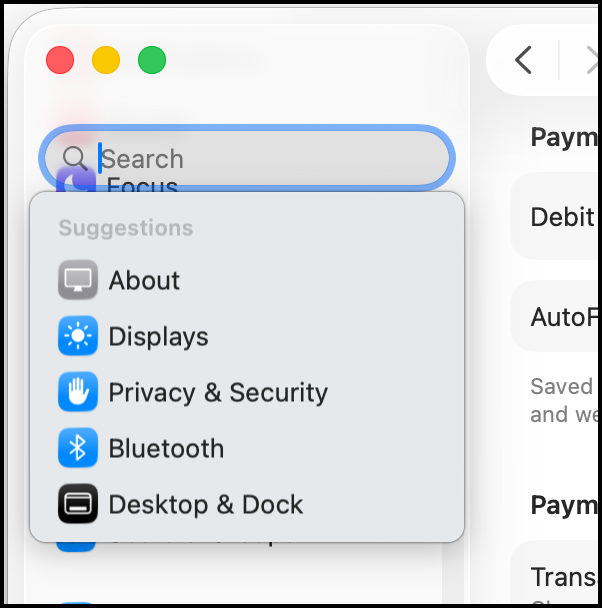
Others have shown similar interface oddities, but I find it truly bizarre that a company so focused on minimalism and elegance will ship an interface that looks like this: