I’ve always shared my home directory for access from my laptop.
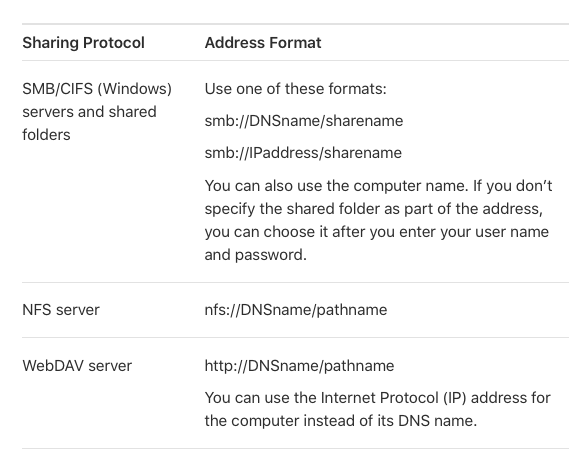
On my laptop, I usually type CMD-K (Go → Connect To Server…) from the Finder and connect with this URL: smb://username@hostname/username) (where username is the account’s short login-name and hostname is the name of the computer).
After the upgrade to Sequoia (which was a clean install, followed by a migration), that wouldn’t work. I would get errors saying that the share doesn’t exist.
I found that the newly-installed system wasn’t sharing anything. So I added my home directory as a share. That allowed the laptop to connect, but I could only access files that are world-accessible. Anything restricted to my account was not accessible.
Without belaboring the point, here’s what I learned, and this appears to be different from the behavior of macOS 14 (Sonoma) and earlier releases:
There is no longer a need to manually share home directories. macOS automatically shares the following when sharing is enabled:
The device’s root file system, Time Machine volume and any home directories with “Shared” folders are readable by anyone with a valid login on the computer.
Administrators can have read/write access to everything
Any user can access his own home directory
The URL syntax smb://username@hostname seems to ignore the username part. When I use it, it doesn’t ask for any login credentials. Instead, it connects via my iCloud Apple ID, and only presents the file shares accessible by all users.
I was able to confirm this by clicking on the server name in the left-sidebar of a Finder window and at the top of the window it says “Connected as: e-mail address”.
I can, from there click “Disconnect” and then “Connect…” and at the popup window, type in my Mac’s user-name and password. And then I’m presented with the home-directory share, which mounts as expected.
The following URL syntax does what I want: smb://username:*@hostname/username. It appears that the :* part forces it to ask for login credentials, and the username is pre-populated in the dialog. Then it connects correctly. (And when I click on the server-name in the Finder, it now says “Connected as: username”).
Since my laptop’s macOS installation hasn’t changed for many years, I assume that Sequoia either changed the server-side behavior, or it deleted some behavior that was previously deprecated but still working.
If anyone can shed some more light on what’s going on here, please do.
I have also noticed that File Sharing seems to be using iCloud credentials to log me in sometimes, and it’s annoying because the server I’m connecting to has multiple accounts that are logged into the same iCloud account and sometimes it logs into the wrong one and I can’t access the right folders. This started happening sometime in the last 4-6 months (maybe not with the first Sequoia release, but I’m not sure). I’d love to get better control over how that authentication gets used.
After a second look at this list, I think it is specific to non-Mac hardware at the server end of the connection and may not directly apply to your situation.
Not to steal your thread, but possibly add some further context and data point re; networking issues under Sequoia. I have been struggling with permissions when writing files to a shared volume since upgrading the client Mac to Sequoia. Even though I forced a slightly looser set of POSIX permissions to the entire share, any new files or folders continue to inherit a stricter set. The share is longstanding (years) and is AFP protocol on a host running OS 10.9.5 Mavericks. I can access it via ⌘-K at either afp://hostname._afpovertcp._tcp.local -or- afp://privateIPaddress with my current username on the client Mac prefilled and just a password needed to connect.
I can connect to every mounted volume on the server (read only) even though only one of them is explicitly shared. I also have access to the home and public folder of a user account on the server that matches the one I use on the client Mac.
As I wrote, the problem doesn’t seem to be permissions per se, but the fact that the connection is being made with the wrong credentials.
It is connecting via the client’s logged-in iCloud credentials instead of asking me for the user name and password (authenticated by the server Mac). When I add some formerly-unnecessary content to the URL in order to force that authentication dialog to appear, it works fine.
Since my client (a 2011 MBA running Sierra) hasn’t changed, I have to assume that the change/bug was introduced when I upgraded the server Mac from Sonoma to Sequoia. Whether this expected behavior or a bug is unknown at this time. I will have send Apple some feedback and see if it ever gets fixed in the future, but I fully expect such a report to be ignored, because the client Mac is completely unsupported at this time.
Not that it’s an answer to anything, but I had no idea that you could add a networked folder as a login item.
Apple menu > System Settings > General > Login Items & Extensions
Click the + under Open at Login
Navigate to the network folder you want to open, and click Open.
This is also a good reminder to periodically review what’s being opened at login and allowed in the background.