Upon launching, I have my web browsers open a document ‘home.htm’ that sits in my document folder.
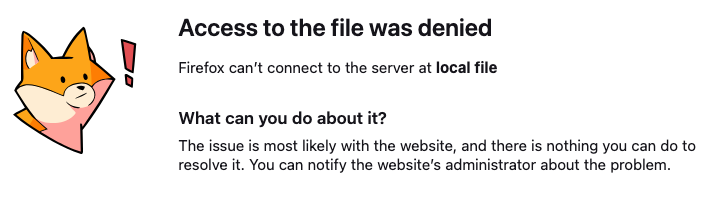
Sometime after updating to macOS 26.4, I found that Chrome reported “Your file couldn’t be accessed It may have been moved, edited, or deleted. ERR_FILE_NOT_FOUND“.
However, Safari, Firefox and Brave opened that file fine.
Then over the next few days, one by one, each of those browsers stopped opening the same file also. With the same or similar type messages - in one case the error message mentioned sandboxing. I don’t remember which browser it was - but that made me suspect some new security feature had accidentally restricted the browsers’ access to my documents folder.
I dragged a copy of that file to my desktop - And then it opens with no errors.
Get Info’s Sharing and Permissions on the original file has me listed as Read & Write. Staff and Everyone are Read Only.
Is this something others have seen? Perhaps a 25.4.1 update will correct this.
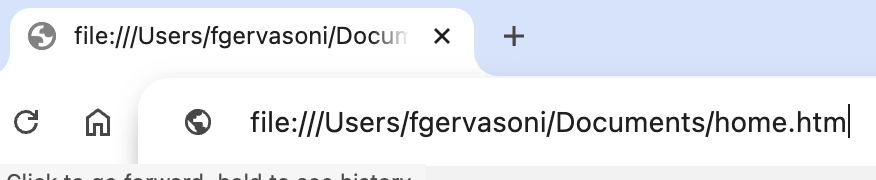
What is your home-page preference set to? If you want a local file, then it should be a file: URL, not just a filename. For example, file:///Users/username/Documents/home.htm.
What happens if you use the menu-bar to open that file from your Documents folder? If that opens, copy/paste its URL (which should be a well-formed file: URL) from the Location bar to your browser’s home-page preference.
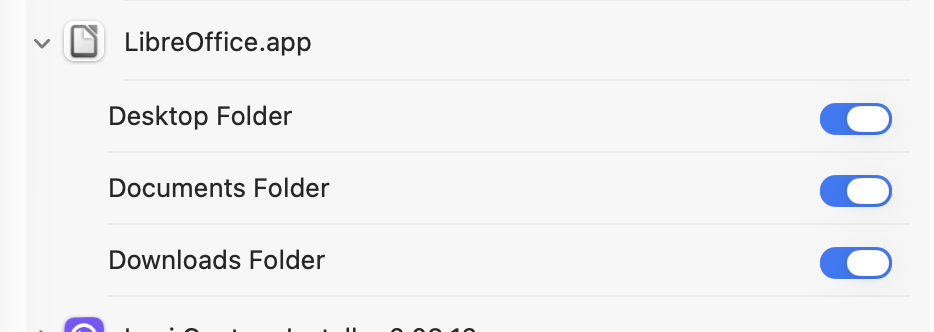
The Documents folder is one of those special folders like Desktop and Downloads that requires you to specifically grant a special permission per application. Normally, the OS will ask you for permission when an application first tries to do something with one of these locations, so perhaps you said “no” at some point.
The list can be found in Settings: Privacy & Security: Files & Folders if you want to edit it.
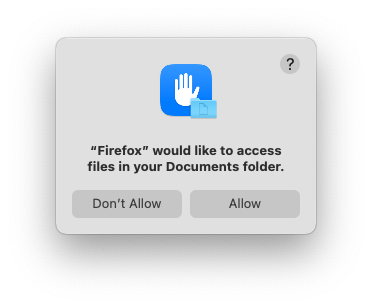
If I manually type in a file: URL pointing to something in my Documents folder into the location bar, I get a popup asking if I want to grant Firefox (I assume other browsers will be the same) access to my Documents folder.
If I don’t grant access, but I try to open the file via the browser’s file-open dialog of by double-clicking the document in the Finder, it opens without a hitch. And something gets saved somewhere because subsequent attempts to open by manually typing a URL to that file also works. (But other documents don’t.)
So…
It would seem that @fredgervasoni did not authorize his web browser for Documents folder access (neither did I before running this test), and the file is not whitelisted for access. And it was probably whitelisted before the upgrade, since it used to work.
I’m not sure why the browser didn’t ask for permission, but maybe it did and he accidentally clicked “Don’t Allow”, which would create an entry in Files & Folders denying access. Or maybe these popups don’t happen for non-interactive access, like loading a home page specified by preferences.
Any of the following should fix it:
Manually open the file from the Documents folder by double-clicking it in the Finder or using a browser’s File → Open dialog. This will whitelist that file so it can open, without affecting any other files.
This is my recommendation. So you can permit that one file but not grant blanket access elsewhere. That should be all you really need, since you’ll probably be opening other files in the same way (via the Finder or a File → Open dialog).
Manually construct a file: URI pointing to the file and try to load then. When asked for permission to access the folder, click “Allow”. This will let that browser access all files in that folder.
If it doesn’t ask, then you have previously denied permission. You can go to System Settings → Privacy & Security → Files & Folders for your web browser(s) and either grant permission or delete the browser’s entry (causing it to ask again in the future).
You can manually add your web browser to the category for Full Disk Access, so it can access any file anywhere. I don’t recommend doing this, however, because this will disable a security feature designed to prevent malware running in a browser (e.g., a malicious JavaScript) from accessing sensitive parts of the file system.
In the past and now, that opens the file. But it didn’t ‘stick’ previously.
But I’ll have to see if future launches revert back to refusal to open.
I also edited home.htm today - adding a new link I wanted on that opening page. / perhaps the file being updated will help somehow.
If it doesn’t hold, I’ll try your suggestion: “If it doesn’t ask, then you have previously denied permission. You can go to System Settings → Privacy & Security → Files & Folders for your web browser(s) and either grant permission or delete the browser’s entry (causing it to ask again in the future).”
Definitely agree that Full Disk Access’ should not be done! (You can manually add your web browser to the category for Full Disk Access, so it can access any file anywhere. I don’t recommend doing this)