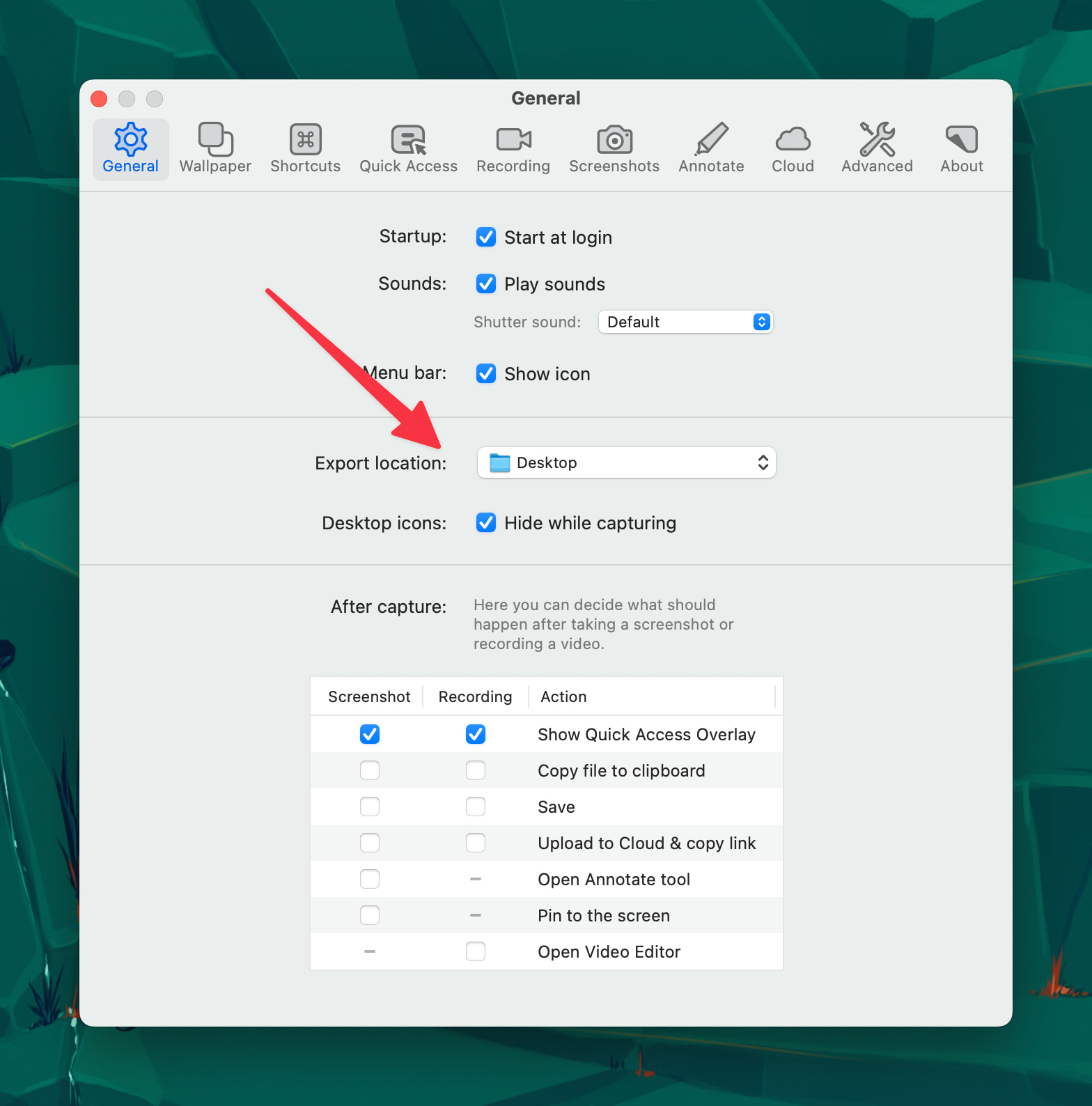
Based on the features of the Capto app for macOS, here is the analysis of those two specific capabilities:
1. Can it border screenshots?
Yes, but it is manual. Unlike some tools that have a simple “Add Border” checkbox, Capto requires you to use the Shapes/Annotation tool to create a border.
How to do it: Open your screenshot in the Capto editor. Select the Rectangle Shape tool from the toolbar. Draw a rectangle that covers the edge of your image. Set the Fill to “None” (or transparent) and set the Stroke (Border) to your desired color and thickness.
Note: If you are trying to make eBay listing photos “pop” against a white background, using a simple 1–2px grey stroke is a common technique.
2. Can it combine multiple screenshots?
Yes, via the “Canvas” method. Capto does not have an automatic “Stitch” button (like for panoramic photos), but you can manually combine images on a single canvas.
How to do it:
Open your first screenshot in the Capto Editor.
Expand the canvas size if necessary (or use the Crop tool to drag the boundaries outward, creating empty space).
Locate the Library/Tray (usually on the left or bottom) where your other screenshots are stored.
Drag and drop the second screenshot directly onto the current editing canvas.
Resize and position the second image next to the first one.
Verdict: Capto can do both, but it treats them as “editing” tasks rather than “one-click” automated actions.
Funny you should mention Capto…
I have been trying to get it to work on refurbished 27" iMac running Mojave that replaced one that recently died (where Capto worked well).
No luck - it won’t correctly install the audio driver. The developer is trying to help me but, so far, no success.
I also tried to install it on a Silicon MBA running Sequoia but kept getting a screen capture permissions message. I might have solved that one after messing around with Settings.
So… in my experience don’t expect Capto to be easy to install.
@ace thanks for the article link. It was a good writeup, though as you suspected that Quartz Composition workflow item is no longer found at the link in the article. I also explored the Filters in ColorSync Utility (Sequoia version) and found a limited selection of functions which don’t seem in any way aligned with the task of applying a border.
I also tried and failed to border a rounded window using Preview. Affinity Photo can do the job, with many steps involved. I’ll revisit and see if I can create a macro, action, automation or whatever Affinity calls it.
So, I am now beginning to understand why you value a specialized piece of software for this kind of production work! But I do enjoy solving a problem with the resources at hand.
I’ve been using Capto for years, too, and overall have a good opinion of it. However, I hadn’t used its Menu capture much in the past, and now I have trouble getting it to work. After pulling down a menu, pressing the shortcut key I selected just causes the menu to disappear. To avoid conflicts with other common shortcut keys I’ve tried some rather baroque ones like Cmd-Opt-Shift-ClearLine but the same thing happens with every one I try. Does it work for you?