I don’t know if it’s wise or not, but I could always reformat my 5 TB WD hard drive that I use for Time Machine and start again…
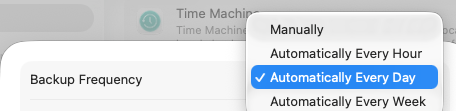
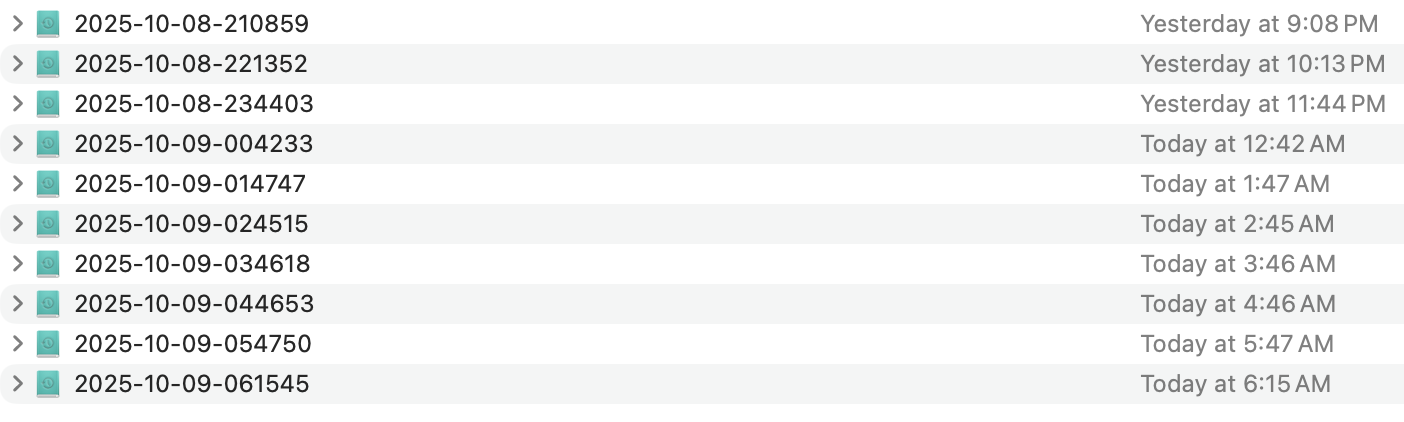
How did you set it for twice a day? These are the options I see.
I don’t know if it’s wise or not, but I could always reformat my 5 TB WD hard drive that I use for Time Machine and start again…
How did you set it for twice a day? These are the options I see.
Interesting. Of course in that case I’d be constantly backing up right? Since each backup takes about 3 hours.
I just talked with Apple Support and they thought that maybe I should just get a new SSD drive for backup. Maybe prices have dropped.
Since I have CCC backup, and Backblaze, and also 2 TB of iCloud storage, I was also thinking maybe of just reformatting my Time Machine drive to see if it speeds up again. It has backups going back to January, 2024.
I decided to reformat my external drive. Time Machine 4 is now Time Machine 5. It’s going through the first backup, which will probably take a few hours. It’s currently 2% done.
One thing - ChatGPT was excessively strongly suggesting I not use APFS because my external drive is a 5 TB non-SDD drive. It was strongly suggesting I use MacOS Extended (Journal) which it insisted is more efficient for Time Machine if the drive is not SSD.
But I was having trouble formatting it like that. And it was previously APFS, as is my CCC drive. Any thoughts on that?
I must have done this before because the MBP is from 2021, the oldest backup was from January, 2024, and the name of drive was Time Machine 4 - indicating it was my 4th version.
In the meantime it’s progressing. It’s now 3% done and I’m going to take my dog for a walk.
This sounds vaguely familiar. Some years ago I was seeing, perhaps TM (or maybe CCC) being very slow to back up. One day I looked at a progress window (must have been CCC since i don’t think TM has this) and saw one gibberish-named file sitting there for a long time (although normally file names being inspected by the backup software were more or less a blur).
I think I screen shot it and looked for it in the file system. It was some many GB sized log file, perhaps from Mail app. Somehow I discovered there was a setting in the App to save logs or not to save them. Having only very rarely needed such a log file, I turned off the logging in the Apps settings and subsequently the backups were much faster.
Sorry I can’t be more precise on what software was involved. I just looked in the Sequoia Mail app Settings and didn’t see it, though IIRC it was a menu option, somewhere near the middle of the Menu Bar.
Hope that’s useful.
I run whatever Time Machine defaults Apple has provided, using multiple large external hard drives.
The key influences on backup speed are storage device speed and interface. One of my SATA hard drives is in an OWC USB 3 enclosure and the other is in an OWC Thunderbolt enclosure. Since these are 7200 RPM drives, larger drive capacity results in faster backups up to the limits of the SATA connection. I have had no problems with Time Machine backups to APFS formatted hard drives. Since Time Machine operates essentially without supervision, it just works. The macOS scheduling system lets a TM backup finish before running another. So, no worries. I may stop automatic backups while editing and rendering video, but this is more to make me feel good, than actually affecting rendering speed.
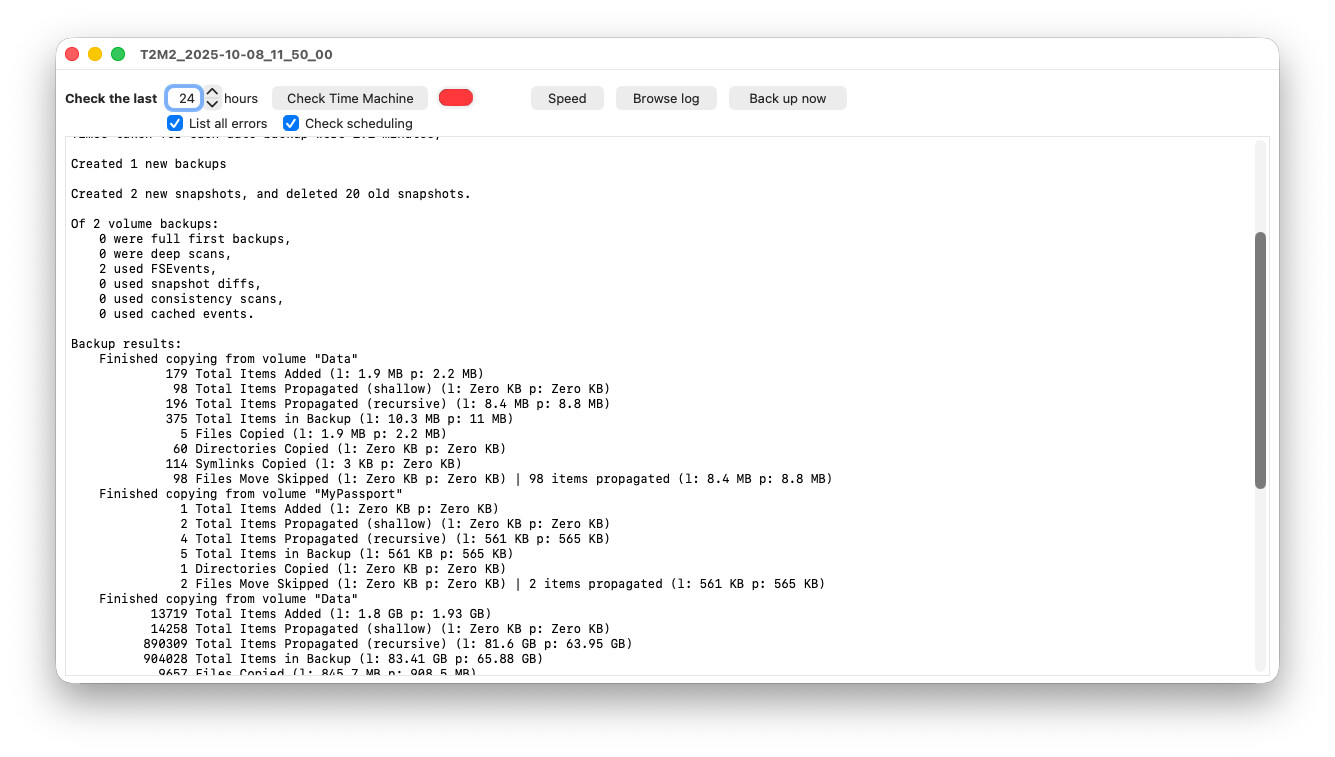
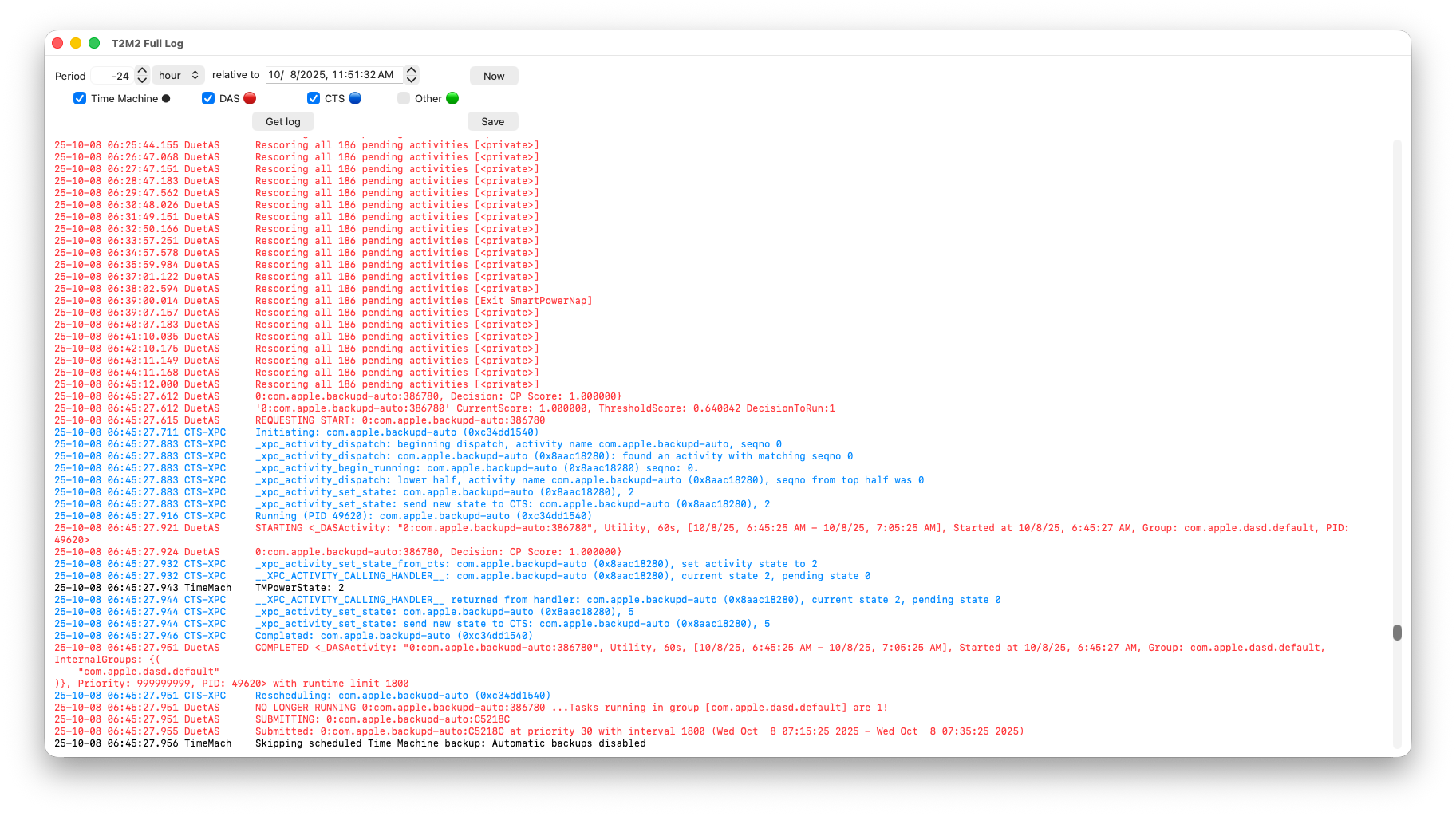
One tool you might want to look into to help figure out what Time Machine is doing is Howard Oakley’s The Time Machine Mechanic (T2M2). It not only provides a quick analysis of what’s happening with Time Machine, but can display the macOS unified log similar to what @Shamino has posted the command for, but includes additional predicates for the log search hat may not be immediately obvious.
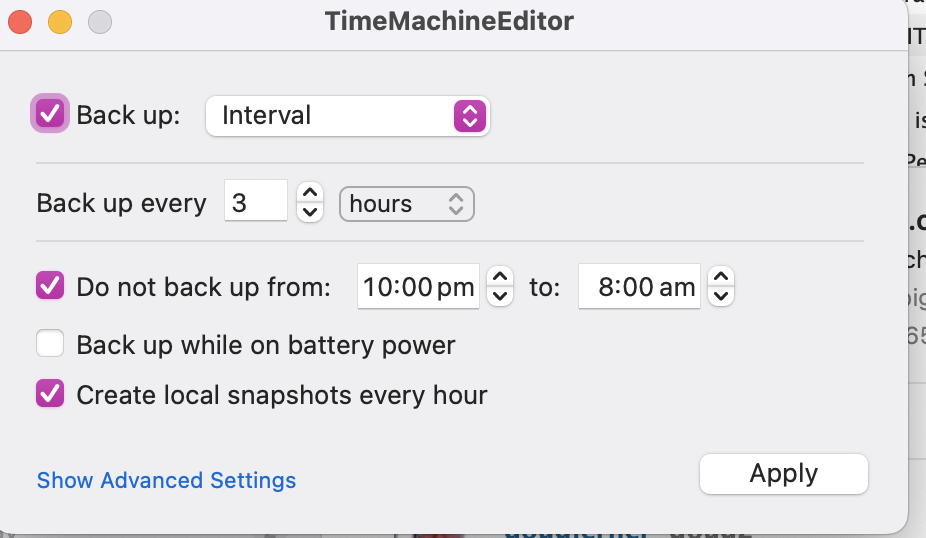
Back to the topic at hand… I’m using TimeMachineMechanic to perform a daily backup. I find it’s more predictable than the macOS Time Machine preference setting of daily. I found that the macOS setting caused the backup time to drift (due to sleep or logoff perhaps) away from when I wanted it.
ChatGPT isn’t always (often? ever?) right.
In general, I would agree that APFS not not well suited to mechanical drives. Its behavior produces a lot of fragmentation, and the resulting head motion will reduce performance, compared to a file system designed to work efficiently on a hard drive (e.g. HFS+, Linux ext, Windows NTFS, etc.).
But Time Machine is a special case. It isn’t randomly modifying files. Its actions consist entirely of:
So the usage pattern is very different from what you’d find on a general purpose storage drive.
Combined with the fact that Time Machine performs its operations at low priority (and will therefore never run at the interface’s full speed), the APFS penalty for hard drives is not nearly as bad for Time Machine as it is for other use-cases.
And TMA’s (Time Machine over APFS) use of snapshots for version control is significantly more reliable than TMH’s (Time Machine over HFS+) system of hard links.
As far as I know, you can’t choose the file system type when creating a Time Machine volume using the graphical desktop interface. If you create it from macOS 10.15 (Catalina) or older, you’ll get HFS+. If you create it on 11 (Big Sur) or later, you’ll get APFS. But see below for a possible (untested) alternative.
The act of creating a TM volume using the GUI will cause that volume to be erased and reformatted. I don’t think you have an option here.
That having been said, if you create a TM volume on 10.15 or older (creating a TMH volume), and later migrate that backup to a modern macOS system using Migration Assistant, then it will grandfather the volume in, allowing you to continue using it as HFS+.
But this requires you to migrate an old backup. Which is not something you will want to do if you already have a working system.
Looking at the manual pages for the tmutil command (command-line interface to Time Machine), I think there might be another option. I haven’t read about anybody actually trying this, but the documentation for its setdestination subcommand says:
SYNOPSIS
  tmutil verb [options]
...
VERBS
  Each verb is listed with its description and individual arguments.

  setdestination [-ap] arg
    Configure a local HFS+ or APFS volume, AFP share, or SMB share as
    a backup destination. Requires root and Full Disk Access
    privileges.

    When the -a option is provided, arg will be added to the list of
    destinations. Time Machine will automatically choose a backup
    destination from the list when performing backups. When the -a
    option is not provided, the current list of destinations will be
    replaced by arg.

    If you wish to set an HFS+ or APFS volume as the backup
    destination, arg should be the mount point of the volume in
    question. When setting an AFP or SMB destination arg takes the
    form:

    protocol://user[:pass]@host/share

    In the AFP and SMB cases, the password component of the URL is
    optional; you may instead specify the -p option to enter the
    password at a non-echoing interactive prompt. This is of
    particular interest to the security-conscious, as all arguments
    provided to a program are visible by all users on the system via
    the ps tool.
So, maybe you can create an HFS+ volume on the external drive and then, instead of using the Time Machine GUI, use the command-line to pick that volume as your Time Machine backup destination. Assuming you named it “Time Machine 5” (as you wrote above), the command would be:
sudo tmutil setdestination "/Volumes/Time Machine 5"
I don’t know if this will work, and I would still recommend using APFS (because snapshots are more reliable than hard links), but if you really want an HFS+ Time Machine volume, give it a try and let us know if it works.
Thanks for that info. I will study it more! In the meantime, I did end up using APFS and it seems to be working fine now.
The first backup took some time, but since then it’s back to normal hourly backups. I don’t know how long each one is taking, but I don’t think it’s very long. Each one of those seems to be just a few GB.
So problem solved for now.
Time Machine for me bogs down over time much like the OP’s. I think some of us are just crossing a threshold of a large amount of data in tons of tiny files in lots of folders, and as the processes need to propagate more and more data (or at least hard links) across more and more backup versions, it just gets slow. And in the case of spinning hard drives, as you fill them up more and more things get slower as they write to the inner part of the platters. So then we move from hard drives to SSDs, exclude more and more things from the backups, etc etc.
Another thing to look at when trying to see where things are slowing down is seeing how much cleanup (deletion of old backups) is happening before the backups even start. This gets more prevalent as you fill up your backup disk.
I’ve spent probably way too much time over the years just getting attuned to the various vagaries of my Time Machine setups and how things have changed with the various versions of macOS. My current issue with Tahoe is that when I leave the machine idle, after the screen locks it will only continue backing up each hour to one of the 2 available destinations - either the directly connected SSD or the networked one attached to another Mac in the house. Before Tahoe it used to nicely cycle back and forth between them every hour, and it still does that during the day as I am actively using the computer. But as soon as the screen locks, after that it’ll only do one of the other.
But going back to the original question about speed of backups, I have found no other reliable way to get things doing speedily again once the backup history reaches some threshold than to just start over on that backup disk. All in all I have 4 different destinations, so it’s not that huge of a deal to give up the history on any one of them at a time when one starts to bog down. I’ve never had to dig too deeply back into a backup history anyway. Makes me think that I should just set more aggressive quotas on the Time Machine backups to force a shorter history anyway.
and yeah I’ve done the disabling of I/O throttling too and various other tips and tricks over the years. Howard Oakley’s deep dives into how all this works have been very informative.
I noticed that TimeMachineEditor (see above) has not been updated for 2 years. It works for me with Sequoia. Has anyone tried it with Tahoe?
Seems to be working for me on Tahoe.
But BackupLoupe knows it without mounting or analyzing the snapshot. I can open BackupLoupe, after not using it at all for months, and it instantly knows the size of every snapshot. How is it figuring it out?
I am late to this thread so this may be old news or off target. BackupLoupe reports the detail of the snapshots on the external backup Time Machine drive. These are quite different snapshots from the ones also created by Time Machine on the internal boot volume, which are visible and manageable in Disk Utility. These roll over every 24hrs.
The internal local snapshots are sometimes the cause of fluctuations in boot drive space and often regarded as a nuisance, but are by far the best and fastest way of rolling the whole machine back. These are only snapshots of the Data volume not the SSV so you can’t roll back past a macOS update. Time Machine local snapshots are only kept for 24 hours, but CCC can create the identical snapshots and has more flexible retention management options.
How do you roll-back an entire volume to a snapshot? I’ve never heard of people doing that before.
This article gives the steps. The article is a bit out of date because it says you can roll back to previous version of macOS which is not possible since Big Sur (reference).
I have found it useful when I have taken a wrong step and it has got to point where rolling back the whole machine to a snapshot from an hour or two previous is easier than trying to undo the mis-step. It does remove fingerprints and Apple Pay info.
CCC can also make and restore whole volume snapshots as discussed by Howard Oakley here.
Your reply confirms what I have long thought that this method is not well known, and yet much quicker than the standard alternative of EACAS and migrate from backup.
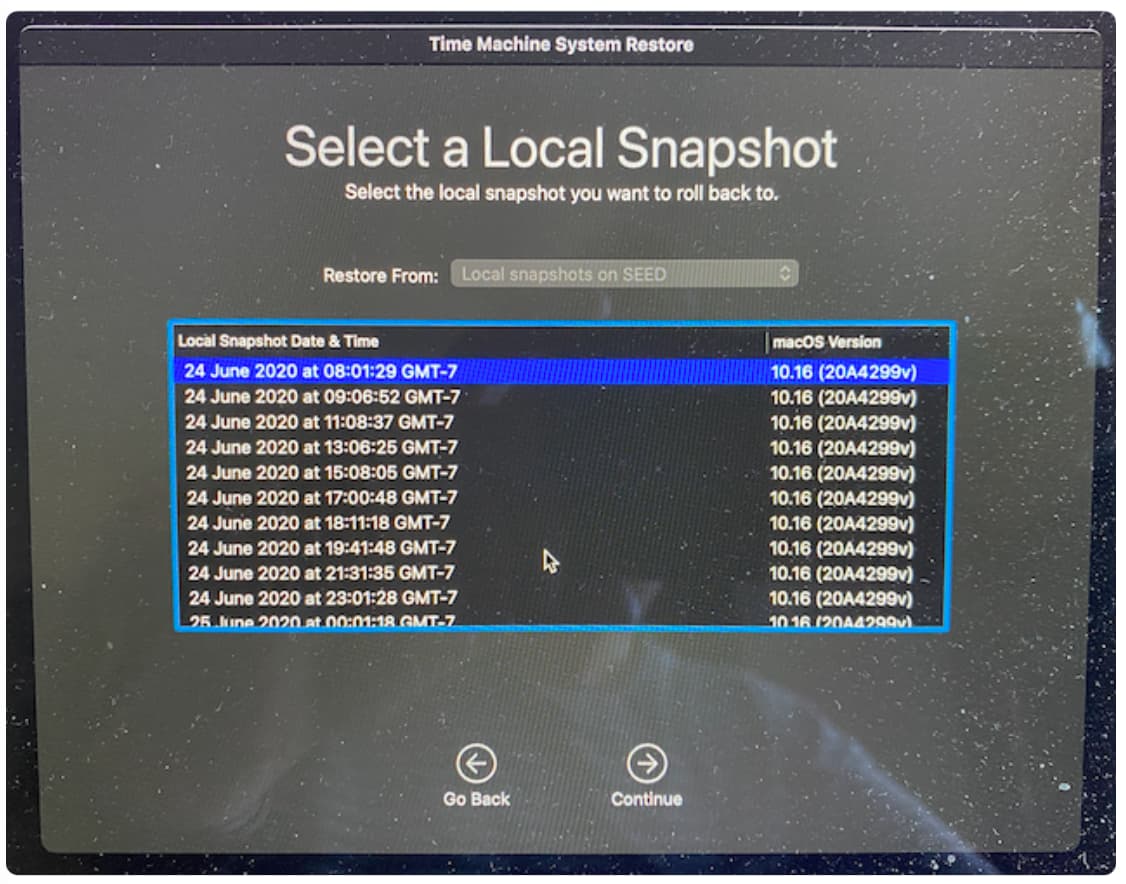
The critical step in the OWC article is step 8 where you have choice of restoring from either a normal TM backup or from a local snapshot. This is not clear from the article IMO. After selecting the local snapshot option you see this screen:
This article has a better description of the process. Scroll down to the “Performing Full System Restores From Snapshots” section.
I was going to share my opposite problem.
For a year or two now, Time Machine only runs when I invoke it manually. It will never run automatically.
Running the latest macOS release. I have rebooted many times.
Ideas??
I assume that the Time Machine settings do not indicate that a automated backup failed due to the drive being unavailable. Otherwise TM preferences might be corrupted. You might be able to locate and delete the relevant plist file.
As mentioned above I use TimeMachineEditor to control TM backups. You could try that app to see if automated backups work.