I would like to remove all traces of Microsoft Office. It is an old version, I believe 2016. Any advice?
Although I am no fan of Microsoft, this is not an effort to abandon the company. I took my MacBook Air M1 to Europe and Excel’s date formats have been fouled up ever since. I want to remove all traces of the old version before installing the current version. I’m hoping that whatever caused Excel to change date formats will be gone and I can start fresh. (The Excel files show dates in the format I prefer on my MacBook Air M3 running Office 365.)
Should I start by looking in ~/Library and /Library and deleting everything with Microsoft in the name? Is that dangerous, since I’ll be installing Office 365 from scratch? Is there a simpler way? Thanks.
There used to be an Uninstaller from Microsoft to do this, but it seems to have disappeared. There are 3rd-party uninstallers which purport to do this but most 1) cost something, and/or 2) miss things.
My tried-and-true method:
Get a copy of EasyFind (https://www.devon-technologies.com) and use it search your entire hard disk for “Microsoft”, nuking all files it finds, emptying the trash and restarting. Tedious but effective.
It also makes sense to search your macOS drive with a utility like EasyFind (not updated in years, perhaps abandoned), or FindAnyFile (updated a lot). Search for terms like Microsoft, Office, etc, see where they are then carefully delete. You’ll find a lot of things that the uninstaller won’t, but be careful. Sometimes searches like this will show things that have nothing to do with the program you want to uninstall.
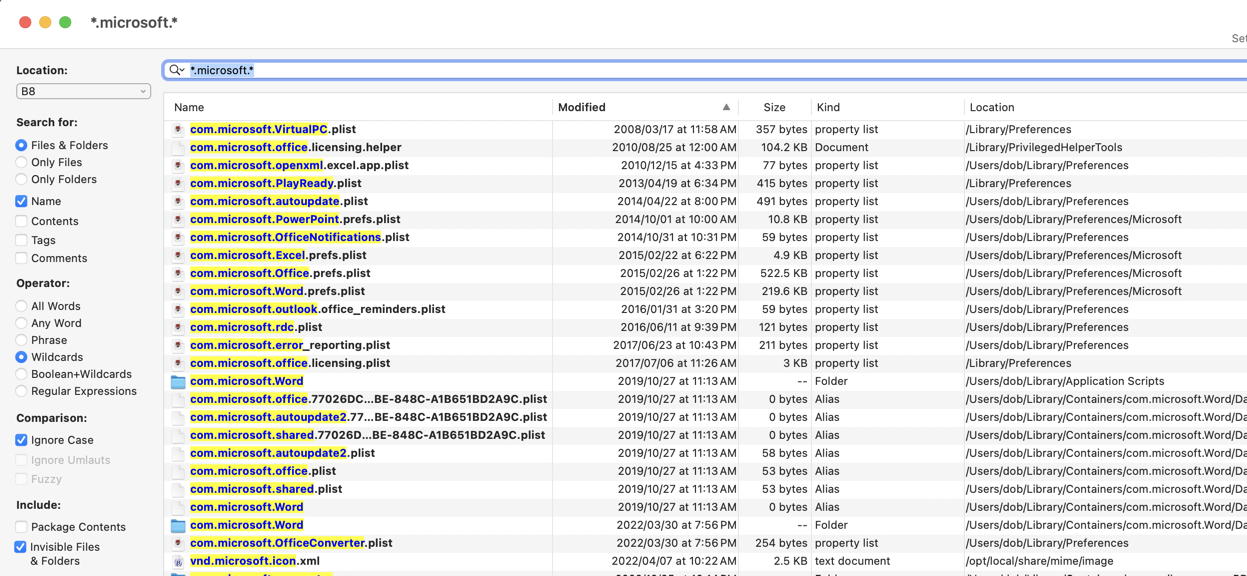
Start with the Microsoft uninstaller–if available. Then followup with EasyFind. Here is a screen shot showing how I would set it to find all things Microsoft. I ordered by Modified date..but you might also sort by location.
Hmm…seems like I still have a plist from VirtualPC floating around.
Just for the record, the instructions that @Incompatible shared should work fine with Office 2016, even though they nominally are for Office 365. There have been cases where licensing differences between the two have led to difficulties, however. If you run into those, you can run Microsoft’s license removal tool.
I followed the instructions on the Microsoft web pages and removed all those files and folders mentioned on either web page, and even more files or folders that had Microsoft in the name. Nonetheless, after I installed 365, Excel still displays dates in the formula bar in mm/dd/yyyy rather than yyyy.mm.dd as I have specified in both Excel and System Settings (Language & Region, Date format). Any suggestions on how I can get Excel to honor my desires?
As I said in the original post, the dates got fouled up while I was in Europe, leading me to believe it was related to the location. I had hoped it return to normal when I returned, but no. I had hoped, but didn’t expect, that it would clear up when I installed Sequoia (replacing Big Sur), but no. Then I expected it to clear up when I deleted the old version of Office and installed 365, but no. FWIW, the dates are displayed correctly on my MBA M3 running Sequoia and 365. Where is Excel getting the wrong format? Thanks.
In Chrome Gemini I asked: “how does excel choose between usa and european date formats?” The answer follows. Excel chooses between US (MM/DD/YYYY) and European (DD/MM/YYYY) date formats primarily based on your operating system’s regional settings, but also uses Excel’s own locale settings, the file’s saved settings, and sometimes even contextual clues from data like CSVs, defaulting to US if dates are ambiguous (e.g., 03/04/2024 could be March 4th or April 3rd). Ambiguous dates often get treated as US format, causing errors, so setting the correct locale in Excel Options or Data>Get & Transform (Power Query) is crucial for consistency.
How Excel Determines the Format:
Computer’s Regional Settings (Windows/Mac): This is the primary driver; Excel reads the default “Short Date” format from your OS (e.g., Control Panel > Region).
Excel’s Internal Locale: You can set a specific locale within Excel (File > Options > Regional Settings or Format Cells > Number > Locale) to override the OS, which is essential for web versions.
File-Level Settings (SharePoint/OneDrive): For Excel Online, the site’s regional settings heavily influence the workbook’s format.
Data Source (CSV/Import): When importing, Excel tries to guess; ambiguous dates (like 03/04/2024) often default to the US MM/DD/YYYY if the file itself doesn’t specify the locale.
Common Issues & Solutions:
Ambiguity: Dates like 03/04/2024 are problematic. Excel might default to March 4th (US) or April 3rd (EU).
Solution: Use the ISO 8601 standard (YYYY-MM-DD, e.g., 2024-12-09) for unambiguous entry.
Imported Data Errors: If a CSV uses DD/MM/YYYY but your system is US, dates like “21/01/2023” might become text because 21 is not a valid month in US format.
Solution: Use Power Query (Data > Get & Transform) to import the column as “Text” first, then use Power Query’s tools to parse it as a proper date in the desired locale (DD/MM/YYYY).
Format Cells: Manually setting cells to a specific locale (e.g., “English (United Kingdom)”) within the “Format Cells” dialog (Number tab) can force the format for selected cells.
Thank you for helping me to focus my observations.
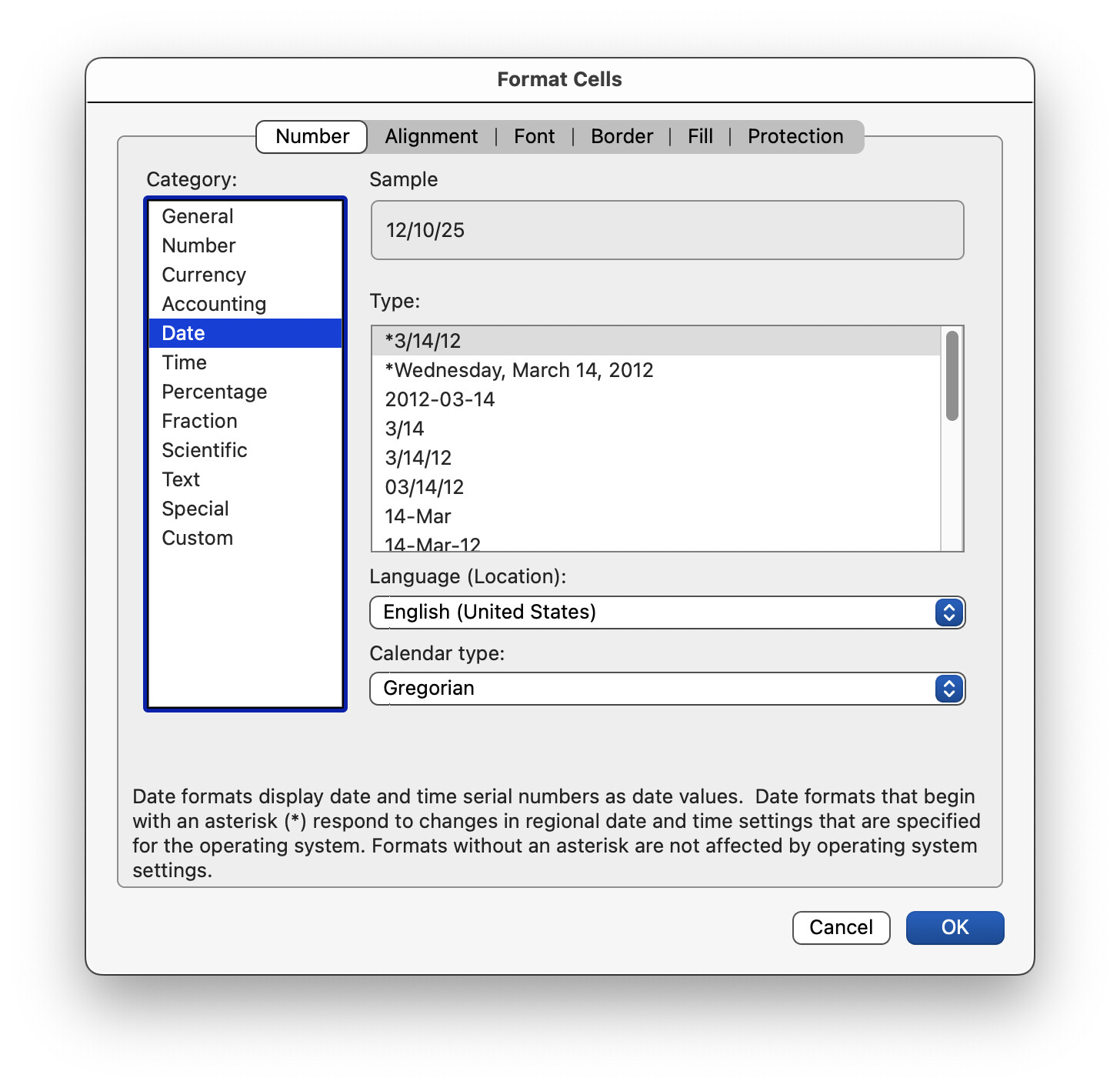
I’m not sure what you mean “just the format for those cells”. The language is English (United States). See screenshot below.
I don’t want either of those. I do have US, although the screenshots have ambiguous dates.
It is set to the format I desire. See screenshot.
Under the File menu, I do not have an Options command. Under Excel > Preferences, I cannot find a Regional Settings pane and a search for Locale produces no result.
I don’t use OneDrive or SharePoint, and I don’t use Excel Online.
Except that I want periods rather than hyphens, this is the format I desire. I can’t find where to tell Excel to use it in the formula bar. I have set the format for the cells; the issue is the format in the formula bar. Also, I’ll emphasize that the display was as I desired before I took the Mac to Europe (although that was with an older version of Excel).
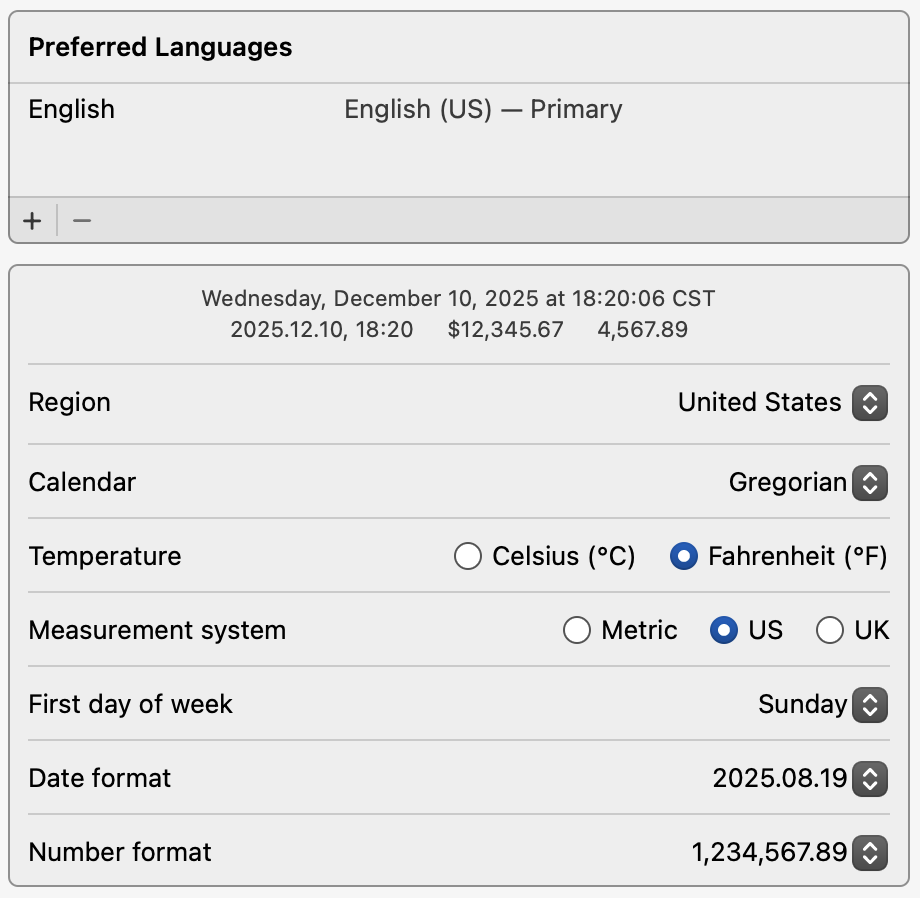
Here is an excerpt from my System Settings on the problem Mac. (The settings are the same on the good Mac.)
Here is a screenshot of Excel’s Format > Cells > Number > Date pane for the problem Mac, followed by the good Mac. Note the difference in the Sample. (I wonder about and have no explanation for the March 14 date in the first screenshot and March 15 in the second. They also have different years.) I can’t imagine that it matters, but the good Mac is running Excel 16.103 and the bad Mac is running Excel 16.103.4.
That seems weird, but I guess what I would suggest is to change the format to Custom and enter the format code as yyyy.mm.dd if you want them to be that way.
I have set that format for the cells. I’m asking about the format in formula bar. Excel is not displaying dates in the formula bar in accordance with the settings for cell nor the system settings. I suspect there is some settings file for macOS that did not get replaced when I updated from Big Sur to Sequoia, and that is why the problem persisted through both the macOS update and the Excel update. (I reached this suspicion after having my observations focused by @ddmiller and @LarisASalins; thank you to both. Of course, I don’t know that my suspicion is correct.)
When I changed MacOS Settings / General / Language & Region / Date Format to yyyy.mm.dd, Excel did not show the change in the Formula Bar until I quit Excel and re-opened the app. The same thing happened when I switched back.
Short story is quitting and restarting Excel fixed it.
I’m bewildered. I installed macOS Sequoia and Excel since returning from Europe, each of which would have required restarting Excel. (System Settings had the format I desired throughout the installations; I checked after installing Sequoia and before installing 365.) Nonetheless, I quit and restarted Excel just now, and the date in the formula bar is as I desire it. I don’t get it.
Thank you for nudging me into trying something that I knew would not work.
The Microsoft AutoUpdate app is used for more than just Office. It updates all of Microsoft’s products, so it’s not surprised that a document describing how to remove Office wouldn’t mention it.