Modern MS Office for Mac — read this if you want MS AutoUpdate to stop bothering you

So like others, I’ve acquired a license for a modern MS Office (2024 in my case) and installed parts of it so I can continue to use Excel on modern Macs with modern macOS. As users of modern Offices will know, MS also installs MS AutoUpdate (MAU) and uses that to check for updates at least weekly. Whenever it detects any available updates, it will come to the foreground and “nudge” you to install them. However, MS offers no preference to adjust that interval or to only check and update on demand.

Now you could think a simple fix to that problem is Settings > Login Items & Extensions > App Background Activity and switch Microsoft AutoUpdate to off. That, however, does not do what you want because from then on, any Office app that you launch will complain that MAU cannot run without the right settings. That dialog does not allow cancel/ignore, it just allows opening up Settings. And until you give MAU its background privilege again, this new nuisance will continue nagging away.

Now the next thing you might consider is that you just get rid of MAU. After all, it’s just an app that sits in /Library/Application Support/Microsoft/MAU2.0/. The problem with that is that if you get rid of it entirely, you cannot update your Office apps at all. And we know that is likely a bad idea. At some point you might hear about an update with important security implications or a bug fix you actually are interested in getting. And then what? Excel for example offers no simple “update me” command under Help (like many other apps) or under its app menu or anywhere else for that matter. MS has basically set it up that you need MAU to apply updates, even those you explicitly choose for yourself, but without MAU you are essentially SOL. Obviously, we can’t have that. You paid for Office and you’re running it on your machine, so you should be able to choose and have your tools work the way you tell them too.

So finally, here’s the good news. Here’s how you get it all. Keep Background App Activity switched off. Navigate to /Library/Application Support/Microsoft/MAU2.0/ and right click on Microsoft AutoUpdate.app to select Compress. This will create a zip with MAU on your desktop. You can move that wherever you like or back into the MAU2.0 folder to make sure you don’t lose it. Now delete Microsoft AutoUpdate.app. Moving it out of /Library/Application Support/Microsoft/MAU2.0/ will require authentication but that is just an admin account’s TouchID away.

From now on, no more nagging when you launch Office apps. No more MAU popping up at the least convenient moment nagging you about some update you never asked for on some schedule you never got to choose. But, in the situation where you do want to check for updates or have a specific update installed, all you do is unpack that Zip, and run Microsoft AutoUpdate.app. Done. Now, you again are in charge of what is rightfully yours.

Beware that when MAU updates itself, you will likely have to archive that updated copy of Microsoft AutoUpdate.app and get rid of it again in /Library/Application Support/Microsoft/MAU2.0/ in order to maintain peace and quiet. And to stay in charge of your own setup — the way it always should have been.
3 Likes

You can just disable the Launchctl entry that launches MAU, then it won’t run automatically.

2 Likes

Interesting. I wonder what’s different about my systems. MAU runs in the background, but when updates are available, there’s no popup. I just see its icon appear in the Dock with a badge on it. I can easily ignore it until I’m ready to install the update. Then I click on the icon to bring it to the foreground and perform the installation.

Maybe it’s because I un-checked the box (in MAU) to automatically install updates?

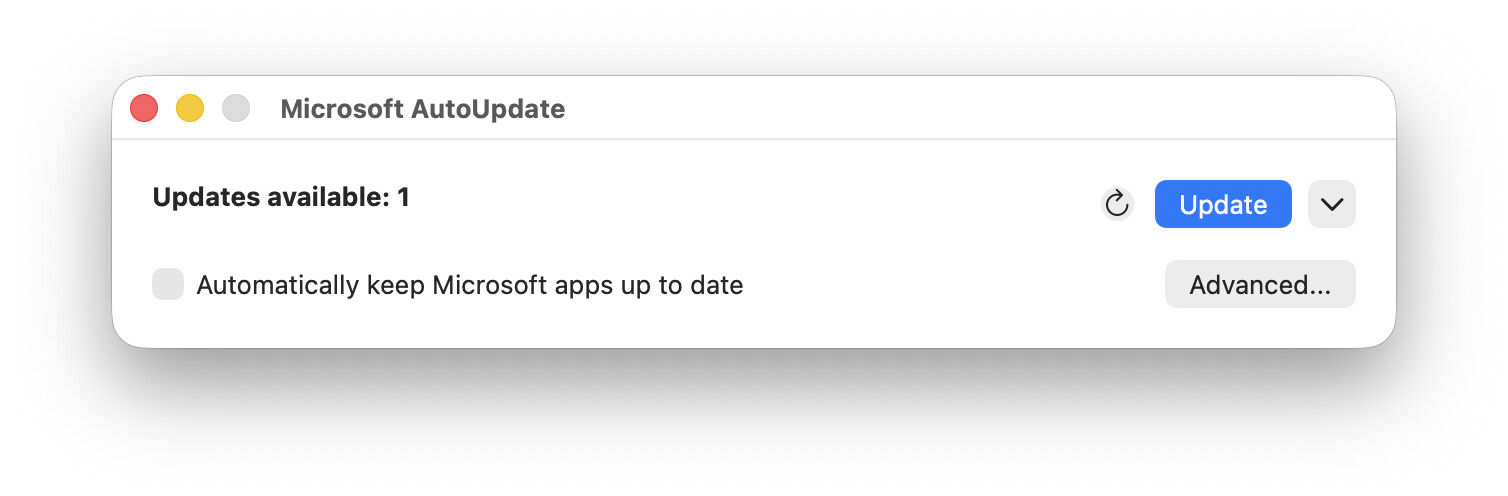
I too have “Automatically keep Microsoft apps up to date” de-selected, which currently does stop it from nagging about updates. It doesn’t stop MAU from updating itself, though, which is infuriating.* I used to submit a complaint every time that happened, until Microsoft took away the feedback menu item.

If you want to kill MAU from running at all, the launchd plist to disable is com.microsoft.update.agent. I have disabled it in the past using Lingon, when it insisted on nagging about updates even when auto updates was turned off.

From the command line, the old command would be sudo launchctl unload -w com.microsoft.update.agent, but that was too easy so Apple deprecated it. (I think it still works, however.)

The new command is sudo launchctl disable x, but what is x? First you have to figure out the domain of the plist. Is it a system daemon, or a per-user agent? If it is a daemon then you use system/plist, but if it is an agent then the command is gui/guid/plist. Which is why I’ve never tried this.

* because I want to read the release notes before updating

1 Like

I Trashed MAU and do my updates manually.

Microsoft maintains a page of updater packages for its Microsoft Office applications here. This page seems to be kept up to date with every minor release:

(Yes, it says “Microsoft 365 subscription”, but the packages also work for the non-subscription Office 2024 applications, and, I think, the 2021 versions as well. Same apps, different licensing/activation.)

So if you’re willing to manually download and run packages, and you can remember to do so regularly, you can just bookmark that page, download the appropriate packages, and install when you want.

(I’m actually impressed at how cleanly Office runs when you strip out MAU. The Office apps just quietly become standalone apps, the now-nerfed “Check for update” commands simply disappear, there are no nags and no errors about how MAU can’t be found. This seems to be a deliberate decision on Microsoft’s part, to support large organizations who use MDM tools to manage Macs and therefore need a clean way to schedule and deploy standard Mac installer packages and don’t want to fight with MAU.)

1 Like

After an Office installation I move the MAU file to an external drive in case I need it (I have been doing this for decades).

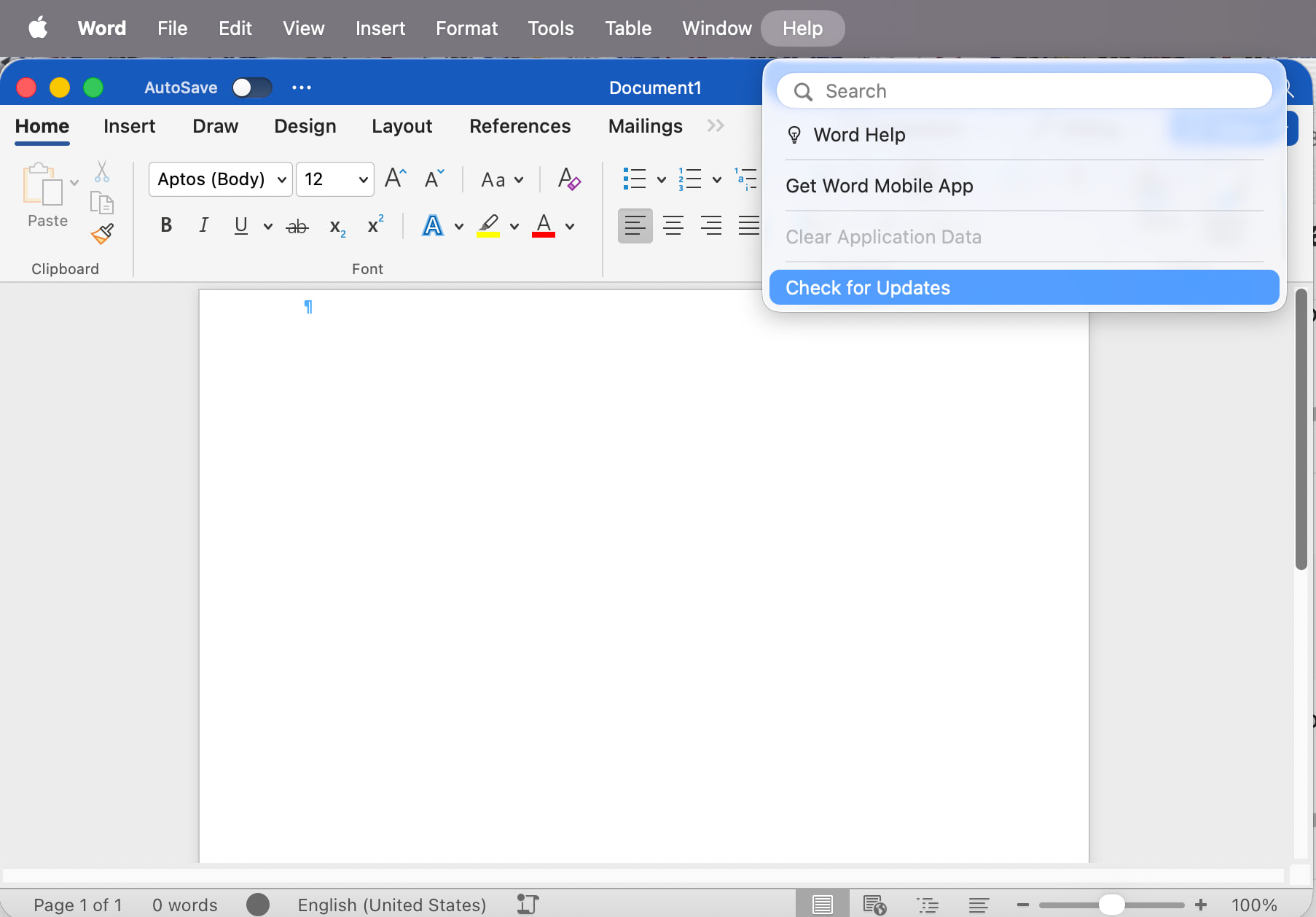
Each MS app still has a Check for Updates item in the Help menu. I use this as needed. It checks for updates for all Office apps. The only purpose of MAU seems to be to nag!

None of my MS Office 2024 apps offer any type of update option in the Help menu or otherwise.

This menu item simply launches MAU, which is the mechanism though which all Microsoft software products check-for and install updates.

Strange. I’m running an M365 subscription, so maybe my installation is different, but it’s been present for many many years:

…because you removed Microsoft AutoUpdate.

My point exactly. If you keep MAU you get constantly nagged, but if you get rid of it there’s no more option to perform an on demand update. Hence the suggestion to get rid of it in a manner that allows you to temporarily restore when you wish to manually update.

I still don’t know why you’re getting “constantly nagged”. All I ever see is the icon appear in the Dock with a badge. Unless even that kind of alert is too intrusive for you.

Just tested Check for Updates and it did seem to use MAU - the app must be back where MS expects it to be.

The update window did include the option to automatically check for updates, which I leave off.

If only it was only weekly. Mine nags me daily! It has not been a terrible burden to just quit it, but yes it would be nice to be able to set the frequency (monthly would be plenty).

I keep waiting for the update of Word that fixes the bug that if you have 2 copies of a document open (“new window”) as well as the Find & Replace window (which is how I work as an editor), and you close one of the copies, the application crashes. Absolutely ridiculous.

You can also use Homebrew to install/update Microsoft Office without using AutoUpdate (search brew for ‘microsoft-office’ or ‘microsoft-365-copilot’). You can ‘pin’ versions to avoid updates. However, I suspect you still have to remove AutoUpdate after each update to stop nagging you.

Was gonna to reply with this, i’ve removed AutoUpdate and use Updatest to manage updating office via Homebrew.