TickTick Provides a Focused Daily Task List and More

Originally published at: TickTick Provides a Focused Daily Task List and More - TidBITS

I recently wrote about my search for a task manager in “AppBITS: Sorted Seems Moribund” (25 June 2025), outlining my desire for a task manager that would help me plan my day by combining tasks with events in a single flat view. Sorted fit the bill but had some issues and seemed to have no future. Although there were some good suggestions in the comments on that article, when the topic came up at a post-workout dinner with running friends, one said she used an app called TickTick. I hadn’t heard of it before, but my friend described it in a way that piqued my interest. After several weeks of living with TickTick, I’ve found that it provides the features I want, along with others that are extraneous but haven’t gotten in my way.

So what are those features? I want a list of daily tasks and events for the day, with the ability to mark tasks as done and clear events from the list once they have passed or I’ve acknowledged them. Importing from Reminders and Calendar is essential because Siri can reliably add tasks to Reminders but doesn’t support third-party apps on the Apple Watch or HomePod and behaves inconsistently with third-party commands on the iPhone. Uncompleted tasks should automatically carry over to the next day, and I want the ability to reschedule tasks to future dates and times if I determine they won’t be happening anytime soon. I also need an iPhone widget showing my day’s items to prevent the “out of sight, out of mind” problem. Finally, I want a Mac version of the app with synchronization so I can manage tasks across devices.

TickTick checks all these boxes. I primarily use it on the iPhone, although I keep its Mac app open on my third screen for when that’s easier to access. The most noticeable feature for me is its interactive Today widget, which I keep front and center on my iPhone’s Home Screen so I can’t ignore it. The widget is live—tapping checkboxes marks tasks as done, and tapping an item name opens it for editing in TickTick. Tapping the + icon creates a task. Usually, though, I just tap on an empty spot to open the app.

The main Today screen displays tasks and events—either created internally or imported from Reminders and Calendar—sorted by time. (When importing from Reminders, TickTick automatically deletes tasks from the primary list after import to prevent conflicts. There’s also a one-time import option to bring everything over. Note that these are one-way imports, not two-way syncs.) I set morning times for all my tasks to ensure that I’m alerted to their existence early in the day, not because that’s necessarily when I’ll complete them. On days when little is happening, I leave tasks and events in their default order, but on busier days, I may drag them into the sequence in which I want to complete them. That’s the “bula board” concept that I mentioned in the Sorted article—scheduling specific times and durations for each task feels like too much meta-management for me.

TickTick widget and Today view

On the Today screen, tapping a checkbox marks the task as done, an action that’s easily reversed as long as you have Show Completed selected (from the ••• menu in the upper-right corner). While you can’t mark an event as done, per se, you can archive it with a swipe, thus removing it from the Today list. One limitation is that task reordering and event archiving don’t sync between the iPhone and Mac versions of TickTick, although all other changes sync correctly.

Tapping an item opens it for editing, but if you touch and hold (or Control-click on the Mac) any task, you can change its date or modify various pieces of metadata. TickTick does a particularly good job of presenting you with future date options, and you can even customize the buttons in the middle screenshot below. I also occasionally use the Add to Live Activity feature, which places the task on my Lock Screen to help me stay focused.

TickTick task options and Live Activity

Of course, TickTick can post notifications of upcoming timed tasks and events (which can also flow through to the Apple Watch), and it offers a Daily Notification feature that provides an overview of the day’s tasks at a set time on chosen days of the week. Most notably, it has an option for constant reminders for those tasks that you can’t ignore. These constant reminders ping you every minute until you snooze them or mark them as done, responding to my request in “A Call to Alarms: Why We Need Persistent Calendar and Reminder Notifications” (11 May 2023). TickTick can also send email notifications (up to 50 per day), but I haven’t turned that on.

TickTick offers numerous settings that allow you to customize the tab bar at the bottom (more on those features next), the app theme and colors, notification options, date and time options like the starting day of the week and week numbers, swipe actions, task defaults, and much more.

TickTick settings

One challenge with TickTick is the sheer number of features, many of which I don’t personally use. For example:

  • Kanban and Timeline views: If a simple list isn’t sufficient, you can switch to a Kanban view that lets you separate any list into user-defined columns. There’s also a Timeline view that displays task durations, giving you lightweight project management capabilities.
    TickTick Kanban and timeline views
  • Calendar view: A complex calendar screen shows your tasks and events in a vertically scrolling month view or a horizontally scrolling list, day, three-day, or week view. Each view includes various options for filtering the range, changing the display, arranging tasks, subscribing to calendars, sharing your items as text or an image, and printing.
    TickTick calendar views
  • Focus mode: Although it doesn’t use the system-wide Focus feature, TickTick offers its own focus timers with a Pomodoro-style countdown or a count-up stopwatch, both of which can play any of 17 varieties of white noise. Focus timers can also be Live Activities, so you see them on your Lock Screen and in the Dynamic Island for supported iPhones. TickTick can record and track focus efforts, allowing you to see how productive you’ve been. You can even display the timer as a floating window (much like a floating video).
    TickTick timers
  • Eisenhower Matrix: If you struggle to decide what to do next, you can prioritize tasks and then use the Eisenhower Matrix to categorize them. High-priority tasks are Urgent & Important, medium-priority tasks are Not Urgent & Important, low-priority tasks are Urgent & Unimportant, and tasks with no priority are Not Urgent & Unimportant.
    TickTick Eisenhower Matrix
  • Habit Tracker: If you want to develop certain habits—such as drinking more water, doing physical therapy every day, writing in your journal, etc.—TickTick can help. Habit tracker entries appear in the Today view in a section below the day’s open tasks. There are many dedicated apps for this purpose as well, but if you view habits as tasks to be completed regularly, this feature might be helpful.
    TickTick habit trackers
  • Countdown: I don’t think I’ve ever paid attention to the number of days until an event since longing for summer vacation in grade school. But those who enjoy tracking how far away certain events are might like TickTick’s Countdown feature, which offers all the customization you could want.
    TickTick countdown screens
  • So many more features: The more I explore TickTick, the more features I discover that I currently have no interest in using. You can organize tasks in lists or categorize them with tags. In the desktop versions of TickTick, you can open tasks as sticky notes that can be arranged and pinned to the desktop. If hierarchy matters to you, tasks can include subtasks. TickTick supports Siri and Shortcuts, and along with Reminders and Calendar, it can import from Notion, Apple Health, Todoist, and Microsoft To Do. It offers integrations with Amazon Alexa, IFTTT, Zapier, and the Spark email client. There’s collaboration for sharing lists and assigning tasks to others. It awards badges and can track any action that is persistent, such as completing tasks. TickTick even has time zone support to work around the limitation in Reminders that prevents tasks from shifting to the correct time in a new time zone.

If you want to try TickTick, it’s free to use on multiple platforms, including iOS, iPadOS, macOS, Android, Windows, and Linux. There are extensions for Google Chrome, Microsoft Edge, and Firefox. The Chrome extension likely works with Chromium browsers like Arc, Brave, Comet, Dia, and Vivaldi. Additional add-ons for Gmail and Outlook make it easy to create tasks directly from your email.

Like many other apps, TickTick uses a freemium model. Subscribing to the $35.99-per-year Premium tier unlocks additional integration and customization options, including multiple calendar views, third-party calendar subscriptions, themes, statistics, and higher limits on lists and tasks. While I can’t recall which premium features persuaded me to subscribe, I find the core functionality valuable enough to justify the cost. For many users, the free version will be sufficient, but those with specific needs might appreciate the expanded capabilities of the Premium tier.

2 Likes

TickTick is an interesting app. It allows one to work from the calendar, which can be very nice. I had a concern about a potential relationship of the app to Mainland China, which would be a problem for my work-related activities. I recognize that the cloud can be problems for any work-related activities. I moved onto another app.

Looks promising - thanks Adam. Integration with the Apple Watch would be useful.The Ticktick website states:
Download and install TickTick on your phone. It will sync and display on your smartwatch.

But is this a standalone Watch app or just using the Reminder and/or Calendar apps?

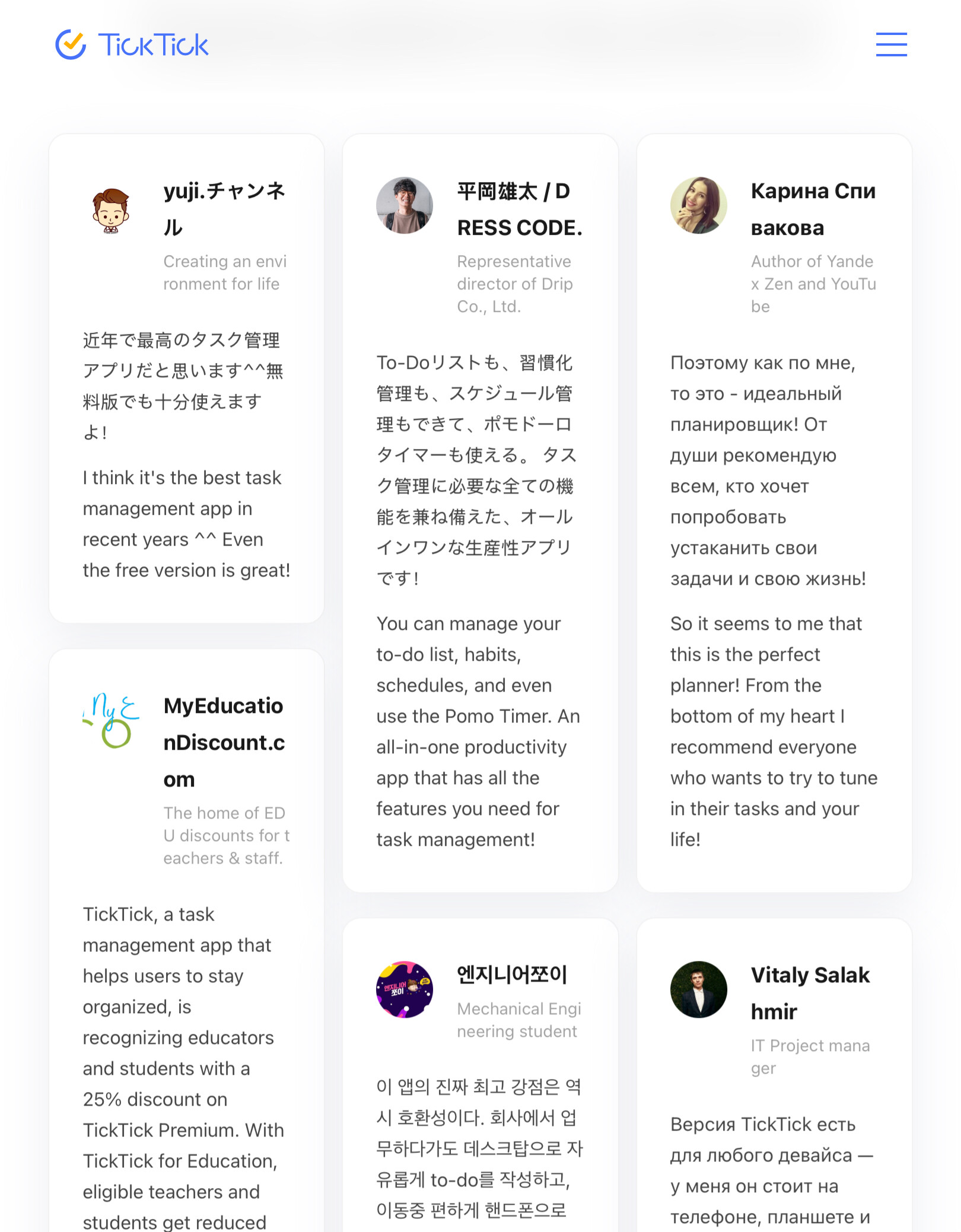
Odd (a concern) that most of the reviews are in Chinese or Russian (?)

MIckey, I looked throught the website and saw nothing that hinted at links to mainland China. What led you to this belief, if I may ask ?

I believe there is a companion Watch app that shows up when the app is installed on the phone, though you may have to install it manually if auto-install is turned off.

But Apple Watch is so limited, all it does is provide slightly better notification responses. Without a companion app, the only possible notification response is “Dismiss.”

1 Like

I tried this app out for a bit but stopped using it because I found it a bit overwhelming. Definitely very full featured and has everything I want in a task management app.

Really my only issue was that I have so many daily things that have to go into other programs, keeping my entire life in one place like this app encourages didn’t work as well for me.

I do see it recommended by a lot of entrepreneurs. I know MKBHD for example uses it. It sounds like a good fit for Adam, based on recent articles. I don’t think they are going anywhere, they’ve been around for a while and have seemed steady.

1 Like

I used the word potential, because it is still not 100% clear to me whether there are links to mainland China. The concern may be based on rumors only. I am still not sure after looking at this issue multiple times in the past few years. There are multiple discussions on the web generally and reddit particularly. See e.g., https://www.reddit.com/r/ticktick/comments/163itb1/is_ticktick_really_just_another_chinese_app/

If you’re looking for direct links, such as where a developer is domiciled or who has funded a company, to a particular country, then research using search engines and generative AI will give you a lot of information.

But indirect links, due to the common use of multiple layers of outsourcing by tech firms, large and small, and the current trend of countries under international sanctions using deception to place workers into remote jobs, can be difficult to discover. If you have legal or business reasons for ensuring software you use is completely free of connections to the PRC, social media and Internet message board detectives may not be the best sources to rely on…perhaps using software that is also used by federal government agencies or hiring a legal professional to do the research is the way to go.

I hadn’t looked into this before, but yes, there’s an Apple Watch app that lets you see your task lists and mark items as done. It doesn’t seem to include calendar events. You can also create tasks from the Watch app, but that’s way harder than using Siri.

1 Like

This snapshot of user reviews was why I questioned chinese or russian involvement (if I got the languages correct - the first 2 might be in japanses!):

Probably not a big issue for me as I don’t have commercial business in Reminders or to-do lists.

The first two are indeed Japanese. The third and sixth are written in Cyrillic script, which is most strongly associated with Russian but is also used for some other languages in the region, such as Ukranian; I’m not familiar enough with the languages to tell the difference without an analysis. That said, the third is most likely Russian, as the credential indicates that they wrote a book about, among other things, Yandex (the Russian Google). The fourth, obviously, is English, and the fifth is in Korean.

So no Chinese connections in this image, but two potential Russian connections. But you have to remember that, being reviews, these are users of the software, not people involved with its production or management. Given that it has users with a variety of languages, the languages of the reviews probably don’t mean anything with regard to the company.

1 Like

I just want to add that Chinese characters are used in many countries and by many people. The presence of Chinese characters does not necessarily indicate connections to the PRC. For example, one of the three main character sets used for writing in Japan is based on tradtional Chinese characters.

2 Likes

Yes. The same ideographs used by Chinese are part of Japanese (where they are called Kanji) and Korean (where they are called Hanja).

The easiest way to distinguish the three languages, is the presence of other characters in the text. Whereas Chinese text consists entirely of these characters, Japanese and Korean text also includes distinct phonetic characters.

Japanese text usually includes phonetic characters (Katakana and Hiragana, collectively referred to as Kana). These are pretty distinctive and are easy to recognize, even if you can’t read them.

Similarly, Korean text consists mostly (if not entirely) of phonetic characters (Hangul), which are also distinctive and easy to recognize.

Cyrillic alphabets are used by quite a lot of countries. And you’re right that it’s not usually easy to distinguish the languages if you can’t read it. But the languages don’t all use the exact same alphabet. So you can tell them apart if you know what to look for. For example (citing the Wikipedia page again):

Of note:

  • Russian doesn’t have “Ґ” (top row of the Ukrainian alphabet diagram) or “І” (first column, second row).
  • Ukranian doesn’t have “Ы” or “Э” characters (bottom row of the Russian alphabet diagram).

Keeping this in mind, the third comment is definitely Russian (it has a “Э” character). I can’t tell what the 6th is, because it isn’t using any characters unique to either language.

I decided to try TickTick for this but the persistence is nowhere near as persistent as Due. I get two notifications then nothing whereas Due will ping every 5 minutes. Am I missing something?

TickTick seems pretty good otherwise and pretty similar to Todoist. It’s a little cheaper than Todoist and I was hoping for it to replace Todoist and Due to save even more but it seems I’ll have to look at my phone more often if I want to avoid forgetting things.

I just set a task to constant reminders, and it’s pinging me every minute. TickTick isn’t as flexible as Due at letting you set intervals and whatnot, but it does seem to work.

You can snooze a constant reminder to get a brief reprieve without marking it as done.

Wait til you hit the sync problem. lots of discussion on Reddit and it happened to me. Reason i dropped it.

I want repeated tasks to have their future due instances adjusted to take into account the time of completion of the current instance rather than when it first became due. For example, if I’m two weeks late changing my oil, I don’t want my next reminder to appear after an interval that is two weeks shorter than what it was originally configured to be. In other words, I want my procrastination taken into account for future scheduling of repeated tasks. Is there a task manager that allows that adjustment method for repeated tasks automatically? Microsoft Entourage for classic macOS is the only one I have ever been able to configure to do that.

Both Cultured Code’s Things and Beehive’s 2Do have exactly this feature as an option for repeating/recurring tasks. They both call it repeat after completion .

Edit: And I see that TickTick will do it as well. It’s called repeat by completion date.

This is interesting to me. A decade ago, this was a very hard feature to come by!

That would be a bummer, though I haven’t noticed any syncing problems yet, other than the fact that archiving calendar events and rearranging items doesn’t seem to sync at all.

I’ve been exploring ToDo apps for a while. Here’s my notes on TickTick:

TickTick: Sound when cleared; Some Task views are hidden by default: Tomorrow, Next 7 Days, All. Show these by tapping on icon in bottom right and Showing them. Can turn on show Calendar Events in prefs. Connecting to CalDav tasks is a premium choice; can connect to local calendars free. Like Things 3, Task Lists are specific within the app. Tapping on Notification brings up dialogue for Clear Now; Downside: like others, it can take a long time for tasks to sync between devices. 20240618: Updated on iPad; went back to iPhone, it was already updated! When trying to preserve tasks by clearing the due date, etc. one can go into the list, such as Regular Intervals, and see what tasks have due dates. Once one of these is cleared, in order to see other tasks in same list that would be cleared, have to click on another list, then come back to the first list to see the due date and clear it. This is a never ending process until all due dates are cleared. Overdue tasks don’t add to the badge count. 20240721: On a regular basis, I’ll clear a task on one device, it won’t be cleared on another. Additionally, on a regular basis, the widget shows uncleared tasks. 20240728: Non-syncing between devices for many minutes has lead to leaving TickTick

2 Likes
