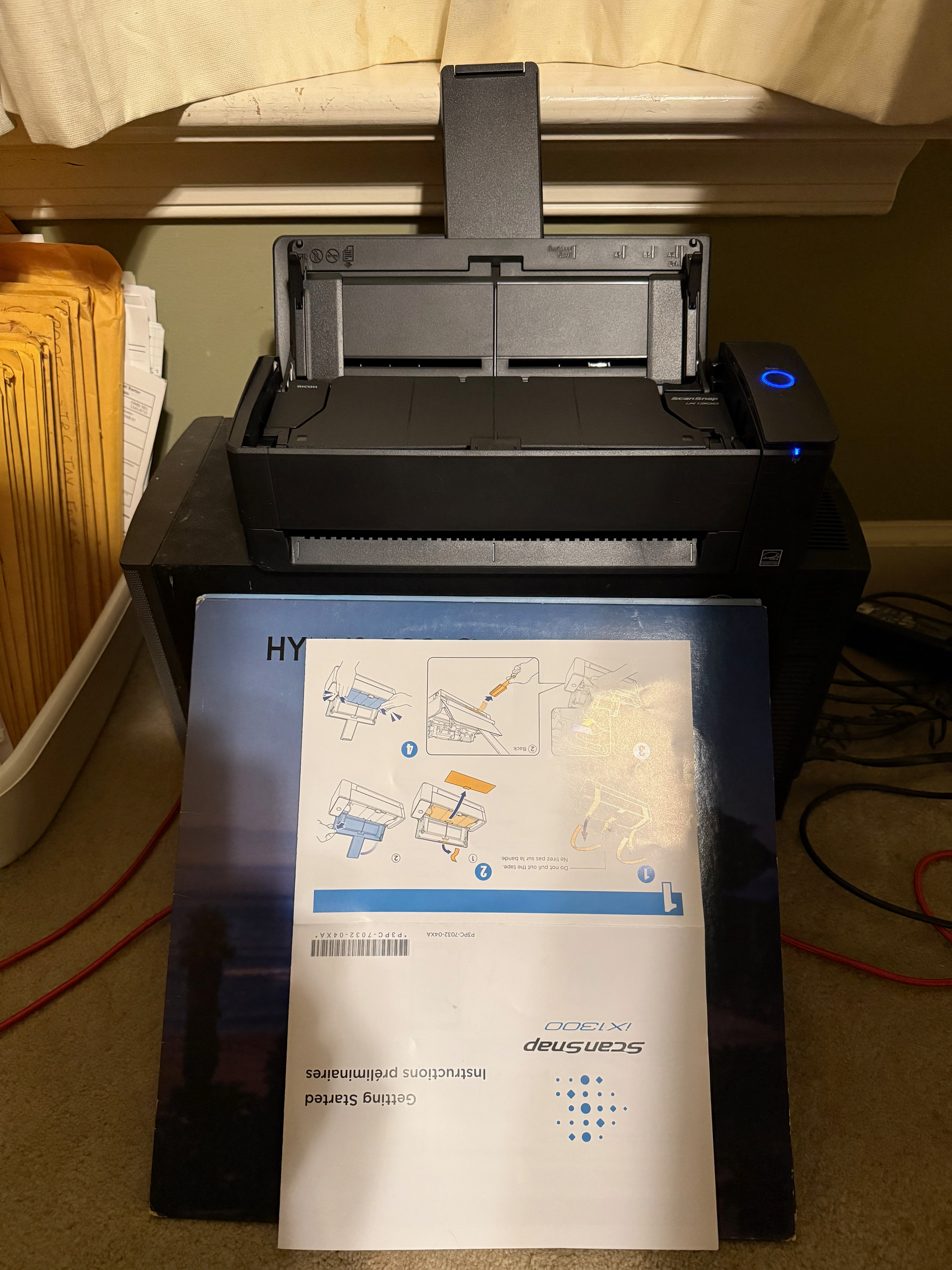
Well folks, you’ve been wonderful. Mid-yesterday I took the plunge and ordered the iX1300 from Amazon, and it arrived a couple hours ago A few quick observations:
it scans FAST. Wow. I didn’t think about how much time I would spend babysitting the old one. Even though it had a sheet feeder, multi-page scan would often require me tending to the feeding process to make sure things went in fairly straight, and didn’t get stuck, etc. I don’t know yet if I’ll have to do the same with this one. But at least the whole process will be much FASTER. saving me time. (video)
WiFi is nice. Besides having one less cable to juggle on this cluttered desktop computing setup, going WiFi frees up a precious USB-A port. I’m already using a mini-hub to break out my USB-C ports on my Mac mini to a bunch of USB-A ports; but they’re still all full, and I often have to unplug something to accommodate ad-hoc accessories. Well, now I have one free port
The U-turn scanning is great! I keep my scanner sitting somewhere that would leave a stack of scanned pages in a mess after going through the feeder. Go ahead and laugh, but I would lean an LP to provide an off-ramp to solve the problem. But now with U-turn scanning, that problem is solved!
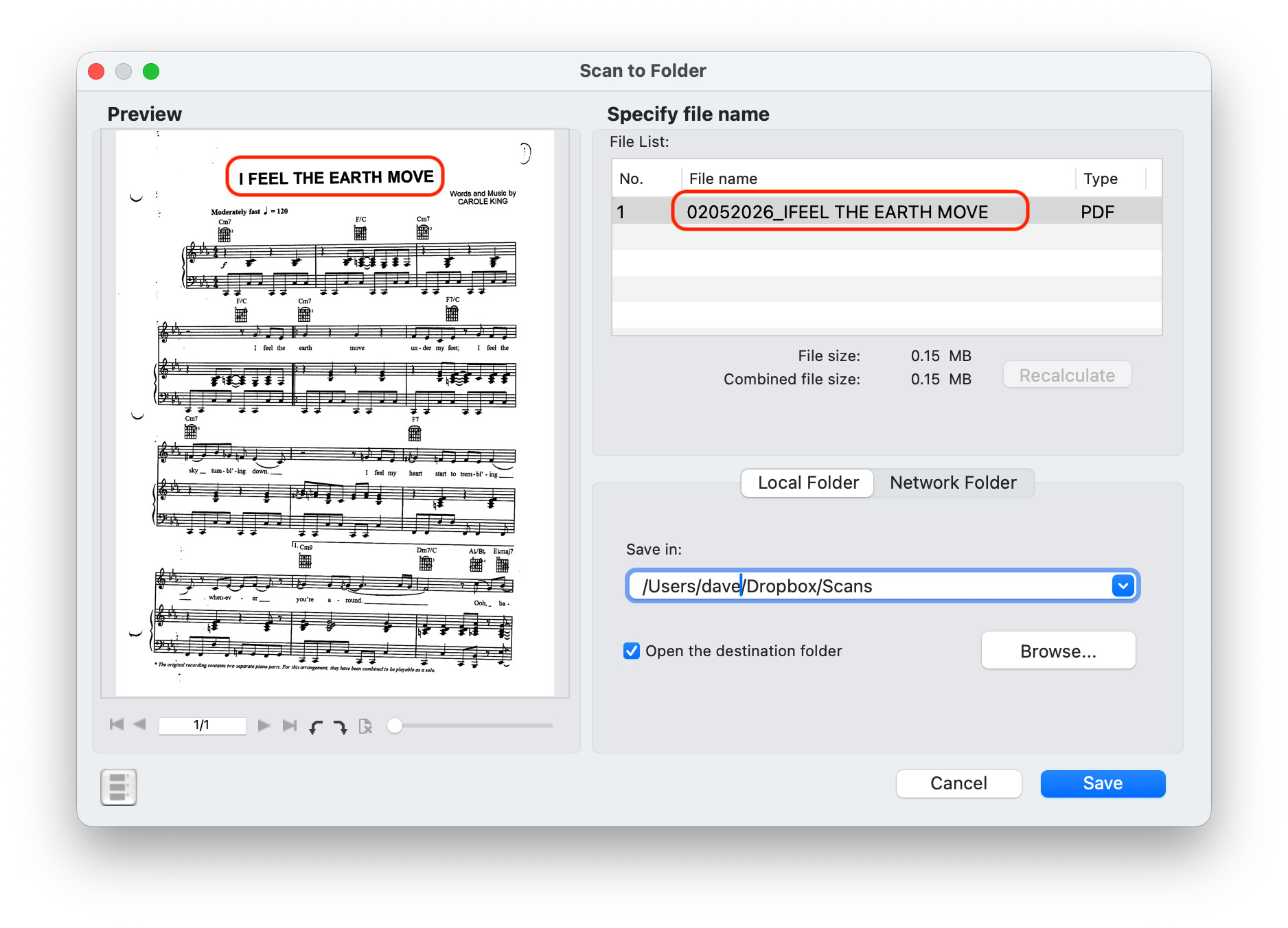
Document title becomes File Name - This is a nice touch! Given that you have OCR enabled, you can elect to have what appears to be the “title” of the scanned document become part of the resulting file name. There will be plenty of documents that I scan but won’t consider it worth my time to give a meaningful name to. I would have settled for the normal YYYY-MM-DD-HH-MM-SS.pdf format. But this alternative will make the folder in Finder much more navigable.
Ahh -:it needs to be installed as a “printer” in macOS settings. Likely it is not listed as an available driver and I doubt if a generic driver will work. Apologies for the false hopes.
Good to see the new scanner is working well for you.
Next cool iX1300 feature: Front Feeder (aka “Return Scan”)
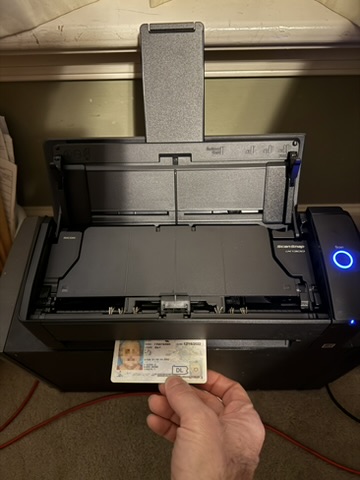
The S1300 had one way to feed docs, but this has two. I mentioned the U-turn, above. But thicker documents, like a drivers license, will not want to bend around the rollers. For that, you can use the Front Feeder. Stick the DL in and it scans flat and never tries to bend the document.
And to save you having to fetch it from around back, it automatically rolls the document back out front to you when it’s done, like ejecting a disk.
I can picture this also being useful for anything more likely to jam because the edges aren’t perfect.
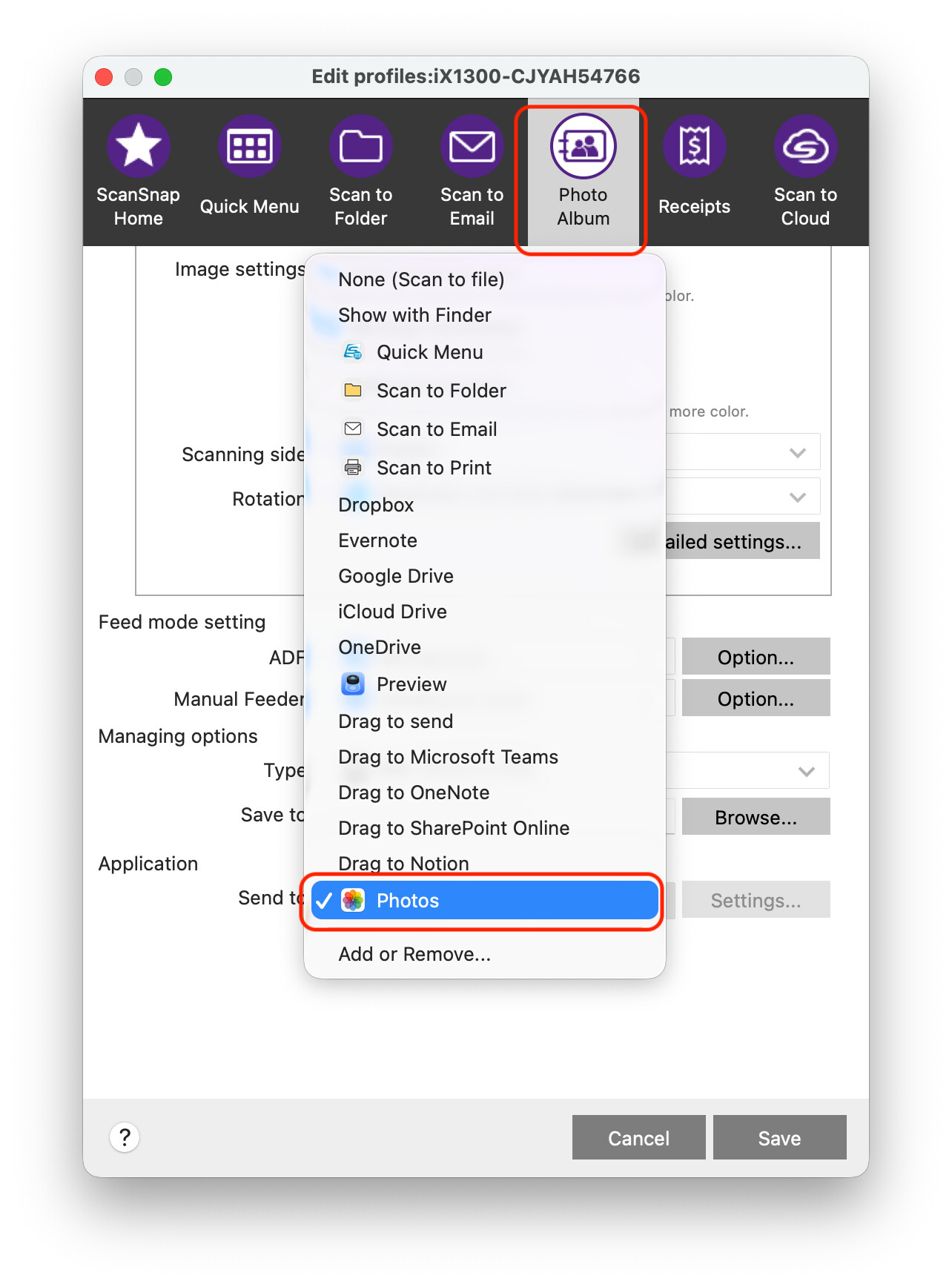
Well, after scanning the photo, the Send To options at the bottom of the window had all those lovely options available EXCEPT Photos! The only reason it appears there now is because I selected “Add or Remove…”, used the Finder to navigate to /Applications/Photos.app, and added it myself! After I did that, it imported a duplex scan to Photos just fine.
How could they omit this? It was standard in ScanSnap Manager. Maybe, like @bb1 mentioned, they have become less Mac-friendly. I hope that’s not a trend.
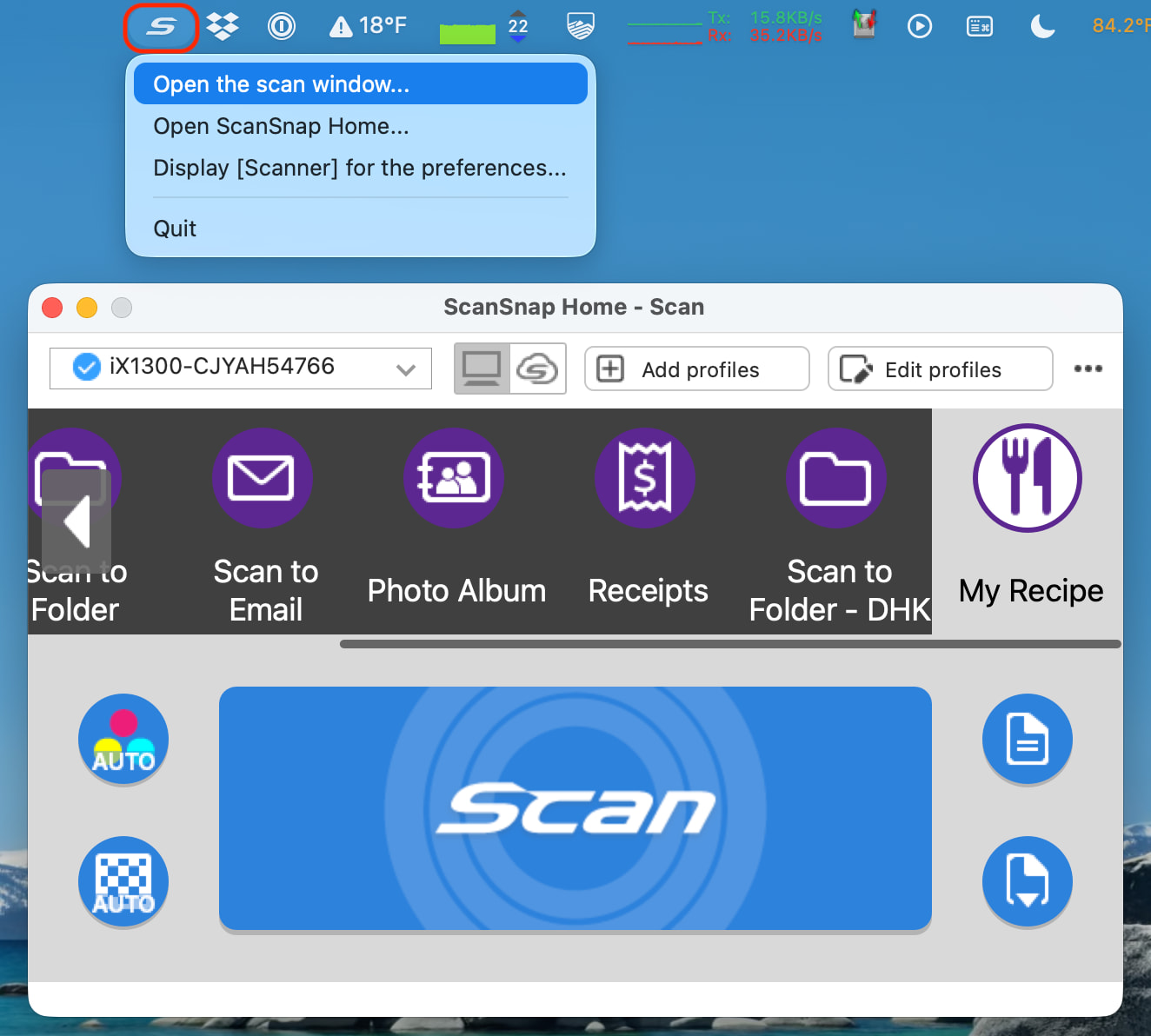
No way to put Profiles in the menu? If this is something I’m missing, please show me. The software puts a cute “S” menu, which is handy. But the main interface I need when scanning is to select the profile, which controls the quality, color, duplex, destination, etc. ScanSnap Manager used to make that available via the Dock icon popup. And this new “S” menu would appear to be the perfect place to let you add them; but there doesn’t seem to be any way to do it. Instead, you have to select “Open the scan window…” which reveals the window shown, and then scroll til you find the one you want and select it there.
Speaking of which, the “scan” window is small and not resizable. This screen shot is highly cropped. My Mac has a big screen, and you can see the profiles here have to be scrolled left < > right because there’s not enough room to show them. But God forbid they let us enlarge the screen!
And in general, I’m finding the interface confusing. ScanSnap Manager was a little quirky, but this is worse. You have 3 screens (apps?) to sift through to find what you’re looking for:
“Home” - this might be useful if you want them to manage your scanned files. If you want to save your files to a folder or cloud storage location of your choice, though, I’m getting the feeling this app is not necessary.
“Scan” - generally where you select and configure your Profiles, and initiate a scan, if you don’t feel like pressing the hardware button
“Settings” - I guess these are options that don’t belong in the other two places
I guess the trifurcation makes some sense. But it’s still confusing.
I have one of those! And an S1300. And a friend has an S1500M.
VueScan supports the scanner button, on his S1500M. It works great on the S1300 and the other one, too. Also an old Canon slide scanner and my old Canon flatbed scanners. It’s worth it, IMHO. If you buy a new scanner, ah, I see you are planning to do that… well, you may face the same problem pretty soon. Fuji was very unusual in its support lifetime, and Ricoh is not. I found Canon and Epson and the rest were lousy at long term support, but that was a decade or two ago, maybe things are better now.
You can cheaply buy a used S1300/S1500/etc on ebay from someone who gave up.
I’m using ScanSnap Manager 7.2 L70 to run an S1500M currently on Sonoma. It was a little bit of a challenge to get it to work when I first got my M1 MacBook Air. The installer is available in the wayback machine, although I saved a copy for future use. I believe this describes the process: Replacing ScanSnap Manager on MacOS - Max's Notes
I have a MacBook Neo on order, so this is an adventure to look forward to :)
I’ve not tried, yet. But this open source scanning software looks interesting. It’ll be a few weeks before I try it on my old S500M, and will post feedback then.
My concern for open source scanning is the issue of privacy. I scan many professional documents that are items of pastoral confidentiality and therefore have to be safely scanned with no access to any prying eyes.
Possible workaround: turn off your Mac’s Wi-Fi or disconnect its Ethernet cable before launching the scanning software. Quit the scanning software before reconnecting to the Internet. For extra security, store the scans in an encrypted disk image.
Alternative tactic: use Little Snitch or LuLu to block the scanning software from accessing the Internet.
Why would you assume that open source software is any more of a privacy risk than proprietary products? With open source, it’s at least possible for independent third parties to audit the code and the project’s maintainers a likely to at least look over code contributions and reject obviously privacy-invasive changes. With proprietary software, you’re reliant on the pinky-swear of the vendor regarding their privacy practices.
This thread has made me extremely grateful for the little 2012 MBP (Mojave) that runs my Fujitsu 1300i’s ScanSnap software. It only gets used once or twice a year, mainly at this time of year. It just works.
I’m still using a S510M with the Fujitsu software (would have to check version, but was last version before they rebranded it as Fujitsu Home and took away some features) running older macOS in a VM on an intel iMac (also need to check which version I landed on when home).
I posted about options here at Tidbits talk last year. I ended up using a VM on the iMac (which I keep around as a second screen using Luna Display and for software testing) vs the old 2012 MBA it had been running on bc the OCR was faster on the newer iMac even in a VM (using VMWare Fusion free). I also have a license for VueScan for some other photo scanners, but I’ve been happy with the ABBYY OCR and didn’t want to switch from something that was working for me.
Can’t remember if I tried using the S510M on an Apple Silicon mac, but would have wanted to avoid using Rosetta if possible.
 A few quick observations: