I got a remote camera recently to find out what animals are digging in our garden and how they’re getting in, and it records .mov or .mp4. I selected mp4 kind of randomly and am satisfied with its quality. When saving the video clips I like to check them in Quick Look and then trash or rename and save.
Alas Quick Look is not playing them with select file > spacebar (or in Finder column view, which might well be a variation of Quick Look). Online posts I found shows this a concern for several years on various Macs and OSes. I tried a couple solutions listed but they didn’t work. Opening them in QuickTime or other apps opens a new window for every video at full screen width, so it’s a bit of a bother and lots of clicking and dragging, especially when reviewing dozens of video clips from the microSD card.
.avi files from another camera play in Quick Look, as do .mov and .mp4s I’ve rec’d by email and screen videos I’ve made on iPhone. File extensions of the latter are the same, Kind in Finder column view are the same, as the videos from the new camera. Maybe they’re not really .mp4, but just labelled that way? hm.
If anyone’s experienced this and found a solution, would appreciate a note. macOS 26.4 in use.
All of these video formats are “container” formats. An .mp4, .mov, .avi file (or most other modern media files) may contain data in a wide variety of different CODECs.
The fact that some files play in QuickLook and some do not is because they are encoded with different CODECs, some of which are supported by QuickLook and some are not.
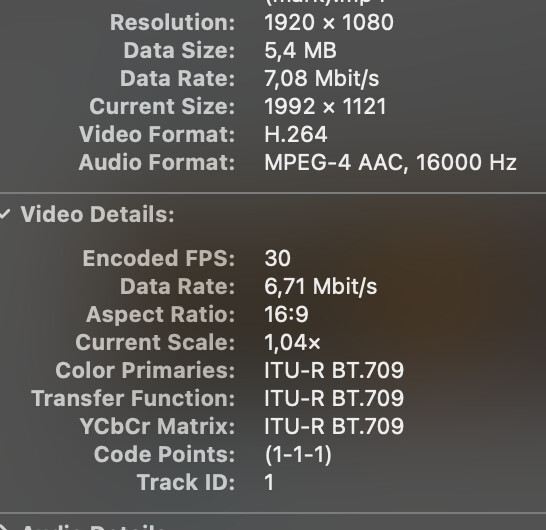
If you want to see what CODEC is used, you can open the video in a compatible player and use that player’s interface to see what’s in there. For example, if I open an MP4 file with QuickTime and type CMD-I to bring up the inspector, I see:
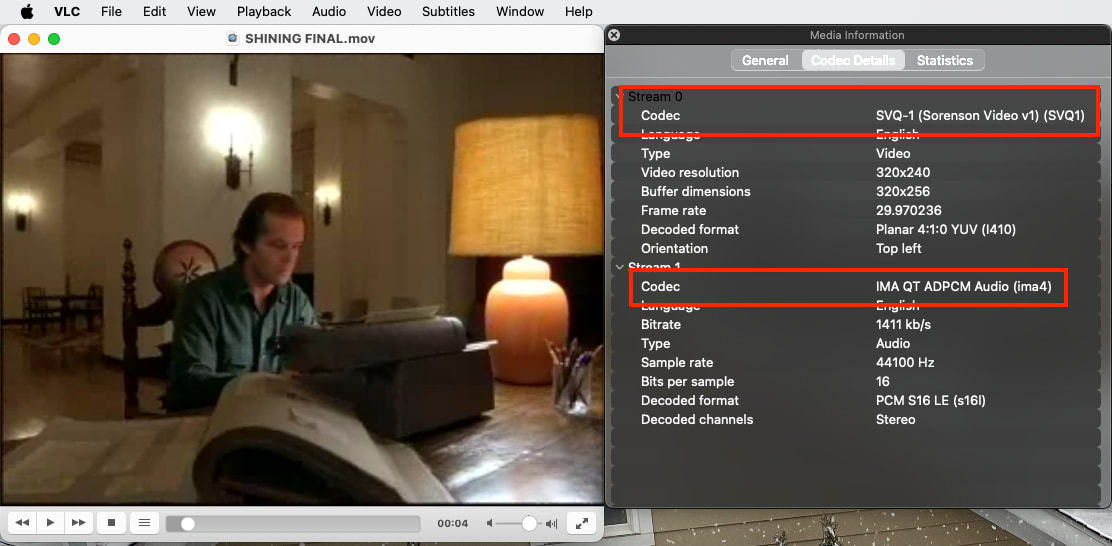
Here’s another file, incompatible with the current QuickTime Player, but playable via VLC Media Player, provides this information via its media information window (also CMD-I):
You will find that files using older CODECs are simply not compatible with QuickTime Player anymore. They were compatible in the past, but at some point, Apple redesigned the QuickTime APIs and did not port all of the old CODECs to the new system, resulting in lots of old video files that can only be played with third-party software, like VLC.
I have a camera that encodes poorly (the time stamp says 47 minutes, when it is 30 seconds) and I run them through Handbrake to clean them up. Then they play OK.
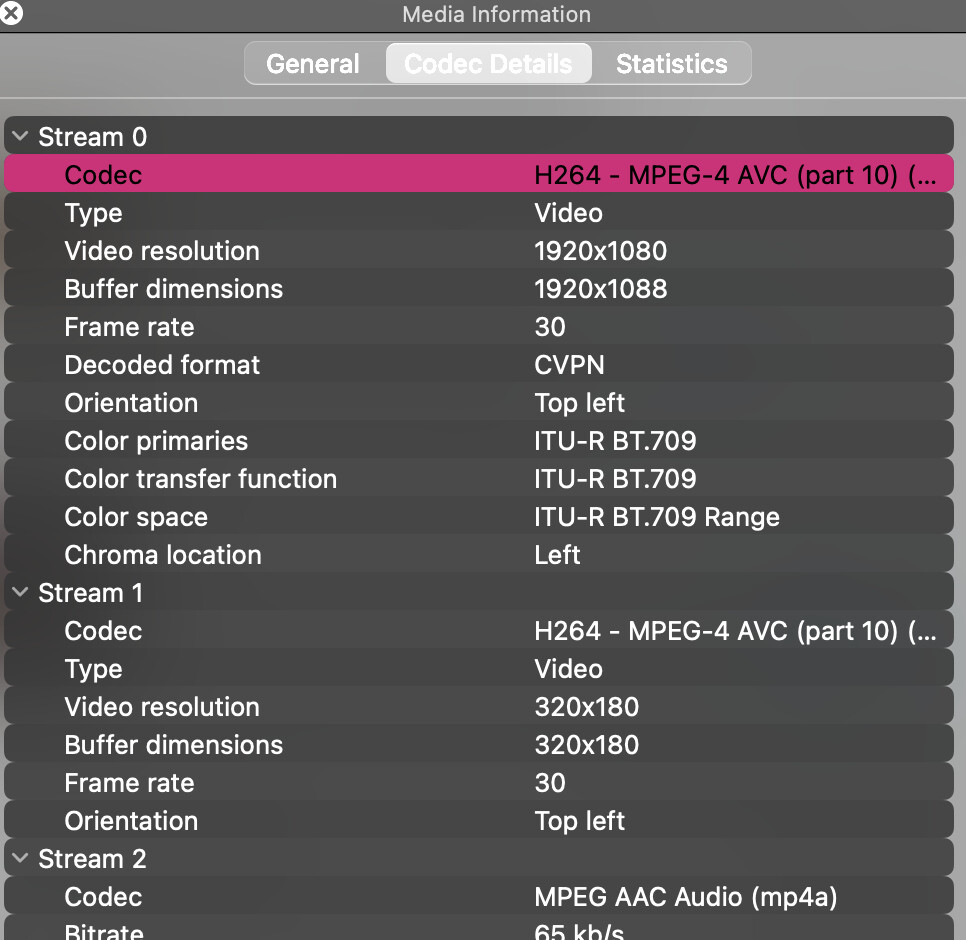
VLC (maybe I need to update)’s Inspector was not resizable and seemed to float or something, I couldn’t get it to be on the screen with QuickTime Player at the same time for one screenshot:
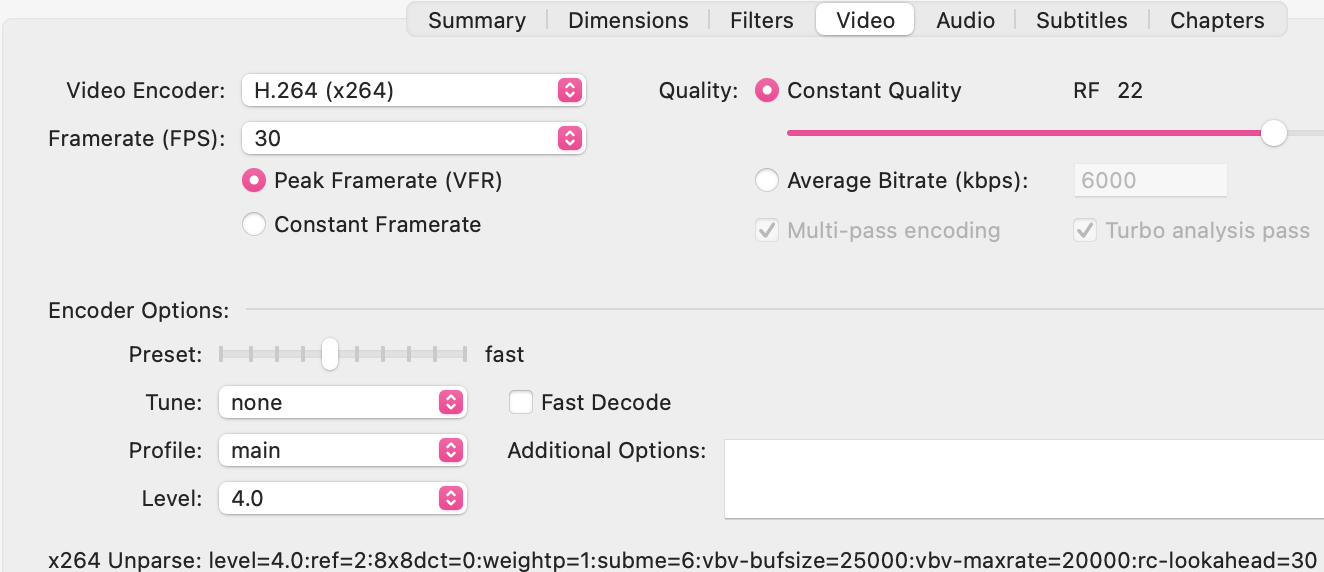
Thanks @raykloss that works! I used the settings in the post above on the file and now it plays in Quick Look. (I must be hungry, at first I typed Quiche Look…).
So I suppose I can batch process a bunch of these in Handbrake when I’ve saved them to the Mac, then do my procedure with Quick Look.
Interesting. H.264 is a very modern CODEC. macOS shouldn’t have a problem playing or previewing it.
But I noticed that VLC shows two video streams in the file. A normal 1080p stream and a low resolution (320x180) stream. I wonder what the second is. Captions, maybe? But that may be why QuickLook can’t handle it.
Hm, interesting idea, there is a bar across the bottom of the videos showing temperature and date, maybe thats it!
Maybe this weekend I’ll take the chip out again and see what was captured, maybe try out the Handbrake conversion step… I’ll update when I have a solution.
had a couple hundred new videos (beginner’s mistake: shrub in view, windy weather, forgot to re-aim) and tried to process a batch in Handbrake but couldn’t find a way to process and rename. Kept getting a message about ‘filename already at destination’ or something.
Setting aside for now. Got a click-drag-keyboard flow that was effective. Spot checked the back to back recordings referencing time and mass deleted the ones with waving foliage.
David, along the bottom of the Handbrake window you’ll see the destination of the converted files. You have to set up a different one than the original file’s location.
Extra data point just found: I changed the garden cam’s settings to record in .mov format, Finder still won’t QuickLook them. Then I browsed the same files with GraphicConverter12 and they QuickLook there, so that app is going to be my go-to for reviewing/renaming both videos and photos going forward (I owe TBT an update on a Topic about bulk file renaming…)