I know I used SoundJam Pro (by late, greats Cassidy & Green), which was purchased by Apple and became the core of iTunes.
I do remember SoundJam but I don’t think I had it as it’s not on my old system but the one I do have is Audion my Panic Software but I rarely used it as iTunes was so much better at the time.
It was both SoundJam and more to the point, its programmer, Jeff Robbin. Good guy, and a friend from back in the old days. He was the reason I met Steve Jobs for the second time—I ran into Jeff while he was walking around the Macworld Expo floor with Steve. Jeff remained in charge of iTunes for a while, but I haven’t kept up with what he does at Apple anymore.
When converting my iTunes library to Apple Music I did notice a few strange things.
I did not have the media files (they were in storage) yet Music was able to create a Music Library using only the metadata.
However some playlists had the track info and no media. I discovered a bug I think. In iTunes, Apple used a folder for COMPILATIONS for sings part of collections of Various Artists. For example, an album Best of the Sixties would have all the songs media in Compilations. Compilation dies with iTunes
The media stored in Compilations is not added automatically when Music does its conversion. You must manually import the contents of Compilations.
I used an iPhone app called SongShift to transfer Spotify Playlists to Apple Music. Super fast with a subscription.
I discovered the Compilations bug using a Mac library management software called Tune Sweeper from WideAngle Software.
Finds duplicates, finds songs with missing media, finds missing media on your system and adds the media to the library, finds Album Art and adds it.
I also needed to use an MP3 tag editor to find and add artists. I had a few hundred songs where the artist name was in the title field but not the artist field. I used MP3 Tag to fix that. Once the artist field was correct it was easy for Music or Tune Sweeper to retrieve the rest of the data from IMDB.
I feel finally like my complete iTunes library with hundreds of songs I ripped that are not in Apple’s library are back and available.
Interesting to note that mp3 media files don’t take up a lot of storage space on my drive. Each song is kilobytes, so 1 GB on a 1TB drive holds them all.
It’s still there, but it moved. If you click on Artists in your library, Compilations is at the top of the list.
The Compilations “artist” contains all tracks where the “Album is a compilation of songs by various artists” box is checked, grouped by album name.
Additionally, the Songs view, when sorted by “Album by Artist”, puts compilations at the end of the list (after “Z” artists). This is a change. In iTunes, this view would sort them as if the album artist was “Various”.
Apple did get rid of the “Purchased” playlist. This playlist was created by iTunes after your first Store purchase, and it contained all purchased music. It was a normal playlist - you could drag tracks in/out of it. After upgrading to Music, it went away. I replaced it with a smart playlist that looks for purchased/protected songs:
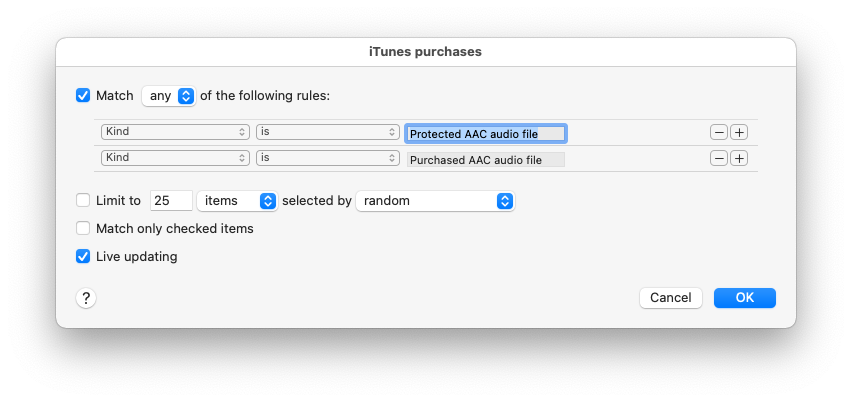
I also created similar smart playlists for Amazon and Warner Music purchases. This works because Amazon and Warner each put text in the “Comments” field identifying the source, which I filter on.
A song with a 128K bit-rate (not considered particularly high quality these days) consumes about 1MB per minute of stereo audio.
If each of your songs’ sizes are KB, not MB, then they’re either very short songs or you’ve compressed the data down to a very low bit-rate. But if you’re satisfied with the audio quality, I won’t try telling you to change anything.
FWIW, my music library is 14,678 tracks (47 days, 1:04:50 total play time), consuming 76.67 GB. They come from a variety of sources (mostly ripped from CDs to 128 Kbit/s VBR AAC format) and therefore have a variety of different encodings, but the totals translate to an average track size of 5.22 MB, an average length of 4.6 minutes, and an average bit-rate of 150 Kbit/s.
As David already mentioned, Compilations did not disappear as I did try Music some time ago and it imported all of my tracks from an iTunes database with no issues. But all my music is ripped from my CD’s or digitized records/tapes so if you have purchased music, that could be another issue.
If the metadata was correct when CD’s were imported, then it should all come over fine in Music. I always check what Gracenote imports and make changes before I rip the CD so it is to my liking especially with some so called compilations that are not really depending on one’s definition. Also, if you imported music with another program such as XLD, that uses a different database such as FreeDB or MusicBrainz which might not match what iTunes/Music gives you with Gracenote so that could be another issue.
Years ago, I did try some programs that found album art but it was a mixed bag as to quality although the programs usually found the correct art covers. So I just decided to do that myself as I can look for the best ones and edit if needed as to file size or off center art.
Your file sizes seem small for mp3’s. I’ve always used a fixed bit rate of 192 kbps so for songs between 2-5 minutes, the file sizes are around 3-7 MB depending on the track. Nevertheless, around 35,000 tracks takes up nearly 230 GB so I can keep most of my music on my 256 GB iPhone. Using AAC, I could probably fit it all depending on bit rate but it’s not worth the time to redo all of that.
one more issue: i assume i need to do the same thing with the teevee (aka tv) app to move my movies to the same external disk? also the symlink trick referenced elsewhere to move its database?
hopefully that’s everything. i don’t do podcasts. what else did itunes manage before it got split up?
Thank you so much for the clarifications. I need to do more trrsearch.
I had many playlists created by using grouping in iTunes. The name of the playlists and the combo album art next to the title were present. The individual tracks however were missing. The track lists were empty.
As I said my iTunes music library was used to create the new library in Music without any media, since the media was on a server in storage when I moved outside the US.
It was on a 1tTB RAID server because i did not have enough free space on my HD for the media files.
So I need to see where my new Music Library is storing the media. Because my internal 1TB SSD is pretty full already.
I do know that using Tune Sweeper helped, manually importing everything from Compilations helped, (they were not rejected as duplicates upon import), and finding all my Django Reinhardt tracks with missing artist name in the tags and fixing that helped. They were all in Unknown Artist.
In any case, most of my library playlists look as I remember them. In addition, I was able to transfer all my Spotify playlist to Apple Music using an iPhone app designed for moving playlists.
When I put the server in storage, i transferred the metadata to Spotify and it made playlists using whatever songs it had in its library.
I haven’t really looked at Classical music to see how that transferred over.
Later today I will explore where all my media files are being stored on my MacBook.
My earlier post about file MB size was pure conjecture based on the fact I didn’t believe I had 100 GB free space on my internal SSD. Everything I ripped was encoded at a high bit rate but not the highest.
I falsely believed Apple Music was doing some magic in how it stored media.
All your detailed information was extremely helpful and not easily available from Apple.
I repost if I find something strange….but in my case recovering all my playlists and media was not simple, probably because it wasn’t all done at once and on the same Mac.
The transition to Catalina split iTunes into Music, Apple TV, Books and Podcasts.
We already talked about music.
It appears that Apple TV is similar. There is a Preferences → Files screen, you can select a media folder location. And there is a File → Library → Organize Library… menu you can use to consolidate the video library (which will copy all media files to the media folder specified in the preferences.
I don’t know where Books is storing the books. It’s not a configurable location and there doesn’t seem to be a way to do a “get info” on a book that will show you its actual location on your Mac. If they are taking up too much space, you have two options:
- If they are books you downloaded from Apple, you can delete them. A cloud icon will appear next to these books. You can re-download them later if you want to read them (assuming they are still available from the Store at that time)
- You can drag/drop the books to a Finder folder. Books from the Apple Store show up as epub files. I’m not sure if anything other than Books can read them, but at least you’ll have a backup copy. Books you manually imported (e.g. PDFs) will copy out as the original files you imported. You can then delete the original from Books to free space wherever they are stored.
The Podcasts app also doesn’t let you see where anything is stored. And even more annoying, it doesn’t seem to give you a way to copy the underlying MP3 files elsewhere. Attempts to “share” podcasts just shares a URL to an Apple server.
You can delete podcast episodes, but you won’t be able to re-download them if they are removed from the server. Podcasts tend to delete old episodes over time. Some may keep eposides for several years, while others may only retain the most recent 10-20 episodes.
FWIW, I switched to third-party podcast apps a while ago, so this is no longer a concern of mine. Today, I’m using Mimir. It has a preference to configure where it stores downloaded episodes. The default is to per-feed folders within ~/Downloads/Podcasts.
See also Move or Manage the Music, Apple TV, and Podcasts Libraries. They propose a different way (which I don’t like) for moving your music and movies, but it’s still a good article.
Can you get access to that server (or a copy of it) now? If so, you might want to try repeating the import process with it connected.
Connect its storage (your RAID server). Then launch Music while holding down Option. Select the “Choose Library” button and select you iTunes library file (with a .itl file extension). Music will import that library, creating a new Music library database. It may work correctly if your music files are on-line while the import is running.
I had to do this when I upgraded my 2011 Mac (running Sierra) to a 2018 Mac (running Catalina). Because my music was not stored on the boot volume, the account migration failed (in a variety of ways). I did a drag/drop copy of the music from a backup (along with the rest of my home directory), deleted the (empty) Music library and then re-imported the iTunes library to get everything back.
2 Likes
david: thanks for the sanity check and help. much appreciated.
I’m wondering if you use iCloud since you said the media was on a server because then when you made the new library, it might have downloaded the files that way. Since I don’t use iCloud, I can’t say with certainty. Otherwise, those music files are somewhere on your SSD. Hope you find it all.
In Catalina, books are kept in:
~/Library/Containers/com.AppleBKAgentService/Data/iBooks/Books/
In Sierra, the books are in:
~/Library/Containers/com.AppleBKAgentService/Data/Documents/iBooks/Books/
In both, the filenames are hashed. If you get info it will show you the cover image if there is one, but not cough up the title or other metadata that’s in the file. If you copy the file from Book/iBooks app, the metadata shows up again in the Finder Get Info.
DRM on books downloaded from apple’s bookstore depends on the publisher. A few publishers such as TOR tell apple not to apply drm, some publishers are hit and miss, most? publishers are always drm. The bookstore page sometimes discloses if a book is drm-free, but I suspect not always. Once you buy the book, even if there’s no drm at all, apple’s metadata says that it’s protected with Apple DRM, though I can’t off hand remember how I got that to show up.
I’d assume that podcasts are kept in a similar container file. No idea how they might mangle it, or if they apply drm sometimes.
2 Likes
Powertunes might be able to sort out the mess of music library management:
https://fatcatsoftware.com/powertunes/
It works for iTunes under Mojave. Unfortunately the developer found the move to Catalina etc was just too much:
https://www.fatcatsoftware.com/comments/powertunes_is_being_discontinued
Thanks for that tip (I corrected the location in the above quote). It provided enough information to answer your questions.
Big Sur uses the same location. Within that location, the file Books.plist describes where each book is located. It’s a binary property list file. You can open it in Xcode. You can also use Quick Look to view it (press SPACE from the Finder). This contains metadata for the books, including the file location. Look for the itemName key for the book’s name and the path key to find its location.
For example, here’s an excerpt from mine (generated by loading the file into XCode and then exporting as an XML-format PList):
<?xml version="1.0" encoding="UTF-8"?>
<!DOCTYPE plist PUBLIC "-//Apple//DTD PLIST 1.0//EN" "http://www.apple.com/DTDs/PropertyList-1.0.dtd">
<plist version="1.0">
<dict>
    ...
    <key>Books</key>
    <array>
        ...
        <dict>
            ...
            <key>itemName</key>
            <string>Star Wars: Lost Tribe of the Sith #1: Precipice</string>
            ...
            <key>path</key>
            <string>/Users/user1/Library/Containers/com.apple.BKAgentService/Data/Documents/iBooks/Books/423822697.epub</string>
        </dict>
        ...
        <dict>
            ...
            <key>itemName</key>
            <string>Video</string>
            <key>path</key>
            <string>/Users/user1/Library/Mobile Documents/iCloud~com~apple~iBooks/Documents/Video.pdf</string>
            ...
        </dict>
    ...
There a lot more metadata per book than this, so you may have to scroll a bit to find what you want, but as you can see from the keys I presented above:
-
Star Wars: Lost Tribe of the Sith #1: Precipice (a book purchased from Apple) is stored in the BKAgentService container and is named 423822697.epub.
I confirmed this by unpacking the file. ePub books are actually zip files. I copied this one to a folder on my desktop and then unzipped it to view the contents. It includes HTML files, including referenced CSS, fonts and images.
This specific book is DRM-protected, so the content is encrypted (along with a
META-INF/sinf.xmlfile containing FairPlay data - which I assume to be an encrypted per-document key that can be unlocked using my Apple ID and an Apple server).Non-protected books, like those I downloaded from Project Gutenberg, have the same format (but without the FairPlay file) and the contents are not encrypted.
-
Video is a PDF I created (a report from a FileMaker database tracking the movies I own). It is not stored in the BKAgentService container, but is instead in
~/Library/Mobile Documents/iCloud~com~apple~iBooks/Documents.All of the books I added by manually importing them from files on my Mac (including Project Gutenberg ePub files) appear to be placed this directory, using their original filenames.
1 Like
jk2gs
Just to advise I have successfully installed Big Sur and used Retroactive to install iTunes 12.9.5 and it seems to be running without a hitch. Before the upgrade, I used the “move music library” method described in this thread to move all my iTunes media files to a NAS drive, leaving the contents Music > iTunes in place (e.g., iTunes Library.itl, and Album Artwork folder). After installing iTunes it came up just like I left it before the media move and Big Sur upgrade - all my playlists and Smart Playlists, etc.
So thanks again for the pointer to Retroactive !! I’m a happy camper in my new campground.
Cheers
1 Like
Jeff, that’s great to hear that it went well. I’m stuck on Catalina due to my 2012 Mini although I’m experimenting with newer OS’s using virtualization which does work although slower for sure. I still love the old iTunes 10.7 CoverFlow version so I’ve stayed with that. With the many complaints about the Music app, it’s reassuring that the Retroactive app can get you back to the old iTunes versions assuming you have your media folder database and .itl file just in case for playlist info, ratings etc. (which is why everyone needs backups).
I did reply to you but for some reason, it didn’t show your ID so again, I’m glad it worked out and hopefully this will help others in the same predicament.