Originally published at: Make Finder Window Columns Resize to Fit Filenames - TidBITS
Thanks to John Gruber of Daring Fireball for alerting me to an option in the Finder that I’d never previously encountered: the ability to have column view adjust the width of columns to fit the longest visible filename. I’ve been using it only for a few days, but I’m already a big fan. (Blogosphere assists in uncovering this feature come from Jeff Johnson, Michael Tsai, and DifferentDan.)
Enabling Auto-Resize in macOS Old and New
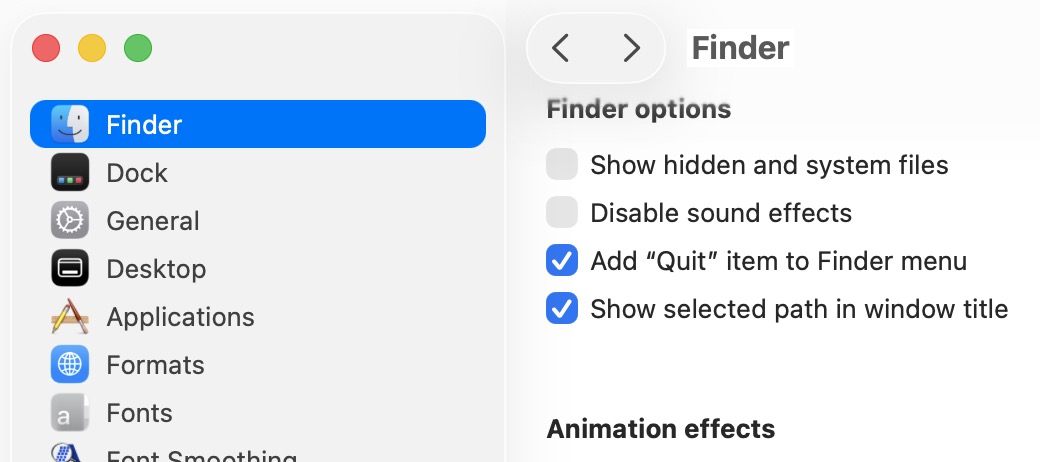
Although Apple exposed this option in macOS 26 Tahoe for the first time, it has been available in previous versions of macOS for some time via a defaults write command or Marcel Bresink’s free TinkerTool utility, which provides a graphical interface to numerous hidden preference settings in macOS. (That link points to the current TinkerTool 11.4, which is for Tahoe. If you’re running macOS 13 Ventura, macOS 14 Sonoma, or macOS 15 Sequoia, make sure to get TinkerTool 10 instead.)
Before I dive into this feature in the context of Tahoe, here’s how those running earlier versions of macOS can enable it from the command line in Terminal. To reverse the setting, change the YES to NO. I don’t know how far back it goes.
defaults write com.apple.finder _FXEnableColumnAutoSizing -bool YES; killall Finder
Alternatively, in TinkerTool, select “Automatically adapt to file name widths in column mode.”

In macOS 26.1 Tahoe, Apple added this column view option as a checkbox in the View Options window, accessible in the Finder via View > Show View Options. This window can be a bit confusing because it reflects and (to an extent) operates on the frontmost window open in the Finder, so it changes radically depending on whether the window uses icon, list, column, or gallery view (shown in order below). Plus, some options, such as Show Library Folder, appear only when the window is displaying a particular folder (the Home folder, in this case).

As shown above, when you open View Options for a window in column view, a new checkbox labeled “Resize columns to fit filenames” appears. Select it, and every window in column view automatically resizes its columns to fit (almost) the longest filename. In the screenshot below, you can see the difference between a window where each column is the same default width (top) and the same window after selecting the “Resize columns” checkbox (bottom).

Oddities and Limitations
You may have noticed my waffling “almost” parenthetical above. As you can see in the lower screenshot, I have a file whose extremely long name is still truncated after I selected “Resize columns.” (In fact, there are two files in that folder with truncated names.) Apparently, Apple’s engineers couldn’t bring themselves to expand columns beyond a certain point. That’s not entirely unreasonable—macOS filenames can be up to 256 characters long, and expanding a window to accommodate such a filename would render column view much less usable.
There’s another caveat, as Gruber notes:
Also, it’s an obvious shortcoming that the feature only adjusts columns to the size of the longest currently visible filename. If you scroll down in a column and get to a filename that is too long to fit, nothing happens. It just doesn’t fit.
It’s not quite “currently visible,” since the column will resize appropriately for long-named items that are one or two items outside the current view, but I think I understand why the feature works this way.
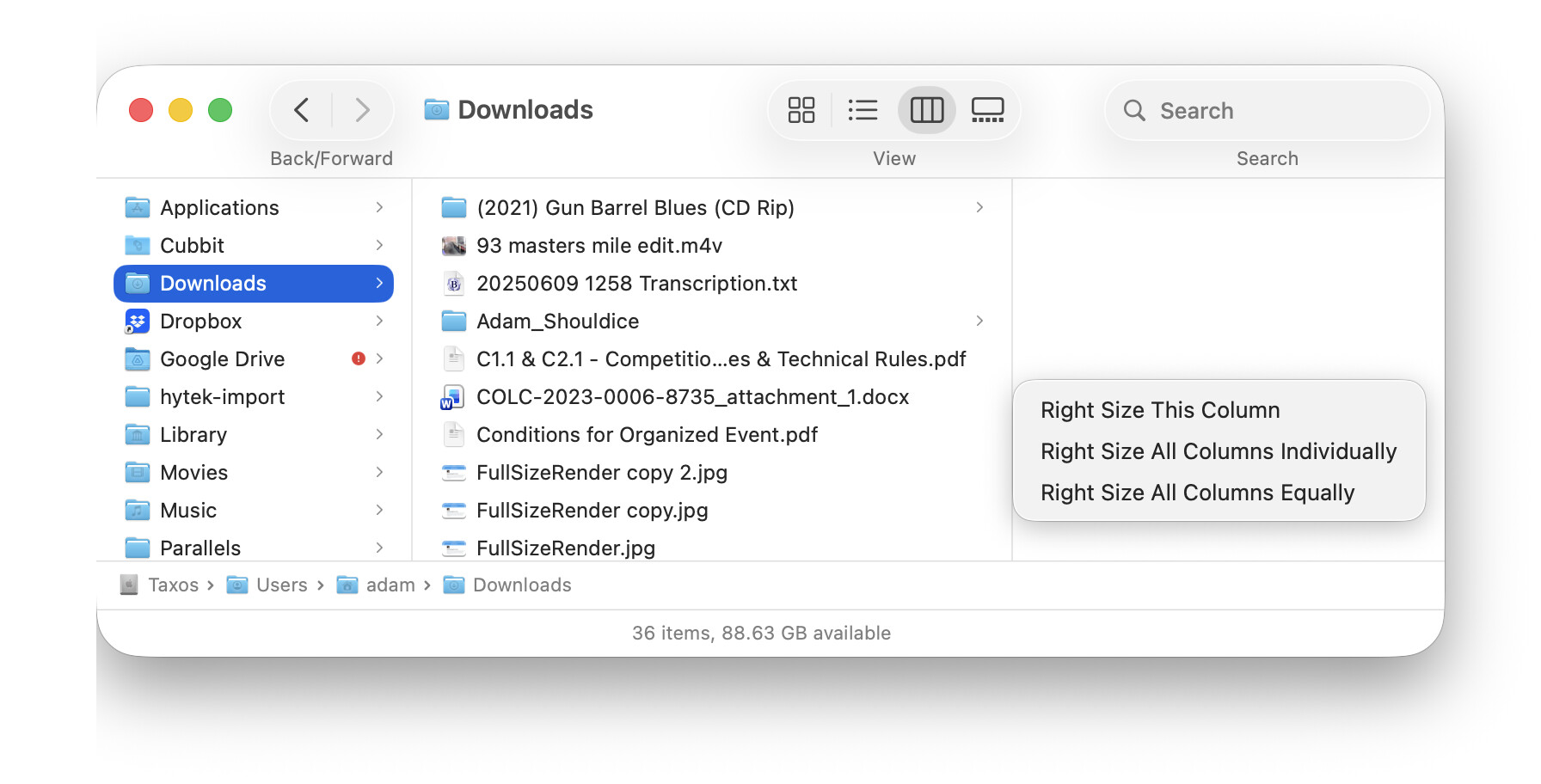
You have long been able to drag a column divider manually to expand it enough to read a heavily truncated filename, and if you Control-click a column divider, you can choose from Right Size This Column, Right Size All Columns Individually, and Right Size All Columns Equally. Even better, double-clicking a column divider right-sizes that column, and Option-double-clicking any column divider is the same as choosing Right Size All Columns Individually. That command has no limit on column width, and it too expands columns only enough to display the currently visible items without truncation. This approach makes perfect sense, since the user is invoking the command to adjust what they’re looking at.
However, when “Resize columns” is working globally on all column-view windows, limiting column expansion to the visible items makes less sense. As you click through folders, each new column shows the items that sort to the top of the list first, so the column width adjusts based on those top-sorted items—not what you might scroll down to see. Although it’s not unreasonable for Apple to reuse the Right Size All Columns Individually code, browsing users are as likely to scroll down as not, at which point they may encounter truncated filenames.
I think Apple is trying to thread the needle between a global feature that works automatically and one that users can trigger on demand. When applied globally, it makes some sense to tread carefully around unknown extremes; when invoked manually, it should just do what the user expects. In addition, perhaps most folders contain few enough items that expanding beyond the currently visible names would be an edge case.
Gruber also bemoans the fact that the column-resizing feature both expands and shrinks columns, saying that it “looks a bit higgledy-piggledy that every column is a different width.” I prefer the narrow columns because they let me see more of the hierarchy in a single horizontal view—“higgledy-piggledy” is unavoidable when columns resize in any way.
Quick Summary
If all this has seemed like a lot, here’s what you can do with resizing Finder window columns:
- Drag column dividers to resize columns temporarily.
- Control-click a column divider and choose one of the Right Size commands to temporarily adjust the size of the current column, all columns individually, or all columns equally, based on the longest currently visible filename.
- Double-click a column divider to temporarily right-size that column, or Option-double-click a column divider to resize all columns individually based on the longest currently visible filename.
- If you prefer columns that always resize to show nearly the longest currently visible filename, select the “Resize columns to fit filenames” checkbox in View > Show View Options in Tahoe. In previous versions of macOS, enable that setting with the
defaults writecommand described above or TinkerTool.
 this feature will turn up for list view as well as I tend to give files, ahem, descriptive filenames. Oh, wait! I just went back to List view and double clicked the column divider at the top of the list and it expanded to longest filename. Whooops!



 Respectfully!