Lately I’ve started having crashes when running memory hungry apps like Otter.ai in Firefox, and am thinking about my 2018 MacMini desktop with 16 Gig of memory and 500 Gig of storage. Storage on the Mini is very short; it has 451 Gig in the data volume, 22.6 Gig on other volumes, and only 25.5 Gig Free. Over the years I have moved 354 Gig of data files (archives and music) to an external 1000 Gig drive. I also have 6 Gig in iCloud which is mainly to transfer back and forth to an 2017 Macbook Air.
I’m trying to sort out my options. I need a desktop for its large screen and comfortable keyboard. I have been happy with the Mini design and price, but I’m not sure what configuration would be best. Do I need more than 16 gig of memory? I have seen a late-2024 Mini with 24 Gig memory and 1000 Gig of storage. Or would I do better with a 500 Gig mini and an external drive with storage of 1000 Gbit or higher? Or do you have any other suggestions.
But note that if portability is desirable, you can get a laptop and a USB docking station to hook up a display, keyboard and mouse. Whether you think that configuration is worth the extra expense is entirely up to you and your budget.
First off, I’d definitely go for an M4 system. Unless you know you’ll need the extra capacity, I think an M4 Pro won’t be necessary.
Since internal RAM and storage are not expandable, get as much as you can afford.
Since you probably can’t afford a maxed-out model, my suggestion is:
If you have to choose between RAM and storage, give priority to RAM, because you can connect an external SSD for more storage, and you can’t expand RAM at all.
That having been said, the base 16 GB RAM should be enough for what you’re likely to need now, but I’d max it out, in order to not be caught short if future apps end up needing it. If you think 32 GB is too much, at least get 24 GB.
Do not get less than 512 GB internal storage. I think you’ll quickly find yourself cramped for space if you get one of the base models with 256 GB.
I’d recommend 1 or 2 TB, if you can afford it. But if you can’t, that’s what external Thunderbolt-connected SSDs can be used. They won’t be quite as fast as the built-in storage, but they should be good enough.
Use the internal storage for system software, apps, your home directory and those data files that can’t easily be relocated (like the Books repository).
Databases and libraries for your media (including Music, Movies/TV and Photos) can easily be moved to external storage without breaking anything. Likewise for most other large data stores (e.g. Photoshop’s cache directory, or media stored separately from Apple’s apps).
FWIW, when I bought a new mini in April, I paid $1800 for and M4 mini with 32 GB RAM and 2 TB storage. I’m expecting to get 8-10 years out of this computer, but I recognize that this may be beyond your budget, hence the above comments.
Just a thought, but you might be able to upgrade the RAM to up to 64GB (with the right RAM, I think 2666Mhz). Also, since the machine seems to have Thunderbolt 3 you could also get a relatively inexpensive but fast external drive with fan and – say – 2TB nvme drive, although that might need an adapter, and run that in target disk mode (I think this might also now be called “Sharing Disk Mode”).
APFS needs plenty of free space on any disk, and on your Mac’s startup disk this is essential. As plenty of folk have discovered, left to its own devices Macs can run themselves so short on their startup volumes they seize up altogether.
Keep an absolute minimum of 50 GB free on your startup volume, and preferably well over 100 GB. This ensures there’s sufficient space for macOS updates and its little emergencies, and helps reduce ‘wear’ on the SSD.
Your crashes might have everything to do with the scant free space on the system drive, which is fortunately cheap and easy to fix by offloading the oldest or least accessed data to the 1TB external drive you mentioned.
Rory is correct about the RAM being upgradable—and it is an easy task on this model. I also have a 2018 Mac mini and the 32GB of OWC RAM has always been plenty for my use of Affinity graphics apps, video rips and transcoding etc. Unless you are keen to move on to MacOS Tahoe, you could easily press a bit more life out of your current Mac.
I recently purchased an M4 mini (24 GB memory, 1 TB storage) to replace a 2023 M2 mini (16 GB, 1 TB). I did so primarily for the smaller footprint on my desk and for a performance improvement. The real-world performance improvement for my usage has exceeded my expectations. I’m impressed. Also, there are reports that the M5 mini is in testing, so there will be (and are) deals to be had. I got a $100 discount and also took advantage of a sales tax holiday.
Thanks; your comments are close to my line of thinking and within the reach of my budget when I factor in the value of the time I’ve lost keeping the old one running. Where did you find your new Mini? Is it a standard model online in the Apple Store?
Thanks. I had noticed the nearly full startup disk a while ago and had begun moving files then. It helped for a while, but the files kept accumulating. What surprised me when I investigated was that the Library folder in my User file was 216 Gig, and I don’t see any easy way to move all that.
Since this is back to school time, I’d check other places. Especially Micro Center if you are close to them. They had an in-store only price when I bought my M4 the end of July.
I am not close to any of their stores but was able to price match at Best Buy.
I got a base model with 16gb and it’s worlds faster than my 2015 MBPr (16/256) and the 2014 Mini using OCLP (16/1T with a smaller SSD boot drive)
I bought a dock for the M4 that had room for a drive in it and then added a 2TB drive. I also have a 500gb with a case that I was supposed to upgrade my laptop with but never got around to it that I’ll use at some point.
I’ve been struggling with 256gb for 10 years with the laptop but having the 2TB “attached” is a nice compromise for me. I kept most of my photos and music on other machines with bigger drives over the years. I have yet to move anything over as I’ve been busy enough with work to feel like I’m still getting the M4 set up. I think I’ve always had some sort of larger drive(s) attached to my machines over the years.
I’d been looking at 2018 and newer machines for quite awhile and felt the latest base M4 was a better value honestly.
Best of luck - you will enjoy a new machine!
Diane
I bought it from the Apple web site. This configuration (32G RAM, 2TB storage) is not a stock/boxed configuration, but a build-to-order configuration. As such, it can’t be purchased anywhere else.
The four stock configurations can be purchased from most Apple resellers:
M4, 16G RAM, 256G storage ($600 from Apple)
M4, 16G RAM, 512G storage ($800 from Apple)
M4, 24G RAM, 512G storage ($1000 from Apple)
M4 Pro, 24G RAM, 512G storage ($1400 from Apple)
Any other configuration is a “build to order” configuration and must be purchased from Apple’s web site. (If you buy one in an Apple Store, they’ll just order it from the web site.)
There are utilities that will show you what, within that directory, is consuming most of the space. Once you know what’s taking up the space, you can figure out what to do with it. Possibly including:
Delete the files (if they belong to an app you’ve uninstalled)
If they are media/data files for an app, see if you can configure the app to put them somewhere else.
Other things, depending on what the data actually is
Two apps that come to mind for performing this analysis (to figure out which directories are consuming the most space) include:
Thanks, but when I try to load it I get the error message
Disk Inventory X.app” cannot be opened because the developer cannot be verified.
Have I done something wrong or does Firefox or does Sonoma 14.7.8 dislike it?
I went from a 2018 Mini (16gb RAM, 512gb SSD) to a 2024 m4 Mini with 32gb RAM and a 1tb SSD. Plenty of “breathing room” for another five, six or seven years.
I had considered the m4pro version of the Mini, until I discovered that for apps that do well with just one CPU core, the m4 runs equally fast as the m4pro. Since my needs are modest enough, and since I’d read reports about fan noise in the m4pro due to extra heat, I got the m4 (non-pro) and it’s been fine.
There are reasonably-priced 3rd-party 2tb SSD upgrades for the m4 Mini, but I think most of them have to be ordered from China, and you have to open up the Mini yourself. And I would think doing so will void the warranty. But others seem to report the process goes easily enough (watch out for the tiny cable to the power-on button) and the replacement drive performs as well or slightly better than the factory drive.
My opinon only, and I’m no expert, but I wouldn’t buy any Mac now unless it had 32gb of RAM. I will GUESS that the needs of the OS are going to increase substantially in the next few years. And I wouldn’t buy any Mac unless it had at least 512gb of internal storage – again, 256 may no longer be enough. Seems like a full OS update can require inordinately large amounts of free drive space these days… I’m thinking upwards of 50gb or even more. I could be wrong…
Personally, I choose to open them anyway by Control-clicking the app and selecting “Open”. I only do that after checking that the developer can be trusted. For Disk Inventory X.app I recommend searching Tidbits Talk.
Thanks. I tried Disk Inventory X and I can’t make heads or tails of it. Any ideas what’s going on and what a non-expert like myself can do with it? It makes me think of a heap of digital detritus accumulated saving lots of assorted files.
The attached is 5 Meg screen shot of a 3008 x 1692 image of my Dell S2721QS display.
This is because the app was not signed with an Apple developer certificate. This isn’t unusual with open source projects from smaller developer teams.
If you’re sure you’ve downloaded a legitimate app (don’t download it from some third-party server, only from the official server), then right-click the icon and click “open”. Then you’ll be given the option to open it anyway, confirming it with an admin password. Afterward, macOS will remember your choice so it won’t ask again in the future.
These should be considered experimental. Teams have reverse-engineered Apple’s SSD circuit board. And you have to cryptographically pair it with your Mac using another recent-model Mac and Apple’s Configurator tool.
Not something I would recommend to anyone who isn’t into hacking his computer. It is not simple or easy, like installing a new SSD in a PC.
If you can’t afford a large SSD from Apple, then use a Thunderbolt-attached SSD to add more storage.
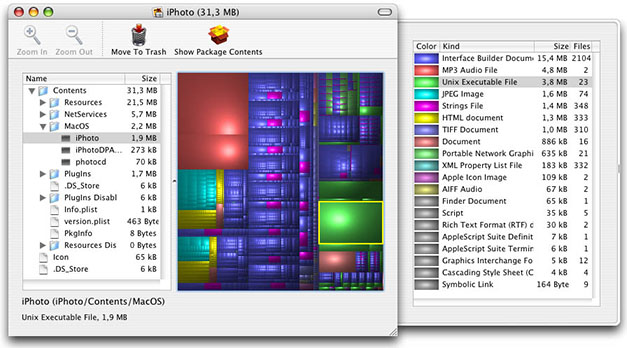
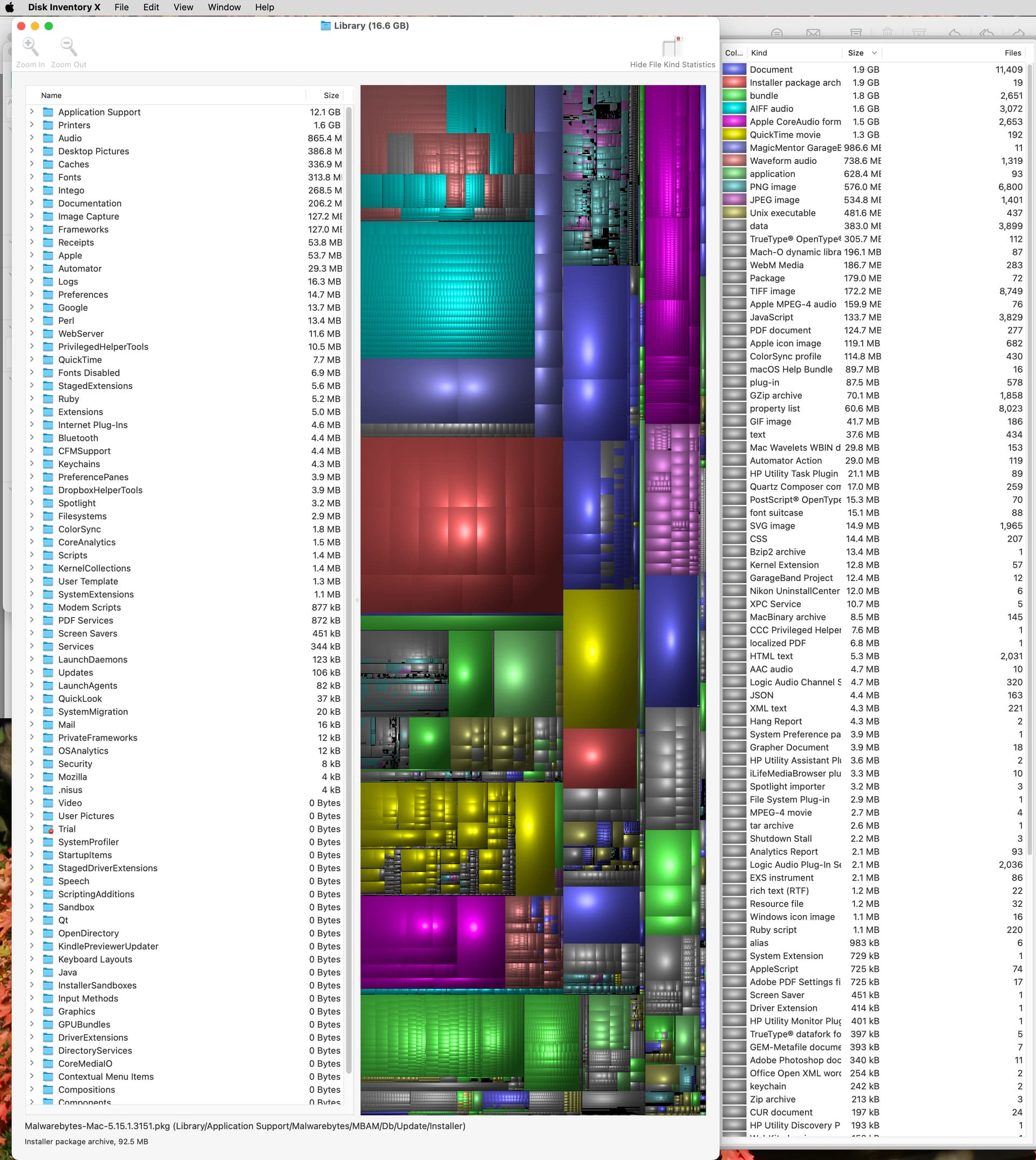
The left-side column is a folder-tree view of your entire file system. The size next to each folder shows the size of everything stored in that folder. You can expand the triangles to drill down, looking for sub-folders.
The graphic region in the center represents all of your files. Each rectangle represents a file and the size is proportional to each file’s size. They are also organized so a folder will be represented by a rectangular region.
If you click on a file or folder in the left-side column, it will be highlighted in the graphical region.
If you click on a box in the graphical region, it will tell you what the file is. Which is useful if you see a few very large single files and what to know what and where they are.
What I can see from this is that you have 16.6 GB in your Library folder, which is very moderate. Most of the data is in Application Support (12.1GB), which is normal. This is not a problem at all.
I have 185 GB in my Library folder, 80 GB in my iCloud drive folder, and 83.3 GB in my Application Support Folder. Which is normal for me since I have 149 applications.
Use @Shamino’s advice and poke around the rest of your user folders.
Regarding buying a new Mac, my experience is that users mostly get in trouble for choosing a too-small internal disk. Not because they had too little RAM.
Here is how I calculate: Take the amount you think you need and multiply by 2. This is what you need today. To future-proof, multiply by 2 again.
Thanks for the interpretation. The 216 Gig that I got when I checked Information on the Library folder was a concern, but I couldn’t see anything anywhere near that in the Disk Inventory X listing. I also agree with you on the need for a bitter internal disk. Where does the Apple Store hide the section for ordering larger storage and RAM?
Sometimes you don’t really need any 3rd party apps to get things done. This may be true in your examination of the user Library folder. If it is anything like my Library folder on a 2018 Mac Mini with 512GB drive, the bulk of the used space will be used by a handful of sub-folders.
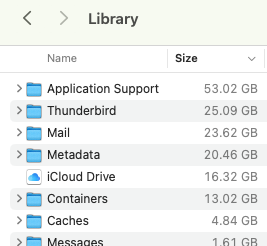
Open the Library folder, set the window view to List mode and sort by Size. The top several folders will be the large ones and of those you hope to find one or more that contain user generated data that you can safely relocate, archive or delete in order to reclaim disk space. The following is an example of how you may find large sets of user data that can be managed to free up disk space.
In my case the user’s Library is 160GB with only six folders exceeding 10GB each:
Out of those top six the Thunderbird (email client), Mail and iCloud Drive folders point to prime targets for my housekeeping to reduce data storage. I would not remove anything directly from the Library sub-folders, rather opening and managing content from within the related apps and services.
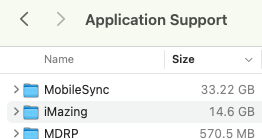
Many/most of the Library sub-folders should be considered hands-off. This is true of the Metadata and Containers folders in my example—I just have to accept their use of ≈33GB. But the biggest space hog, the Application Support folder turns out to have large potential space savings! Inside is revealed a pair of folders that together contain 47GB!
MobileSync holds iOS device backups (generated via iTunes or the Finder) and iMazing holds an archive of older version iOS apps, and all of this I am free to relocate or delete as desired.