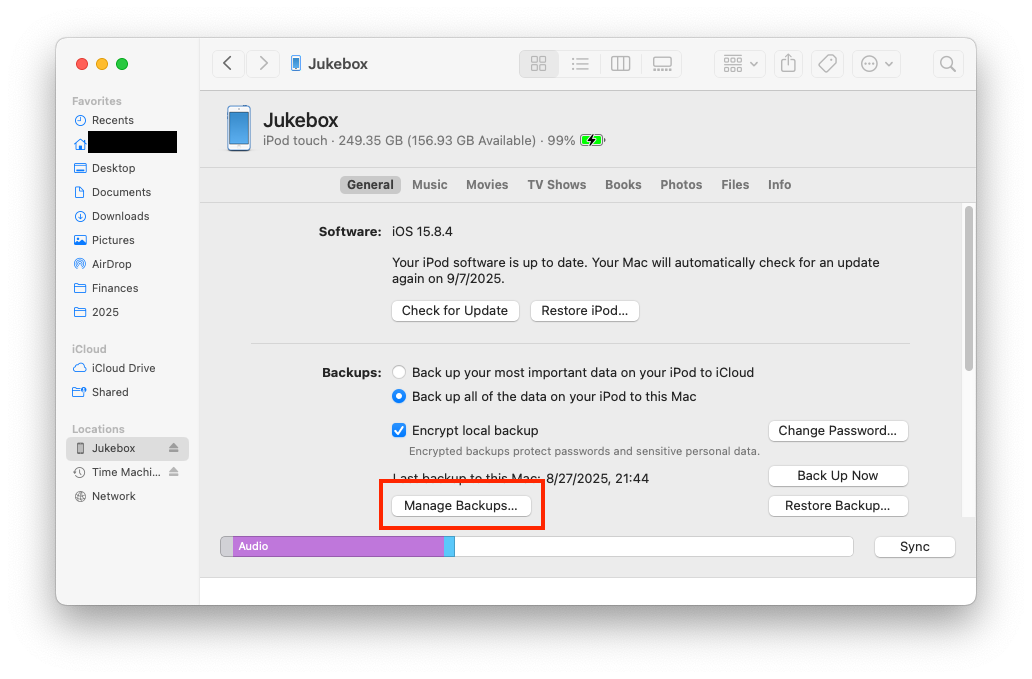
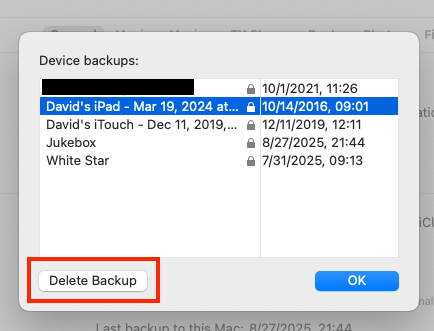
From there’s you’ll see all your device backups, including the date they were created. You can delete any one you want to be rid of (e.g. for devices you no longer own or archival backups you no longer care about):
Thanks all fir the help. After your collective advice, I ordered a MacMini with
•Apple M4 chip with 10‑core CPU, 10‑core GPU, 16‑core Neural Engine
•32GB unified memory
•2TB SSD storage
•Gigabit Ethernet
•Three Thunderbolt 4 ports, HDMI port, two USB‑C ports, headphone jack
From the MacStore for $1,799.00. That’s pretty much what David C. recommended. Those features made sense to me after my 2018 MacMini ran into problems because of inadequate memory and storage. My wife had to replace her old MacBook Pro laptop a few months ago and looking at her new 2024 MacBookAir and compating it to my aging 2017 MacBook convinced me the new one was well worthwhile.
Thanks to Diane D for mentioning her experience and recommending Micro Center. We’re in the Boston area, and have long shopped at the Cambridge Micro Center. That’s where we got my wife’s new laptop, and they do have a deal on a MacMini with 16 Gig memory and 1000 G of storage, but I decided more capacity.
Interesting. For me, with a Finder window set to list view, I only see size values in the size column for non-folder files. For folders, “–” is displayed the size column.
What option did you enable to get the Finder to display the size of folders?
But as we have discussed many times in other threads, take the number displayed with a grain of salt, as it will give you a general idea of the largest size folders but not the actual size in bytes.
The Finder’s folder size will add up the size of every file/folder within.
But, thanks to things like sparse files (where some of the file consumes no disk blocks), copy-on-write clones (where two copies of the same file share the same disk blocks) and hard links, this total may be larger than reality.
Two files that share the same blocks (clones or hard links) may find their storage counted twice, in two different locations. And sparse files will likely have their full size counted, not the number of disk blocks used.
And files that have been off-loaded to cloud storage (and therefore occupying no local storage) may also have their sizes counted.
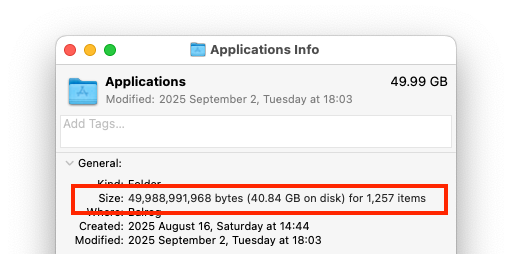
If you do a “get info” on a folder, you will see two sizes. The size of all the files, and the space occupied on disk. These can be significantly different. For instance, take a look at my Application’s folder:
Note that the total size (adding up all the files) is nearly 50 GB (47.7 GiB), but the space on disk is only 40.84 GB. I’m not sure if the space on disk is binary or decimal GB, but either way, it’s a big difference (9.2 out of 50 - 18% if decimal or 6.9 out of 47.7 - 14% if binary).
I’m not sure how tools like Disk Inventory X deal with this.
I do know that Unix command-line utilities like the du command have explicit code to avoid double-counting. For example, if two files in the set being evaluated are hard-links, only the first instance visited gets counted, and the second one it treated as zero:
$ wget www.apple.com
...
2025-09-07 19:12:24 (1.93 MB/s) - ‘index.html’ saved [194388/194388]

$ ls -l
total 384
-rw-r--r--  1 user  staff  194388 Sep  7 19:12 index.html

$ ln index.html foo.html
$ ls -li
total 768
30268474 -rw-r--r--  2 user  staff  194388 Sep  7 19:12 foo.html
30268474 -rw-r--r--  2 user  staff  194388 Sep  7 19:12 index.html

$ du -s foo.html
384	foo.html

$ du -s index.html
384	index.html

$ du -s *.html
384	foo.html
In the above:
I do a wget command to get the Apple home page’s index.html file.
The first ls -l command shows that this file consumes 194388 bytes and 384 (512 byte) disk blocks. This is about what you’d expect. 194388 / 512 = 379.7.
The actual storage size of 384 blocks is because APFS’s default format allocates all files as multiple of 4K (8 blocks). That 379.7 size, rounded up to the next multiple of 8 yields 384 blocks.
To see the block size for a volume, the diskutil info command will show you:
The ln command makes a hard-link, foo.html to that index.html file. The subsequent ls -li command shows:
The two files are consuming 768 blocks (the ls command doesn’t deal with two files that share blocks)
Each file is 194388 bytes
The two files share the same “inode” number (the “30268474” in the first column), proving that they are two hard-links to the same file (and therefore share the same disk blocks).
The subsequent three du -s commands show the disk usage, in blocks:
The first call is for foo.html, which consumes 384 blocks.
The second call is for index.html, which also consumes 384 blocks.
The third call is for both together (*.html). Note that it only shows the first one (foo.html) at 384 blocks, and does not show the second. This is because the du command explicitly looks for hard links (two or more files with identical inode numbers) and only counts the first one it finds, in order to give you an accurate count of how much disk storage is consumed by the requested set of files.