OP here…finally getting back to this because I have to do some reconfiguration of the network anyway. Netgear still hasn’t fixed the original Orbi problem except to reset to factory defaults and start over and based on their support forum it is still potentially a brick the thing operation. While I was considering the Asus and TP-Links previously…I think at this point I’m going to go with Ubiquity Dream 7 and the UniExpress 7 as the meshed one in the office. Does anybody have this setup and if so can you tell me if the wifi mesh connection is in the. WiFi 7 band or configurable separately. I might not actually need the mesh capability but our house is 2000 square feet and Ubiquity says max coverage is 1750…the distance between the main router and the slave one will be about 35-40 feet which is mostly down the hallway and sorta grazes the wall as it goes around the corner to the office. I could probably get away with not using a slave unit but we have YoLink devices in the freezer in the garage and the control node for those that reports temp limits via YoLink to your phone requires an ethernet connection and the node has to be in the office or else it can’t see the one in the garage freezer at all.
Thanks for any insight…although TBH the configuration software on the master and slave along with the iPhone setup probably selects the best mesh setup anyway.
I have a Wi-Fi 5 router, aka AC1750. After I got a M2 MacBook Pro, I found that the router’s WiFi was the bottleneck in Internet connection speed:
Gigabit Ethernet: 554 Mbps down, 559 up
Wi-Fi: 300 Mbps down, 340 up
The MBP is connecting to the router at a PHY rate of 866 Mbps, i.e. 2 streams @ 433 MHz each.
So let’s say I should upgrade my router. Next up would be Wi-Fi 6 (802.11ax), which is 1200 Mbps. But if the actual rate is 35% of the PHY rate, it would top out at 420 Mbps - still slower than the hardwired connection.
Next after Wi-Fi 6 is Wi-Fi 6E (802.11ax @ 6 MHz), which is the best supported by my MBP. The max PHY data rate is 2400 Mbps, which should be sufficient.
However, the Wirecutter is recommending not to get a Wi-Fi 6E router, because “Wi-Fi 7 has leapfrogged Wi-Fi 6E in most respects”.
So buy Wi-Fi 7? Nope. They’re still recommending Wi-Fi 7 for “early adopters”; Wi-Fi 6 is mainstream.
(Note: the MBP is my secondary computer; most of the time I’m on my iMac, which reaches 650 Mbps through gigabit Ethernet.)
The specific instructions vary depending on the router, but most routers allow you to login to their web interfaces and download your configuration settings.
It’s hard to give more specific instructions than look for something similar to “download configuration file”.
It’s particularly useful for more complicated setups, like mesh routers or routers where you’ve assigned a lot of static addresses.
What @josehill said. For example, on my Netgear router the steps are:
Login to the web interface.
Advanced tab.
Administration
Backup Settings
Save a copy of current settings > Back Up
This is a router that has no Cloud interface, so the backup is local. I think that some routers backup their settings automatically to the cloud. Can anyone confirm?
Settings > General > Sharing > Internet Sharing allows you to choose the direction. Either share Gigabit (can be via TB hub or USB dongle or whatever other source you might have) to wifi or share wifi to Gigabit. I have at some point in the past used either way successfully to jerry-rig whatever I was trying to do at the time.
How good is say a Mac mini’s wifi antenna for use as a wifi AP? Are there any commercial antenna add-on setups that could be attached to such a Mac to make it a more powerful AP if you intend to share its Gigabit to wifi?
I appreciate “because I want to” or “out of curiosity” or similar as legitimate reasons to undertake certain tech projects, but setting up a Mac mini as a router doesn’t seem like the greatest idea, in large part because of the configuration issue you later mentioned. Also, it is hard to be fully confident of exactly what is happening on a Mac due to low level, undocumented operating system activities.
If I were seriously interested in building my own router, I would look at starting with a secure, well-audited base, like OpenBSD, and then layering firewall and router functions on top. The next best thing would be to try a Linux-based or BSD-based router/firewall distribution, like OpenWRT, pfSense, or others.
If you do try with your mini, I’d love to hear about how it goes.
Back in the OS 7/8/9 days there was a great piece of software called IPNetRouter (Sustainable Softworks - IPNetRouter | Getting Started) which allowed you to use dual ethernet ports on a Mac to act as a router. It was very good, pretty easy to manage and we used it for several years before moving to a Netscreen hardware router.
I don’t think it made it to OS X and I guess with the avalanche of cheap routers available there’s probably not much demand these days. A bit of a shame, I have lots of old machines I could use.
Personally, I don’t see much practical use in setting up your own router on a MINI or anything else. It’s the same as collecting 432 beer cans from around the world. But why not discuss it, just for fun.
A MINI has likely only a level 2 bridge between its ETH port and its WiFi board. If that’s true we can’t have real routing. This is different on a Mac Pro with two distinct ETH ports. The other aspect is vastly higher power consumption, compared to an actual router, probably quite wasteful.
An earlier comment spoke about MINI as WiFi accesspoint. This touches again the same aspect, Level 2 Bridge, like a switch, vs. Level 3 (routing).
I may be mistaken, but wouldn’t the mini support a second Ethernet interface via a dongle? (Note: I agree that there are much better ways to set up a router.)
The two interfaces are distinct network interfaces. So they are separate hardware ports. If there was a hardware bridge linking them together, macOS would only see one interface.
So you can route between the two ports (e.g. a different IP subnet on each port), in much the same way that my first router (a Linksys BEFSR11) did - it had two ports - one LAN port and one WAN port and implemented NAT for translating my single WAN address to a block of LAN addresses. I connected an Ethernet switch to the LAN port in order to connect the rest of my LAN.
Interestingly, I’m pretty much working in the same fashion today. The router I use today has four LAN ports (and Wi-Fi), but I’m only using one of the LAN ports - connecting it to a 16-port Ethernet switch to connect all the devices in the room (currently 8 devices connected).
As for what Apple does when network sharing is enabled, I couldn’t say, since I haven’t actually used that feature.
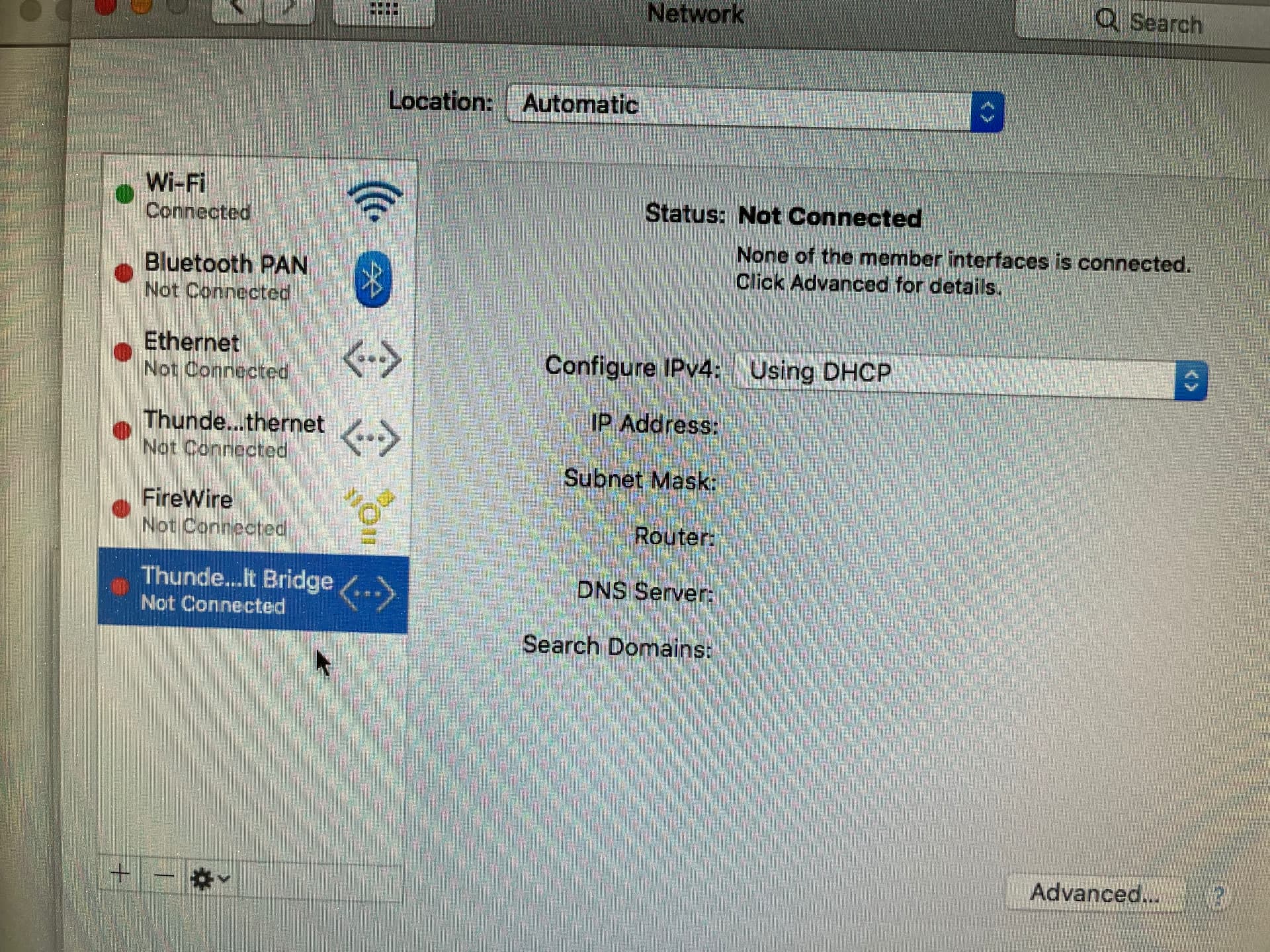
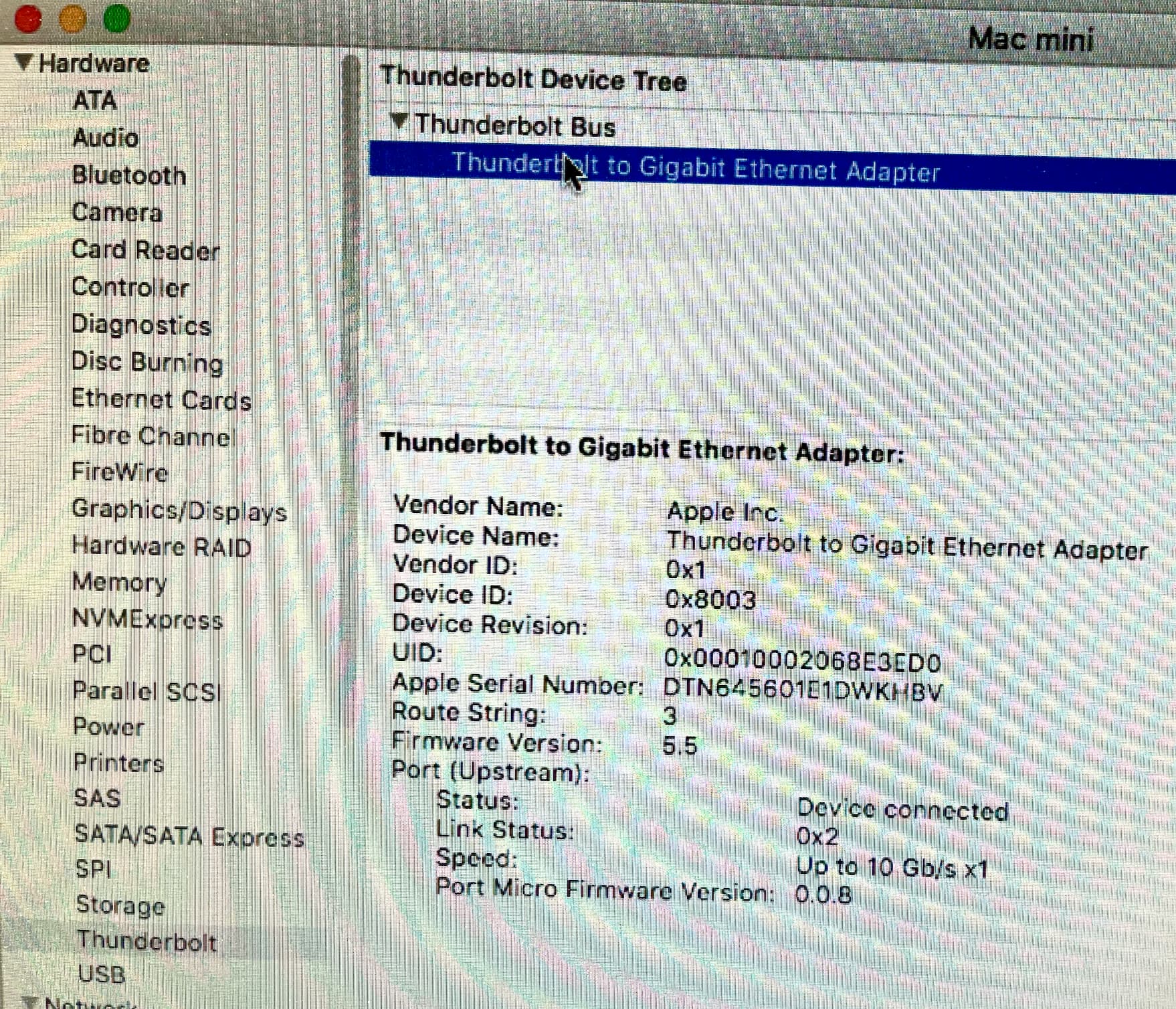
Thunderbolt and USB Ethernet ports should show up in macOS as additional network interfaces. Routing or bridging between them should simply be a matter of software configuration. But again, I don’t know what Apple’s network sharing feature configures.
Setting up and expanding my Ubiquity UniFi LAN with my new Ubiquity Dream 7 since March I have been discovering that LANs can be as complex as the discussion in this thread suggests. Working with the UniFi software and very good AI and human support I get everything working very nicely. But UniFi offers a wide variety of options and features, all easily implemented. Or I should say, easily turned on. Adding a new feature often disrupts the existing system in complex ways that I am just beginning to understand, at least sort of. I am learning a lot, including that there is so much more to learn. My ISP is Gigabit Fiber from Ting, to be upgraded (no extra charge) to 2 GB soon. I think the UniFi system implemented by my Dream 7 console will take full advantage as soon as 2 GB becomes available.
Ubiquity the company was founded with the goal of creating user-friendly software to make the power of networking hardware accessible to a broader market. Professional programmers and network administrators know the importance of caution in adding features to a system, and keeping thorough backups just in case. Home users such as myself are more prone to errors when trying new features, as well as sloppy work habits such as infrequent backups, it any. A user-friendly feature of UniFi is by default once a week it backs up your system to Ubiquity’s cloud server. When you find you have made a tangled mess of your network, one click can restore a previous good state. This automatic feature has rescued me more than once in the last few months.
Apple advises caution, perhaps in a warning dialog when Internet sharing is turned on. Apple’s Network sharing can create loops, which disrupt LAN function. Loops exist when two or more paths access the same device. I do not know the details, I have just seen the warning.
Similarly, wireless meshing can create disruptive loops. My LAN is all wired, so I have wireless meshing inactivated, as recommended by Ubiquity.
At the same time, I have read that wireless mesh points work best when connected to the LAN by a hardwire ethernet backhaul.
In general, wireless and wired LANs seem to work slightly differently from one another. Can someone help me understand this better?
Actually…I do have a backup copy of the settings but discovered as part of reading the lengthy complaints on their thread that in some instances the backup is useless based on the firmware version that made it. One would think the firmware (or the app or web interface) would be smart enough to figure that out but apparently it’s not the case. In any event…since we’ve not got some WiFi 7 devices and the last firmware for my model Orbi is 2ish years old moving on seems the better solution.
In any event…I’m fed up with the lack of support from Netgear so am going to get the Ubiquity Dream 7 and the slave unit that goes with it and move on. I can redo the configuration on the new routers before dropping the Orbis in the trash after nuking them.
And I agree that other than doing it because one can do it that setting up a Mac as the router is not worth it…although shortly after 9/11 we were forced into using some 2U Compaq servers with 4 or 5 network cards in them and some flavor of unix on them as routers because Cisco wasn’t able to get us any of their real routers immediately to support a home away from the Pentagon for some DoD people as it seemed like the whole thing would burn down for awhile. Generally speaking though…like running your own mail server some things are just more trouble and effort than warranted unless playing with stuff like is one’s thing.
I’ve been happy with the Ubiquity EdgeRouter X for years. IPNetRouter was exceptional for its time because Apple adopted Mentat Portable Streams (MPS) and Mentat/TCP which served as a plug-in architecture for networking (originally designed by Dennis Ritchie). IPNetRouter configured the underlying network stack and added a NAT module and DHCP server. 25 years and 3 design iterations later Apple’s network extension architecture is not as elegant as what they had back in 1999, but MacOS X had other problems to solve and BSD networking was the open source standard.
With MPS you could walk the network plumbing to find the order of modules and insert a standardized plugin module at any point. You still can’t do this in macOS 15. Instead you ask the system to install your extension, use weird macOS APIs to write your code, and pray it doesn’t conflict with others. You also have to re-write your code every few years as Apple transitions from one architecture or API to another.
MacOS X and beyond isn’t an easy platform for network plumbing and I eventually took a day job. It sure was fun while it lasted.