I know this question has been asked here before, and I’ve reviewed those threads. They didn’t help. Here is my situation. This is occurring on a M4 MacBook Air, fully updated macOS 26.5.
In order to do some diagnostic testing of a problem, Apple Support had me create a Test user. I did that (didn’t fix that problem, which involved the new Pages Creator Studio). I like the Test user for a while but never used it except the one time to test Pages. I deleted the Test user, but I think I used the option to leave the user directory in place.
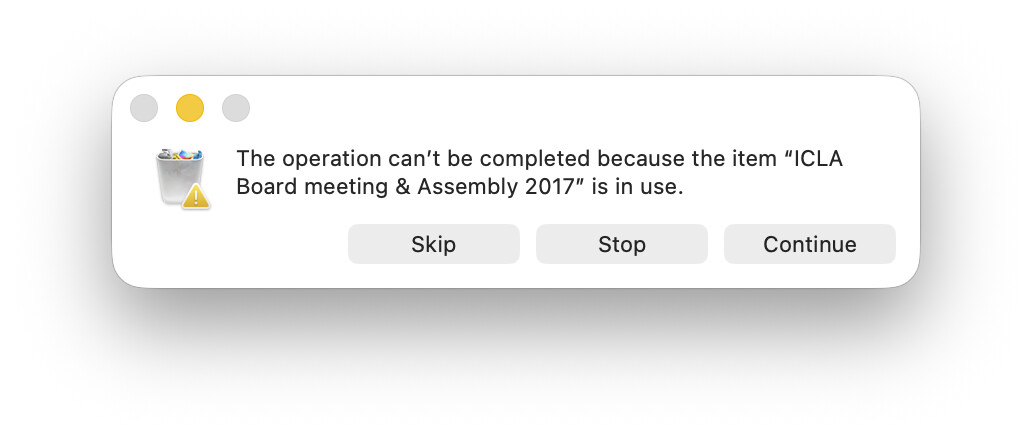
Last week I decided to delete that user directory, so I dragged it to the Trash and emptied the Trash. Some deleting activity took place, but I am now left with one folder named “Test” in the Trash. If I open it, it shows that it is empty. Nothing visible in that folder. But if I try to delete the Trash now, I get a series of messages that the operation cannot be deleted because files and folders are in use.
The important thing is that this list seems to include items in my own user directory. E.g., folders in my Documents folder, “com~apple~CloudDocs”, “Mobile documents”, “Library”, and also folders with names that are in my user account (such as “UNM” or the specific name of a folder with organization files), etc. I don’t understand why the test user would include documents in my (admin) user Library.
In any case, I have tried various methods to empty the trash and delete this “Test” folder. Nothing works. Of course, I am also fearful that if I am successful at fully emptying the Trash, it will delete files and folders in my user account.
I do have Sync This Mac Documents & Desktop Folders enabled, for syncing across my MacBook Air, Mac mini, iPhone, etc.
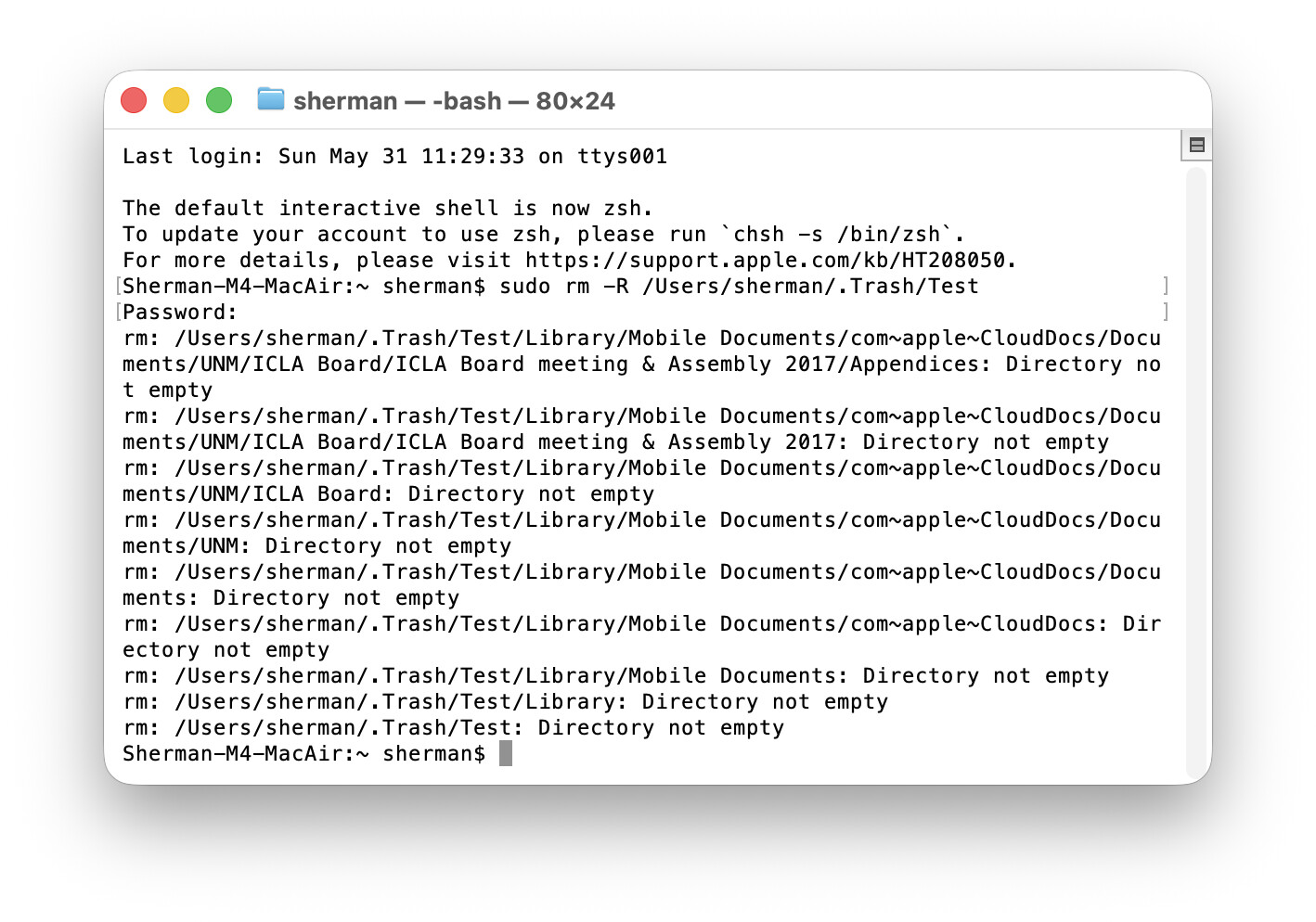
A follow up to my initial post. I tried a terminal command for what I thought would be recursively emptying the Test folder in the Trash. Here is the output. The directories are not empty, and the -R command that I thought would deal with that didn’t. At this point, I feared I am playing with fire, so I stopped.
CleanMyMac has a function to force empty the Trash. But these discussions have had mixed reviews about this software. I have used it when prompted that it was time to empty the Trash but that hasn’t involved a forced empty.
The presence of some of your user folders is puzzling. Make sure you have a Time Machine and/or Carbon Copy Cloner backup before forcing a delete.
Thanks to both Michaels. Michael Paine, yes, I have owned CleanMyMac but decided to stop subscribing. And yes, it’s this presence of some user folders in this formerly Test user Library that puzzles me too.
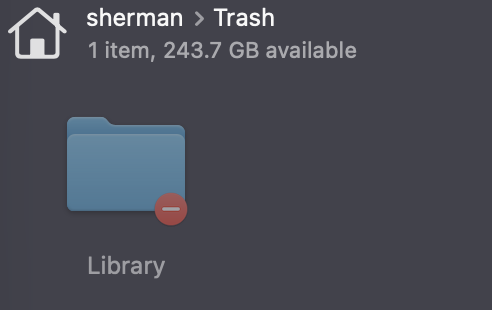
Michael Schmitt, the situation has shifted a bit since I posted. I used an app (ForkLift) to view hidden files in my Trash, suspecting that the Test folder that was showing as empty had hidden files or folders. And that was in fact the case (see attached). I cannot open this Library folder because I’m told I don’t have permissions. I took this Library folder out of the Test folder, tried deleting the Trash, and now the Test folder is gone but the Library folder remains. If I open the Trash in the Finder, it shows as empty (but again I’m assuming that’s because this Library folder is hidden but there).
This leads me to assume it is the Library from the Test user. But I’m still left with Michael Paine’s puzzle: why am I being told, when I try to empty the Trash, that some folders with names from my own User account are in use?
First thing is: the Finder lies to you. It displays files and folders with different names than they really have, and even with a fake directory structure. The Terminal reveals The Truth.
Try ls -lde ~/.Trash/Library and report what it says. I’m guessing it will be something like:
OK, the fact that you’re not user 502 (that’s the test user account, long gone from the system) shouldn’t block you from deleting Library, since deletion is governed by the file mode of the parent folder (~/.Trash).
But the ACL does block it. It is saying that any member of the Everyone group, which is to say, everyone, is denied ability to delete this folder. You have to clear that ACL if you want to delete it, with chmod -a# 0 ~/.Trash/Library.
But if you’re concerned about the contents before deletion, we need to resolve those questions first.
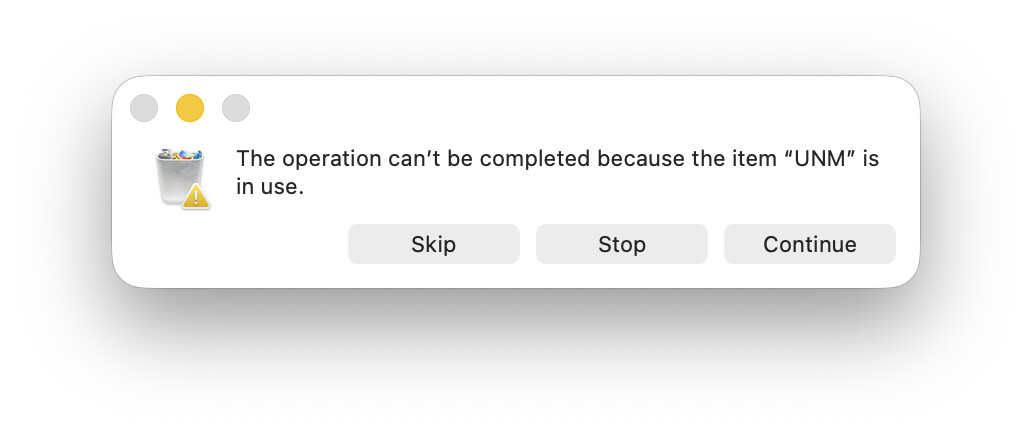
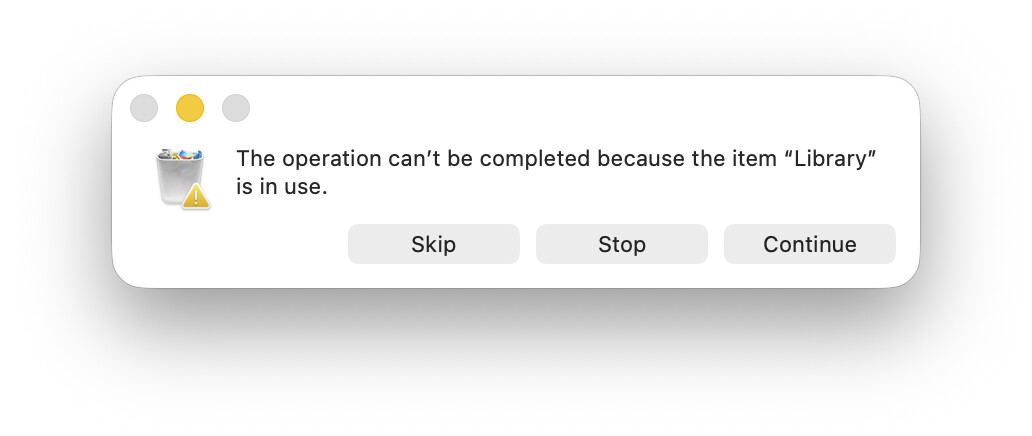
If I now try to empty the Trash using Finder, that’s not an option because the Trash shows as empty, nothing to empty. So I move a file to the Trash, select delete, and I get a series of messages about folders in use. These are selected screenshots from the error messages. Again, Finder screenshots, not a list of files in the Library folder in the Trash using terminal (because I don’t know how to do that).
Folder “UNM” is the name of a directory in my ~Sherman account, as are the other two screenshots.
My big question is: is the Finder also lying to me that folders in my user account (sherman, the admin) are in this hidden Library folder in the Trash? How can that be?
Try lsof | grep UNM, then control-C to kill it. lsof lists open files. What we’re interested in is if a) the file really is in use, and b) if so what’s the actual file path?
I am a bit concerned, since I really don’t understand why this Test user Library is reporting names of folders in my main user account. I’m suspecting it’s because I have syncing of Documents & Desktop folders turned on? But that’s turned on in my sherman main account (and only account now that Test is gone, except for the Guest account which I think Apple supplies, and is not enabled).
I’m not a Unix head either, but the way I understand it is that the old way for permissions on Unix-like systems is owner, group, everyone. For example, a permission list like “rwxr-xr–” means that the owner of the file can read, write, and execute it (rwx), members of the file’s one and only group can read and execute but not write (r-x), and everyone else can just read it (r–).
This wasn’t fine-grained enough, so there’s a second type of security: Access Control Lists. And that’s all I know about it, except that I imagine it works like Windows security.
Also it occurs to me that I was just assuming that the ACL was blocking deletion of the folder. It probably blocks emptying the Trash from the Finder, but maybe sudo rm with -f would blow right past it.
I realize this post has gotten complex, and my issue lost in the thread among unix commands. I thought I would summarize:
What was in the Trash originally was the Test user folder created for diagnostic purposes, as suggested by Apple Tech Support. It showed nothing inside/empty.
Eventually I could see inside (with ForkLift to make hidden files visible) and I could see the hidden Library folder
I took the Library folder out of the Test folder (using ForkLift, since the hidden Library folder in the Trash still was not and is not visible to the Finder)
But I cannot open the Library folder (which is still in the Trash). “You don’t have permission” yada yada
I emptied the Trash. This deleted the Test folder (which really was itself empty now)
But I could not delete the Library hidden folder in ForkLift.
Trying to empty the Trash from the Finder reports various folders “in use”. These folders have the same names as my sherman account folder structure inside Documents.
I’m thinking this is the ACL issue, as Michael suggested.
My questions:
Why is this hidden Library folder from the Test user showing folders that are in my User account “sherman” which of course is shared across MacBook Air (where the problem lies) and Mac mini because I have syncing of Desktop & Documents folder?
If I delete a file on the MacBook Air that is on the Destkop, it is deleted on the Mac mini Desktop. Of course. That’s how the syncing works.
Thus my concern:
If these folders in hidden Library in Trash are the synced files (or however Apple handles this syncing process) of my Desktop and Documents folders, then
will deleting that Library folder in the Trash also delete stuff on MacBook Air and Mac mini sherman User account?
I don’t see how that last question is possible, how deleting something that was in the Test User account would delete something in my sherman User account. But I don’t understand why those folders that are listed as “in use” when I try to empty the Trash are clearly folders in my sherman User account. I’m missing something there. The whole point of creating a test user is that files are NOT shared with the admin sherman User account, correct?
I have none of the “terrminal fu” that others here have.
But if you put this Mac into my hands, and said “get rid of that trash folder, nothing else is working”…
Make sure you have a GOOD backup. I prefer CCC and have never, ever touched or used time machine.
Use the “erase all content and settings” option to reset the Mac to “moment zero”. (Moment zero is how it was the moment you took it out of the box and powered it up for the very first time)
Use setup assistant to restore from the backup. If offered any remnants of the deleted account, UNcheck those options (not even sure this will happen).
See if this gets rid of the problem.
I realize this is “the blunderbuss approach”.
But if it works… itworks.
Hmmm…
Would enabling the root account give the OP “the power” by which to rid himself of this troublesome trash?
Another approach:
Boot from an external drive.
Mount the internal data portion of the drive (typically named “HD Data”) on the desktop.
Bring up the get info for the internal drive.
Click the lock and enter password.
Put a checkmark into “ignore ownership on this volume”.
See if the troublesome folder can be deleted now.