Version 8.11.8 of 1Password for Safari does. Check the second item of “What’s New”.
1 Like
A week ago, i.e. c. Aug. 20th, 1Password provided this response re. the DefCon clickjacking issue and provided a link for interested parties to “learn more”.
Thanks for all the questions and the thoughtful discussion. We wanted to provide a bit more context about the research and what it means for 1Password users.
A researcher identified a variation of a clickjacking attack, where a malicious website can trick someone into unknowingly triggering the autofill action in a browser extension. They reported the issue through our bug bounty program and worked with us ahead of their DEF CON presentation.
Clickjacking is not unique to the 1Password browser extension. It is a long-standing web attack technique that affects websites and browser extensions broadly. The underlying issue lies in the way browsers render webpages. After conducting a thorough review, including prototyping potential mitigations, we concluded there’s no comprehensive technical fix that browser extensions can deliver on their own.
Your information in 1Password remains encrypted and protected. Clickjacking does not expose your 1Password data or export your vault contents, and no website can directly access your information without interaction with the browser extension’s autofill element. At most, a malicious or compromised webpage could trick you into autofilling one matching item per click, not everything in your account.
We take this and all security concerns seriously, and our approach to this particular risk is to focus on giving customers more control. 1Password already requires confirmation before autofilling payment information, and in our next release, which is already shipped and undergoing review from the browser extension stores, we’re extending that protection so users can choose to enable confirmation alerts for other types of data. This helps users stay informed when autofill is happening and in control of their data.
On the question of disabling autofill: while it might feel safer, it can actually create more risk. Without autofill, people are more likely to reuse weak passwords or copy and paste credentials into websites, where they can still be stolen if the site is malicious. Autofill also protects you against phishing sites by only working on the exact domains your credentials are saved for. In practice, for the majority of users, we believe the risk of disabling autofill is greater than the risk of clickjacking.
Passkeys are not impacted by clickjacking. Passkeys are tied to the website they’re created on and generate a one-time signature during login. That means no reusable secret is ever exposed, and even if someone tried clickjacking, there’s nothing permanent to steal.
2 Likes
Thank you for your response, but I’m confused.
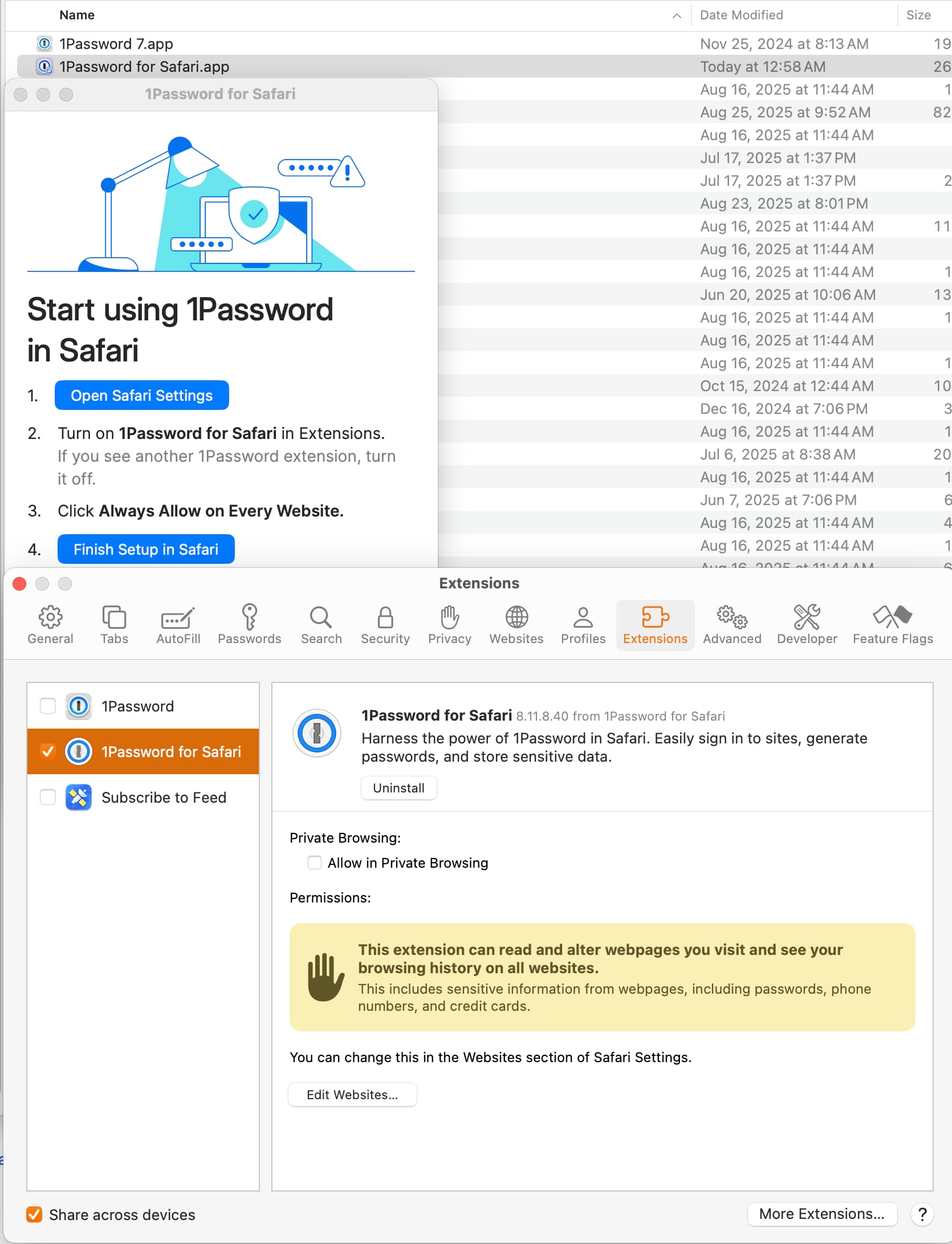
I opened Safari and then Extensions and didn’t see any way to check the version or What’s New so opened the app from the Finder and then back to Safari and don’t see 1Passwords instructions to “Always Allow on Every Website” nor “What’s New.”
1Password installation has always been a bit baffling for me. I’ll spare you the details.
BTW, I mostly use Arc as a Browser, which uses a Chrome Extension?, but that has no separate app?
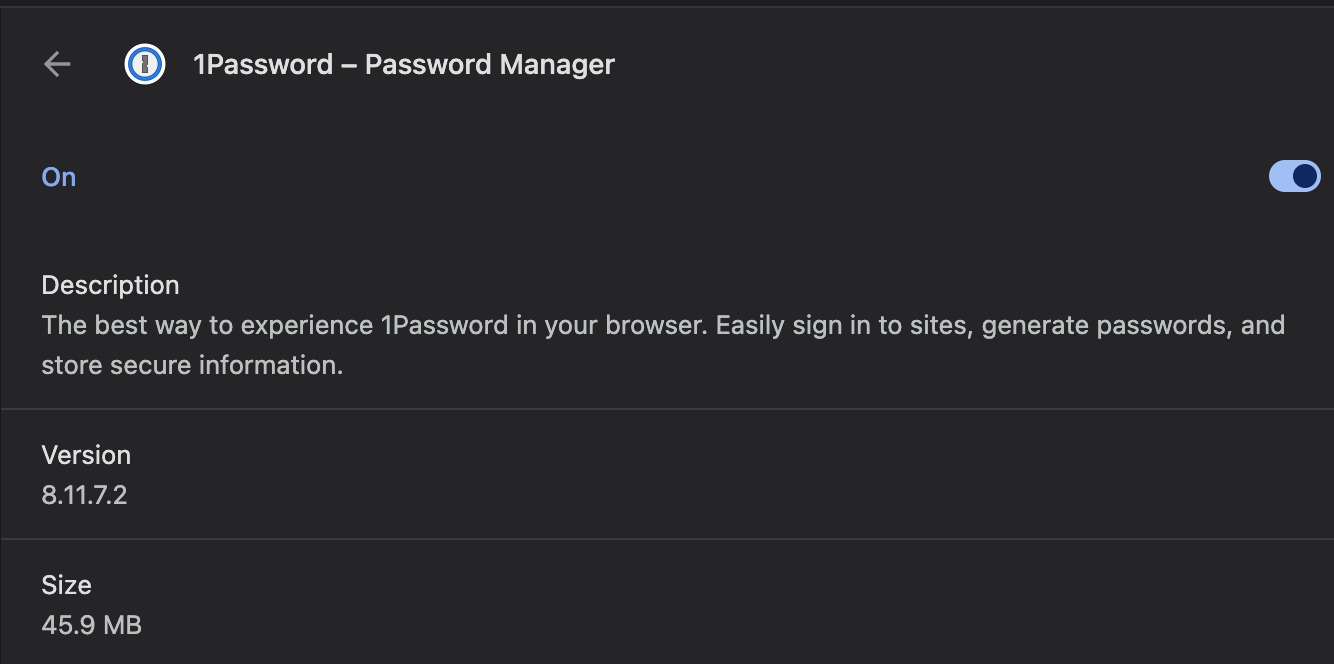
Apparently auto-updating since there is an “Update” button which I clicked and the version number was the same before and after. Unsurprisingly Chrome shows the same version.
-
Google tells us: “To allow 1Password to always fill passwords on every website in Safari on iOS, open Safari, tap the ‘aA’ icon in the address bar, select 1Password (or “Manage Extensions”), and then choose “Always Allow” > “Always Allow on Every Website”. For Mac, the option to “Always Allow on Every Website” is chosen when you install an extension or manage its settings from the Safari toolbar.”
-
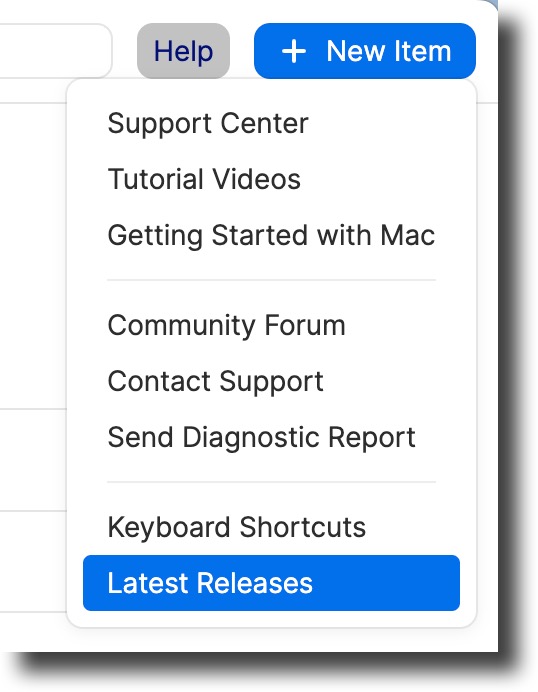
To get to ‘What’s new’ open the 1Password app and in the top, right-hand corner, to the left of the ‘+ New item’ button, click first on ‘Help’ and then on ‘Latest releases’ (see my screenshot).